

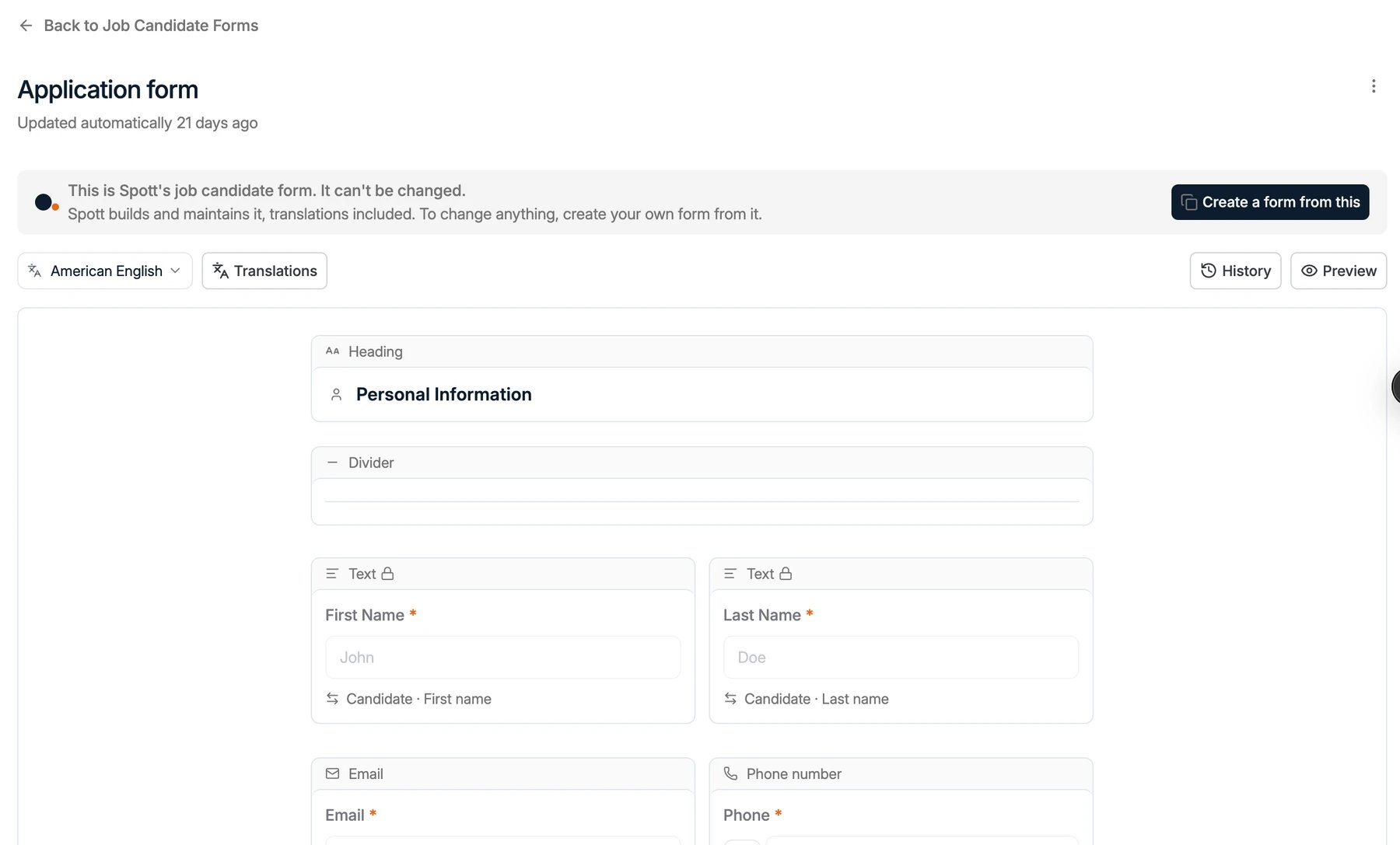
Spott’s application form
Every workspace has the Application form, built by Spott. It is active until you make another form active. It asks for:- First name, last name, email and phone, all required
- LinkedIn and location, both optional
- Resume / CV (required) and cover letter, as PDF or DOCX up to 10 MB
- A required checkbox confirming the information is accurate, with links to your terms of service and privacy policy
Create a job candidate form
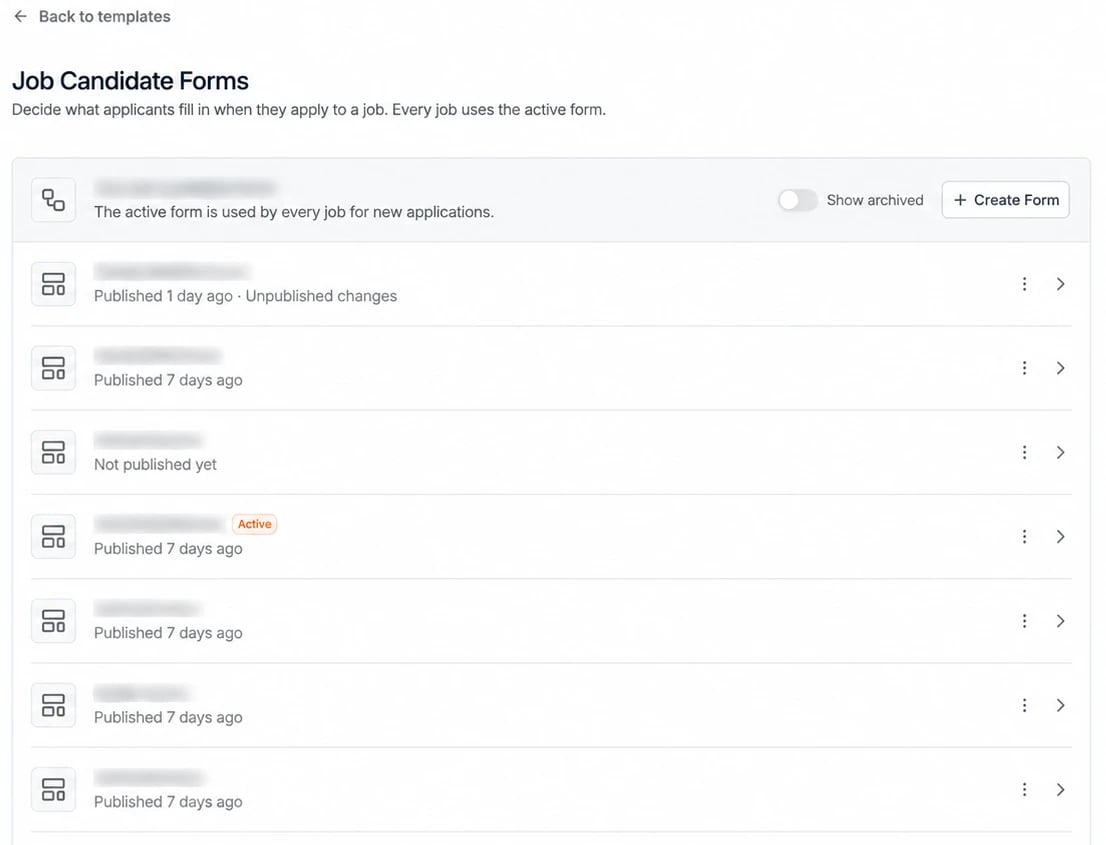
- Go to Settings → Templates and select Job Candidate Forms.
- Click + Create Form.
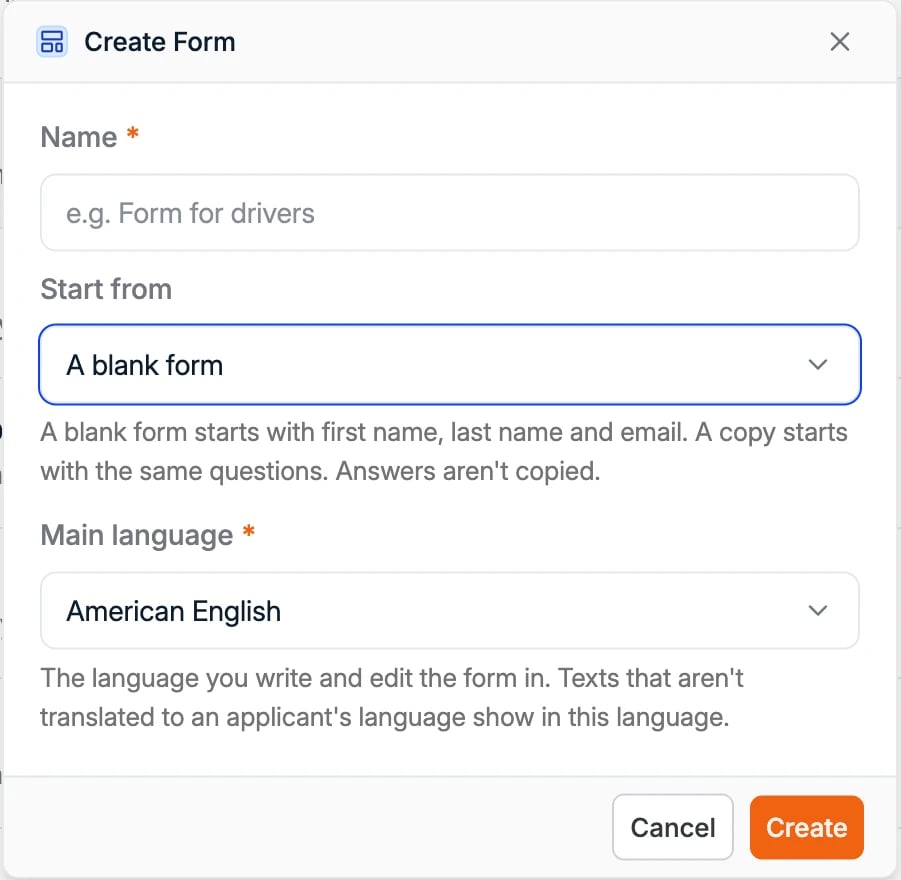
- Enter a Name for the form.
- Under Start from, choose A blank form, or an existing form to copy its questions. Answers are never copied.
- Choose the Main language. This is the language you write and edit the form in. Texts that aren’t translated into an applicant’s language show in this language.
- Click Create.
Build, translate and publish the form
Click + Add to form to add headings, text, candidate details, documents, a consent question or your own questions, and choose under Where the answer goes which field stores each answer. Then preview it, translate it, and publish it. The form editor covers every element and setting.Make the form active
Publishing doesn’t make a new form active. To use it for applications, click the three dots next to the form, in the list or at the top right of the form, and select Make active. Only one form is active at a time, and it is marked Active in the list. The active form applies to every job. When you change it and publish again, every job uses the new version from then on. Applicants keep seeing the previous version until you publish.Where applications arrive
Applicants reach the form through Apply on your job board. New applications arrive in the job’s Applicants tab. See inbound applications. When an applicant is already in Spott, their answers are added to the existing candidate, following the If the candidate is already in Spott setting of each question. Their name, email, phone and LinkedIn are never overwritten.Related
Candidate Forms
Send candidates a personal link to a form you build, so they can update their profile,
upload documents or give consent themselves.
Form Editor
Every element and setting, translations, publishing and version history.