

- Job Stages, the pipeline candidates move through on a job
- Job Statuses, how a job itself progresses
- Opportunity Statuses, the same for opportunities
- Company Stages, for the client relationship
- Speculative Presentation Stages, for candidates you present without a vacancy
Job Stages
The Job Stages list is the pipeline candidates follow in a job, for example Application, Long List, Short List, Outreach, Interview, Presentation, and Offer.- Drag stages by the handle to reorder them.
- Click Add Stage to create a new stage.
- Use the row menu, the three dots at the end of a row, for Edit, Edit Labels, and Delete.
Tracks
With multi-track, an Enterprise plan feature, the Job Stages section holds more than one track: an ordered set of job stages for one kind of job, such as temp or perm. Each job follows one track, chosen when the job is created, and the same stage can sit in several tracks. Without it, your workspace has a single track and this section works exactly as described here.
- CV Sent: the stage at which a CV is considered sent to the client. This drives the “CV Sent” reporting metric.
- First Interview: the stage at which a first interview is considered completed.
How the markers turn into numbers
Neither metric is ever recorded by hand. Spott logs one the moment a card enters the marked stage, which has consequences worth knowing before you read a report:- The date is the stage change, not the event. A CV counts as sent when the card reaches the CV Sent stage, even if you emailed it a week earlier, and an interview counts on the day you move the card rather than the day of the interview itself.
- Skipping stages still logs them. Dragging a card from Application straight to Interview logs the stages in between, so the funnel stays continuous.
- Moving a card back erases the KPI. Pull a candidate back to an earlier stage and the metric it earned goes with it.
- Bulk moves count too. Deleting a stage and moving its candidates elsewhere logs every one of those moves as a pipeline movement, which inflates the counts for that day. On a large pipeline this is the usual explanation for a sudden spike.
The Default Job Advert Stage
The Default Job Advert Stage is the job stage where someone lands when they apply through your job board, LinkedIn, or a multiposter. It is a dropdown on the Stages page, next to the CV Sent and First Interview markers: you set it once here, in Settings → Stages, and every job created afterwards uses it. Before, this was a per-job setting, which meant remembering it on every new job and quietly getting a different pipeline entry point on the ones where you forgot. Set it workspace-wide and inbound applicants arrive in the same place on every job.The default decides where an accepted inbound applicant lands, not whether they are
accepted. Applications still arrive on the job’s Applicants tab for review first. See
inbound applications.
Labels: substages within a stage
A stage can carry labels, which work as substages inside it, added with Edit Labels on the row menu. An Interview stage, for example, can hold First interview, Second interview and Third interview without becoming three stages. Labels show on the candidate’s card and application, so you get the detail while your funnel reporting still counts one Interview stage.Job Statuses
Where job stages track candidates, Job Statuses track the job: Lead, Open, Interviewing, Offers sent, Won, Lost. Each status carries two settings:- A closing rate percentage, your likelihood of filling a job in that status. It is what makes a weighted pipeline forecast possible, for example 10% at Open and 75% at Offers sent.
- Show jobs in this status for search, which marks the status as one where the job is actively being worked.
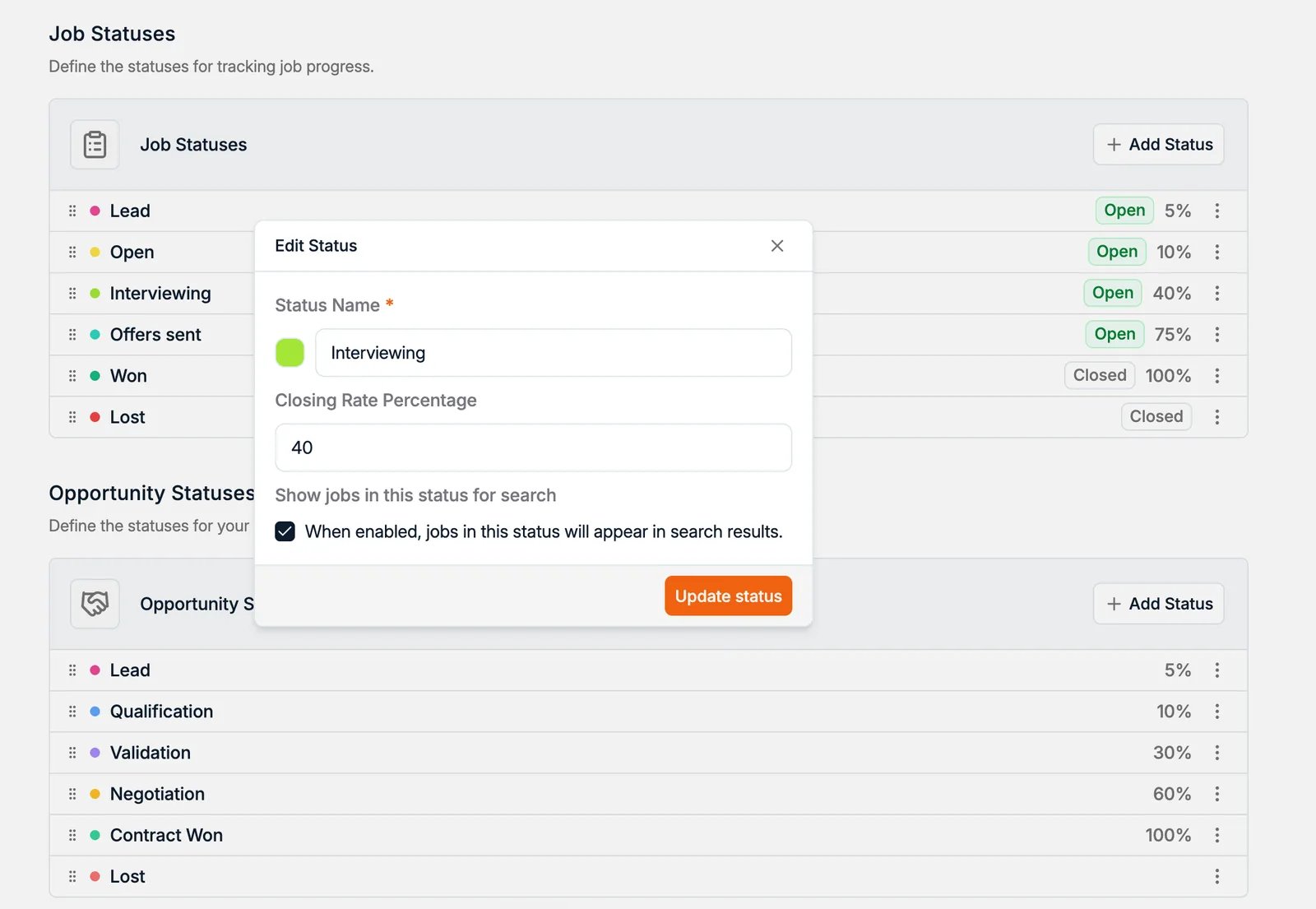
- Which jobs appear on the Dashboard at all.
- What the Dashboard’s Pipeline Summary counts.
- What a candidate profile lists under Active applications.
Speculative Presentation Stages
Not every candidate you present is attached to a vacancy. When you approach a client with a strong profile and no open role, that presentation runs through its own pipeline, typically Shortlist → Pitched → Client Interested → Check with Candidate → Interview. It is kept separate so speculative work does not distort the reporting on your live jobs, and it has its own CV Sent (Speculative) and First Interview markers. See presenting candidates. If your workspace does no speculative work, an admin can switch the feature off under Settings → General, and this section disappears with it.
Company Stages
Companies run their own pipeline for the client relationship: New, Prospect, Lead, Customer, Lost. Pipeline Strategy at the bottom of the section controls how company pipelines are organized.
Pipeline Strategy is a single on/off toggle at the foot of the Company Stages
section. Left off, a contact inherits the stage of the company it belongs to. Switch it
on to decouple the two, so a contact carries its own stage independently of its company.