

Where consents live
Open a candidate or contact and go to the Consent subtab on the Overview tab. It has two sections:- Consent: that person’s consent records.
- Marketing Opt-out: opt-outs that exclude the candidate from marketing emails.
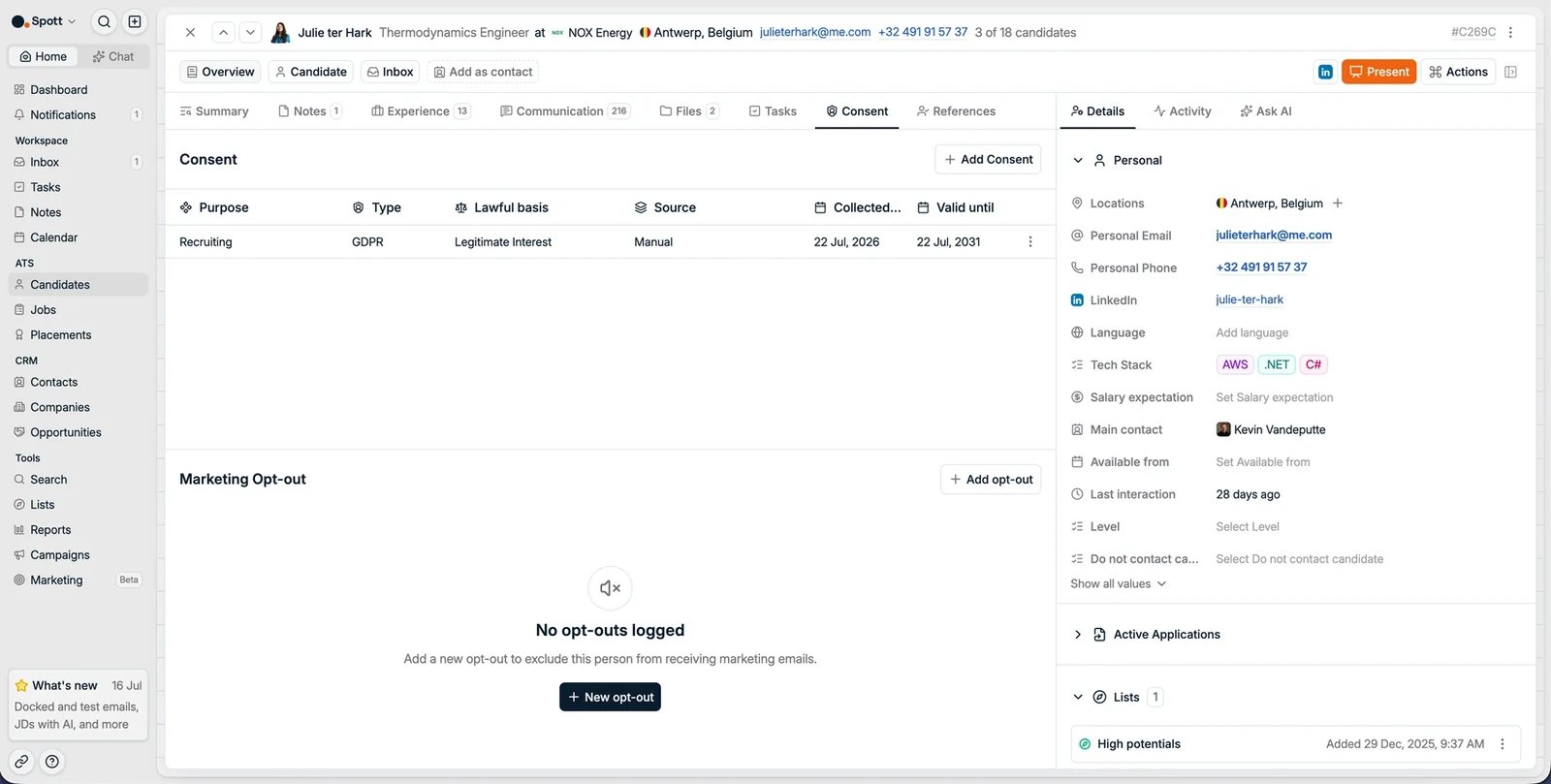
Configure consent purposes
The consent purposes candidates can be tracked against are managed from Settings → Data Model → Candidates → Consents. Spott ships with system purposes such as Recruiting, Marketing Email, Marketing SMS, and WhatsApp Business Marketing, each with a default expiry time. Use Create your own consent purpose to add custom purposes for your workspace.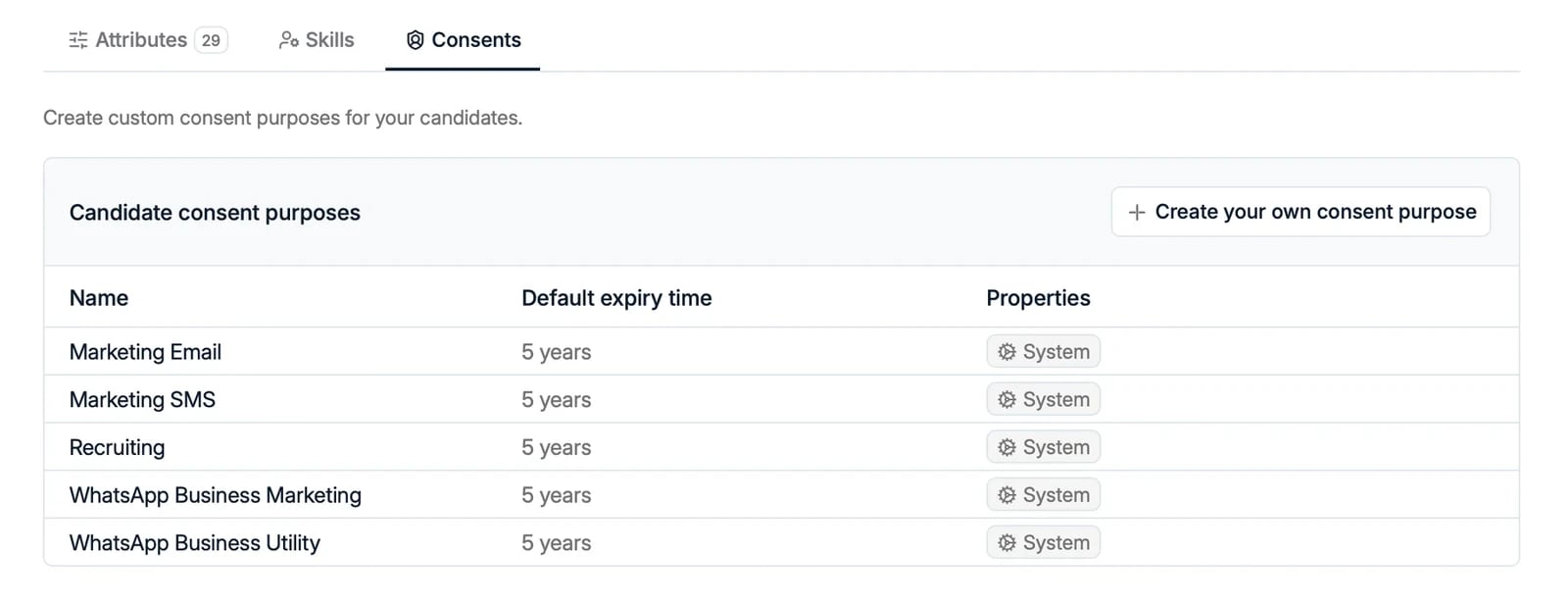
Add a consent
Most consent records are created by hand, on the record, as below. The exception is the Request updated CV link: a candidate who accepts your terms there has their consent written to the Consent subtab for you. Your terms and privacy policy are configured under Settings → General.- Open the candidate and go to Overview → Consent.
- Click Add Consent.
- Fill in the fields:
- Purpose, for example Recruiting, Marketing Email, or a custom purpose
- Type and Source
- Lawful basis, for example Consent, Legitimate Interest, or Contract
- Valid until
- Save.
Stay compliant
Spott gives you the tracking and the triggers; you stay in charge of what happens to a record. In practice that is a routine:- Track expiry dates so you renew consent before it lapses rather than after.
- Use the compliance filters on the Candidates and Contacts views to pull up everyone whose consent is about to expire, or has already.
- Reach out and record the renewal. A campaign or an automated email handles the outreach; the new consent goes on the record when they answer.
- Act on what has lapsed, by deleting or anonymizing those records once you have decided they should go.
- Honor opt-outs everywhere. An unsubscribe from marketing does not stop a colleague emailing that person one-to-one. When someone asks not to be contacted at all, add a Manual (all channels) suppression.
- Keep one record per person, by working through the duplicate candidates: an opt-out on one copy does nothing for the other.
- Clear out files you no longer need from Compliance → Files, which filters and deletes files across the whole workspace.
Expiry flags a record, it does not act on it. Spott never deletes or anonymizes a
candidate, a contact, or their CV on its own. Retention is a judgement call with legal
consequences, and it stays yours: nothing disappears from your database because a date
passed.