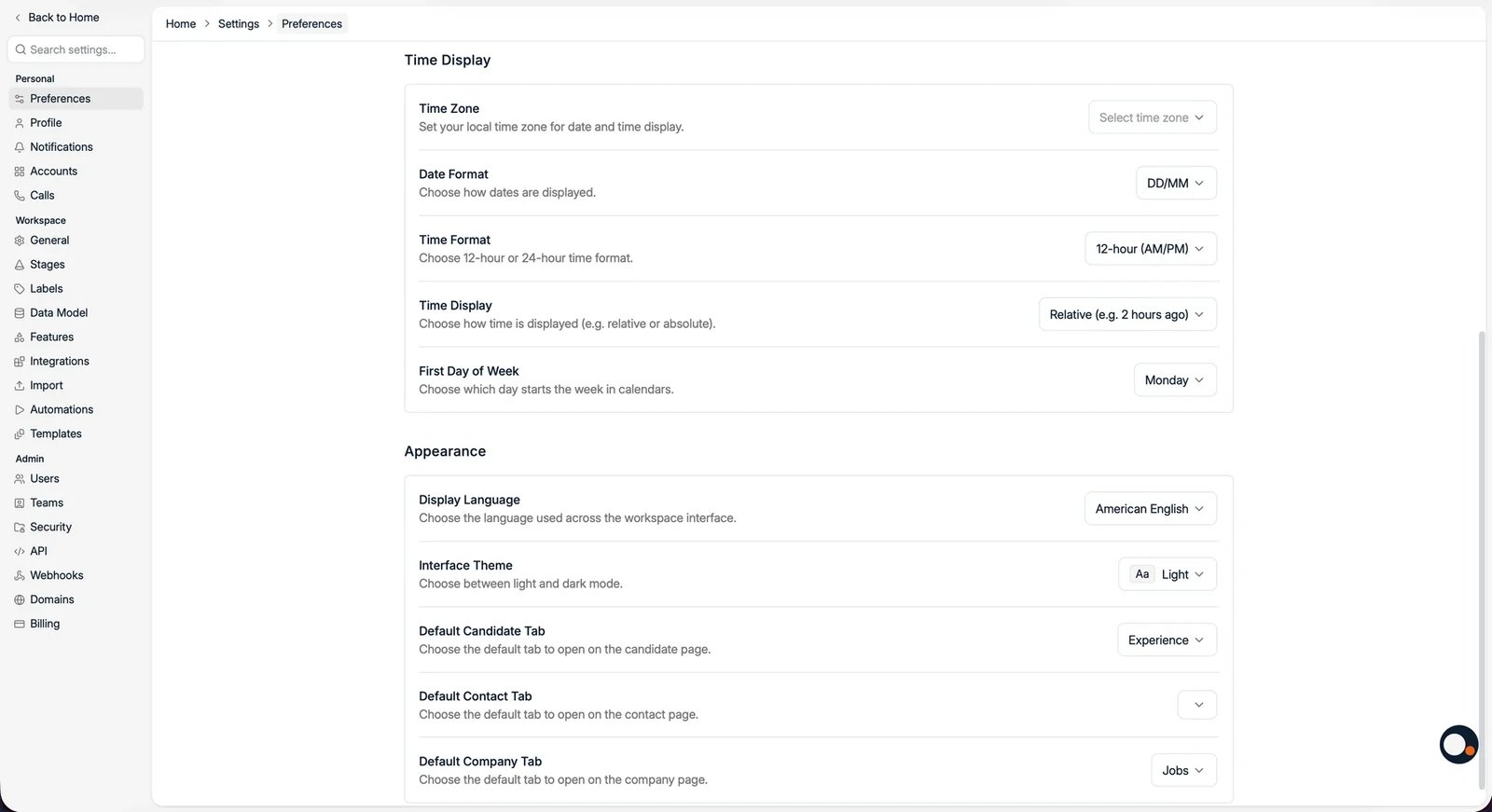
General preferences
Under Settings → Preferences → General you set the defaults used when you create records and content:- Default Currency, prefilled in new currency fields. This is your own setting, not the workspace currency: every monetary value is shown in the workspace currency, and aggregate figures such as Analytics are converted into it, using exchange rates from openexchangerates.org. Spott sets the workspace currency when your workspace is created; to change it, contact customer support.
- Default Country Code, the dialing code prefilled for new phone numbers.
- Default AI Language, the language Spott uses when it generates content.
- Default Distance Unit, used for distance and radius fields.
- Spell Check, browser spell checking in text fields.
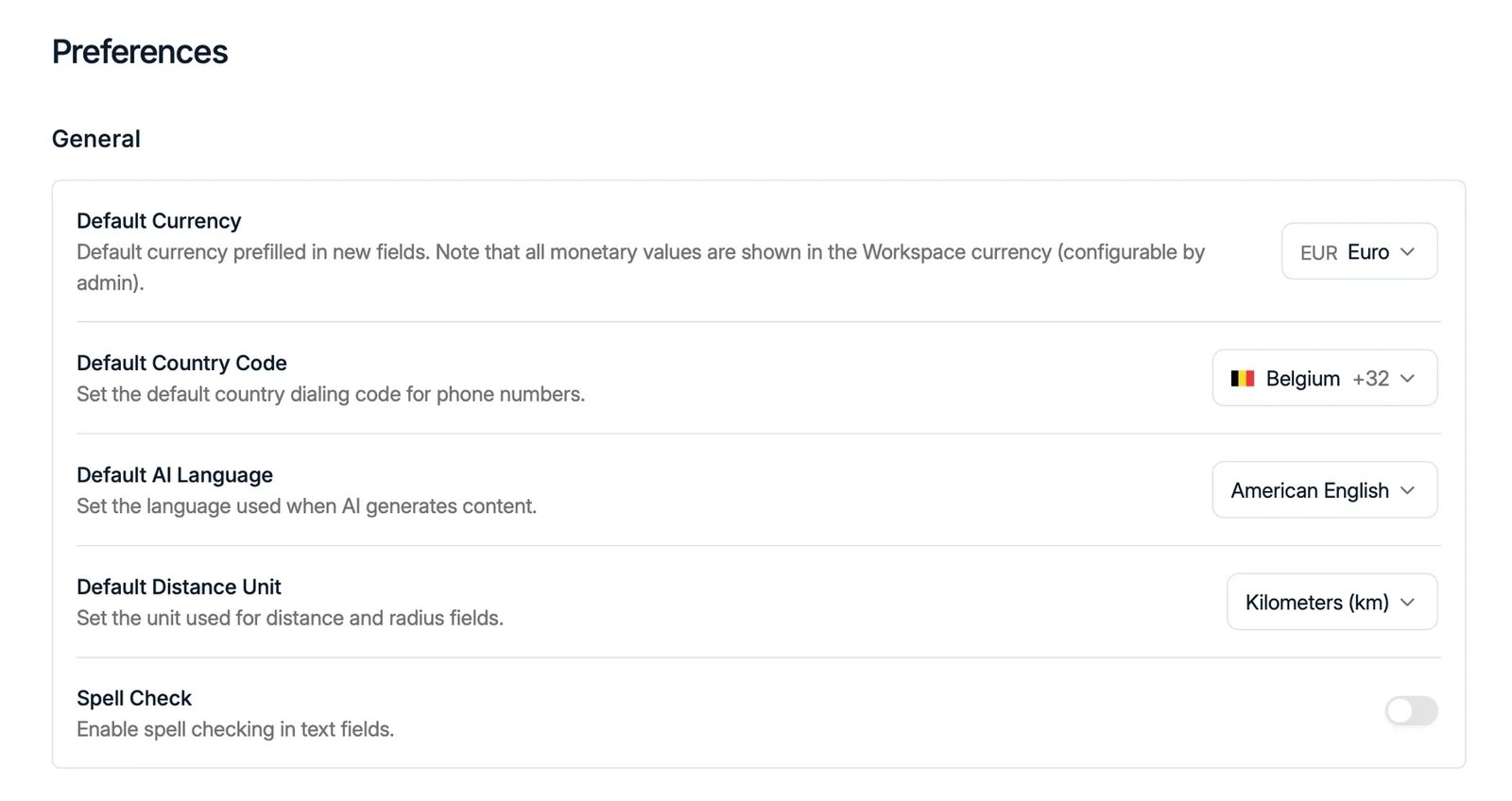
Time and appearance
Scroll down for Time Display and Appearance:- Time Zone, Date Format, and Time Format (12 or 24 hour). Time zones are listed by their full name, such as Australian Eastern Daylight Time, which follows daylight saving by itself. Search by city, such as Sydney, Brisbane, Perth, Adelaide, or Darwin; abbreviations such as AEST do not match. The same list is used when you schedule an email, set a campaign’s sending window, pick a meeting time, and on your public scheduling page.
- Time Display, relative (for example “2 hours ago”) or absolute.
- First Day of Week, which day starts the week in calendars.
- Display Language, the language of the Spott interface.
- Interface Theme, light or dark mode.
- Default Candidate / Contact / Company Tab, which tab opens first on each record.