

Opening Ask Spott
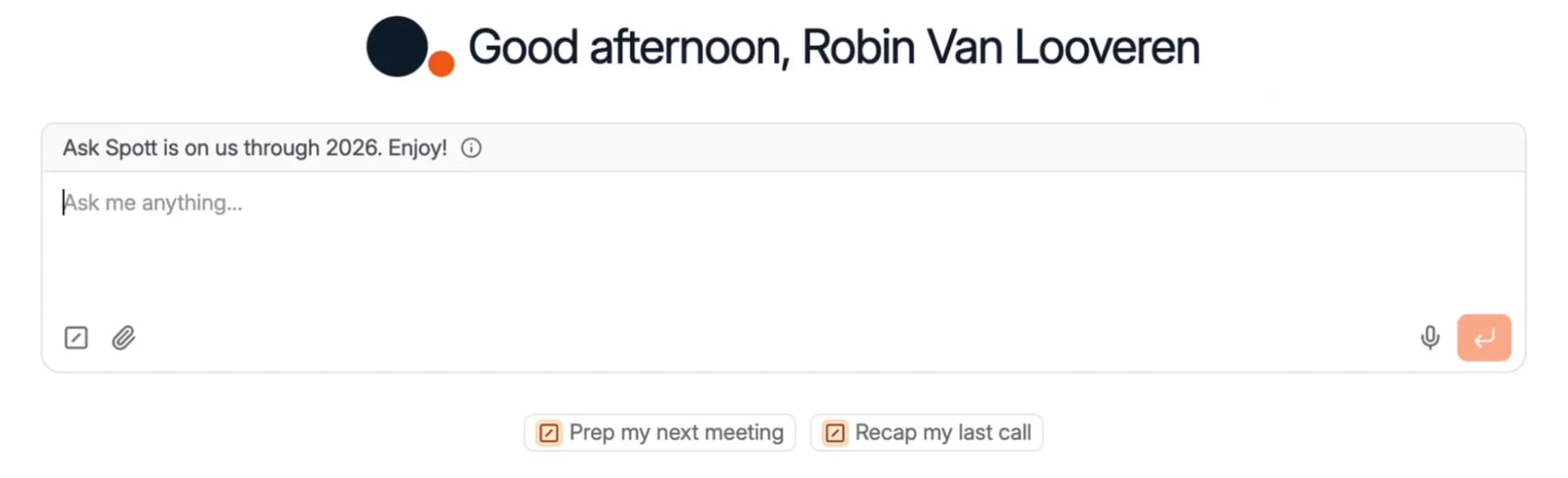
The top of the sidebar has two tabs, Home and Chat. Home is the navigation you know; Chat swaps it for New Chat, your skills, and Recent Chats, your 20 latest conversations, so you can pick one up where you left off. Ask Spott is switched on for the whole workspace under Settings → Features → Ask Spott chat, on by default. Changing it needs the permission to manage workspace settings. No other permission is needed to use it. See AI in Spott for what switching it off does. Start a New Chat to open the chat box. From there you can:- Type your question or instruction, the easiest way.
- Dictate it with voice input, using the microphone button.
- Add attachments, such as CVs or other documents, using the paperclip button, or paste or drop them into the box. Up to 10 files of 32 MB each go in one message.
- Use a skill, with the skill button at the bottom left or by typing / in the box. The buttons under the chat box run your workspace’s first two skills with one click.
Chats keep working in the background
A long request, such as matching a large pool of candidates, keeps running when you switch to another chat or start a new one. While Ask Spott works, it shows what it is doing (for example Searched applications) and, for longer tasks, Still working. Come back to the chat later and the answer is waiting for you.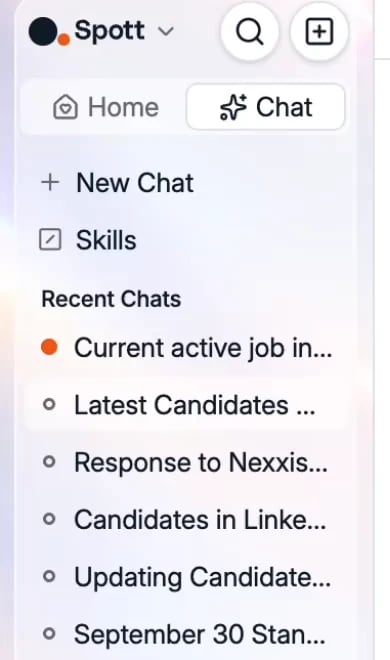
Next to the page you are on
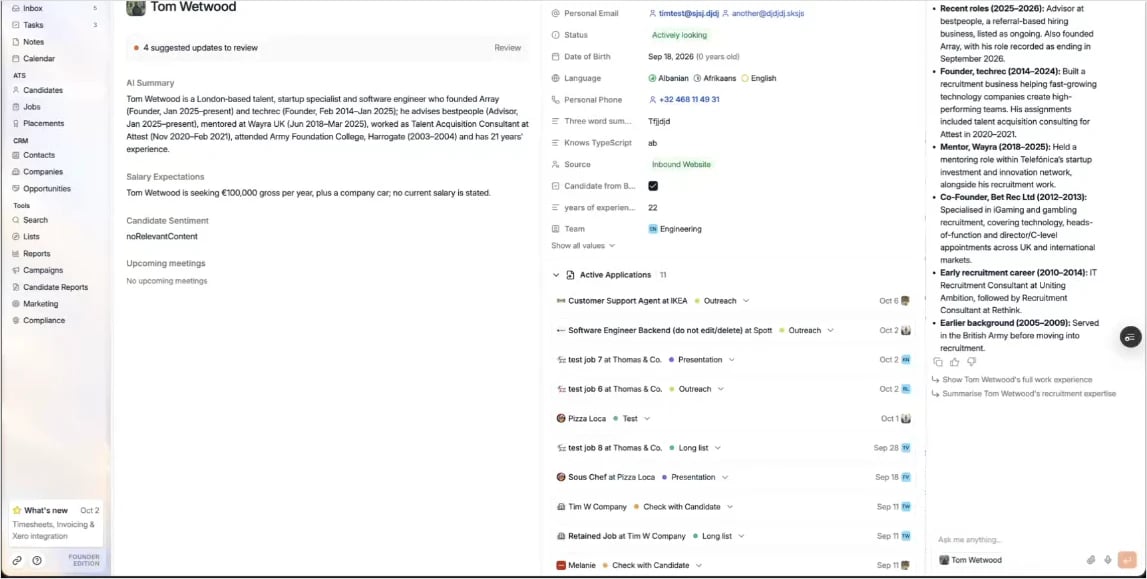
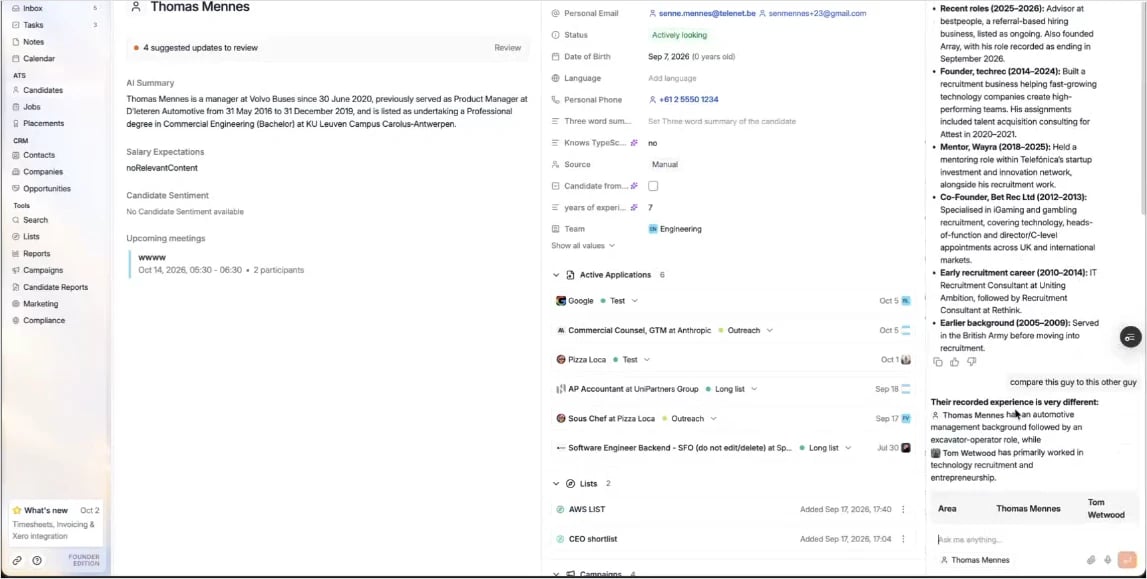
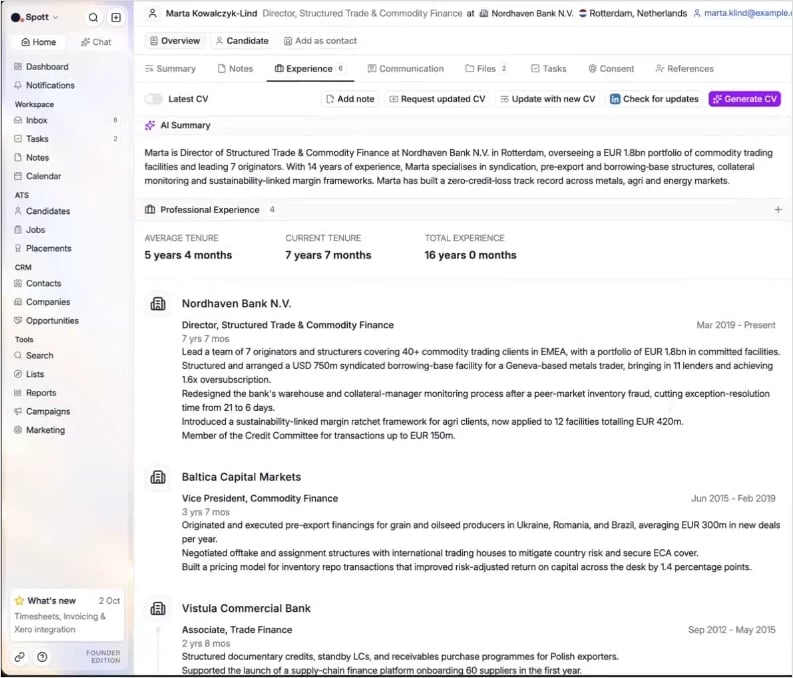
You do not have to leave what you are doing. The Ask Spott button at the right end of the page header opens Ask Spott in a side panel, with exactly the same capabilities, next to whatever page you have open. It is on every page except the full-page chat and Settings. The panel stays open while you move to another page, so you can keep a list or a record in view and work on it with Ask Spott alongside. Drag its edge to make it wider or narrower, and use Open in full page in its ⋯ menu when a conversation needs more room. Chats you start in the panel show up in Recent Chats like any other, and the history button in the panel’s header gets you back to your latest ones. On a record page (a candidate, contact, company, job, opportunity, application, placement, meeting or call) Ask Spott knows which record you mean: it shows as a badge in the chat box and is pre-filled as context. The same goes for a record opened in a preview, a sequence and a saved list. On a list or overview page, such as Candidates or the Dashboard, it gets no context: it does not see your filters, your view or the rows you selected, so say what you mean. On a candidate page you can simply ask:Recap his experience.Ask Spott knows you mean the person whose page you are on. You can still ask about any other record too, for example to compare the current candidate with someone else:
Compare this person to [other candidate].
On the mobile app
Ask Spott is also in the Spott mobile app, under Chat in the bottom bar. Type your question, dictate it with the microphone button, or attach a file with the paperclip. The buttons above the chat box, such as Prep my next meeting and Recap my last call, run a skill with one tap. The clock button at the top left opens your earlier chats, and + at the top right starts a new one.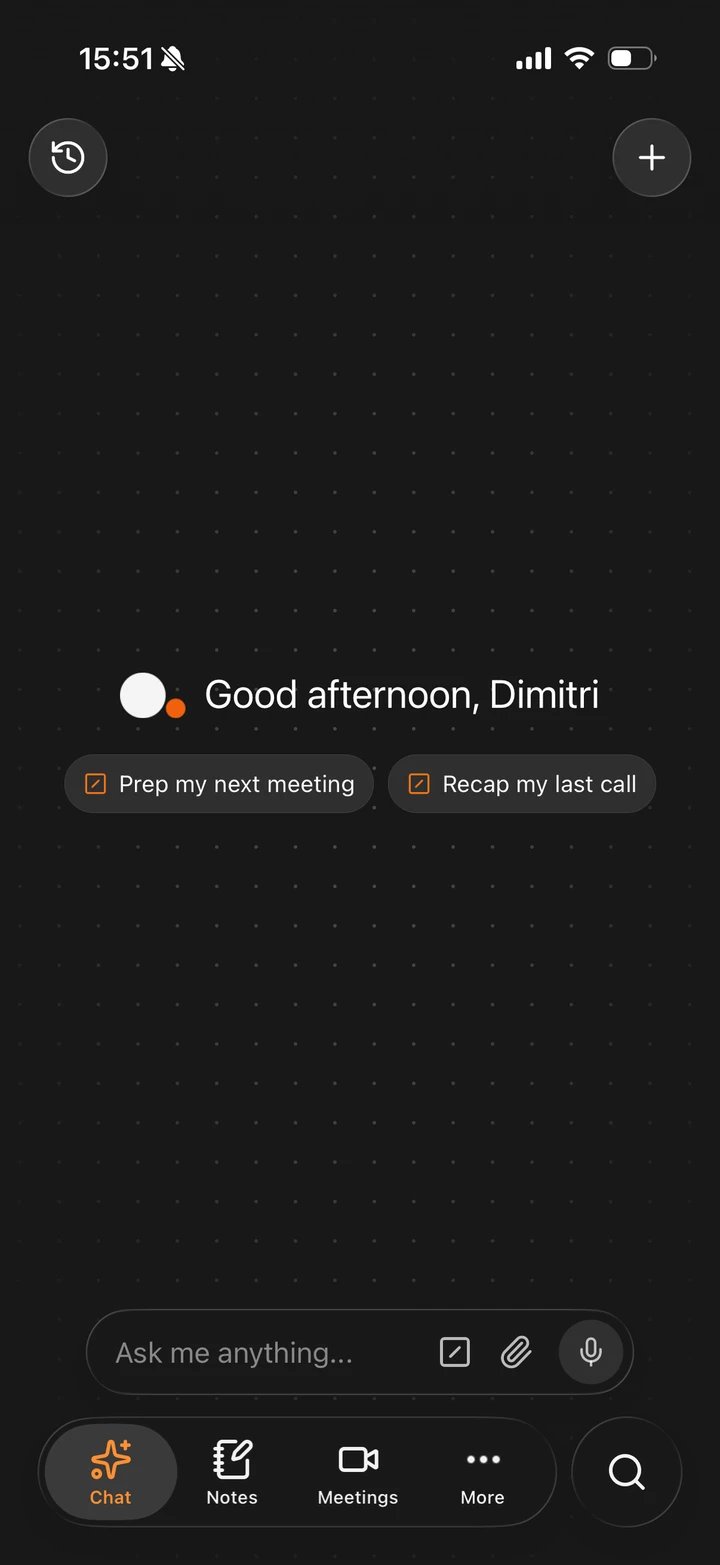
Asking your first question
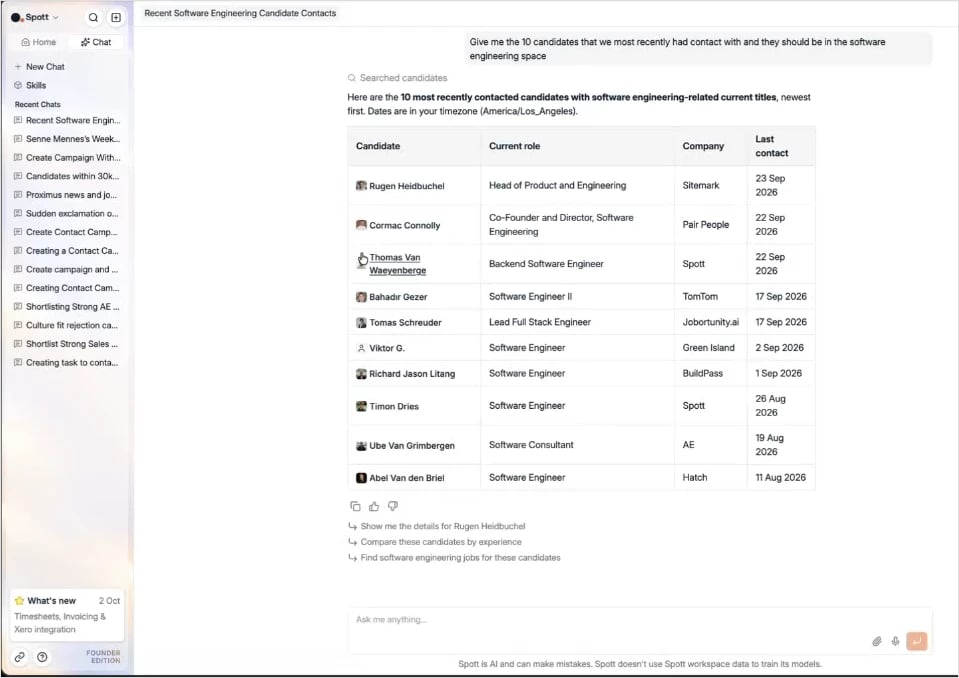
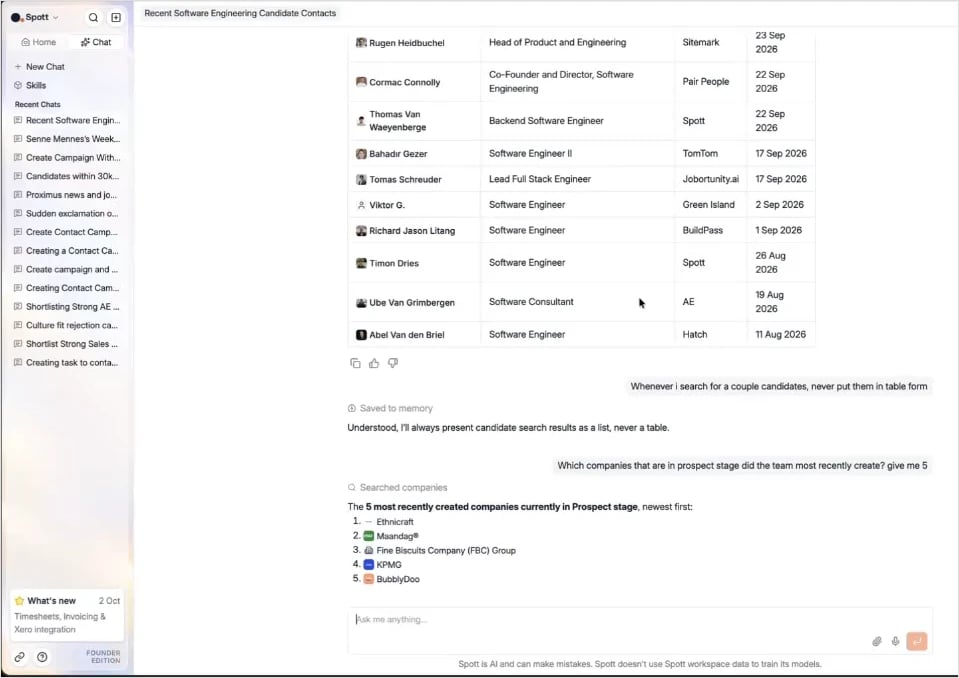
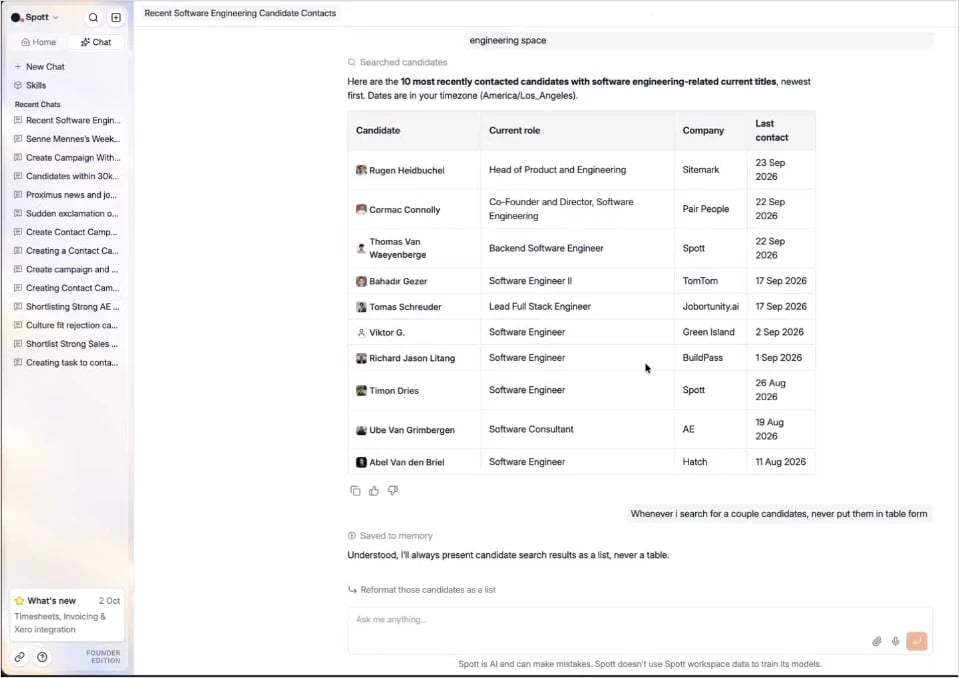
The simplest way to start is to ask for records, the same way you would describe a filter to a colleague:Give me the ten candidates we most recently had contact with who are in the software engineering space.Behind the scenes, Ask Spott translates your question into the same filters you can apply manually in Spott, picks the ones that best match, and applies them. Every filter in Spott is supported, so your questions can be as detailed as you like. The answer comes back as a list or a table. Every record in it is clickable: it opens a preview of the record next to the chat, so you can check the details without losing your conversation. Click Open record in new tab to go to the full record page.
You stay in control of actions
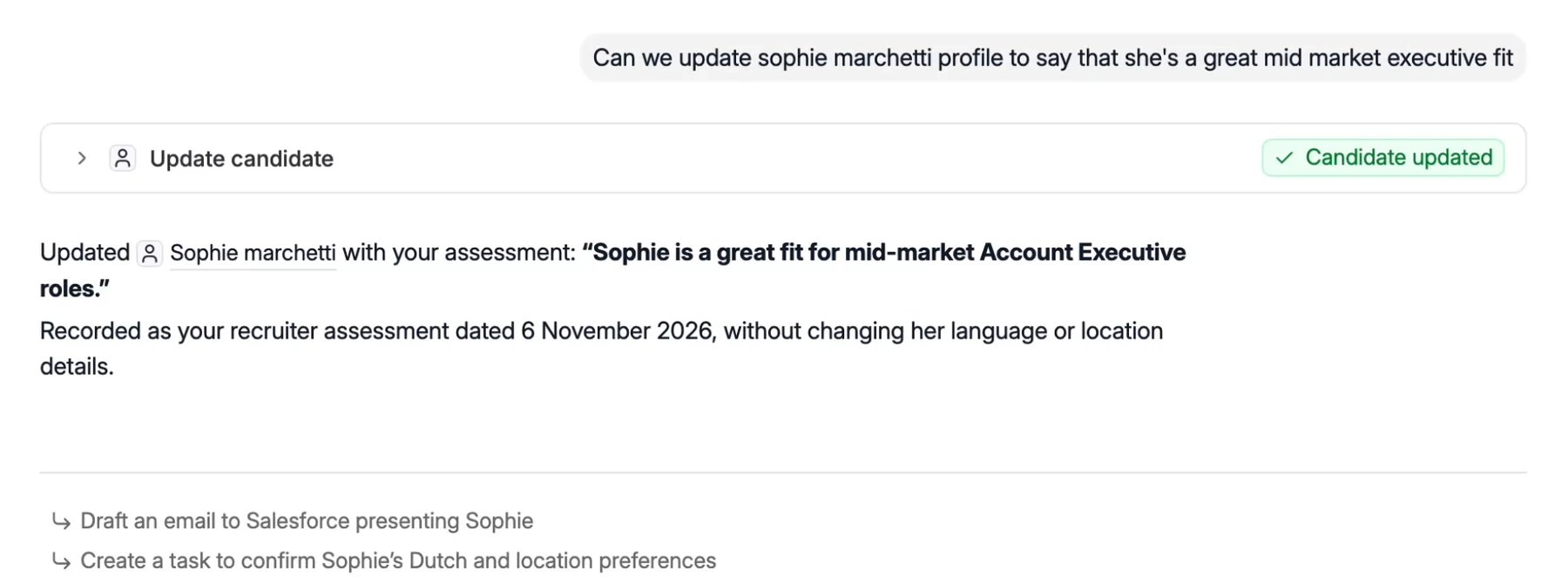
Whenever Ask Spott wants to change something in Spott (create, update, move or import a record, or start an enrichment), it first shows you an approval card. Nothing changes until you click Approve. Click Cancel to stop it. The card spells out exactly what will happen: which records change, which fields, and the values Ask Spott will write. So you always know what you are approving.Can we update Sophie Marchetti’s profile to say that she’s a great mid-market executive fit?Here Ask Spott chooses the candidate’s Notes field and shows the exact text it will save. Approval cards wait until Ask Spott has finished its reply; when several are waiting, Approve all and Deny all handle them in one go. A note, a task or a skill comes as a card you can edit before you confirm with Create note, Update task and the like, or throw away with Discard. Ask Spott never deletes anything. Once you approve, the card folds into a single line with the result, such as Candidate updated, so the conversation stays easy to read. Click the line to unfold the details again. Ask Spott also maps what you say onto your own setup:
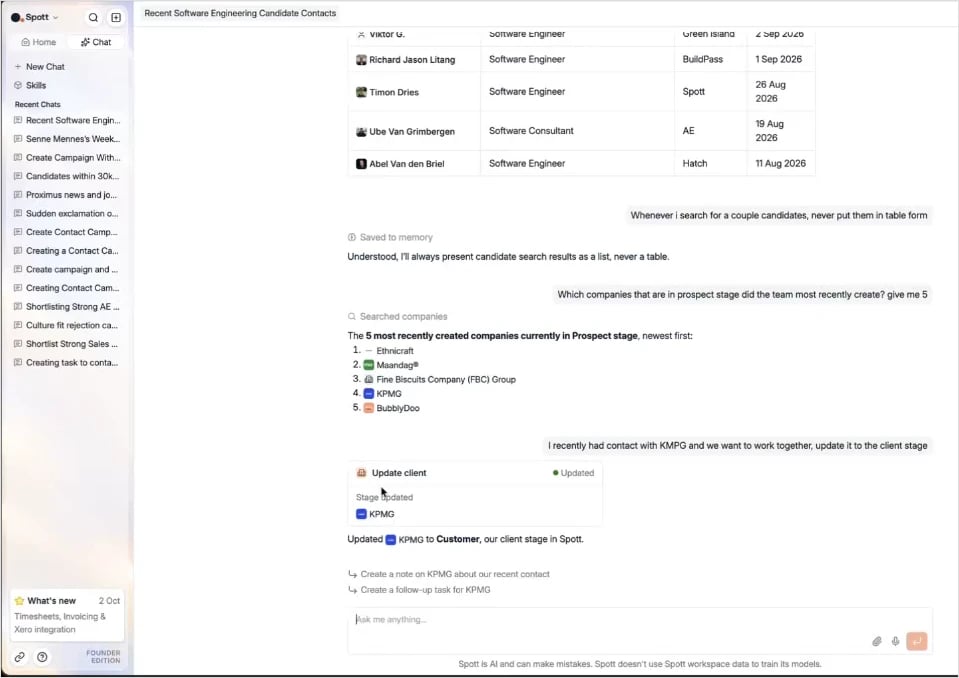
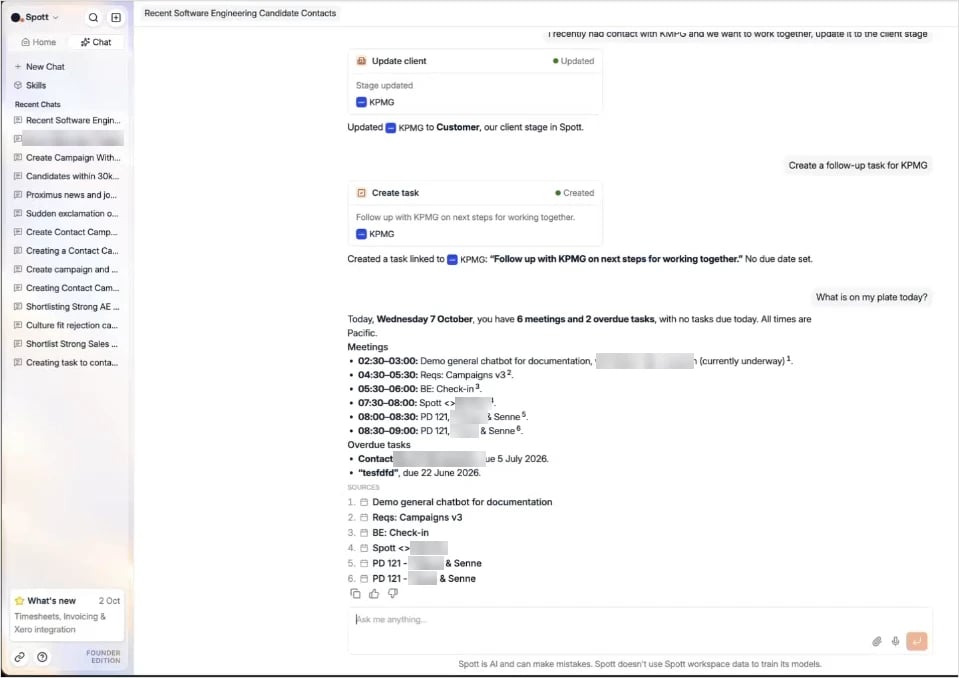
I recently had contact with KPMG and we want to work together. Update it to the client stage.If the stage you mention does not exist under that exact name, Ask Spott picks the closest matching stage in your pipeline, here Customer.
Suggested next steps
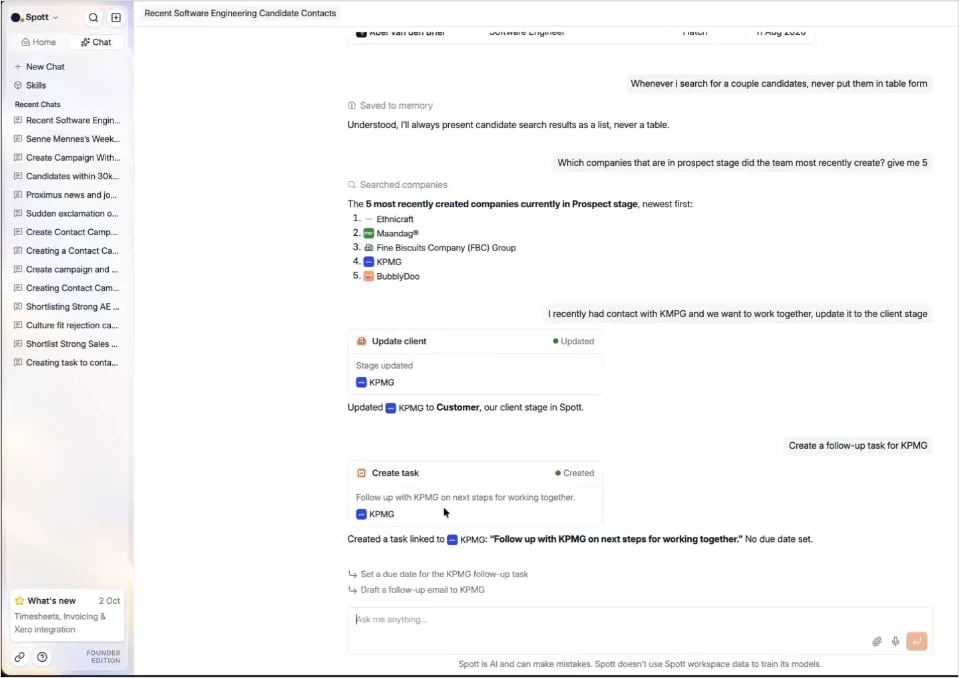
Under its answers, Ask Spott suggests logical follow-ups, such as drafting an email or creating a follow-up task. Click a suggestion to run it. When the next step is obvious, Ask Spott goes one further and proposes the action itself. Ask for the best candidates for a job, for example, and it offers to add them to the job straight away. That proposal is an approval card like any other, so you can still cancel it: Ask Spott never makes a change without your approval.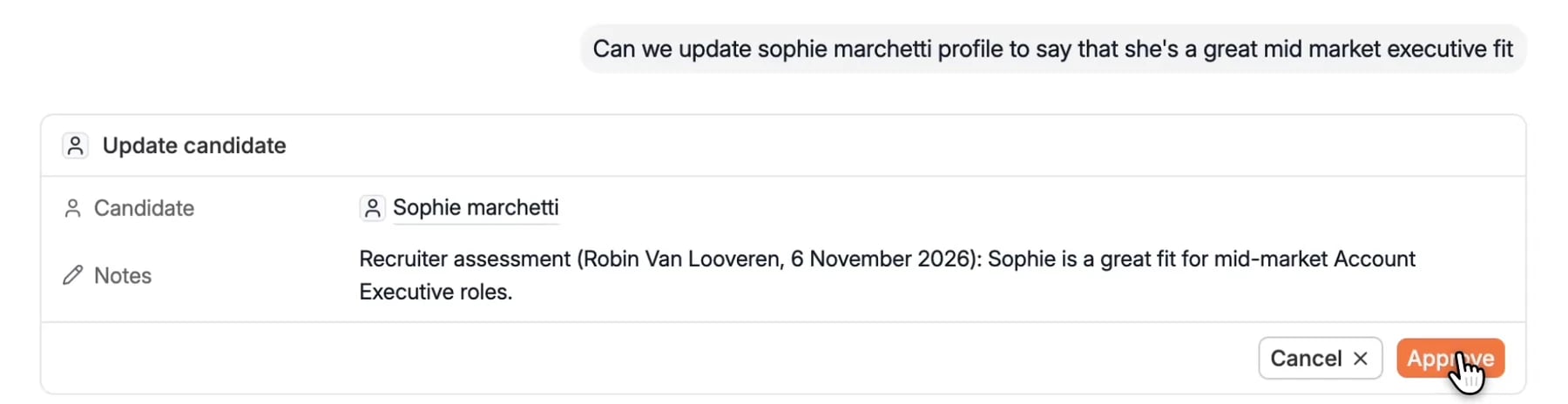
What you can do with it
Search and count records
Search and count candidates, contacts, companies, jobs, opportunities, applications, notes and tasks, combining as many filters as you need.Which companies in the prospect stage did the team most recently create? Give me five.
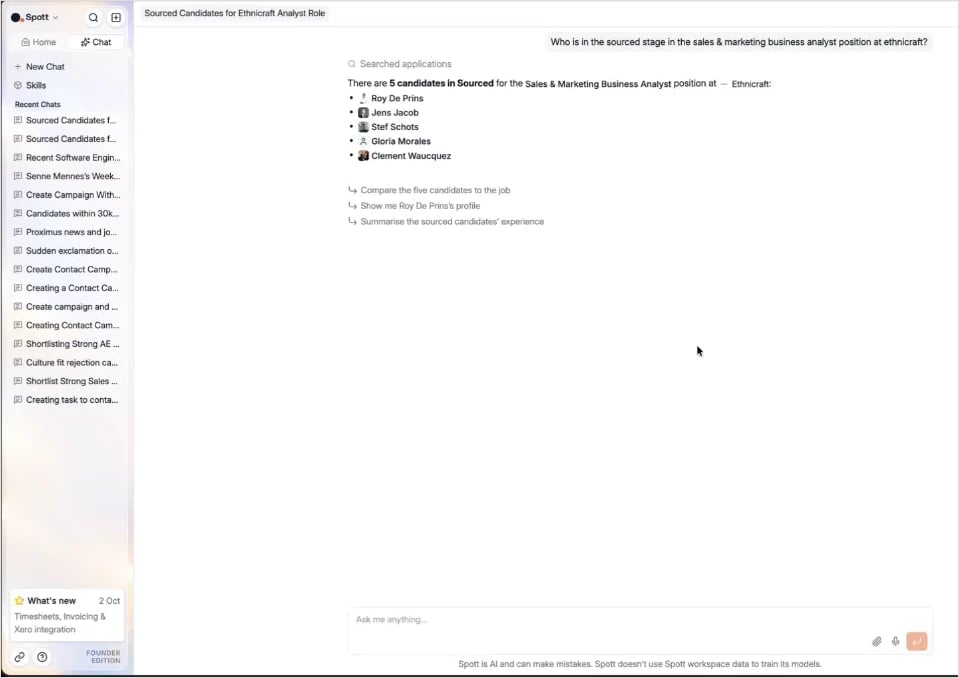
Who is in the Sourced stage for the Account Manager position at [company]?You can also ask for numbers instead of lists:
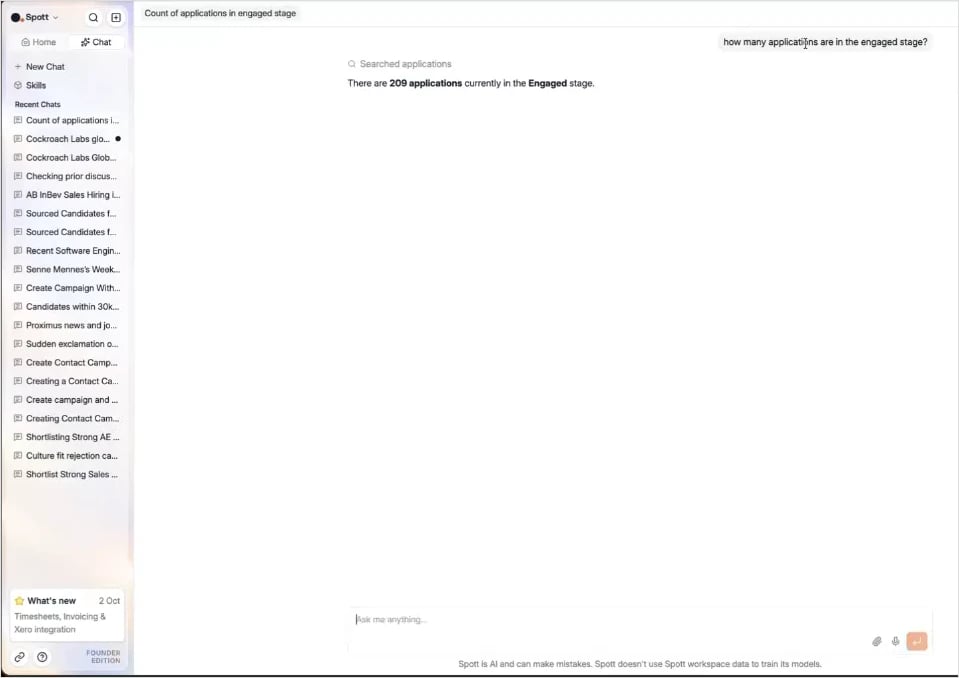
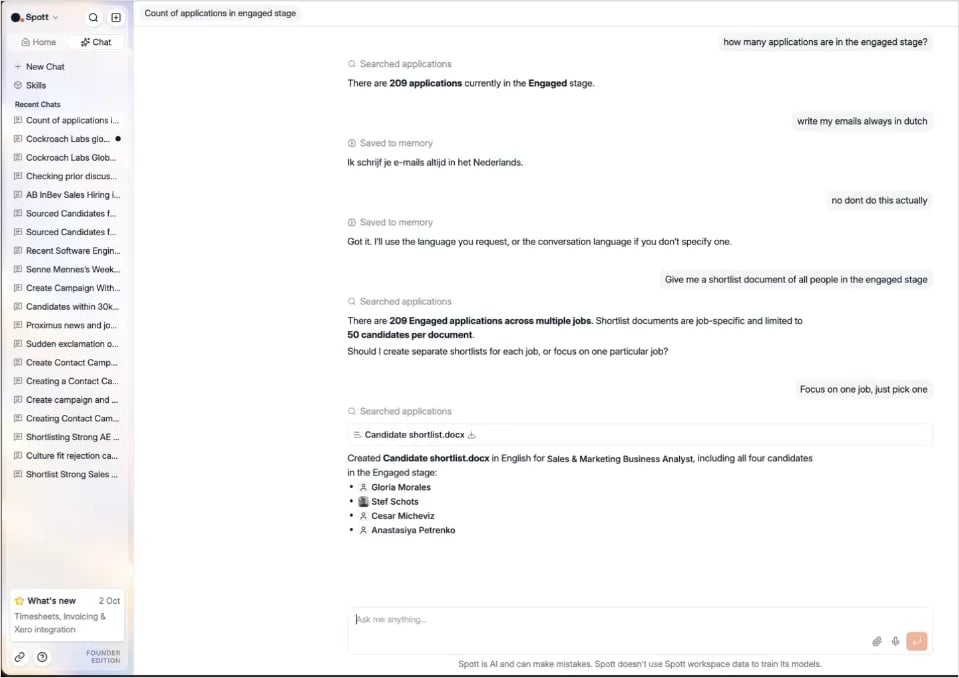
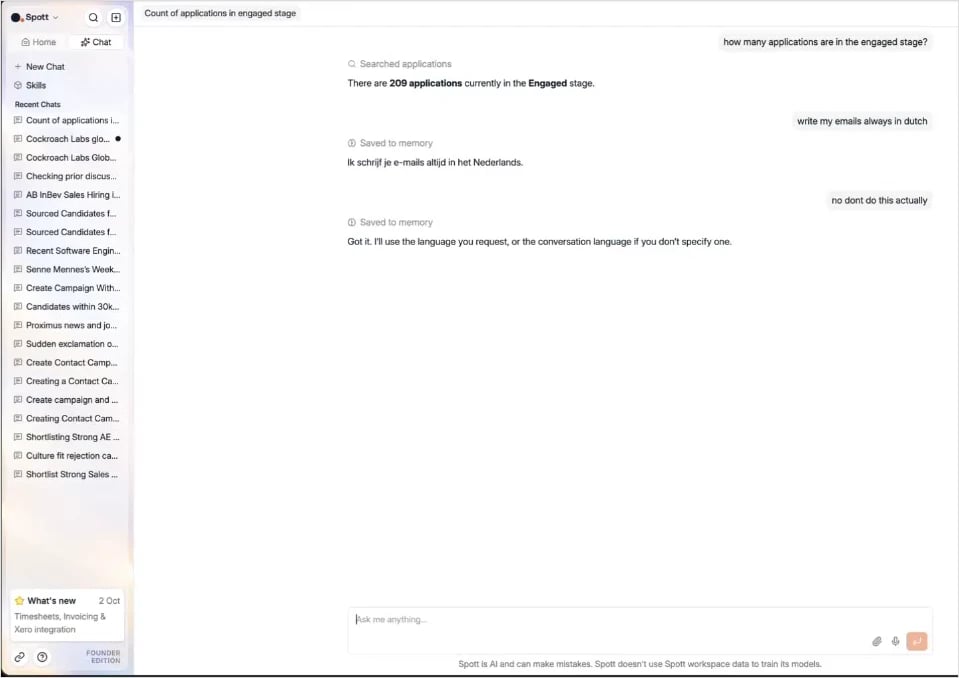
How many applications are in the Engaged stage?
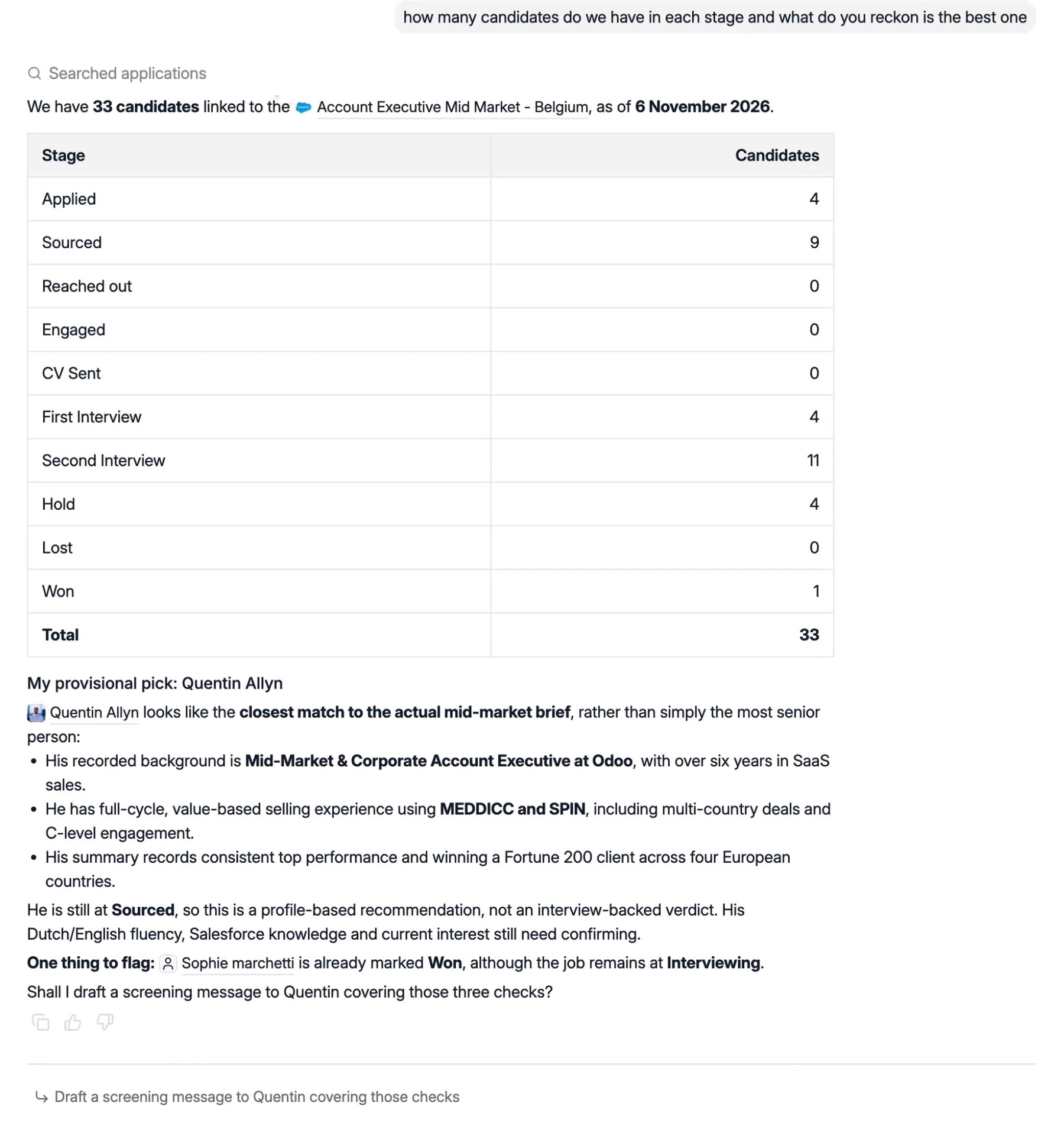
How many applications were in the Engaged stage but were withdrawn by the candidate?Ask for a breakdown and you get a clear table back, ready to reuse in an update or a document. Combine it with a judgment call and Ask Spott explains its pick:
How many candidates do we have in each stage, and who do you reckon is the best one?
Create and update records
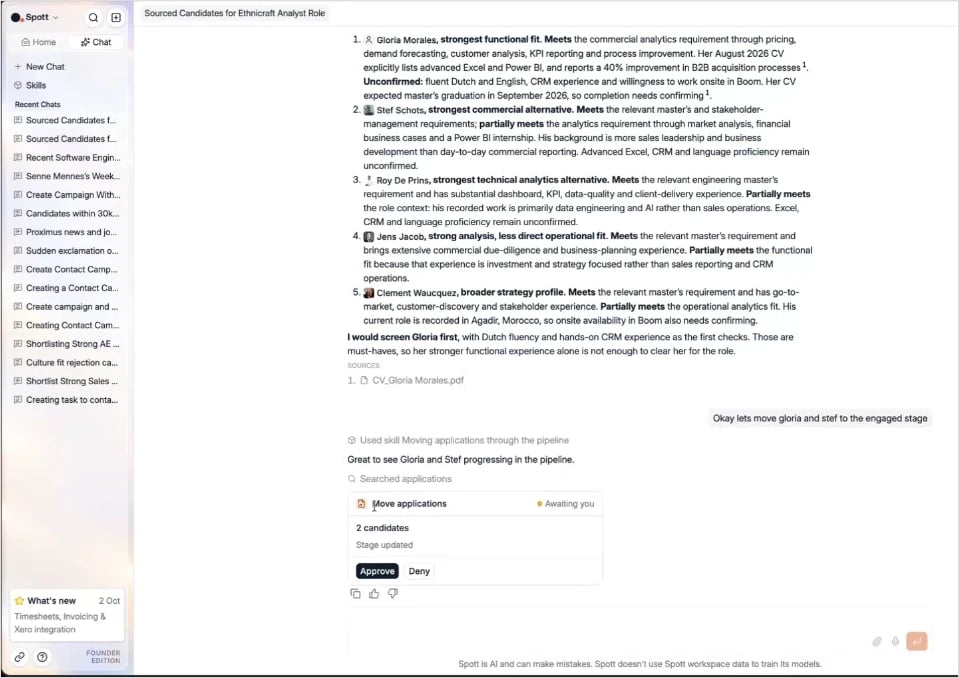
Ask Spott can create and update candidates, contacts, companies, jobs, opportunities, applications, notes and tasks. For applications, it can move candidates to another stage or reject them.Move [candidate A] and [candidate B] to the Engaged stage.
Reject [candidate] for the [job] position.
Create a task to follow up with [contact] next Monday.
Add a note to [candidate]: prefers hybrid work, available from January.It can also link an existing note or task to another record, or unlink it, and save a candidate search for you, the same kind you would build under Candidates → Search:
Save a search for senior Java developers in Antwerp.
Add records to lists and sequences
Add records to an existing list, or let Ask Spott create a new list for you. You can also add contacts or candidates to a sequence (campaign).Add these five candidates to a new list called “Senior Java Q4”.
Add [contact] to the [sequence name] sequence.
Find missing email addresses
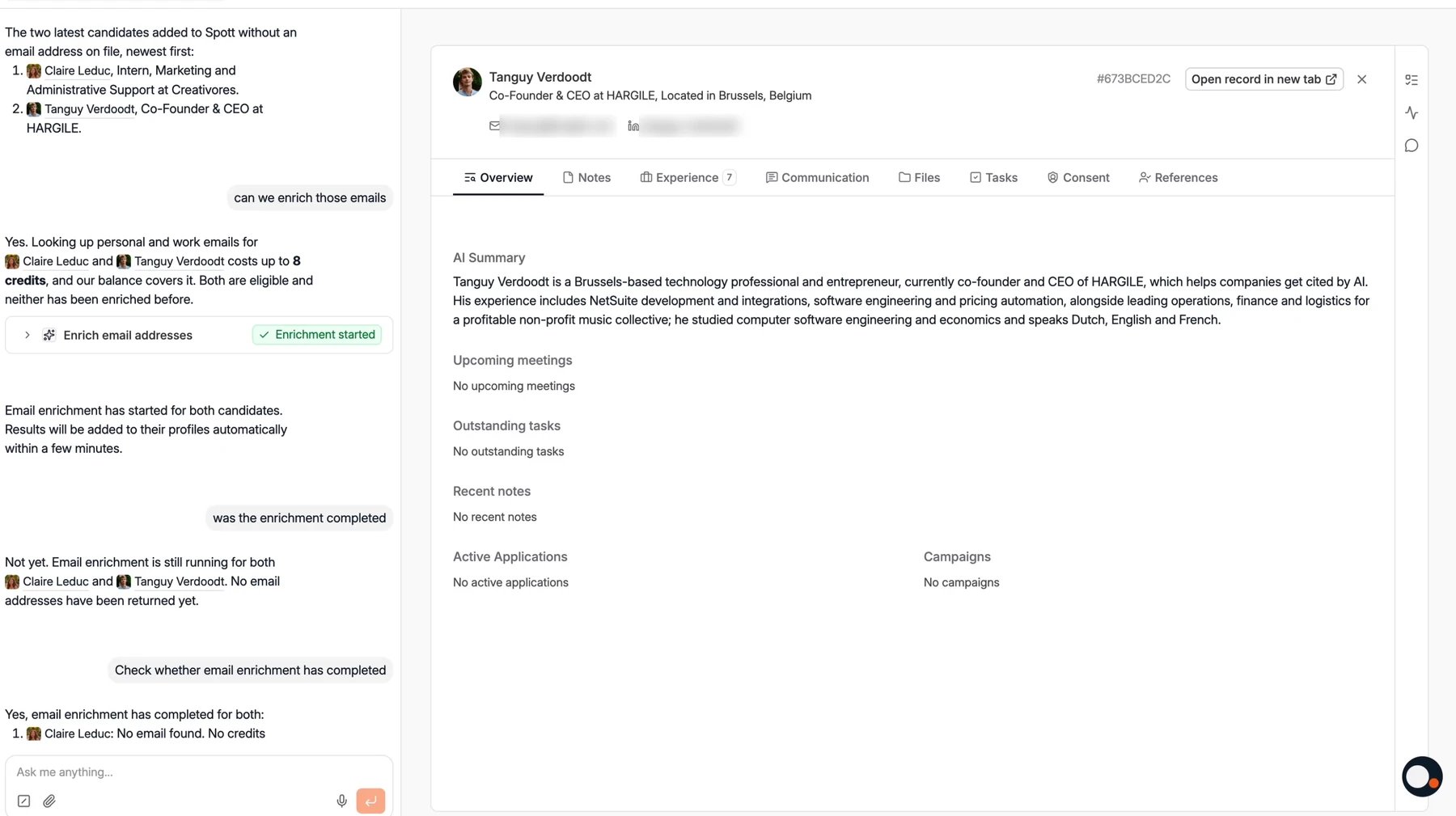
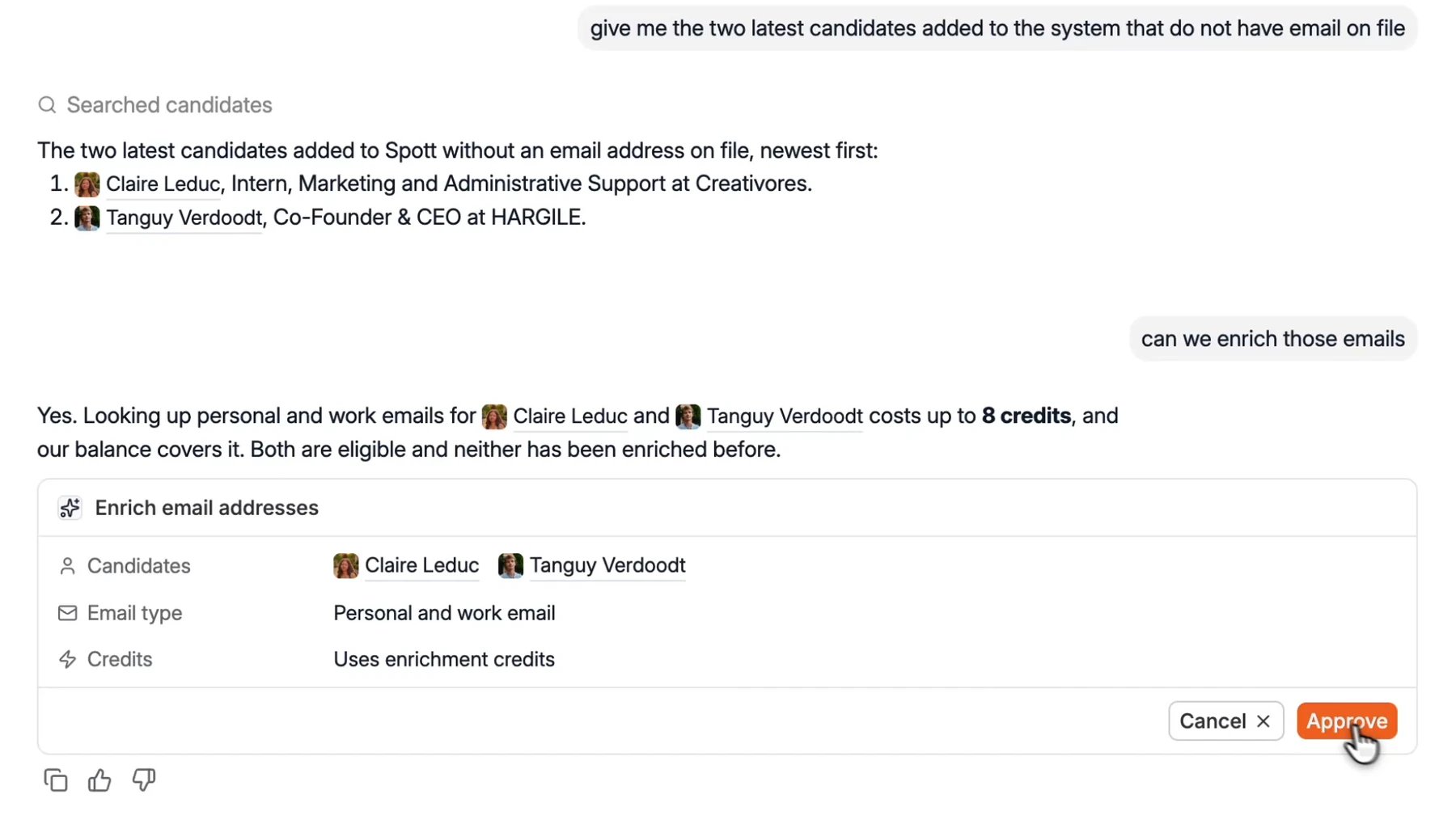
Ask Spott can look up missing email addresses through contact enrichment. Find the people first, then ask:Give me the two latest candidates added to the system that do not have an email on file.
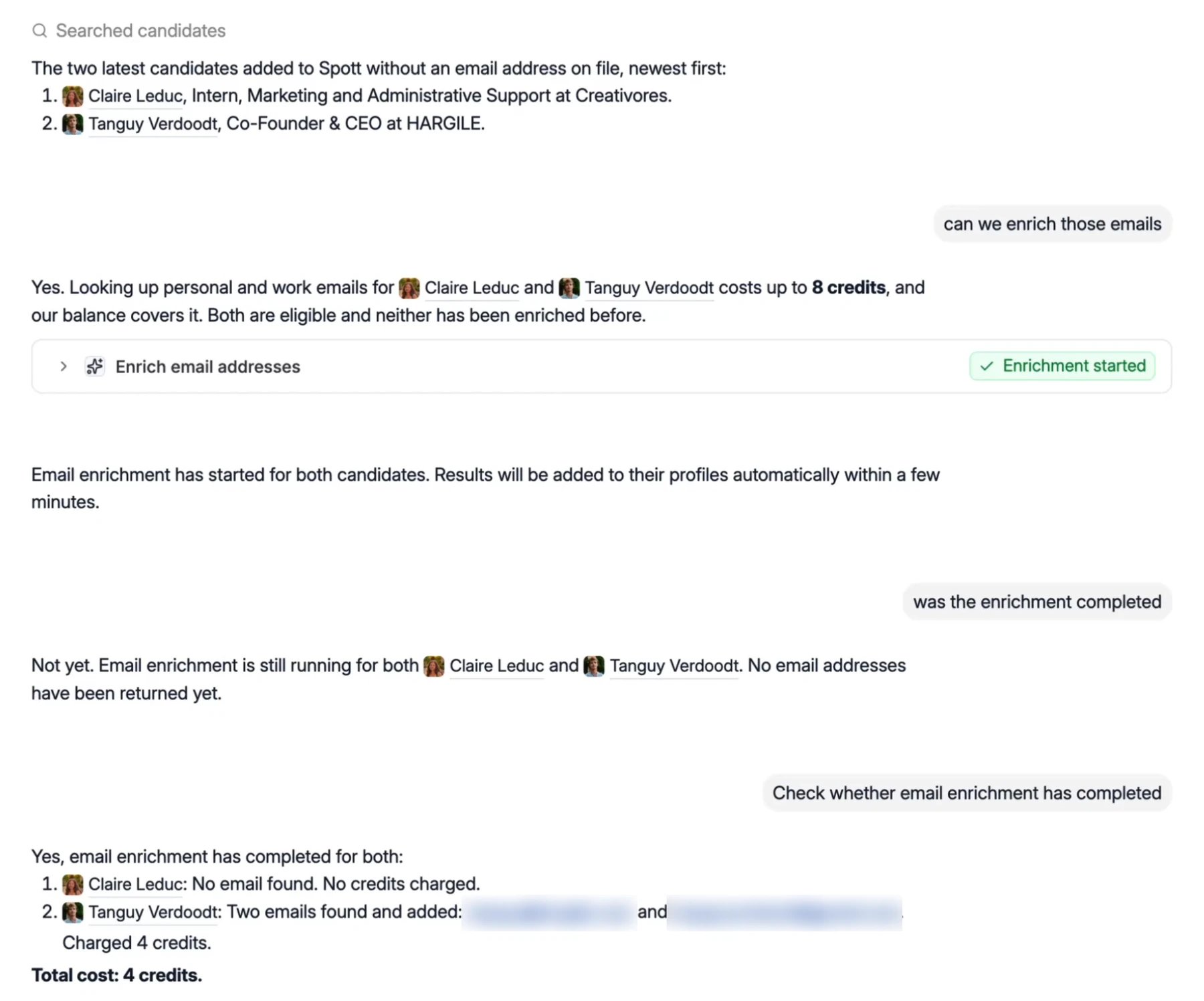
Can we enrich those emails?Before anything starts, Ask Spott tells you the most it can cost and whether your balance covers it, and shows an approval card with the people, the email type it will look for and the credits. By default it looks for both a personal and a work email, which costs up to 4 credits per person. If you only need one kind, say so. Enrichment runs in the background and can take a moment. Keep working in the meantime: Ask Spott tells you in the chat once the results are in, or you can simply ask:
Was the enrichment completed?The answer lists what was found for each person and what it cost. You only pay for results, so a lookup that finds nothing is free. The email addresses found are added to the profile straight away, labelled as work or personal. Ask Spott can see every enrichment in your workspace, so you can also ask about them afterwards:
How many enrichments did we do last week?
Check your calendar and tasks
Ask what your day looks like:What is on my plate?Ask Spott checks your tasks and calendar for yesterday and today. It points out what may still need a follow-up from yesterday and lists what is planned for today. Times are shown in your own time zone.
Find information in conversations
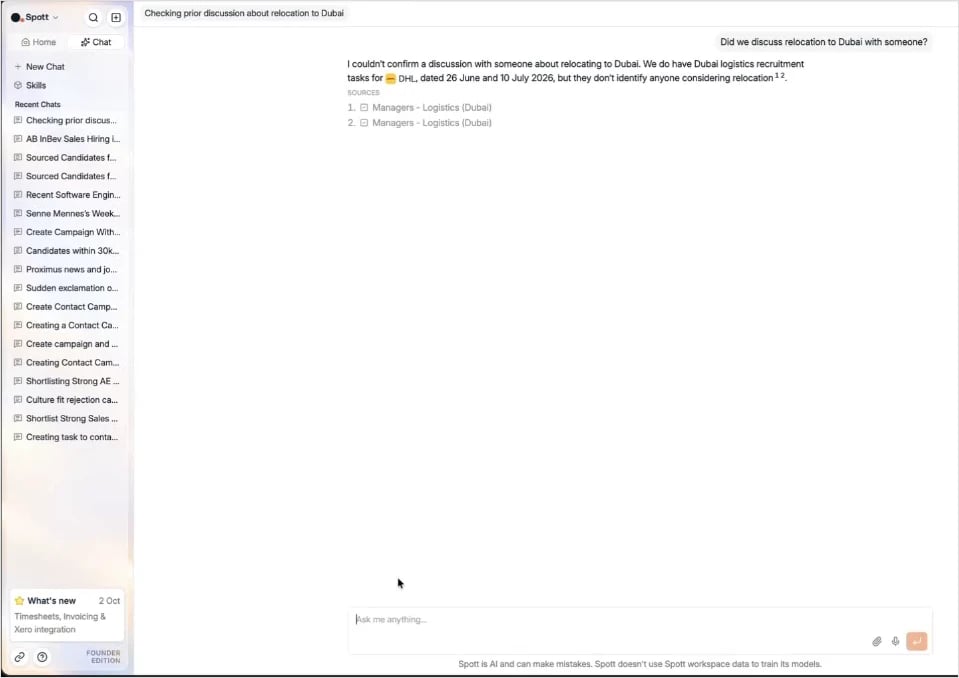
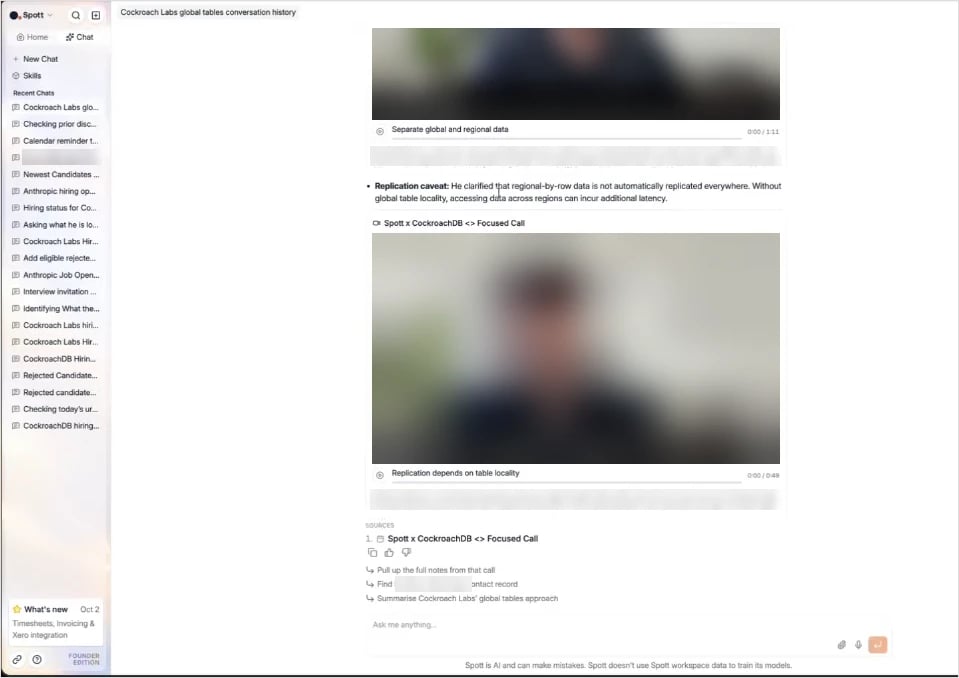
Ask Spott searches by meaning, not just by exact keywords, across everything in Spott: emails, notes, tasks, comments and call transcripts. Use it to find what was said, and by whom.Did we discuss relocation to Dubai with anyone?
Is there anyone who said they want to relocate to Dubai?
Where did he say that?When an answer is based on specific records, the sources are listed at the bottom. Click a source to open it. For calls, Ask Spott points to the exact moment in the conversation, with a timestamp for each relevant snippet. This works for meeting recordings (video) as well as VoIP calls (audio).
I’m working on a job for [client]. Did we ever discuss [topic] with anyone?
Ask Spott is focused on recruitment work. If a question could look unrelated to
recruitment, add a bit of context, for example “I’m working on a job for [client]”, so it
knows why you are asking.
Match candidates and jobs
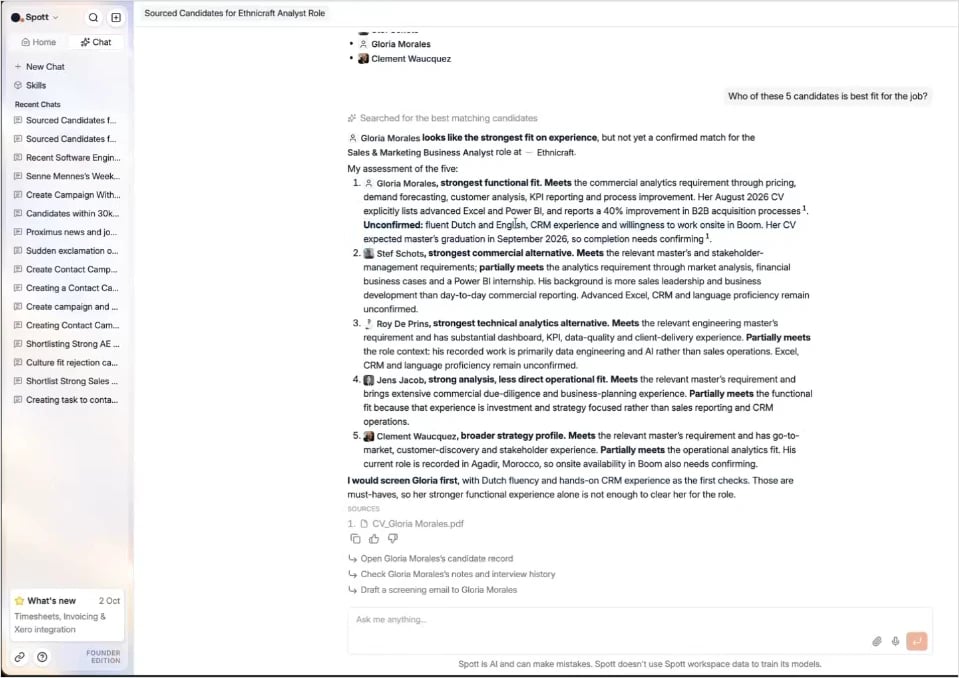
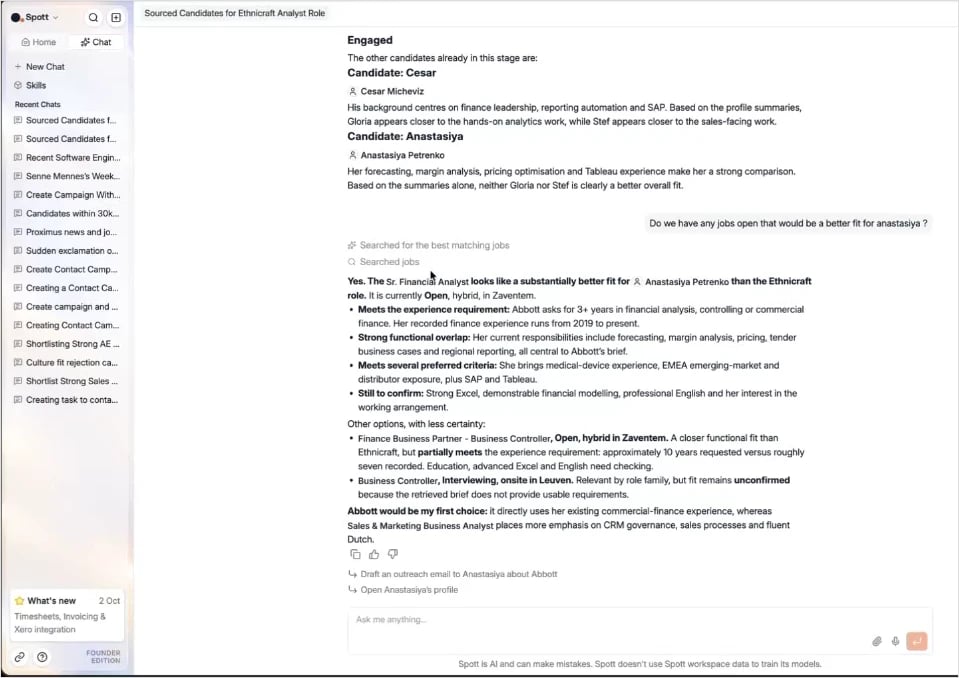
Find the best candidates for a job. Ask Spott ranks the candidates and explains, per candidate, why they are or are not a good fit.Which of these five candidates is the best fit for the job?Find the best jobs for a candidate. It works the other way around too:
Do we have any open jobs that would be a better fit for [candidate]?Matching against a large pool of candidates can take a little longer than a regular search.
Work with files
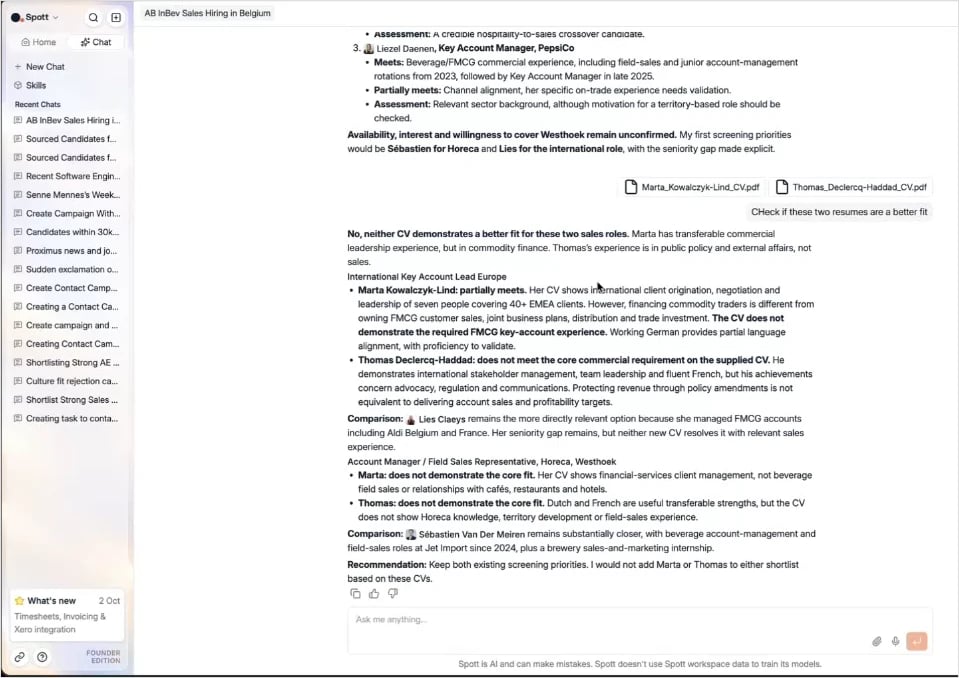
Attach files to your message with the paperclip button in the chat box. Read file contents. Ask Spott reads attached documents and uses them in its answer, for example to check CVs against a job:Check if these two resumes are a better fit for the job.Create candidates from a CV. Ask Spott parses the CV and creates the candidate, including their work experience.
Add them as candidates.Create a shortlist document. Ask Spott fills in your workspace’s shortlist template with the candidates you choose.
Give me a shortlist document of all people in the Engaged stage for the [job] job.
Turn any answer into a document
Ask Spott can put whatever is in the conversation into a document you can download and send: a candidate summary, a pipeline overview, a comparison. Just ask for it in the same chat. It creates a PDF by default. Ask for Word or Excel and it makes that instead. The file appears in the chat. Click it to download. As with anything Ask Spott writes, read it through before it goes to a client.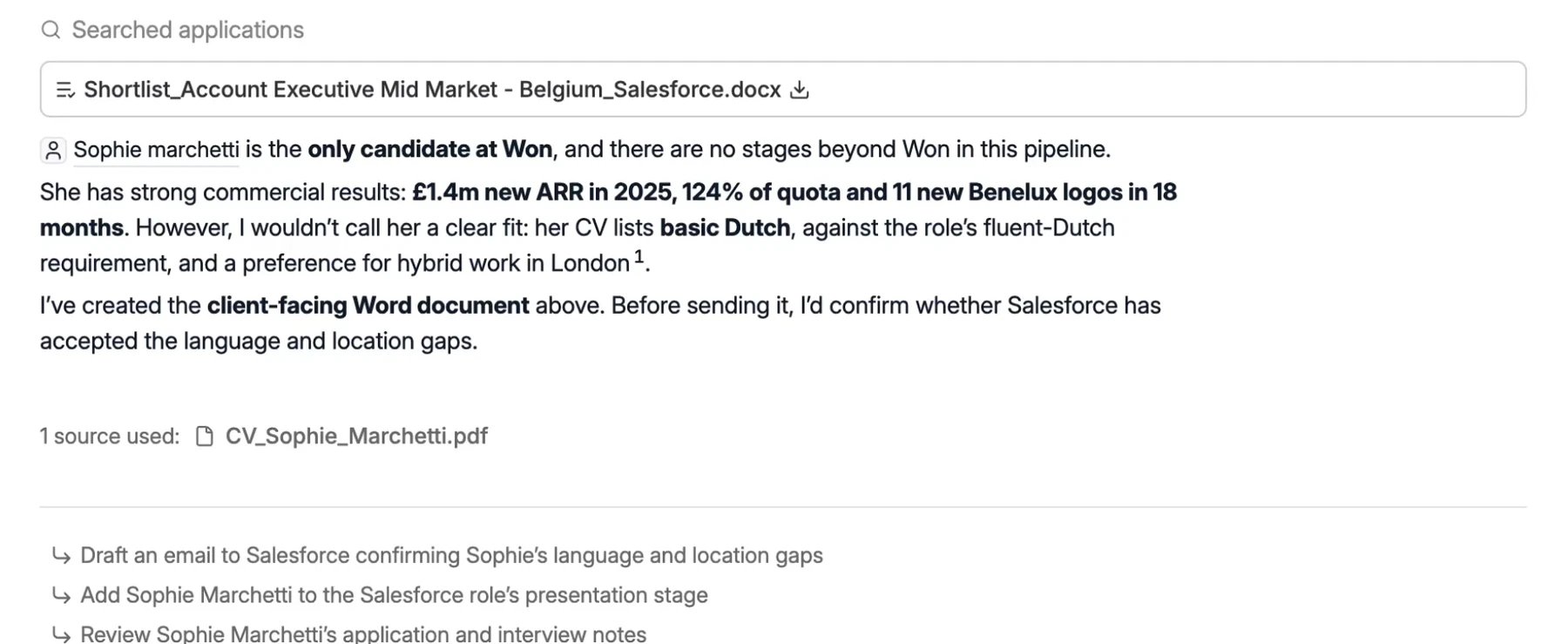
Draft emails and calendar events
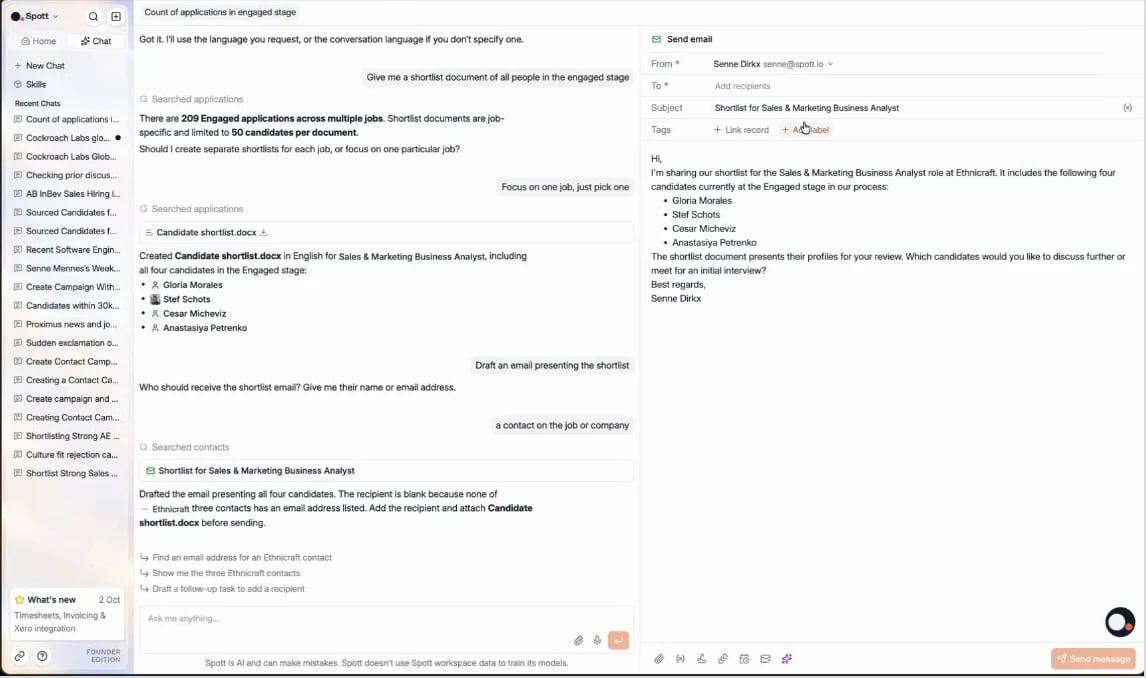
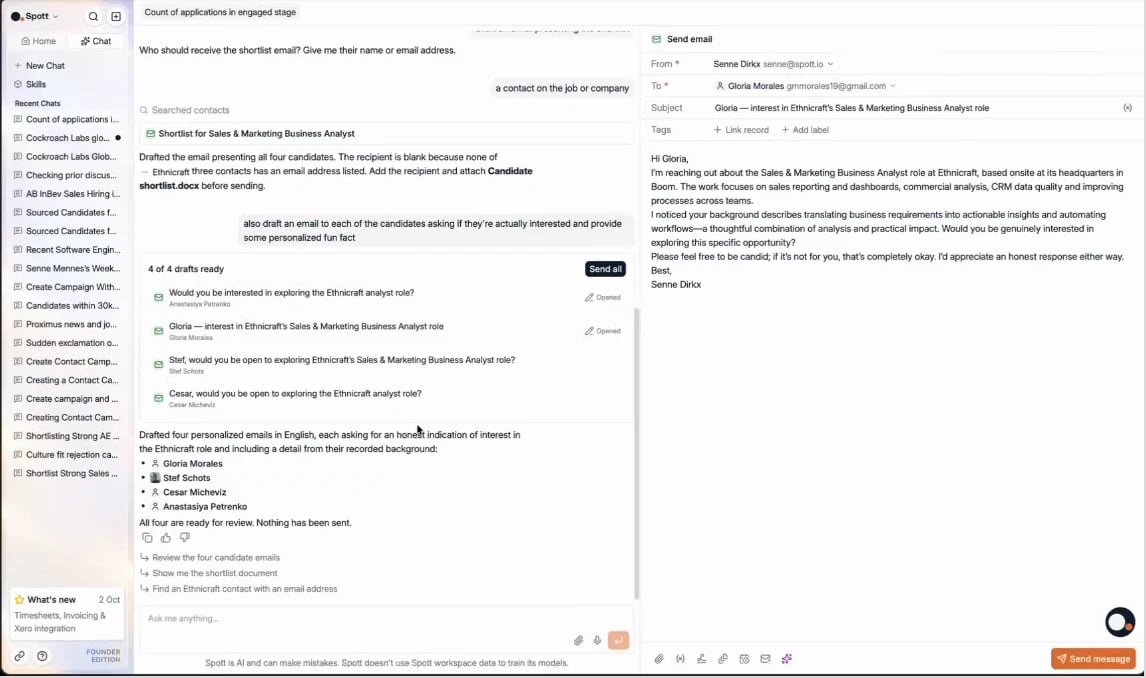
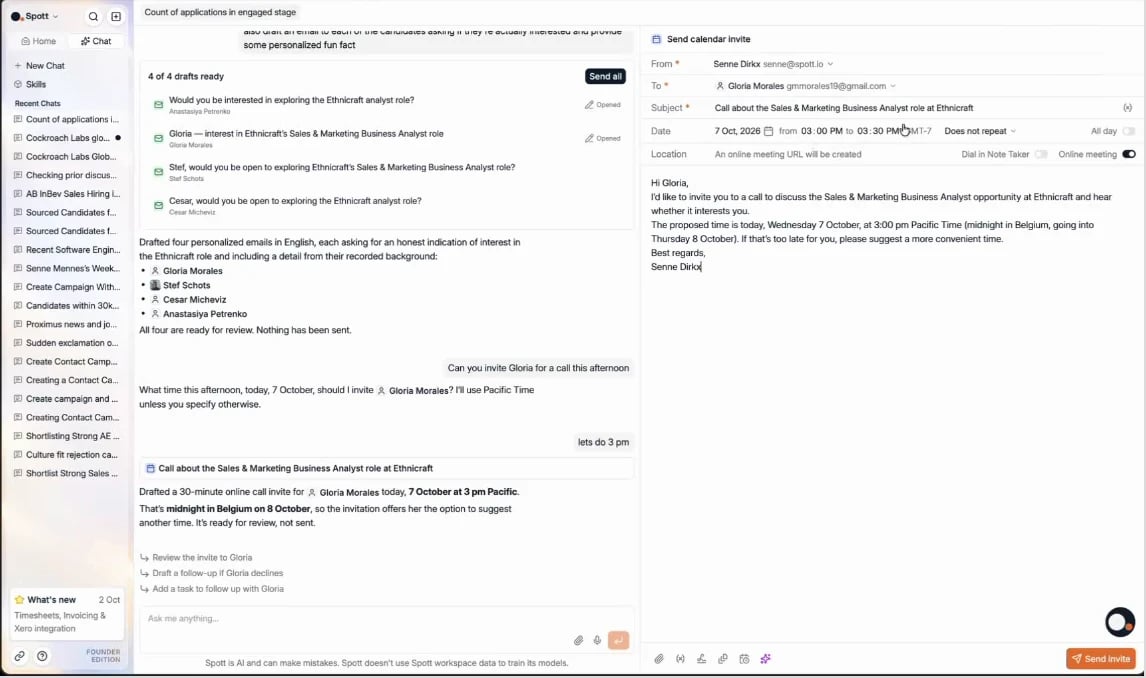
Ask Spott drafts emails and calendar invites for you. Drafts are never sent automatically: you review them and send them yourself. A single email:Draft an email presenting the shortlist to the hiring manager.If a contact has no email address in Spott, Ask Spott tells you. Personalized emails to several people. Each email is written individually, so every recipient gets a message tailored to them and personal details never mix between emails.
Draft an email to each of the candidates asking if they’re interested, and include a personalized fun fact.Calendar events:
Draft a 30-minute online call with [candidate] tomorrow at 3 PM about the [job] role.
Search the web and import the results
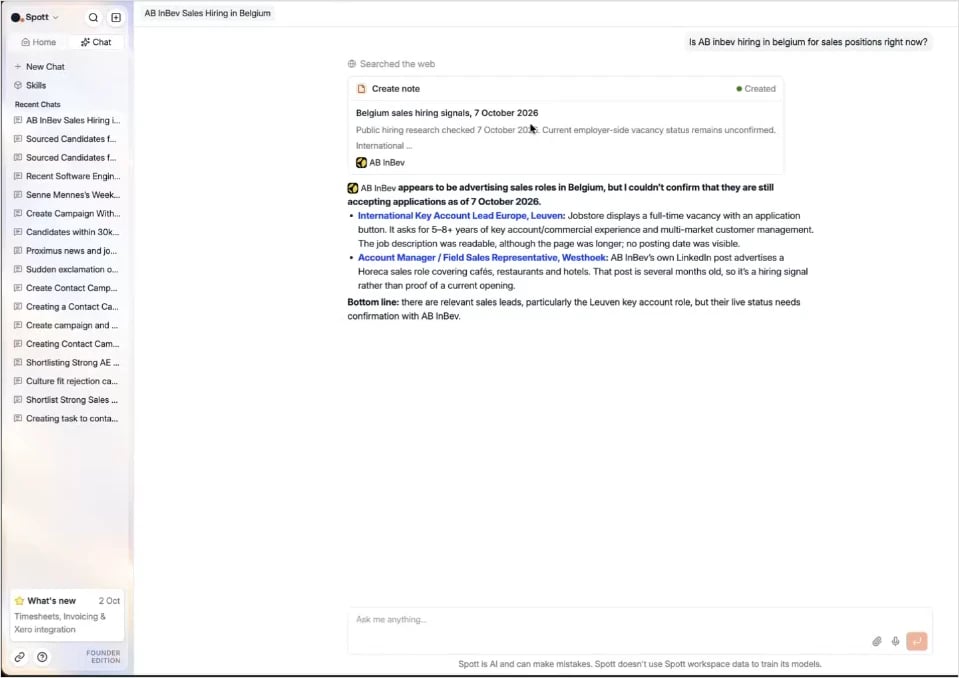
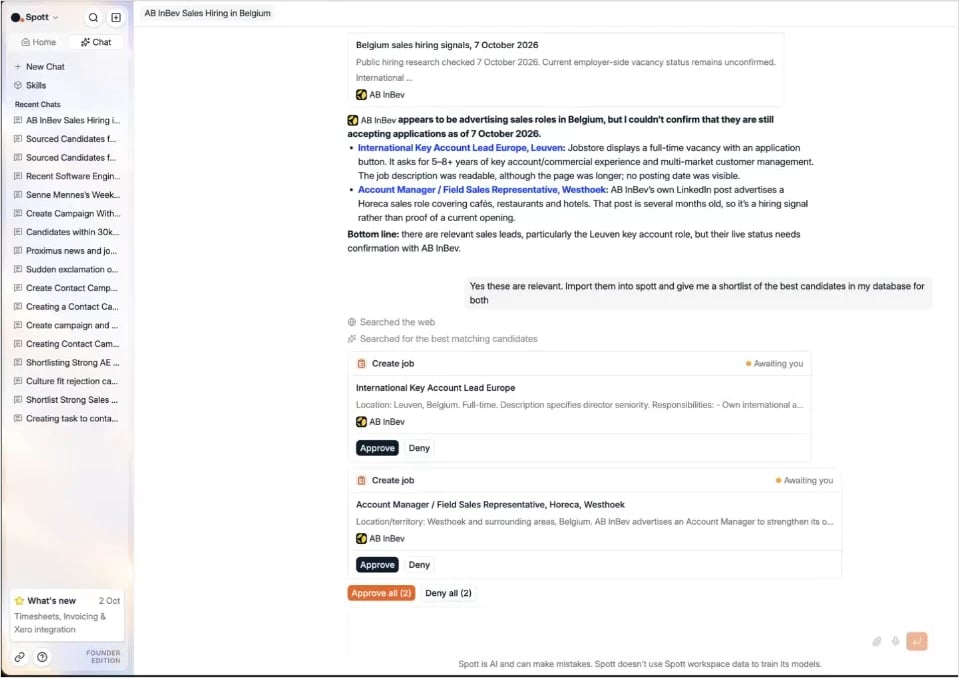
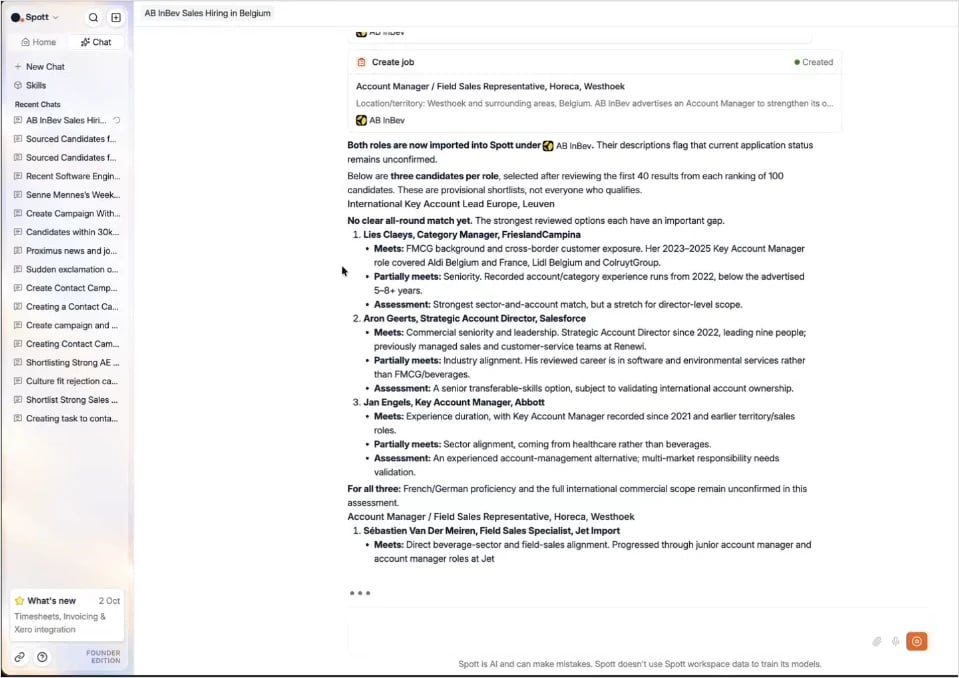
When the information you need is not in Spott, Ask Spott searches the web. It works best for targeted lookups: news about a company, open roles on a specific company’s career page, or the hiring manager for a role. It is not designed to scan the entire job market.One of my clients, AB InBev: are they currently hiring for sales positions in Belgium?You can then import what it found straight into Spott. Ask Spott checks whether the company already exists, so you do not get duplicates, and imports the jobs including their description, after your approval. In the same request, you can ask it to match candidates right away:
Yes, these are relevant. Import them into Spott and give me a shortlist of the best candidates in my database for both.Other examples:
I have a call with [company] later today about some jobs. What are the latest news items I can mention?
Find the hiring manager for the [role] position at [company].
Skills
For tasks you do regularly, save the instructions once as a skill and Ask Spott follows them every time. Everyone starts with Prep my next meeting and Recap my last call. See Ask Spott - Skills.Memory: it learns how you work
Telling it your preferences
Give Ask Spott an instruction about how you like to work, and it saves it to memory and applies it in all your future chats.Whenever I search for candidates, never put them in table form.Changed your mind? Just say so, and Ask Spott updates or removes the memory.
Always write my emails in Dutch.
No, don’t do this actually.
Learning from how you use it
Ask Spott also learns on its own. It regularly looks for patterns in how you use it and personalizes itself to you. If you always create a note after moving an application to a new stage, for example, it learns that workflow and suggests it or does it for you. Memories that keep being useful are reinforced, and memories that are never used gradually fade out. That keeps Ask Spott focused on what is relevant to you today.Usage limits
Chatting with Ask Spott does not use credits; enriching contact details through it does, at the usual price. Instead, Ask Spott has a fair usage limit per session, per day and per week. If you reach one, a Session limit reached, Daily limit reached or Weekly limit reached message in the chat tells you when it resets, and you can carry on from then.Tips for the best results
- Be specific. Mention the stage, job, company or time frame you mean.
- Add context. Briefly say what you are working on when a question is not obviously about recruitment.
- Start a new chat for a new topic. It keeps answers focused.
- Check before approving. The approval card shows exactly which records and fields change, and what an enrichment can cost.
- Keep working while it thinks. Switch to another chat during a long request; the answer waits for you.
- Use the sources. Click the sources under an answer to see where the information comes from.
- Save what you repeat. Turn recurring requests into a skill, and tell Ask Spott your preferences so it remembers them.