G then S. See all
keyboard shortcuts.
Use Settings to configure how Spott works for you and, in some areas, for your
whole organization. Settings are grouped into four sections: Personal,
Workspace, Templates, and Admin. Which items you see depends on the
features enabled for your workspace and your permissions.

Personal
Preferences
Set your personal defaults (full details):- Default currency, prefilled when adding new currency fields
- Default country code, the default dialing code for new phone numbers
- Default AI language, the language used for generated AI content
- Display language, the language of the Spott interface
- Default distance unit, used for location radius filters
- Spell check, browser spell check for outgoing messages
- Time zone, date format, time format (12 or 24 hour), and time display (relative or absolute timestamps)
- First day of the week, for calendars
- Interface theme, light or dark mode
- Default tabs, which tab opens first on candidate, company, and contact records
Profile
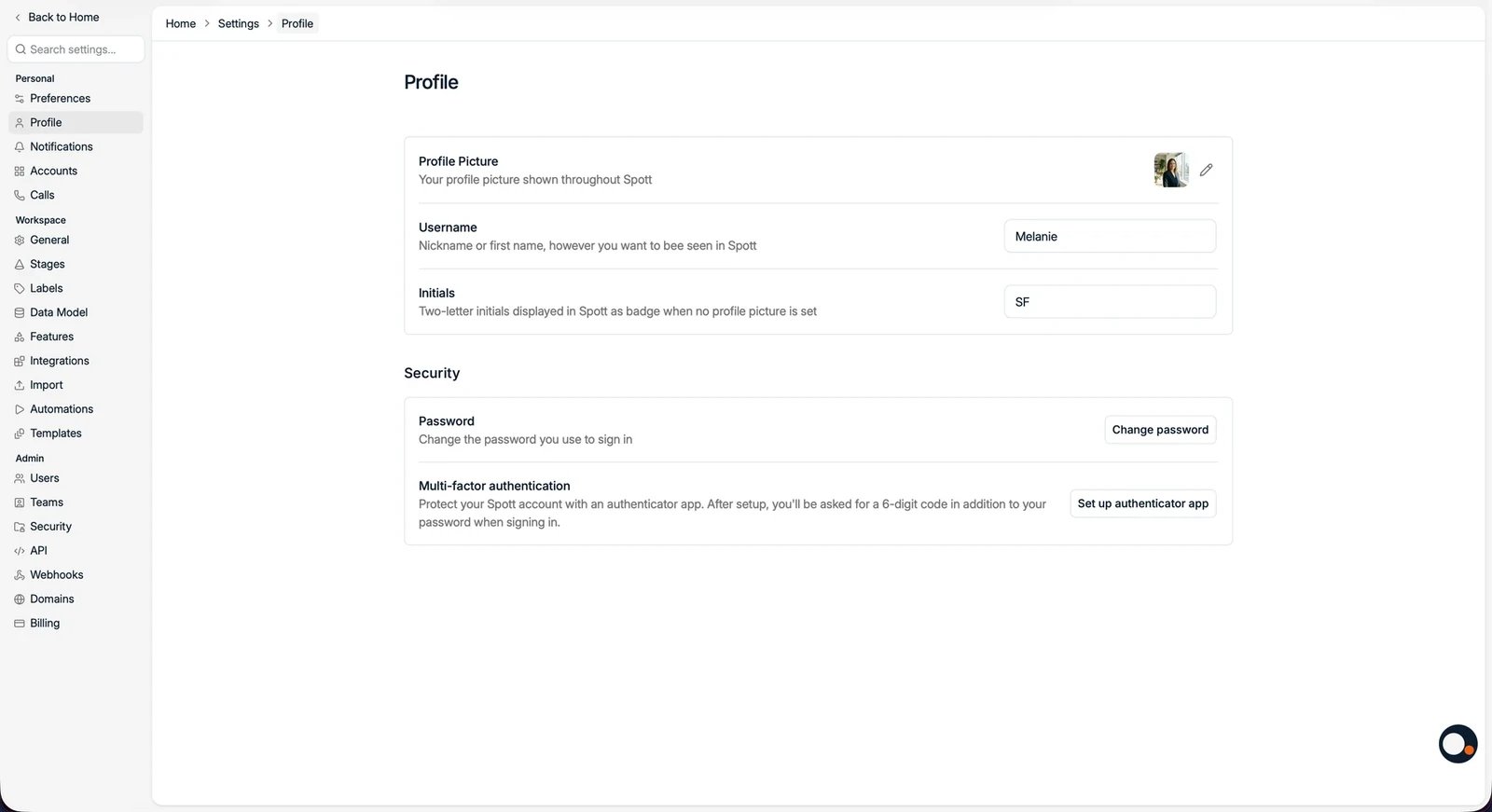
Update how you appear in Spott: your profile picture, username, and initials (shown as your avatar badge when no picture is set). Click Update profile to apply changes. This is also where you change your password. Spott is also compatible with single sign-on (SSO). Contact support to set it up for your workspace.Notifications
Control which events trigger notifications. For each event type, choose to be notified in the app, by email, or both:- Task notifications: assignments, completions, and mentions
- Job notifications: applications, comments, status changes, and new jobs
- Candidate notifications: alerts when candidate information is updated
Accounts
Connect external tools so data flows into Spott (full details):- Google / Microsoft Outlook: sync email and calendar
- Email signatures: manage one or more signatures and set a default
- Default email & calendar sharing: control what colleagues see of your synced emails: Metadata only, Subject line and metadata, or Full access
- LinkedIn and the Browser Extension: sync messages and import candidates from LinkedIn Classic, Sales Navigator, or Recruiter
- Scheduled Imports: view profiles queued for import through the extension
- WhatsApp: sync WhatsApp messages
Calls
Manage how Spott supports meetings, notes, and scheduling:- Note Taker: joins online meetings from your connected calendar to record and transcribe them. See Spott Note Taker.
- Mobile app: record in-person meetings and manage notes on iOS and Android.
- Calendar scheduler: share a booking link so others can schedule meetings directly into your calendar. See setting up your scheduler.
- Phone calls (VoIP): select your Aircall or Ringover number to enable click-to-call and link incoming calls to your account.
- Insights templates: templates the AI uses to turn meeting transcripts into structured insights.
Workspace

- General: branding, public URLs, default currency, social links, and your privacy policy. The consent disclaimer shown on public forms is configured here.
- Stages: customize pipeline stages for jobs and speculative presentations.
- Labels: create and manage labels to keep notes and emails organized.
- Data Model: configure the attributes on candidates, jobs, companies, contacts, placements, and attachments. Create custom attributes, placement forms, and rejection labels. Starred attributes show by default on records; the rest appear under Show all values.
- Features: enable or disable workspace-wide functionality such as enrichment, auto-updating profiles, the unified inbox, campaigns, marketing, automations, opportunities, consent tracking, and unique record identifiers (shown top-right on every record and searchable in global search).
- Integrations: connect calling providers, job board distributors, and other tools your team uses.
- Import: bulk import records from CSV or Excel files.
- Automations: trigger actions automatically on events in Spott. See automations.
- Metrics: configure the targets and metrics shown on dashboards.
Templates
Manage the reusable content in your workspace from Settings → Templates:- Presentation emails: templates for presenting a candidate or a job by email.
- Job description templates: the formats used when generating job descriptions with AI.
- Placement forms: the custom forms filled in when logging a placement.
Admin
Admin settings manage access, structure, and technical configuration. These are typically reserved for administrators:- Users: invite users and assign their roles.
- Teams: organize users into teams.
- Security: create roles with granular permissions and require multi-factor authentication. See managing access.
- API: create and manage API keys. See the Spott API and the API reference.
- Webhooks: configure endpoints that receive real-time events. See webhooks for the event catalog and patterns.
- Domains: manage and verify the sending domains connected to your workspace.
- Billing: manage your subscription plan, seat usage, and credit balance, and purchase additional credits. Credit pricing is shown on this page.