

Explore the tabs
After creating the company, you can edit and add more information in the company record view. The main tabs are:- Jobs: open or past job orders for this client, with an aggregated pipeline overview.
- Speculative: candidates presented to this client without an open role.
- Notes: internal notes for your team.
- Contacts: people linked to this company, with their contact details and role.
- Files: uploaded documents.
- Tasks: to-dos and reminders.
- Placements: candidates who are or have been placed at this company.
- Hierarchy: parent and child companies, and the type of relationship between them. See company hierarchy.
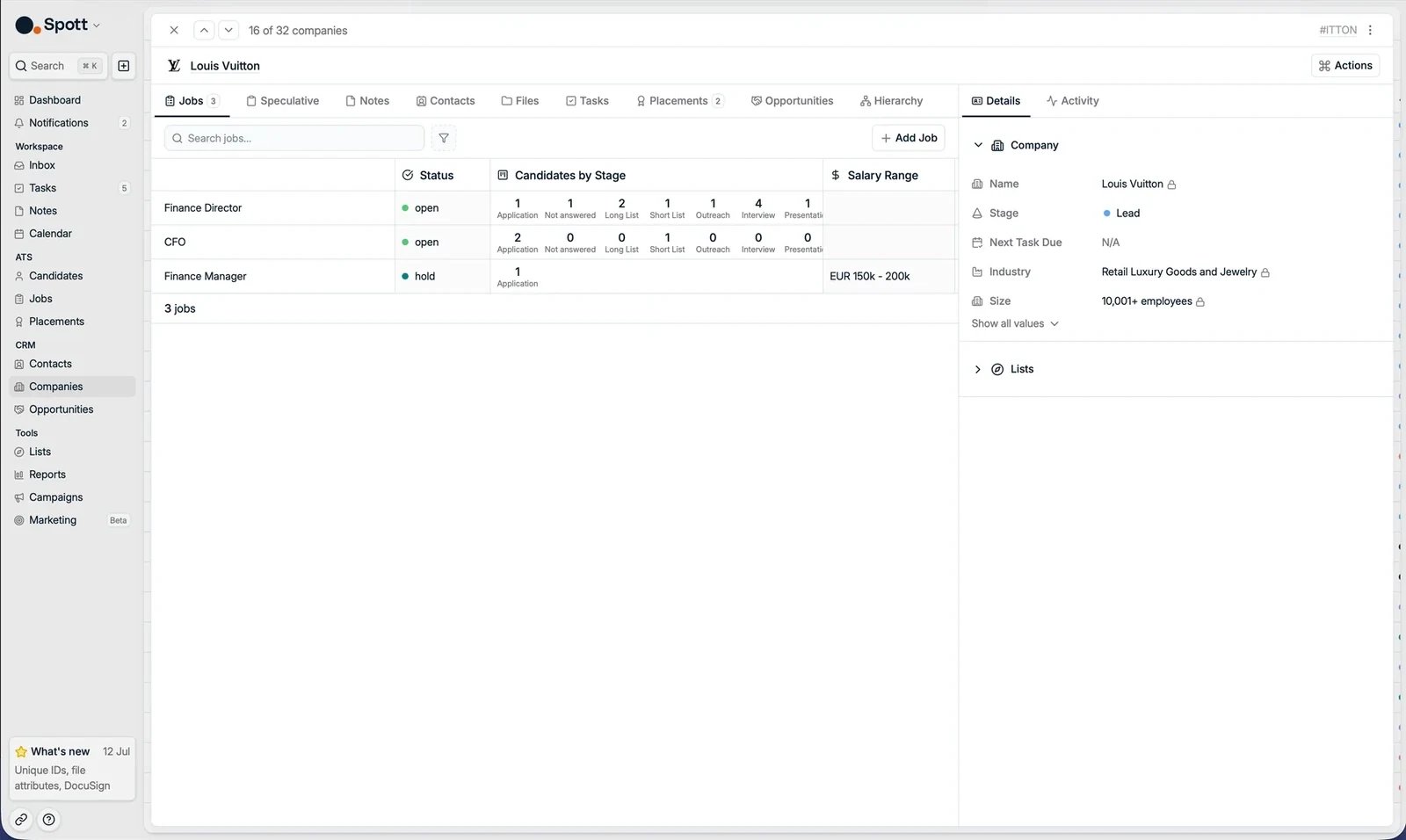
The columns you see in the Jobs and Contacts tabs of a company record mirror
the columns configured on the main Jobs and Contacts views. Change them there
in View Settings and the company record follows. See
using views.
The Details panel
The Details panel on the right is always visible, regardless of which tab you are in. It holds the company’s fields, including the Tax Identifier (VAT number, with automatic validation) and any custom fields your workspace uses. Keeping your client records complete and using custom attributes will greatly improve your ability to search, filter, and report on your client data in Spott.Suggested candidates for a company
The Matching tab on a company record works from the company’s location instead of a job’s requirements. It lists Suggested Candidates from your database who are within a given distance of the client, with their location, current or last company and role, how long they have been active there, and their institution.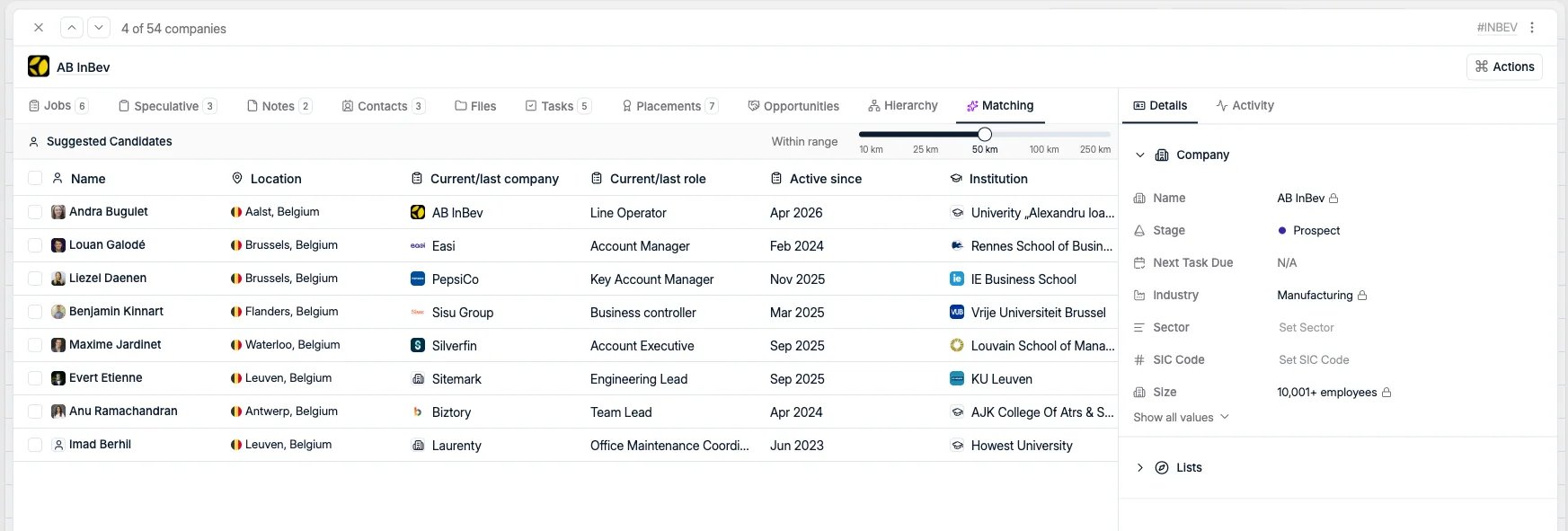
Deleting a company
Next steps
Company hierarchy
Link parent companies, subsidiaries, business units, and divisions.
Adding contacts
Link the right people to this client.