

How Spott detects duplicates
When you add or import a person, Spott checks for an existing record with a matching email address, phone number, or LinkedIn URL. It does not match on name alone, so two different people with the same name are not treated as duplicates. If it finds a match, Spott shows a Duplicate candidate prompt with the matching identifiers highlighted, and offers to update the existing record (for example, Update candidate from CV) instead of creating a second one.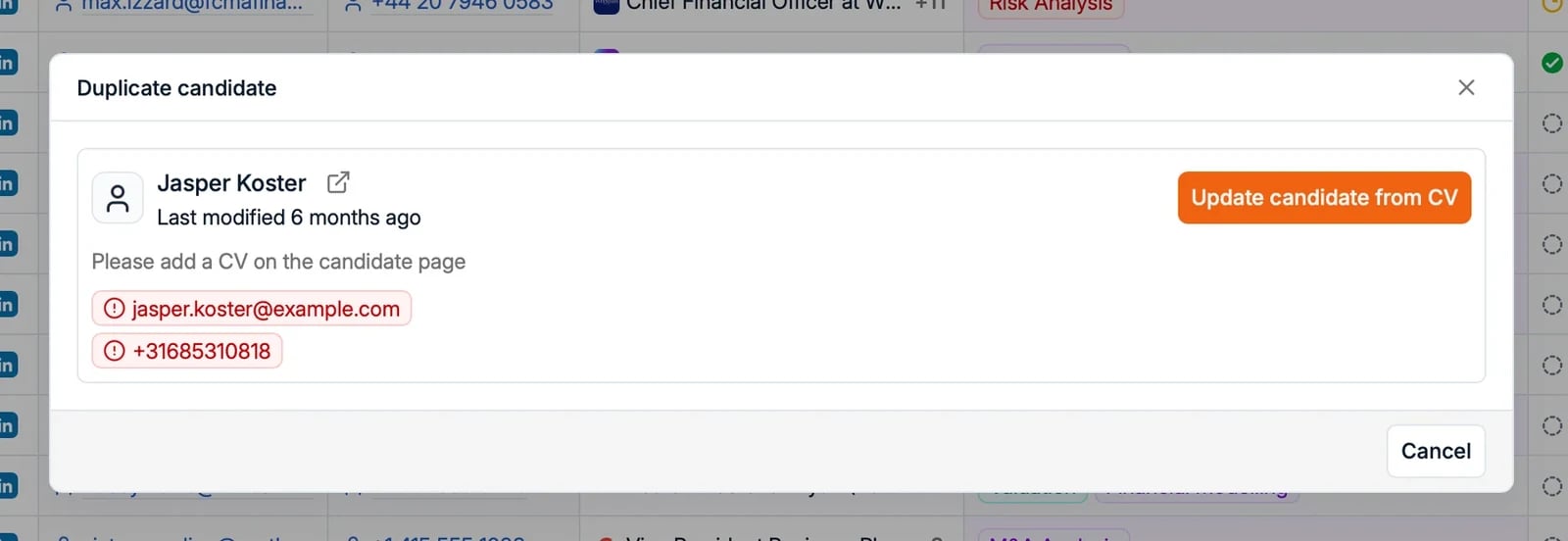
Review suggested duplicates
The check above only catches a duplicate that shares an email, phone, or LinkedIn URL. The duplicates that slip through are the ones that matter: the same person imported from a CV one year and added from a job board the next, with different contact details each time. Duplicate suggestions look for those. Spott compares candidates on their name, date of birth, past employers, and nationality, and lists the pairs that look like the same person. Go to Tools → Compliance and open the Duplicate candidates tab, next to Files and Suppressions. Each row is one pair, with both records’ main contact, when each was created, and where it came from, such as a CV import or a job board. The strongest matches come first.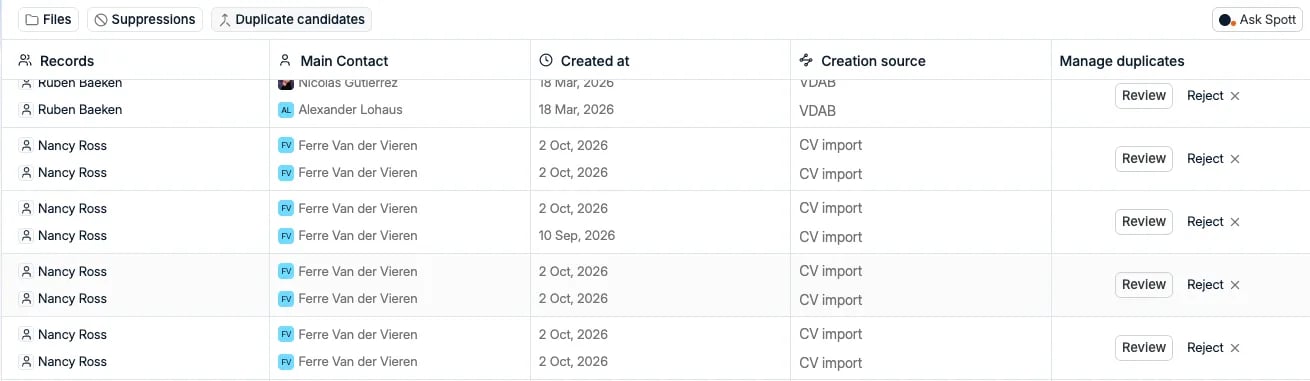
- Review, or a click on the row, opens the two records side by side in the merge dialog. Check them, then click Merge People to combine them, or Not duplicates if they are two different people. As in a manual merge, the record on the right wins when the two disagree. Spott does not put the better record there for you, so swap them first if needed.
- Reject removes the suggestion without opening the records. The confirmation reads Delete, but only the suggestion goes: both candidates stay as they are.
- Suggestions are a prompt, not a verdict. The match is on likeness rather than exact values, and a field missing on either record is left out of the comparison. Two people with similar names and little else on file can show up as a pair, so look before you merge.
- Candidates only, two at a time. Contacts and companies are not checked. Three records for the same person show up as separate pairs, so merging one pair can leave a second one to review.
- The list is filled by a check Spott runs on your workspace, not as each candidate is added, so a duplicate created today does not appear straight away.
- Duplicate suggestions are switched on per workspace by Spott. If you do not see the tab, contact support. The tab has its own switch, separate from the Compliance page itself. Reviewing and rejecting pairs needs the Merge People permission, which admins have.
Merge two people
When two records share no matching identifier, for example one was imported from a CV and the other added from LinkedIn with different contact details, automatic detection cannot link them. Merge them manually:- Open either person’s profile.
-
Click Actions in the top right and choose Merge 2 people (shortcut
⇧M). You can also select both people with the checkboxes in the main Candidates or Contacts view, then click Candidate Actions (or Contact Actions) in the bar at the bottom of the screen and choose Merge 2 people.
- In the Merge People dialog, the two records are shown side by side. Spott combines their data, such as emails, phone numbers, LinkedIn, and attachments, into one record.
- Review the combined result on the right, then click Merge People.
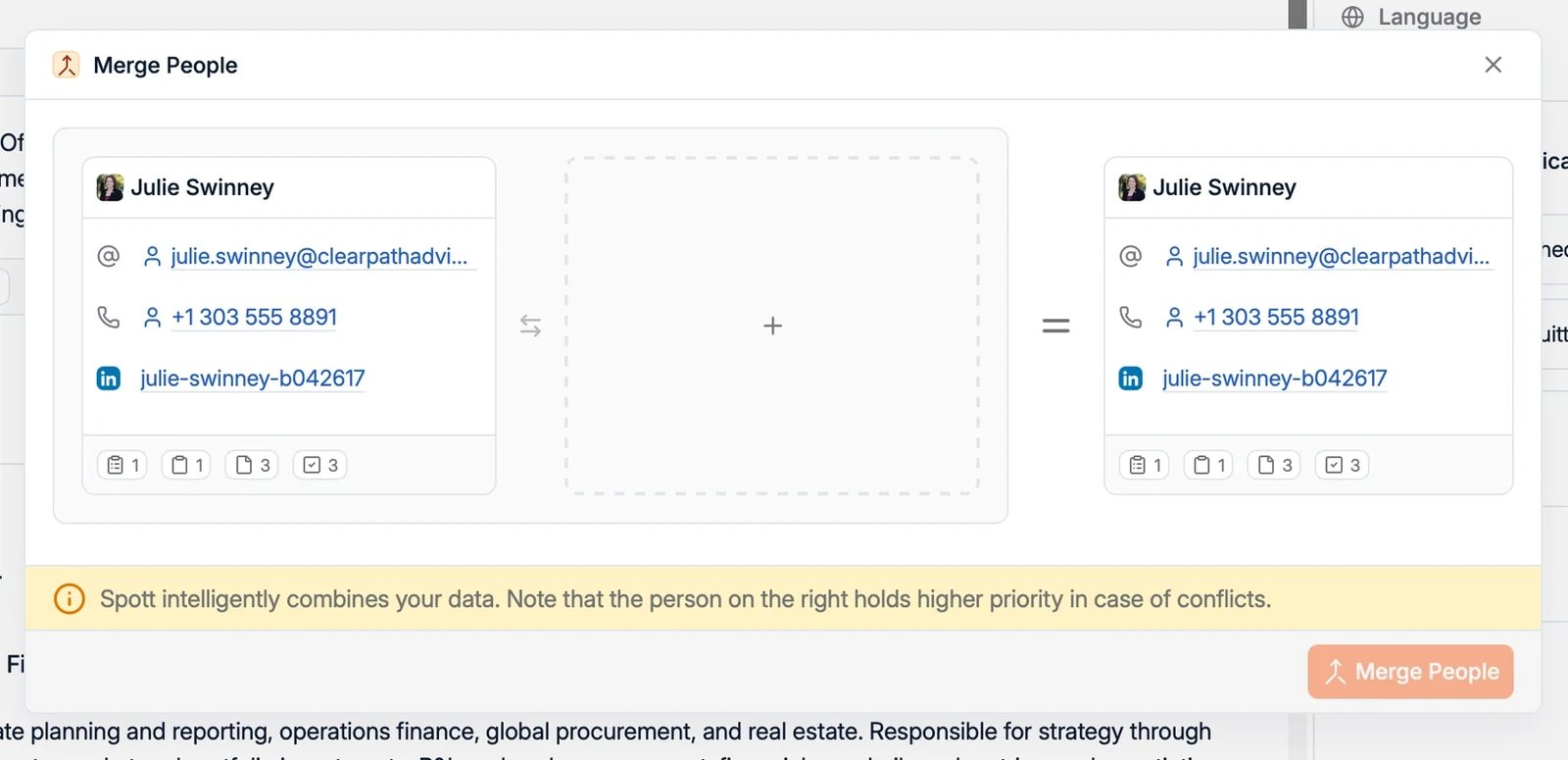
The record on the right takes priority. When the same field has different values
on each side, the right-hand value is kept. Put the record you consider most correct
on the right.
Good to know
- You merge two people at a time. There is no bulk merge, so selecting more than two records in a list view does not offer the merge action.
- Fields that can hold several values, such as emails, phone numbers, and attachments, are combined, so nothing is lost there. Fields that hold a single value, such as the job title, keep the right-hand record’s value and the other is overwritten. This is why the side you put on the right matters.
- Merging cannot be undone. Review the side-by-side comparison before you confirm.
- Merging a Candidate with a Contact keeps the result as a Candidate.