

G then M. See all
keyboard shortcuts.
The Companies view in Spott is fully customizable, giving you control over what
information you see, how it is displayed, and how it is organized.
Customizing columns
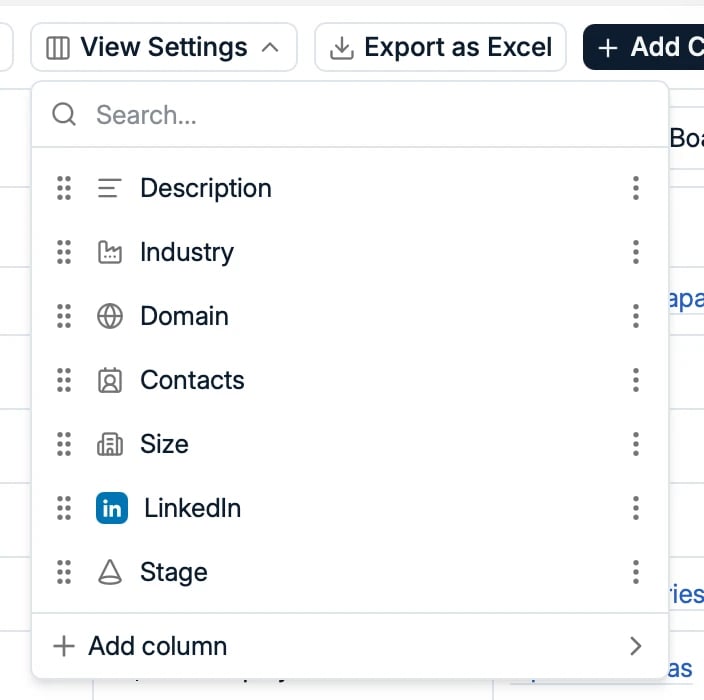
- Add columns: click View Settings in the top right corner and toggle on the attributes you want to see.
- Hide columns: in View Settings, click the three dots next to a column and remove it.
- Reorder columns by dragging them left or right, in the table or in View Settings.
Searching
The search bar finds companies by name and keywords. It supports full Boolean queries (AND, OR, NOT); Spott switches to Boolean mode automatically when your query contains double quotes.Filtering your data
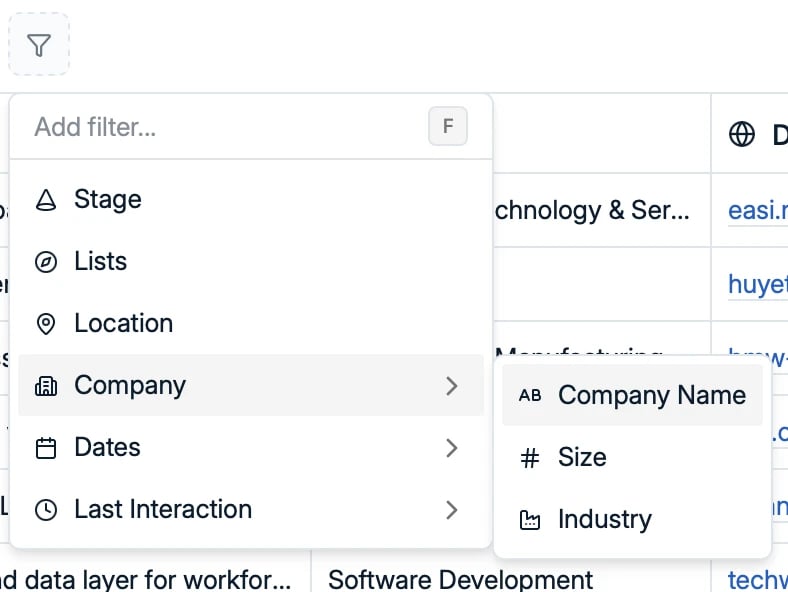
- Stage: track whether a client is a Lead, Prospect, or another stage
- Lists: companies on a specific list
- Location: find clients in or around a specific location, in a named area such as a region or a country, or by ZIP or postal code
- Company: name, size, and industry
- Dates: created at and next task due
- Last Interaction: when the last touchpoint happened, and with whom
- Any custom fields your workspace has configured
Sorting your records
Order your list by key attributes such as:- Company Name
- Created At, newest or oldest first
- Modified At
- Domain
- Next Task Due
- Last Interaction Date