

Every person exists only once in Spott. Someone can be a candidate, a client
contact, or both, and their notes and history stay on the same record even when they
change companies or roles. The Add as contact button on a profile adds the contact
role to the same person. It does not create a copy.
Open a candidate profile
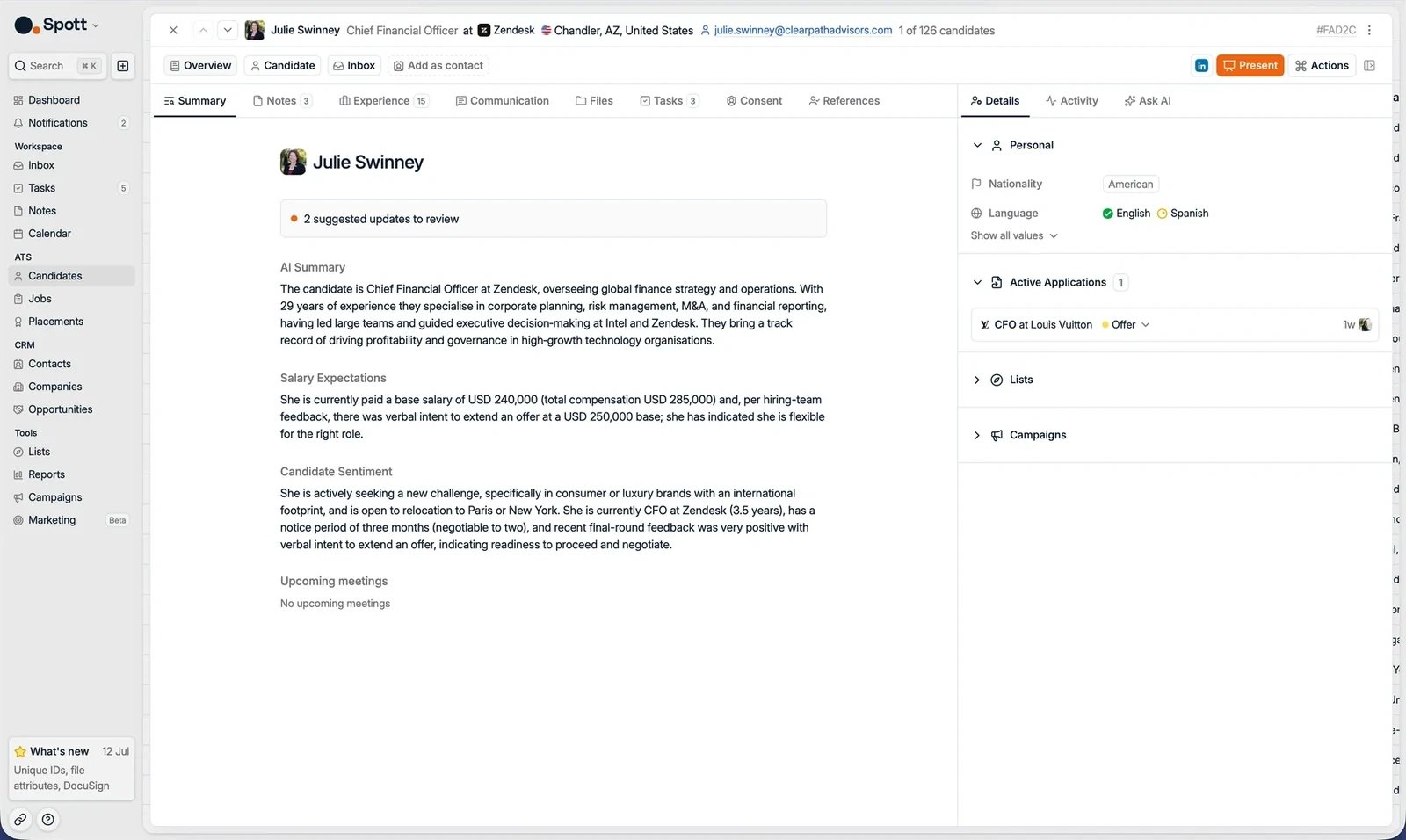
Go to the Candidates page in the left menu and click a candidate’s name. The header shows the candidate’s name, role, company, and contact details. Below it, the profile is organized into three tabs:- Overview: all information about the person.
- Candidate: their applications, placements, and matching. See tracking applications.
- Inbox: the full message history, across all channels.
Quick actions
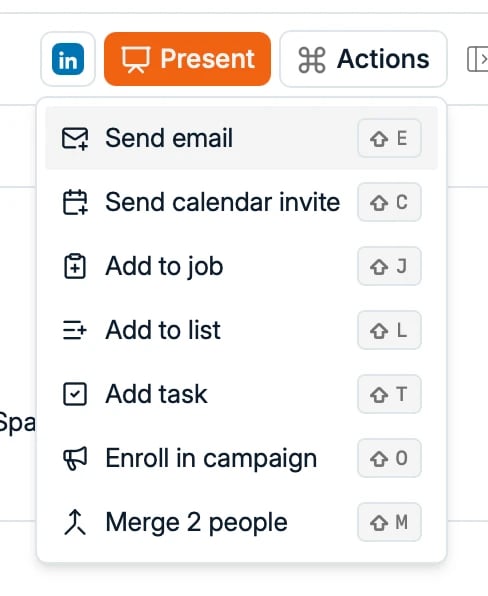
In the top right corner of the profile you find:- The candidate’s LinkedIn profile.
- Present, to share the candidate with a client.
- The Actions menu: send an email, send a calendar invite, add to a job, add to a list, add a task, add a note, enroll in a campaign, or merge two people.
The Overview tab
The Overview tab has a row of subtabs on the left and a side panel on the right.Summary
Your starting point. Based on the whole profile, Spott shows:- Suggested field updates picked up from recent calls, meetings, and notes. They appear here as Spott picks them up, so there is nothing to go and fetch: check the Overview tab after a call and accept or reject each one.
- A short AI summary of the candidate.
- Salary expectations.
- Candidate sentiment, based on recent conversations.
- Suggested tasks, picked up from recent calls, meetings, and notes. Hover one to see why it was suggested and where it came from, then add it to your task list or dismiss it.
- Upcoming meetings.

Notes
Add and track notes about the candidate or one of their applications. With the Spott Notetaker enabled, meetings are transcribed and summarized into a note automatically. Notes also serve as context for the AI features. Notes and emails can be docked: they open in a floating window that stays on screen while you move around the rest of the profile, so you can take notes while reading the CV or checking past communication. A docked note carries its own controls in the title bar: pin it, minimize it out of the way, expand it to full screen, copy a link to it, or set a reminder. Minimize one and it drops to a small icon in the bottom right, still open, so you can bring it back when the call moves on.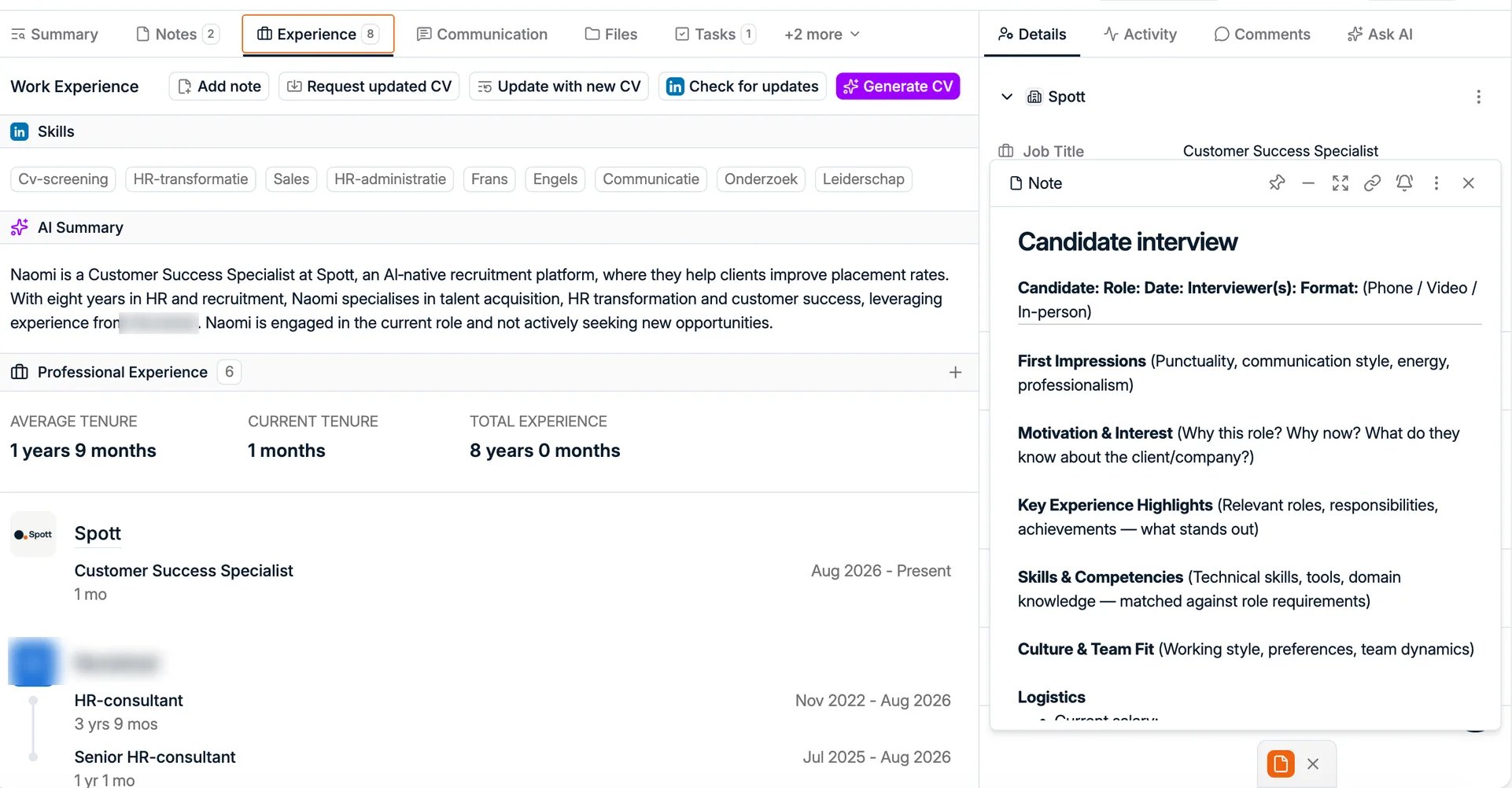
Experience
The candidate’s skills, work experience, and education, with tenure statistics. This information can be entered manually, parsed from a CV, or imported from LinkedIn with the Chrome extension. When the candidate has a CV on file, a Latest CV toggle appears at the top left of the tab. Switch it on to read the CV document itself instead of the parsed profile, without leaving the record.
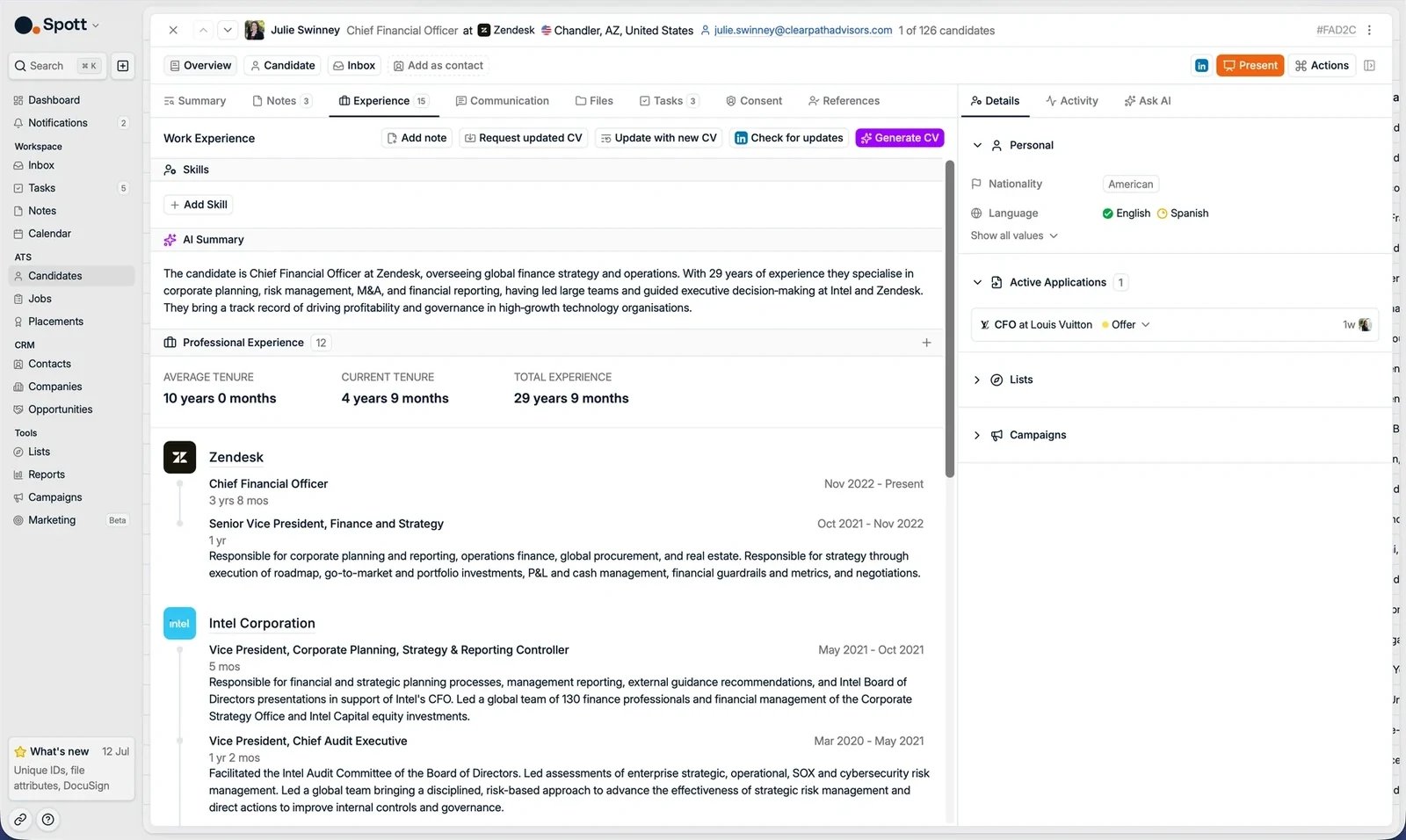
- Add note: jot a note down without leaving the tab.
- Request updated CV: send the candidate a link to upload their latest CV.
- Update with new CV: upload a newer CV yourself. Spott compares it with the profile and only applies what changed.
- Check for updates: refresh the profile from LinkedIn.
- Generate CV: create a formatted CV in your agency’s template.
Communication
Your message history with the candidate on email, linked emails, WhatsApp, and SMS, and a quick way to reply without leaving the profile. The channels are listed down the left, split into the workspace ones and your personal ones.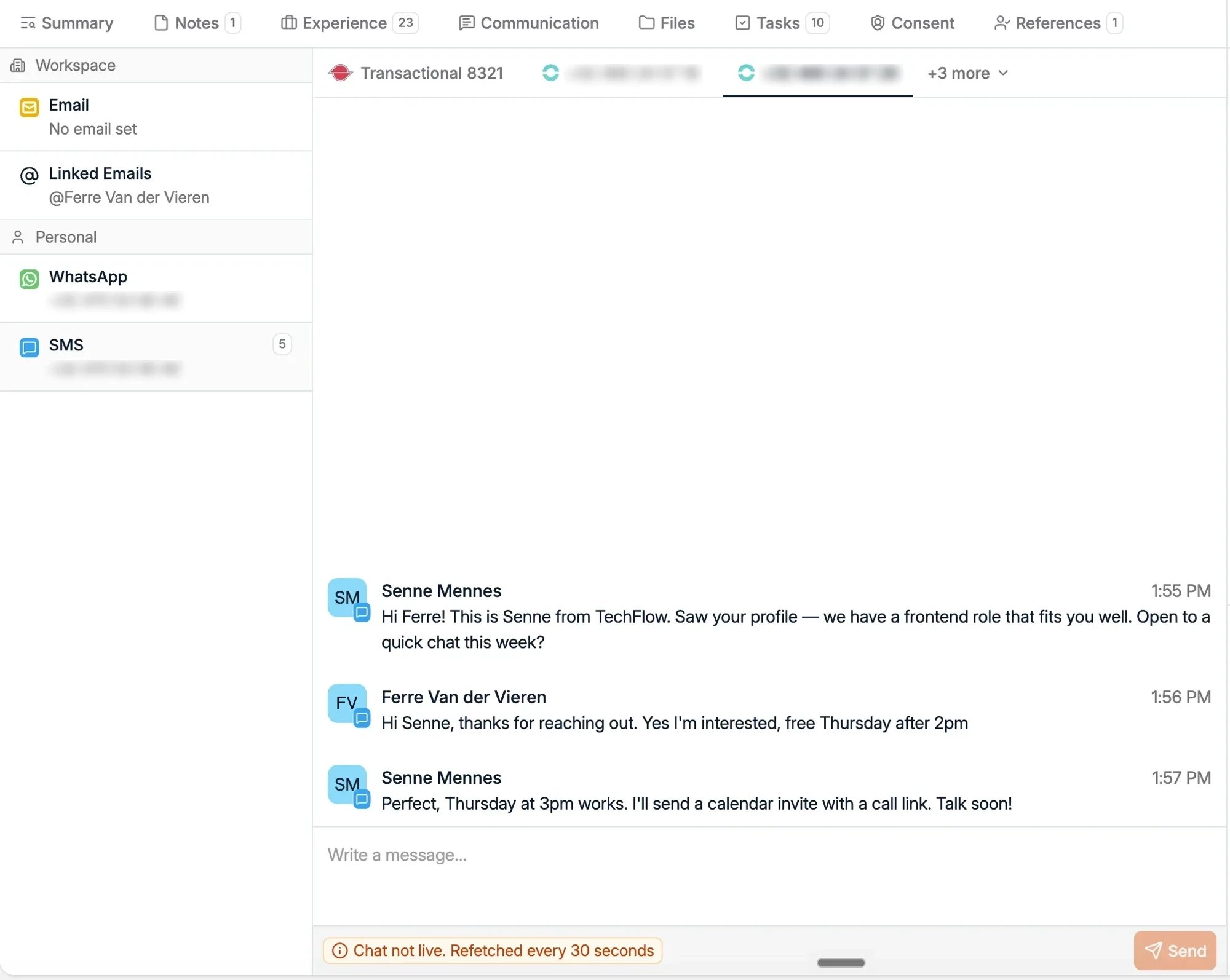
Files
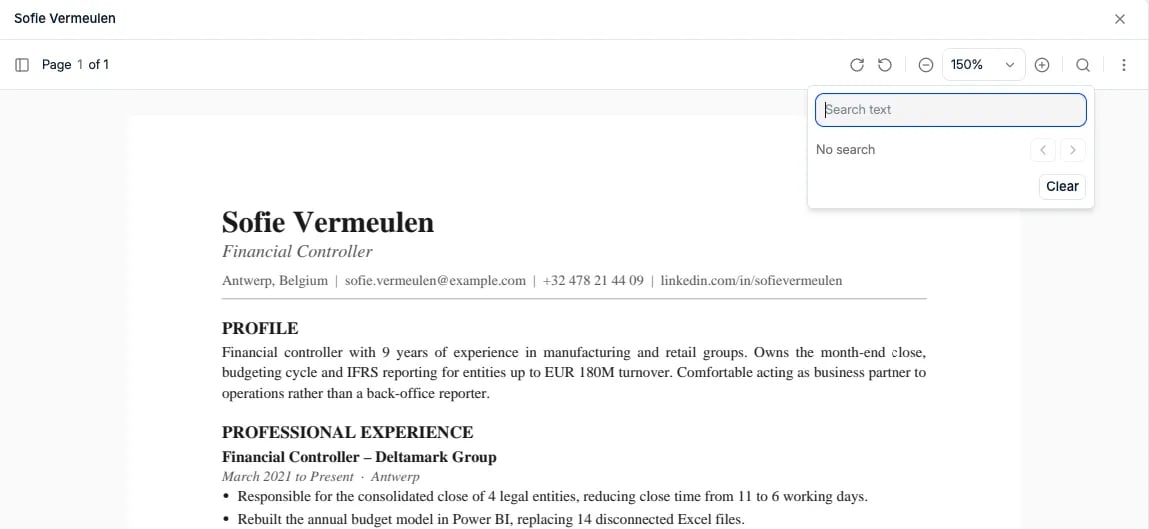
Files attached to the candidate, such as their CV. Click the three dots next to a CV to generate a formatted CV, so every CV you share with clients follows the same template. Filter the tab by file type to get to the one you want on a record that has collected years of documents, instead of scrolling the whole list. The same filter is on the Files tab of every record that has one. To clear out several files, tick them and click Delete in the bar that appears. Spott asks you to type a phrase such as “delete 3 files” to confirm, and the deletion is permanent. It works the same on contacts, companies, jobs, opportunities, and placements, and Compliance → Files does the same across your whole workspace. A document someone scanned with the mobile app is added from here with Select upload from mobile app, which works the same on companies, jobs, and opportunities. Click a file to open it in the file viewer, which reads Word documents and PDFs without downloading them or handing them to another application. PressCtrl+F
(⌘F on a Mac) to search inside the document, and step through the matches with the
arrows. On a six-page CV that is the difference between reading it and checking whether
the candidate has ever touched Kubernetes.
Tasks
Follow-up actions for this candidate. Assign them to yourself or a teammate, set due dates, and track completion.Consent
Track the candidate’s consents (GDPR and other compliance requirements, with type, source, and validity period) and marketing opt-outs to exclude them from marketing emails. This subtab appears when consent tracking is enabled for your workspace. See consent management. From here you can also block one of the candidate’s email addresses, for marketing only or for every email. Blocked addresses are listed, with what each reason stops, on the Compliance page.References
Log references for the candidate and add comments per reference.The side panel
Details
All the candidate’s fields: contact details, location, languages, availability, salary expectation, and any custom fields your workspace uses. Click Show all values to see every field.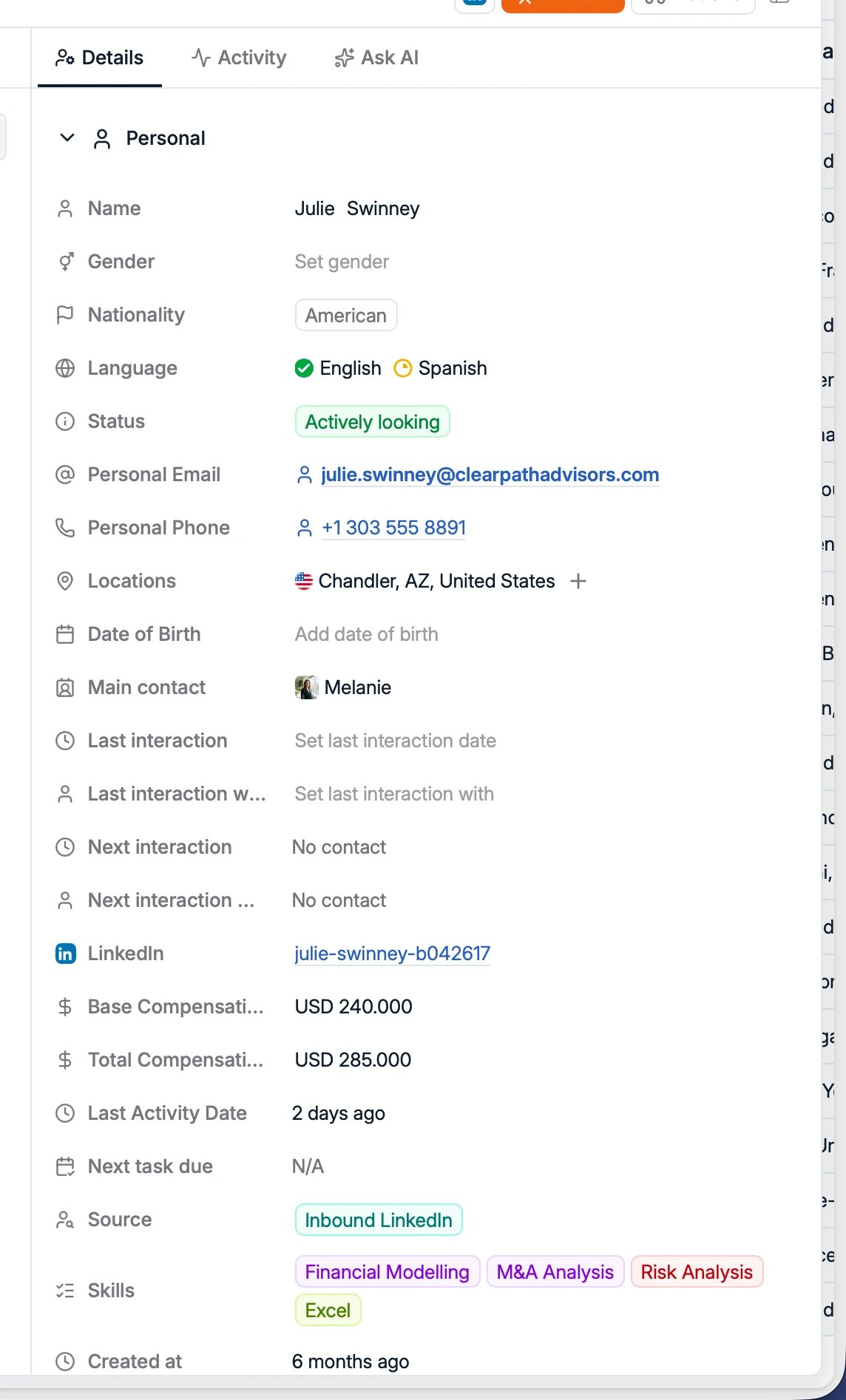
Activity
A timeline of everything that happened on the record, with who made each change. It covers updates to attributes, notes, tasks, meetings, emails & messages, calls, applications (including stage moves), and contacts. Use the Filters button at the top of the timeline to choose which of those event types are visible.
Ask AI
A personal agent that knows the whole profile: details, experience, notes, emails, and applications. Ask it things like:- “Summarize the situation with this candidate.”
- “Give me an application overview.”
- “What should I do next with this candidate?”
Frequently asked
- No duplicates. An email address, phone number, or LinkedIn URL can belong to only one person in the whole database. If a CV or import matches an existing person, Spott updates that person instead of creating a copy.
- Phone numbers use international format (for example
+32...). Spott validates this on entry. It keeps deduplication, enrichment, and calling integrations reliable. - Checking who owns an identifier? Paste the email address or phone number into
global search (
⌘K/Ctrl+K) to find the person it belongs to. - The Source field records where a candidate came from, not their current status, and is not editable.
- Marking someone off limits is done with the candidate’s status, which offers Do not contact and Do not poach. The status list is fixed, so if you need your own values, build a custom attribute and use that instead.
- Inline edits need Enter. When you change an email address or a phone number in place, press Enter to commit it. Clicking away discards what you typed, which reads as the field refusing to save.
- Bulk delete handles up to 10,000 candidates at a time.
- You cannot reuse your own login email on a candidate record.
- Profile photos can be uploaded manually on a candidate profile.
- WhatsApp on the Communication tab stays private to each user, so a colleague’s WhatsApp threads are not visible to the rest of the team.
- Numbers must be in international format (for example
+32...) for calls and SMS to be matched back to the candidate.
New to this? Start with the guide
Manage candidates in the Get Onboarded guide. A walkthrough of the whole record: finding, reading, maintaining, and presenting a candidate.