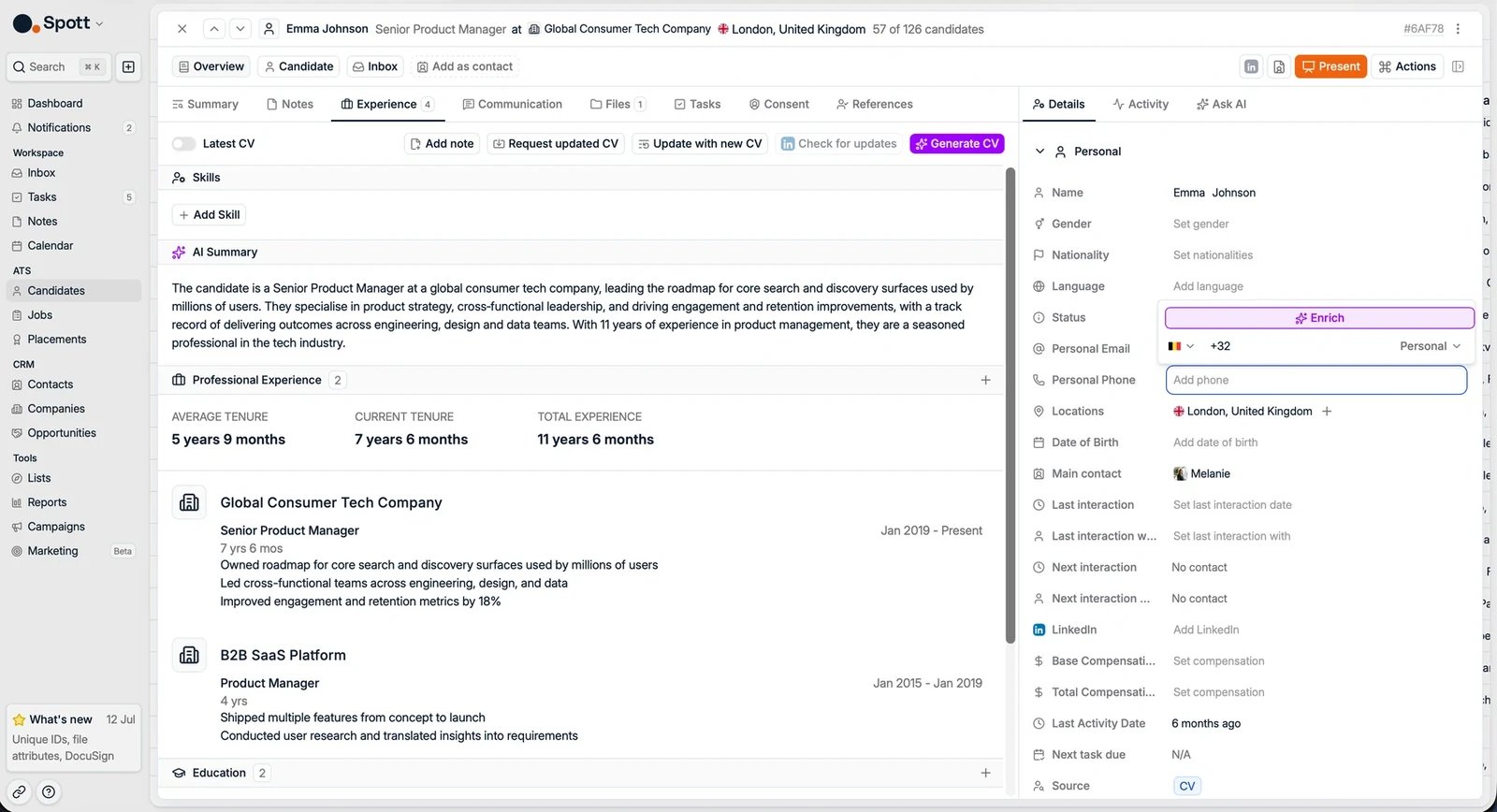
Automatically enrich Candidate and Contact profiles with email addresses and phone numbers using Spott’s enrichment engine.
Enrichment in Spott completes Candidate and Contact profiles by automatically finding
missing email addresses, phone numbers, and LinkedIn URLs, or by updating a profile
from LinkedIn.Spott uses a waterfall enrichment system: multiple data providers are tried until
data is found or all sources are exhausted, maximizing accuracy and coverage.
Enrichment uses credits, and credits are only deducted when enrichment is
successful. You can find credit pricing on the Billing page in Settings.
You can enrich profiles directly from both Candidates and Contacts:
Open a Candidate or Contact profile.
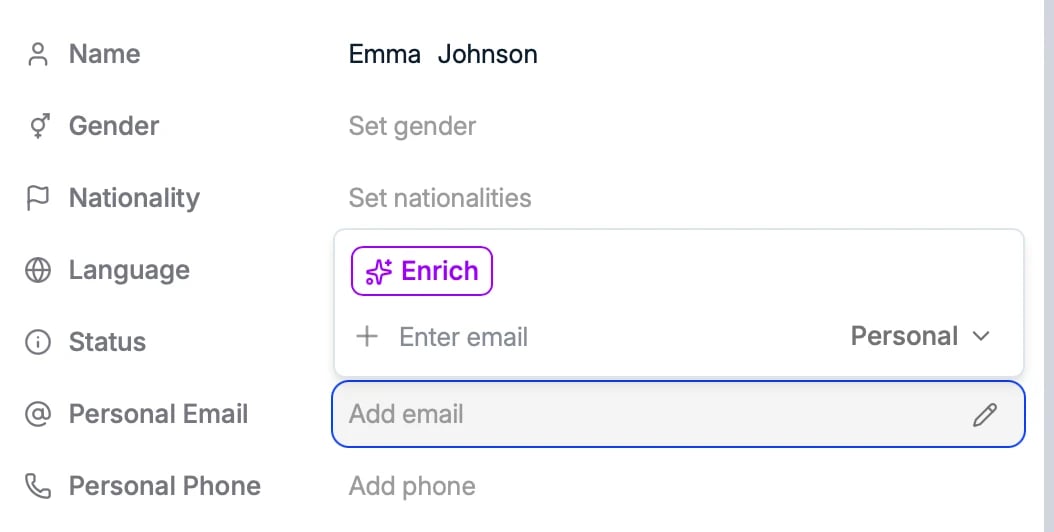
Click into an empty email or phone number field.
Click the purple Enrich button that appears.
Spott attempts to enrich the selected field.
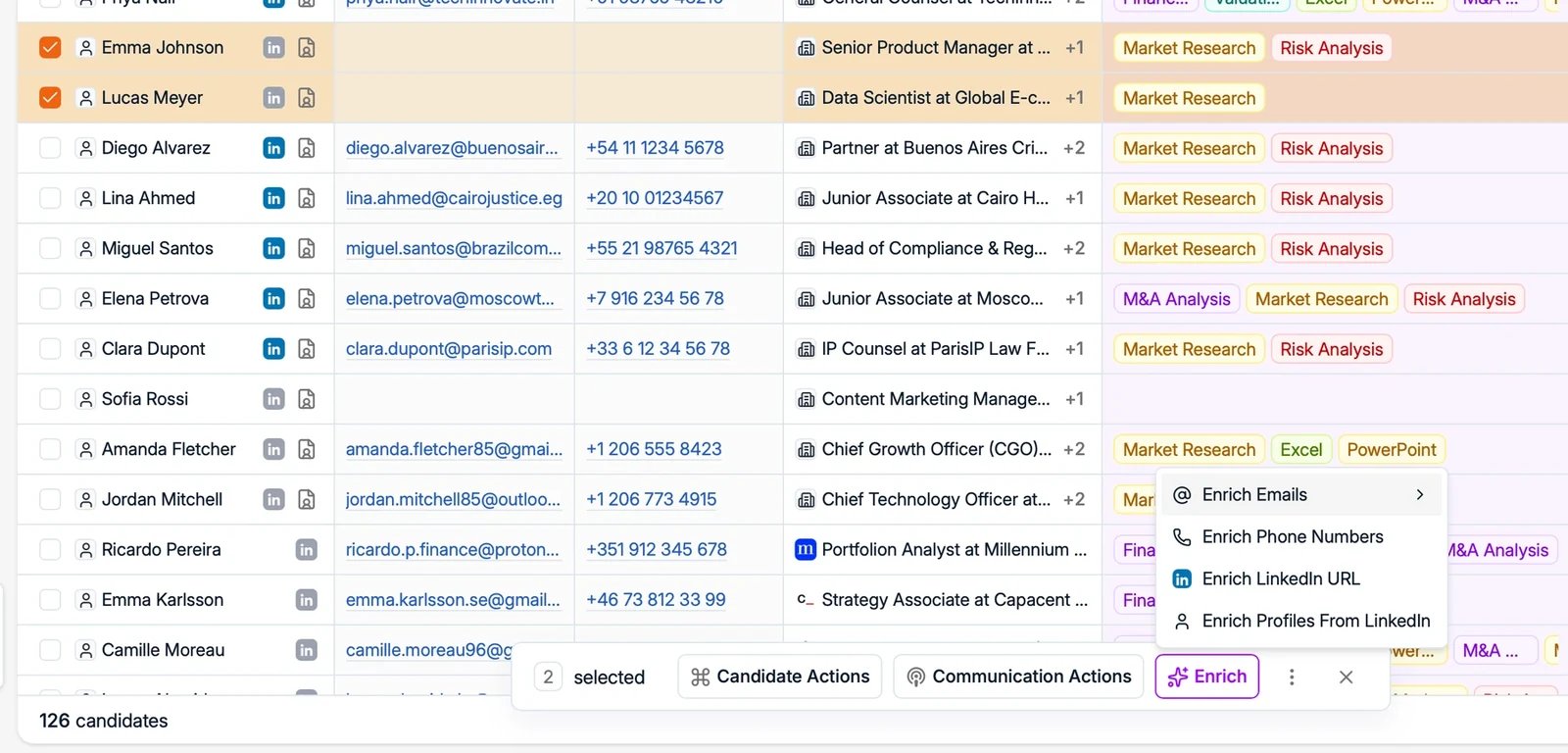
You can also enrich in bulk from the Candidates or Contacts table: select people
with the checkboxes and use the Enrich menu to enrich emails (personal, work, or
both), phone numbers, LinkedIn URLs, or full profiles from LinkedIn. Bulk enrichment
handles up to 1,000 candidates at a time.
On the profile’s Experience subtab, click Check for updates to refresh the
whole profile from LinkedIn. This can take a couple of minutes.You can also let Spott do this automatically on a schedule. See
auto-updating profiles.
Review enrichment usage from Settings → Features. Each enrichment feature keeps its
own history, so the record of a phone lookup and the record of a LinkedIn profile refresh
sit in different places:
Contact Enrichment History, for the emails, phone numbers, and LinkedIn URLs you
enriched on a profile.
Profile Enrichment History, for profiles updated from LinkedIn with Check for
updates.
Either one shows historical credit usage, which profiles were enriched, whether
enrichment succeeded, and how many credits were deducted. Use the Export button
to download the history as an Excel file for review. Auto-Update Enrichment History,
for auto-updating profiles, exports the same way.Nothing is charged for a profile Spott cannot find: credits are deducted only when
enrichment comes back with something.
Every seat brings an allowance of 300 credits a month, so a workspace of ten users
receives 3,000.
New credits are added on the first day of each month. The enrichment history shows
the date the next allowance lands, so you can see how long the balance has to last.
Top up from Settings → Billing in one of two ways:
Monthly subscription: a recurring monthly credit allowance, at a lower
per-credit price.
One-time purchase: a one-off block of credits.
Credits are pooled at the team level: the whole workspace draws from one shared
balance, across all credit-using features such as enrichment and
auto-updating profiles. The allowance is
counted per seat but never held per user, so one person enriching a long list spends
from the same pool as everyone else. An admin can cap that with a
monthly credit limit
per user; once you reach yours, enrichment is blocked until the 1st of the next month or
until an admin resets your usage.Unused credits carry over and expire one year after they were issued, so a quiet
month is not lost. What arrives monthly is the new allowance, not a reset of the
balance. See Billing & Credits.An Insufficient balance message means the shared pool is empty, not that you
personally have run out. To stop the pool draining faster than you would like, give users
a monthly credit limit under Settings → Users, or take Enrichment off the
roles that do not need it at all under Settings → Security.
Was this page helpful?
{"docsConfig":{"theme":"mint","$schema":"https://mintlify.com/docs.json","name":"Spott","description":"Documentation for Spott — the AI-native recruitment platform.","colors":{"primary":"#f0610f","light":"#f0610f","dark":"#f0610f"},"logo":{"light":"https://mintcdn.com/spott-docs/Zvbuq2vKGY56oD57/logo/light.svg?fit=max\u0026auto=format\u0026n=Zvbuq2vKGY56oD57\u0026q=85\u0026s=914d6f30a1192b291746dbcd2fc7e0fa","dark":"https://mintcdn.com/spott-docs/Zvbuq2vKGY56oD57/logo/dark.svg?fit=max\u0026auto=format\u0026n=Zvbuq2vKGY56oD57\u0026q=85\u0026s=e88bff4f96607e119e55398351566d54"},"favicon":"https://mintcdn.com/spott-docs/DowUiFW036iA_b71/favicon.png?fit=max\u0026auto=format\u0026n=DowUiFW036iA_b71\u0026q=85\u0026s=4729be45c4d1269ed0fafc43f45bc501","appearance":{"default":"light"},"navbar":{"links":[{"href":"https://spott.io","label":"Website"}],"primary":{"type":"button","label":"Go to app","href":"https://app.spott.io"}},"footer":{"socials":{"linkedin":"https://www.linkedin.com/company/spottai","website":"https://spott.io"}},"integrations":{"ga4":{"measurementId":"G-5GMF3213NR"}},"styling":{"latex":false},"navigation":{"global":{"anchors":[{"anchor":"Go to app","icon":"arrow-up-right-from-square","href":"https://app.spott.io"},{"anchor":"Support","icon":"life-ring","href":"/docs/get-started/faq"}]},"languages":[{"language":"en","default":true,"href":""},{"language":"fr","href":"fr"},{"language":"nl","href":"nl"},{"language":"de","href":"de"},{"language":"es","href":"es"}]}},"deployment":{"deploymentMetadataValue":{"subdomain":"spott-docs","hasAudioNarration":false,"actualSubdomain":"spott-docs","customDomains":["docs.spott.io"],"gitSource":{"type":"github","owner":"spott-hr","repo":"spott-docs-external","deployBranch":"main","contentDirectory":"","isPrivate":true,"mountPath":"","label":""},"chroma":{"collectionId":"f0073665-2f52-4bb5-aaa0-43ce286699bb","liveDeploymentHistoryId":"6adf7247b1764000030afb98","schemaVersion":"v3","latestBuiltDeploymentHistoryId":"6adf7247b1764000030afb98"},"feedback":{"thumbs":true},"entitlements":{},"buildId":"6adf7247b1764000030afb98","clientVersion":"0.0.3971","searchFilterCounts":[{"language":"en","tag":"API","count":215},{"language":"en","tag":"Private API","count":211},{"language":"de","tag":"Anleitungen","count":90},{"language":"en","tag":"Guides","count":90},{"language":"es","tag":"Guías","count":90},{"language":"fr","tag":"Guides","count":90},{"language":"nl","tag":"Gidsen","count":90},{"language":"en","tag":"Webhooks","count":55},{"language":"en","tag":"Webhook events","count":54},{"language":"en","tag":"Candidates","count":46},{"language":"de","tag":"Integrationen","count":36},{"language":"en","tag":"Integrations","count":36},{"language":"es","tag":"Integraciones","count":36},{"language":"fr","tag":"Intégrations","count":36},{"language":"nl","tag":"Integraties","count":36},{"language":"de","tag":"Einstellungen und Verwaltung","count":26},{"language":"en","tag":"Settings \u0026 Admin","count":26},{"language":"es","tag":"Configuración y administración","count":26},{"language":"fr","tag":"Paramètres et administration","count":26},{"language":"nl","tag":"Instellingen en beheer","count":26},{"language":"en","tag":"Jobs","count":24},{"language":"en","tag":"Custom Attributes","count":22},{"language":"de","tag":"Einstieg","count":16},{"language":"es","tag":"Primeros pasos","count":16},{"language":"fr","tag":"Prise en main","count":16},{"language":"nl","tag":"Onboarding","count":16},{"language":"de","tag":"Stellen","count":12},{"language":"es","tag":"Vacantes","count":12},{"language":"fr","tag":"Postes","count":12},{"language":"nl","tag":"Vacatures","count":12},{"language":"de","tag":"Kandidaten","count":11},{"language":"de","tag":"Unternehmen, Kontakte und Opportunities","count":11},{"language":"de","tag":"Erste Schritte","count":11},{"language":"de","tag":"Telefonie und Messaging","count":11},{"language":"es","tag":"Candidatos","count":11},{"language":"es","tag":"Empresas, contactos y oportunidades","count":11},{"language":"es","tag":"Introducción","count":11},{"language":"es","tag":"Telefonía y mensajería","count":11},{"language":"fr","tag":"Candidats","count":11},{"language":"fr","tag":"Entreprises, contacts et opportunités","count":11},{"language":"fr","tag":"Démarrer","count":11},{"language":"fr","tag":"Téléphonie et messagerie","count":11},{"language":"nl","tag":"Kandidaten","count":11},{"language":"nl","tag":"Bedrijven, contacten en opportuniteiten","count":11},{"language":"nl","tag":"Aan de slag","count":11},{"language":"nl","tag":"Telefonie en berichten","count":11},{"language":"de","tag":"Kommunikation","count":10},{"language":"es","tag":"Comunicación","count":10},{"language":"fr","tag":"Communication","count":10},{"language":"nl","tag":"Communicatie","count":10}]},"assistantConfig":{"enableAskAiButton":false,"enableStarterQuestions":false,"enableContextualStarterQuestions":false,"enableAskAiSearchBar":true},"basePath":"","hasChatPermissions":false,"hasWebMcpPermissions":false,"toggles":[{"name":"kill-isr","enabled":true,"variant":{"name":"disabled","enabled":false,"feature_enabled":true},"impressionData":false},{"name":"agent-mintlify-slack","enabled":true,"variant":{"name":"disabled","enabled":false,"feature_enabled":true},"impressionData":false},{"name":"editor-v7-file-tree","enabled":true,"variant":{"name":"disabled","enabled":false,"feature_enabled":true},"impressionData":false},{"name":"agent-integrations-settings","enabled":true,"variant":{"name":"disabled","enabled":false,"feature_enabled":true},"impressionData":false},{"name":"automations-pr-grouping","enabled":true,"variant":{"name":"disabled","enabled":false,"feature_enabled":true},"impressionData":false},{"name":"custom-prefix","enabled":true,"variant":{"name":"disabled","enabled":false,"feature_enabled":true},"impressionData":false},{"name":"analytics-v7","enabled":true,"variant":{"name":"disabled","enabled":false,"feature_enabled":true},"impressionData":false},{"name":"user-flows-analytics","enabled":true,"variant":{"name":"disabled","enabled":false,"feature_enabled":true},"impressionData":false},{"name":"no-publish-flow","enabled":true,"variant":{"name":"disabled","enabled":false,"feature_enabled":true},"impressionData":false},{"name":"workos-onboarding","enabled":true,"variant":{"name":"disabled","enabled":false,"feature_enabled":true},"impressionData":false},{"name":"llms-txt-v2","enabled":true,"variant":{"name":"disabled","enabled":false,"feature_enabled":true},"impressionData":false},{"name":"pause-universal-search-reconcile","enabled":true,"variant":{"name":"disabled","enabled":false,"feature_enabled":true},"impressionData":false},{"name":"snapshot-serving-live","enabled":true,"variant":{"name":"disabled","enabled":false,"feature_enabled":true},"impressionData":false},{"name":"stripTemperatureMiddleware","enabled":true,"variant":{"name":"disabled","enabled":false,"feature_enabled":true},"impressionData":false},{"name":"per-site-search-delta","enabled":true,"variant":{"name":"disabled","enabled":false,"feature_enabled":true},"impressionData":false},{"name":"support-platform-pylon-zendesk","enabled":true,"variant":{"name":"disabled","enabled":false,"feature_enabled":true},"impressionData":false},{"name":"snapshot-serving","enabled":true,"variant":{"name":"disabled","enabled":false,"feature_enabled":true},"impressionData":false},{"name":"instant-rollback","enabled":true,"variant":{"name":"disabled","enabled":false,"feature_enabled":true},"impressionData":false},{"name":"granular-notifications-server","enabled":true,"variant":{"name":"disabled","enabled":false,"feature_enabled":true},"impressionData":false},{"name":"granular-notifications","enabled":true,"variant":{"name":"disabled","enabled":false,"feature_enabled":true},"impressionData":false},{"name":"editor-private-page-search","enabled":true,"variant":{"name":"disabled","enabled":false,"feature_enabled":true},"impressionData":false},{"name":"automations-fable","enabled":true,"variant":{"name":"disabled","enabled":false,"feature_enabled":true},"impressionData":false},{"name":"fixed-ai-action-pricing","enabled":true,"variant":{"name":"disabled","enabled":false,"feature_enabled":true},"impressionData":false},{"name":"automation-resolve-merge-conflict","enabled":true,"variant":{"name":"disabled","enabled":false,"feature_enabled":true},"impressionData":false},{"name":"scoped-publishing","enabled":true,"variant":{"name":"disabled","enabled":false,"feature_enabled":true},"impressionData":false},{"name":"mintql","enabled":true,"variant":{"name":"disabled","enabled":false,"feature_enabled":true},"impressionData":false},{"name":"page-level-analytics","enabled":true,"variant":{"name":"disabled","enabled":false,"feature_enabled":true},"impressionData":false},{"name":"editor-version-history-v2","enabled":true,"variant":{"name":"disabled","enabled":false,"feature_enabled":true},"impressionData":false},{"name":"editor-nav-generations","enabled":true,"variant":{"name":"disabled","enabled":false,"feature_enabled":true},"impressionData":false},{"name":"billing-page-v2","enabled":true,"variant":{"name":"disabled","enabled":false,"feature_enabled":true},"impressionData":false},{"name":"workspace-projects","enabled":true,"variant":{"name":"disabled","enabled":false,"feature_enabled":true},"impressionData":false},{"name":"assistant-v5","enabled":true,"variant":{"name":"disabled","enabled":false,"feature_enabled":true},"impressionData":false},{"name":"byok-sep-25","enabled":true,"variant":{"name":"disabled","enabled":false,"feature_enabled":true},"impressionData":false},{"name":"fork-pr-previews","enabled":true,"variant":{"name":"disabled","enabled":false,"feature_enabled":true},"impressionData":false},{"name":"revalidation-jwt","enabled":true,"variant":{"name":"disabled","enabled":false,"feature_enabled":true},"impressionData":false},{"name":"vite-origin","enabled":true,"variant":{"name":"disabled","enabled":false,"feature_enabled":true},"impressionData":false},{"name":"editor-agent-model-picker","enabled":true,"variant":{"name":"disabled","enabled":false,"feature_enabled":true},"impressionData":false},{"name":"billing-updated-9-15","enabled":true,"variant":{"name":"disabled","enabled":false,"feature_enabled":true},"impressionData":false},{"name":"workos-sso-scim","enabled":true,"variant":{"name":"disabled","enabled":false,"feature_enabled":true},"impressionData":false},{"name":"hobby-abuse-scan","enabled":true,"variant":{"name":"disabled","enabled":false,"feature_enabled":true},"impressionData":false},{"name":"dashboard-inbox","enabled":true,"variant":{"name":"disabled","enabled":false,"feature_enabled":true},"impressionData":false},{"name":"workos-signup","enabled":true,"variant":{"name":"disabled","enabled":false,"feature_enabled":true},"impressionData":false},{"name":"workos-enabled","enabled":true,"variant":{"name":"disabled","enabled":false,"feature_enabled":true},"impressionData":false}],"isAtlas":false,"googleFontsInlined":false},"customCss":[{"filePath":"style.css","content":"@media (min-width:1024px){#sidebar{top:112px!important;height:calc(100dvh - 112px)!important}}.your-turn{margin:2rem 0;padding:1.25rem 1.5rem;border:1px solid rgb(240 97 15/.25);border-left:3px solid #f0610f;border-radius:.75rem;background:rgb(240 97 15/.04)}.dark .your-turn{border-color:rgb(240 97 15/.3);border-left-color:#f0610f;background:rgb(240 97 15/.07)}.your-turn h2{margin-top:0;margin-bottom:.75rem;font-size:.8125rem;font-weight:600;letter-spacing:.06em;text-transform:uppercase;color:#f0610f}.your-turn>:last-child{margin-bottom:0}.your-turn ul.contains-task-list{margin:0;padding-left:0;list-style:none}.your-turn ul.contains-task-list li.task-list-item{position:relative;margin:0;padding:.25rem 0 .25rem 1.75rem;list-style:none}.your-turn ul.contains-task-list li.task-list-item::before,.your-turn ul.contains-task-list li.task-list-item::marker{content:none;display:none}.your-turn li.task-list-item input[type=checkbox]{position:absolute;left:0;top:.45rem;width:1rem;height:1rem;margin:0;accent-color:#f0610f}.your-turn[data-interactive=true] li.task-list-item,.your-turn[data-interactive=true] li.task-list-item input[type=checkbox]{cursor:pointer}.your-turn[data-interactive=true] li.task-list-item:hover{color:#f0610f}.your-turn li.task-list-item.is-done{opacity:.55;text-decoration:line-through;text-decoration-color:rgb(240 97 15/.5)}.in-this-section{margin:0 0 2rem;padding:1rem 1.25rem;border:1px solid rgb(15 23 42/.08);border-radius:.75rem;background:rgb(15 23 42/.025);font-size:.9375rem;line-height:1.65}.dark .in-this-section{border-color:rgb(255 255 255/.1);background:rgb(255 255 255/.03)}.in-this-section>:first-child{margin-top:0}.in-this-section>:last-child{margin-bottom:0}.in-this-section .section-links{margin-top:.875rem;padding-top:.875rem;border-top:1px solid rgb(15 23 42/.08)}.dark .in-this-section .section-links{border-top-color:rgb(255 255 255/.1)}.in-this-section .section-links ol{margin:0;padding-left:1.25rem}.in-this-section .section-links li{margin:.25rem 0}.nav-hint{margin:0 0 2rem;font-size:.875rem;line-height:1.6;color:rgb(15 23 42/.6)}.dark .nav-hint{color:rgb(255 255 255/.55)}.nav-hint strong{font-weight:600;color:inherit}.nav-hint>:first-child{margin-top:0}.nav-hint>:last-child{margin-bottom:0}.dark img[src*=\"/brands/chatgpt\"],.dark img[src*=\"/integrations/logos/daidalo\"],.dark img[src*=\"/integrations/logos/juicebox\"],.dark img[src*=\"/integrations/logos/pin.\"]{background:#fff;border-radius:3px;padding:1px;box-sizing:border-box}.mdx-content img[src^=\"/images/\"]{border-radius:12px}.shots{display:flex;flex-wrap:wrap;align-items:flex-start;gap:.75rem;margin:1rem 0 1.5rem}.shots>p,.shots>span{margin:0}.mdx-content .shots img{width:220px;max-width:100%;height:auto;margin:0;border:1px solid rgb(15 23 42/.1);border-radius:8px;box-shadow:0 1px 2px rgb(15 23 42/.06);cursor:zoom-in;transition:box-shadow .15s ease,border-color .15s ease}.mdx-content .shots img:hover{border-color:rgb(240 97 15/.5);box-shadow:0 4px 12px rgb(15 23 42/.12)}.dark .mdx-content .shots img{border-color:rgb(255 255 255/.12)}"}],"page":{"pagePath":"docs/candidates/contact-enrichment","slug":"/docs/candidates/contact-enrichment","pageMetadata":{"title":"Contact Enrichment","icon":"user-plus","description":"Automatically enrich Candidate and Contact profiles with email addresses and phone numbers using Spott's enrichment engine.","href":"/docs/candidates/contact-enrichment"},"description":{"compiledSource":"\"use strict\";\nconst {jsx: _jsx} = arguments[0];\nconst {useMDXComponents: _provideComponents} = arguments[0];\nfunction _createMdxContent(props) {\n const _components = {\n p: \"p\",\n ..._provideComponents(),\n ...props.components\n };\n return _jsx(_components.p, {\n children: \"Automatically enrich Candidate and Contact profiles with email addresses and phone numbers using Spott’s enrichment engine.\"\n });\n}\nfunction MDXContent(props = {}) {\n const {wrapper: MDXLayout} = {\n ..._provideComponents(),\n ...props.components\n };\n return MDXLayout ? _jsx(MDXLayout, {\n ...props,\n children: _jsx(_createMdxContent, {\n ...props\n })\n }) : _createMdxContent(props);\n}\nreturn {\n default: MDXContent\n};\n","frontmatter":{},"scope":{}},"pageType":"default","mdx":{"mdxSource":{"compiledSource":"\"use strict\";const{Fragment:_Fragment,jsx:_jsx,jsxs:_jsxs}=arguments[0];const{useMDXComponents:_provideComponents}=arguments[0];function _createMdxContent(props){const _components={a:`a`,li:`li`,ol:`ol`,p:`p`,strong:`strong`,ul:`ul`,..._provideComponents(),...props.components},{Frame,Heading,Note,OptimizedImage}=_components;if(!Frame)_missingMdxReference(`Frame`,true);if(!Heading)_missingMdxReference(`Heading`,true);if(!Note)_missingMdxReference(`Note`,true);if(!OptimizedImage)_missingMdxReference(`OptimizedImage`,true);return _jsxs(_Fragment,{children:[_jsx(Frame,{children:_jsx(OptimizedImage,{src:`https://mintcdn.com/spott-docs/p014P0_PfappR2TU/images/general/enrichment-overview.webp?fit=max\u0026auto=format\u0026n=p014P0_PfappR2TU\u0026q=85\u0026s=82d5d778f1e582008b379b5c2470402a`,alt:`A profile with enrichment available on empty contact fields`,\"data-og-width\":`1600`,width:`1600`,\"data-og-height\":`868`,height:`868`,\"data-path\":`images/general/enrichment-overview.webp`,\"data-optimize\":`true`,\"data-opv\":`3`,srcset:`https://mintcdn.com/spott-docs/p014P0_PfappR2TU/images/general/enrichment-overview.webp?w=280\u0026fit=max\u0026auto=format\u0026n=p014P0_PfappR2TU\u0026q=85\u0026s=7e5a2ed2bc358edf1059a6e06538b84b 280w, https://mintcdn.com/spott-docs/p014P0_PfappR2TU/images/general/enrichment-overview.webp?w=560\u0026fit=max\u0026auto=format\u0026n=p014P0_PfappR2TU\u0026q=85\u0026s=b3d0f21e821acbd39eb163d39587533d 560w, https://mintcdn.com/spott-docs/p014P0_PfappR2TU/images/general/enrichment-overview.webp?w=840\u0026fit=max\u0026auto=format\u0026n=p014P0_PfappR2TU\u0026q=85\u0026s=e5f9006f0e7cd094bfad94dc2e0bee14 840w, https://mintcdn.com/spott-docs/p014P0_PfappR2TU/images/general/enrichment-overview.webp?w=1100\u0026fit=max\u0026auto=format\u0026n=p014P0_PfappR2TU\u0026q=85\u0026s=7b416754f249b5a565dfc21dbc5aee53 1100w, https://mintcdn.com/spott-docs/p014P0_PfappR2TU/images/general/enrichment-overview.webp?w=1650\u0026fit=max\u0026auto=format\u0026n=p014P0_PfappR2TU\u0026q=85\u0026s=9b17029b8cc6246a362cbe01d2a25c8c 1650w, https://mintcdn.com/spott-docs/p014P0_PfappR2TU/images/general/enrichment-overview.webp?w=2500\u0026fit=max\u0026auto=format\u0026n=p014P0_PfappR2TU\u0026q=85\u0026s=4ba00d9952a5c1b7d5ab4d134f4c9d8b 2500w`})}),`\n`,_jsx(_components.p,{children:`Enrichment in Spott completes Candidate and Contact profiles by automatically finding\nmissing email addresses, phone numbers, and LinkedIn URLs, or by updating a profile\nfrom LinkedIn.`}),`\n`,_jsxs(_components.p,{children:[`Spott uses a `,_jsx(_components.strong,{children:`waterfall enrichment system`}),`: multiple data providers are tried until\ndata is found or all sources are exhausted, maximizing accuracy and coverage.`]}),`\n`,_jsx(Note,{children:_jsxs(_components.p,{children:[`Enrichment uses credits, and credits are only deducted when enrichment is\nsuccessful. You can find credit pricing on the `,_jsx(_components.strong,{children:`Billing`}),` page in Settings.`]})}),`\n`,_jsx(Heading,{level:`2`,id:`enable-profile-enrichment`,children:`Enable Profile Enrichment`}),`\n`,_jsxs(_components.ol,{children:[`\n`,_jsxs(_components.li,{children:[`Navigate to `,_jsx(_components.strong,{children:`Settings → Features`}),`.`]}),`\n`,_jsxs(_components.li,{children:[`In the Enrichment section, toggle `,_jsx(_components.strong,{children:`Enable Profile Enrichment`}),` on to allow\nenrichment for Candidates and Contacts.`]}),`\n`]}),`\n`,_jsx(Frame,{children:_jsx(OptimizedImage,{src:`https://mintcdn.com/spott-docs/lDU_xVu3wPZWcJCf/images/settings/enrichment-settings.webp?fit=max\u0026auto=format\u0026n=lDU_xVu3wPZWcJCf\u0026q=85\u0026s=0d5724d13d6f63839762edbdc4e330a9`,alt:`The Enrichment section in Settings > Features`,\"data-og-width\":`1600`,width:`1600`,\"data-og-height\":`300`,height:`300`,\"data-path\":`images/settings/enrichment-settings.webp`,\"data-optimize\":`true`,\"data-opv\":`3`,srcset:`https://mintcdn.com/spott-docs/lDU_xVu3wPZWcJCf/images/settings/enrichment-settings.webp?w=280\u0026fit=max\u0026auto=format\u0026n=lDU_xVu3wPZWcJCf\u0026q=85\u0026s=6ce9e88bfef01a5112e374a1694dc51b 280w, https://mintcdn.com/spott-docs/lDU_xVu3wPZWcJCf/images/settings/enrichment-settings.webp?w=560\u0026fit=max\u0026auto=format\u0026n=lDU_xVu3wPZWcJCf\u0026q=85\u0026s=5b301463d39a5ed5b3d4bc1f62308aa0 560w, https://mintcdn.com/spott-docs/lDU_xVu3wPZWcJCf/images/settings/enrichment-settings.webp?w=840\u0026fit=max\u0026auto=format\u0026n=lDU_xVu3wPZWcJCf\u0026q=85\u0026s=efc94792009e2b35ecae7fbec5ec3945 840w, https://mintcdn.com/spott-docs/lDU_xVu3wPZWcJCf/images/settings/enrichment-settings.webp?w=1100\u0026fit=max\u0026auto=format\u0026n=lDU_xVu3wPZWcJCf\u0026q=85\u0026s=a70306c85b13feac18f8ab52a2f972bc 1100w, https://mintcdn.com/spott-docs/lDU_xVu3wPZWcJCf/images/settings/enrichment-settings.webp?w=1650\u0026fit=max\u0026auto=format\u0026n=lDU_xVu3wPZWcJCf\u0026q=85\u0026s=e5139c1d0d3af4e6557759d6644ee23f 1650w, https://mintcdn.com/spott-docs/lDU_xVu3wPZWcJCf/images/settings/enrichment-settings.webp?w=2500\u0026fit=max\u0026auto=format\u0026n=lDU_xVu3wPZWcJCf\u0026q=85\u0026s=c2725d5bddeac42ab11500faeb6239a2 2500w`})}),`\n`,_jsx(Heading,{level:`2`,id:`enrich-an-email-phone-number-or-linkedin-url`,children:`Enrich an email, phone number, or LinkedIn URL`}),`\n`,_jsx(_components.p,{children:`You can enrich profiles directly from both Candidates and Contacts:`}),`\n`,_jsxs(_components.ol,{children:[`\n`,_jsx(_components.li,{children:`Open a Candidate or Contact profile.`}),`\n`,_jsxs(_components.li,{children:[`Click into an empty `,_jsx(_components.strong,{children:`email`}),` or `,_jsx(_components.strong,{children:`phone number`}),` field.`]}),`\n`,_jsxs(_components.li,{children:[`Click the purple `,_jsx(_components.strong,{children:`Enrich`}),` button that appears.`]}),`\n`,_jsx(_components.li,{children:`Spott attempts to enrich the selected field.`}),`\n`]}),`\n`,_jsx(Frame,{children:_jsx(OptimizedImage,{src:`https://mintcdn.com/spott-docs/WzzqbdmDDMMyexpH/images/general/enrichment-enrich-button.webp?fit=max\u0026auto=format\u0026n=WzzqbdmDDMMyexpH\u0026q=85\u0026s=656e9f1c52c5121e708cb9385892e0c9`,alt:`The Enrich button on an empty phone field`,\"data-og-width\":`1054`,width:`1054`,\"data-og-height\":`532`,height:`532`,\"data-path\":`images/general/enrichment-enrich-button.webp`,\"data-optimize\":`true`,\"data-opv\":`3`,srcset:`https://mintcdn.com/spott-docs/WzzqbdmDDMMyexpH/images/general/enrichment-enrich-button.webp?w=280\u0026fit=max\u0026auto=format\u0026n=WzzqbdmDDMMyexpH\u0026q=85\u0026s=b171134103f4b0d22ebd90c51f2309ae 280w, https://mintcdn.com/spott-docs/WzzqbdmDDMMyexpH/images/general/enrichment-enrich-button.webp?w=560\u0026fit=max\u0026auto=format\u0026n=WzzqbdmDDMMyexpH\u0026q=85\u0026s=9443861b53e12bd347d082edc85b36c4 560w, https://mintcdn.com/spott-docs/WzzqbdmDDMMyexpH/images/general/enrichment-enrich-button.webp?w=840\u0026fit=max\u0026auto=format\u0026n=WzzqbdmDDMMyexpH\u0026q=85\u0026s=707f84db0b865d19a77fa30ff59f4a28 840w, https://mintcdn.com/spott-docs/WzzqbdmDDMMyexpH/images/general/enrichment-enrich-button.webp?w=1100\u0026fit=max\u0026auto=format\u0026n=WzzqbdmDDMMyexpH\u0026q=85\u0026s=de205679cda1062dd371f97a70dd571b 1100w, https://mintcdn.com/spott-docs/WzzqbdmDDMMyexpH/images/general/enrichment-enrich-button.webp?w=1650\u0026fit=max\u0026auto=format\u0026n=WzzqbdmDDMMyexpH\u0026q=85\u0026s=fa11db557332ddb84bd730cd14b3b5bf 1650w, https://mintcdn.com/spott-docs/WzzqbdmDDMMyexpH/images/general/enrichment-enrich-button.webp?w=2500\u0026fit=max\u0026auto=format\u0026n=WzzqbdmDDMMyexpH\u0026q=85\u0026s=6a8065f3c169d3cb861a3f3f3b0df813 2500w`})}),`\n`,_jsx(Frame,{children:_jsx(OptimizedImage,{src:`https://mintcdn.com/spott-docs/p014P0_PfappR2TU/images/general/enrichment-bulk.webp?fit=max\u0026auto=format\u0026n=p014P0_PfappR2TU\u0026q=85\u0026s=6dc13216c891729fa11c10bb26a6fa98`,alt:`The bulk Enrich menu on the candidate table`,\"data-og-width\":`1600`,width:`1600`,\"data-og-height\":`768`,height:`768`,\"data-path\":`images/general/enrichment-bulk.webp`,\"data-optimize\":`true`,\"data-opv\":`3`,srcset:`https://mintcdn.com/spott-docs/p014P0_PfappR2TU/images/general/enrichment-bulk.webp?w=280\u0026fit=max\u0026auto=format\u0026n=p014P0_PfappR2TU\u0026q=85\u0026s=18814061a9b66a476855dfa7645d64ef 280w, https://mintcdn.com/spott-docs/p014P0_PfappR2TU/images/general/enrichment-bulk.webp?w=560\u0026fit=max\u0026auto=format\u0026n=p014P0_PfappR2TU\u0026q=85\u0026s=fd6b958816e6e70075896a5f389a8d78 560w, https://mintcdn.com/spott-docs/p014P0_PfappR2TU/images/general/enrichment-bulk.webp?w=840\u0026fit=max\u0026auto=format\u0026n=p014P0_PfappR2TU\u0026q=85\u0026s=726f9b24d0c70218d51e587273977801 840w, https://mintcdn.com/spott-docs/p014P0_PfappR2TU/images/general/enrichment-bulk.webp?w=1100\u0026fit=max\u0026auto=format\u0026n=p014P0_PfappR2TU\u0026q=85\u0026s=9113f3a65c0391a44c4e5efe975afce1 1100w, https://mintcdn.com/spott-docs/p014P0_PfappR2TU/images/general/enrichment-bulk.webp?w=1650\u0026fit=max\u0026auto=format\u0026n=p014P0_PfappR2TU\u0026q=85\u0026s=04ed9a77aebae9b9912c5e7b5fdd3d26 1650w, https://mintcdn.com/spott-docs/p014P0_PfappR2TU/images/general/enrichment-bulk.webp?w=2500\u0026fit=max\u0026auto=format\u0026n=p014P0_PfappR2TU\u0026q=85\u0026s=67ffe635e3af78cc507ec5e0e11f4abb 2500w`})}),`\n`,_jsxs(_components.p,{children:[`You can also enrich in `,_jsx(_components.strong,{children:`bulk`}),` from the Candidates or Contacts table: select people\nwith the checkboxes and use the `,_jsx(_components.strong,{children:`Enrich`}),` menu to enrich emails (personal, work, or\nboth), phone numbers, LinkedIn URLs, or full profiles from LinkedIn. Bulk enrichment\nhandles up to `,_jsx(_components.strong,{children:`1,000 candidates`}),` at a time.`]}),`\n`,_jsx(Heading,{level:`2`,id:`update-a-profile-from-linkedin`,children:`Update a profile from LinkedIn`}),`\n`,_jsxs(_components.p,{children:[`On the profile’s `,_jsx(_components.strong,{children:`Experience`}),` subtab, click `,_jsx(_components.strong,{children:`Check for updates`}),` to refresh the\nwhole profile from LinkedIn. This can take a couple of minutes.`]}),`\n`,_jsxs(_components.p,{children:[`You can also let Spott do this automatically on a schedule. See\n`,_jsx(_components.a,{href:`/docs/settings/auto-updating-profiles`,children:`auto-updating profiles`}),`.`]}),`\n`,_jsx(Heading,{level:`2`,id:`enrichment-history`,children:`Enrichment history`}),`\n`,_jsxs(_components.p,{children:[`Review enrichment usage from `,_jsx(_components.strong,{children:`Settings → Features`}),`. Each enrichment feature keeps its\nown history, so the record of a phone lookup and the record of a LinkedIn profile refresh\nsit in different places:`]}),`\n`,_jsxs(_components.ul,{children:[`\n`,_jsxs(_components.li,{children:[_jsx(_components.strong,{children:`Contact Enrichment History`}),`, for the emails, phone numbers, and LinkedIn URLs you\nenriched on a profile.`]}),`\n`,_jsxs(_components.li,{children:[_jsx(_components.strong,{children:`Profile Enrichment History`}),`, for profiles updated from LinkedIn with `,_jsx(_components.strong,{children:`Check for\nupdates`}),`.`]}),`\n`]}),`\n`,_jsxs(_components.p,{children:[`Either one shows historical credit usage, which profiles were enriched, whether\nenrichment succeeded, and how many credits were deducted. Use the `,_jsx(_components.strong,{children:`Export`}),` button\nto download the history as an Excel file for review. `,_jsx(_components.strong,{children:`Auto-Update Enrichment History`}),`,\nfor `,_jsx(_components.a,{href:`/docs/settings/auto-updating-profiles`,children:`auto-updating profiles`}),`, exports the same way.`]}),`\n`,_jsx(_components.p,{children:`Nothing is charged for a profile Spott cannot find: credits are deducted only when\nenrichment comes back with something.`}),`\n`,_jsx(Heading,{level:`2`,id:`credit-costs`,children:`Credit costs`}),`\n`,_jsx(_components.p,{children:`Credits are only deducted when enrichment succeeds. How many credits an enrichment\ncosts depends on what is found:`}),`\n`,_jsxs(_components.ul,{children:[`\n`,_jsxs(_components.li,{children:[_jsx(_components.strong,{children:`Work email`}),`: 1 credit`]}),`\n`,_jsxs(_components.li,{children:[_jsx(_components.strong,{children:`Personal email`}),`: 3 credits (personal emails come from a more expensive data source)`]}),`\n`,_jsxs(_components.li,{children:[_jsx(_components.strong,{children:`Phone number`}),`: 10 credits`]}),`\n`,_jsxs(_components.li,{children:[_jsx(_components.strong,{children:`LinkedIn URL`}),`: 1 credit`]}),`\n`,_jsxs(_components.li,{children:[_jsx(_components.strong,{children:`Profile update from LinkedIn`}),` (Check for updates): 5 credits`]}),`\n`]}),`\n`,_jsxs(_components.p,{children:[`The current rates are always listed on the `,_jsx(_components.strong,{children:`Billing`}),` page in Settings.`]}),`\n`,_jsx(Heading,{level:`2`,id:`managing-credits`,children:`Managing credits`}),`\n`,_jsxs(_components.p,{children:[`Every seat brings an allowance of `,_jsx(_components.strong,{children:`300 credits a month`}),`, so a workspace of ten users\nreceives 3,000.`]}),`\n`,_jsx(Note,{children:_jsxs(_components.p,{children:[`New credits are added on the `,_jsx(_components.strong,{children:`first day of each month`}),`. The enrichment history shows\nthe date the next allowance lands, so you can see how long the balance has to last.`]})}),`\n`,_jsxs(_components.p,{children:[`Top up from `,_jsx(_components.strong,{children:`Settings → Billing`}),` in one of two ways:`]}),`\n`,_jsxs(_components.ul,{children:[`\n`,_jsxs(_components.li,{children:[_jsx(_components.strong,{children:`Monthly subscription`}),`: a recurring monthly credit allowance, at a lower\nper-credit price.`]}),`\n`,_jsxs(_components.li,{children:[_jsx(_components.strong,{children:`One-time purchase`}),`: a one-off block of credits.`]}),`\n`]}),`\n`,_jsxs(_components.p,{children:[`Credits are `,_jsx(_components.strong,{children:`pooled at the team level`}),`: the whole workspace draws from one shared\nbalance, across all credit-using features such as enrichment and\n`,_jsx(_components.a,{href:`/docs/settings/auto-updating-profiles`,children:`auto-updating profiles`}),`. The allowance is\ncounted per seat but never held per user, so one person enriching a long list spends\nfrom the same pool as everyone else. An admin can cap that with a\n`,_jsx(_components.a,{href:`/docs/settings/managing-access#set-a-monthly-credit-limit-per-user`,children:`monthly credit limit`}),`\nper user; once you reach yours, enrichment is blocked until the 1st of the next month or\nuntil an admin resets your usage.`]}),`\n`,_jsxs(_components.p,{children:[`Unused credits `,_jsx(_components.strong,{children:`carry over`}),` and expire one year after they were issued, so a quiet\nmonth is not lost. What arrives monthly is the new allowance, not a reset of the\nbalance. See `,_jsx(_components.a,{href:`/docs/settings/billing`,children:`Billing \u0026 Credits`}),`.`]}),`\n`,_jsxs(_components.p,{children:[`An `,_jsx(_components.strong,{children:`Insufficient balance`}),` message means the shared pool is empty, not that you\npersonally have run out. To stop the pool draining faster than you would like, give users\na `,_jsx(_components.a,{href:`/docs/settings/managing-access#set-a-monthly-credit-limit-per-user`,children:`monthly credit limit`}),` under `,_jsx(_components.strong,{children:`Settings → Users`}),`, or take `,_jsx(_components.strong,{children:`Enrichment`}),` off the\nroles that do not need it at all under `,_jsx(_components.strong,{children:`Settings → Security`}),`.`]})]})}function MDXContent(props={}){const{wrapper:MDXLayout}={..._provideComponents(),...props.components};return MDXLayout?_jsx(MDXLayout,{...props,children:_jsx(_createMdxContent,{...props})}):_createMdxContent(props)}return{default:MDXContent};function _missingMdxReference(id,component){throw new Error(`Expected `+(component?`component`:`object`)+\" `\"+id+\"` to be defined: you likely forgot to import, pass, or provide it.\")}","frontmatter":{},"scope":{"config":{},"pageMetadata":{"title":"Contact Enrichment","icon":"user-plus","description":"Automatically enrich Candidate and Contact profiles with email addresses and phone numbers using Spott's enrichment engine.","href":"/docs/candidates/contact-enrichment"}}},"mdxSourceWithNoJs":null},"mdxExtracts":{"tableOfContents":[{"title":"Enable Profile Enrichment","slug":"enable-profile-enrichment","depth":2,"children":[]},{"title":"Enrich an email, phone number, or LinkedIn URL","slug":"enrich-an-email-phone-number-or-linkedin-url","depth":2,"children":[]},{"title":"Update a profile from LinkedIn","slug":"update-a-profile-from-linkedin","depth":2,"children":[]},{"title":"Enrichment history","slug":"enrichment-history","depth":2,"children":[]},{"title":"Credit costs","slug":"credit-costs","depth":2,"children":[]},{"title":"Managing credits","slug":"managing-credits","depth":2,"children":[]}],"codeExamples":{}},"jsLinks":[],"subdomain":"spott-docs","siteName":"Spott","title":"Contact Enrichment - Spott","navMaps":{"firstHrefInVersion":{},"firstHrefInLanguage":{"en":{"href":"/docs/candidates/contact-enrichment","matchLevel":0},"fr":{"href":"/fr/docs/candidates/contact-enrichment","matchLevel":1},"nl":{"href":"/nl/docs/candidates/contact-enrichment","matchLevel":1},"de":{"href":"/de/docs/candidates/contact-enrichment","matchLevel":1},"es":{"href":"/es/docs/candidates/contact-enrichment","matchLevel":1}}},"lastModified":"2026-10-19T09:28:11.704Z","originalFileLocation":"docs/candidates/contact-enrichment.mdx","locale":"en"},"headHtml":"\u003cscript data-mint-head>(function(){var d=document.documentElement,p=null;if(!p){try{p=localStorage.getItem(\"isDarkMode\")}catch(e){}if(p==='true')p='dark';else if(p==='false')p='light';if(p!=='light'\u0026\u0026p!=='dark'\u0026\u0026p!=='system')p=\"light\"}var r=p==='system'?(matchMedia(\"(prefers-color-scheme: dark)\").matches?'dark':'light'):p;d.classList.remove(r==='dark'?'light':'dark');d.classList.add(r);d.setAttribute(\"data-theme-preference\",p)})();\u003c/script>\u003cmeta data-mint-head name=\"description\" content=\"Automatically enrich Candidate and Contact profiles with email addresses and phone numbers using Spott\u0026#x27;s enrichment engine.\">\u003cmeta data-mint-head name=\"application-name\" content=\"Spott\">\u003cmeta data-mint-head name=\"generator\" content=\"Mintlify\">\u003clink data-mint-head rel=\"icon\" type=\"image/png\" sizes=\"192x192\" href=\"/mintlify-assets/_mintlify/favicons/spott-docs/TptR6ytKqBew31dM/_generated/favicon/android-chrome-192x192.png\" media=\"(prefers-color-scheme: light)\">\u003clink data-mint-head rel=\"apple-touch-icon\" type=\"image/png\" sizes=\"180x180\" href=\"/mintlify-assets/_mintlify/favicons/spott-docs/TptR6ytKqBew31dM/_generated/favicon/apple-touch-icon.png\">\u003clink data-mint-head rel=\"icon\" type=\"image/png\" sizes=\"16x16\" href=\"/mintlify-assets/_mintlify/favicons/spott-docs/TptR6ytKqBew31dM/_generated/favicon/favicon-16x16.png\" media=\"(prefers-color-scheme: light)\">\u003clink data-mint-head rel=\"icon\" type=\"image/png\" sizes=\"32x32\" href=\"/mintlify-assets/_mintlify/favicons/spott-docs/TptR6ytKqBew31dM/_generated/favicon/favicon-32x32.png\" media=\"(prefers-color-scheme: light)\">\u003clink data-mint-head rel=\"shortcut icon\" type=\"image/x-icon\" href=\"/mintlify-assets/_mintlify/favicons/spott-docs/TptR6ytKqBew31dM/_generated/favicon/favicon.ico\" media=\"(prefers-color-scheme: light)\">\u003clink data-mint-head rel=\"icon\" type=\"image/png\" sizes=\"192x192\" href=\"/mintlify-assets/_mintlify/favicons/spott-docs/TptR6ytKqBew31dM/_generated/favicon-dark/android-chrome-192x192.png\" media=\"(prefers-color-scheme: dark)\">\u003clink data-mint-head rel=\"icon\" type=\"image/png\" sizes=\"16x16\" href=\"/mintlify-assets/_mintlify/favicons/spott-docs/TptR6ytKqBew31dM/_generated/favicon-dark/favicon-16x16.png\" media=\"(prefers-color-scheme: dark)\">\u003clink data-mint-head rel=\"icon\" type=\"image/png\" sizes=\"32x32\" href=\"/mintlify-assets/_mintlify/favicons/spott-docs/TptR6ytKqBew31dM/_generated/favicon-dark/favicon-32x32.png\" media=\"(prefers-color-scheme: dark)\">\u003clink data-mint-head rel=\"shortcut icon\" type=\"image/x-icon\" href=\"/mintlify-assets/_mintlify/favicons/spott-docs/TptR6ytKqBew31dM/_generated/favicon-dark/favicon.ico\" media=\"(prefers-color-scheme: dark)\">\u003cmeta data-mint-head property=\"og:title\" content=\"Contact Enrichment - Spott\">\u003cmeta data-mint-head property=\"og:description\" content=\"Automatically enrich Candidate and Contact profiles with email addresses and phone numbers using Spott\u0026#x27;s enrichment engine.\">\u003cmeta data-mint-head property=\"og:site_name\" content=\"Spott\">\u003cmeta data-mint-head property=\"og:url\" content=\"https://docs.spott.io/docs/candidates/contact-enrichment\">\u003cmeta data-mint-head property=\"og:type\" content=\"website\">\u003cmeta data-mint-head property=\"og:image\" content=\"https://spott-docs.mintlify.app/_mintlify/api/og/v2?division=Candidates\u0026amp;title=Contact+Enrichment\u0026amp;description=Automatically+enrich+Candidate+and+Contact+profiles+with+email+addresses+and+phone+numbers+using+Spott%27s+enrichment+engine.\u0026amp;theme=0d0ef5e0ee35d235d111fccd\u0026amp;signature=c0e068633b7e56004f4c55170899e494fed2440b9259799c29848c0ba50d4bb6\">\u003cmeta data-mint-head property=\"og:image:width\" content=\"1200\">\u003cmeta data-mint-head property=\"og:image:height\" content=\"630\">\u003cmeta data-mint-head name=\"twitter:card\" content=\"summary_large_image\">\u003cmeta data-mint-head name=\"twitter:title\" content=\"Contact Enrichment - Spott\">\u003cmeta data-mint-head name=\"twitter:description\" content=\"Automatically enrich Candidate and Contact profiles with email addresses and phone numbers using Spott\u0026#x27;s enrichment engine.\">\u003cmeta data-mint-head name=\"twitter:image\" content=\"https://spott-docs.mintlify.app/_mintlify/api/og/v2?division=Candidates\u0026amp;title=Contact+Enrichment\u0026amp;description=Automatically+enrich+Candidate+and+Contact+profiles+with+email+addresses+and+phone+numbers+using+Spott%27s+enrichment+engine.\u0026amp;theme=0d0ef5e0ee35d235d111fccd\u0026amp;signature=c0e068633b7e56004f4c55170899e494fed2440b9259799c29848c0ba50d4bb6\">\u003cmeta data-mint-head name=\"twitter:image:width\" content=\"1200\">\u003cmeta data-mint-head name=\"twitter:image:height\" content=\"630\">\u003cmeta data-mint-head name=\"msapplication-config\" content=\"/mintlify-assets/_mintlify/favicons/spott-docs/TptR6ytKqBew31dM/_generated/favicon/browserconfig.xml\">\u003cmeta data-mint-head name=\"apple-mobile-web-app-title\" content=\"Spott\">\u003cmeta data-mint-head name=\"msapplication-TileColor\" content=\"#f0610f\">\u003clink data-mint-head rel=\"canonical\" href=\"https://docs.spott.io/docs/candidates/contact-enrichment\">\u003clink data-mint-head rel=\"alternate\" type=\"application/xml\" href=\"/sitemap.xml\">\u003clink data-mint-head rel=\"alternate\" type=\"text/markdown\" href=\"/docs/candidates/contact-enrichment.md\">\u003clink data-mint-head rel=\"alternate\" hreflang=\"en\" href=\"https://docs.spott.io/docs/candidates/contact-enrichment\">\u003clink data-mint-head rel=\"alternate\" hreflang=\"fr\" href=\"https://docs.spott.io/fr/docs/candidates/contact-enrichment\">\u003clink data-mint-head rel=\"alternate\" hreflang=\"nl\" href=\"https://docs.spott.io/nl/docs/candidates/contact-enrichment\">\u003clink data-mint-head rel=\"alternate\" hreflang=\"de\" href=\"https://docs.spott.io/de/docs/candidates/contact-enrichment\">\u003clink data-mint-head rel=\"alternate\" hreflang=\"es\" href=\"https://docs.spott.io/es/docs/candidates/contact-enrichment\">\u003clink data-mint-head rel=\"alternate\" hreflang=\"x-default\" href=\"https://docs.spott.io/docs/candidates/contact-enrichment\">\u003cscript data-mint-head type=\"application/ld+json\">{\"@context\":\"https://schema.org\",\"@graph\":[{\"@type\":\"Organization\",\"@id\":\"https://docs.spott.io/#organization\",\"name\":\"Spott\",\"url\":\"https://docs.spott.io\",\"logo\":{\"@type\":\"ImageObject\",\"url\":\"https://mintcdn.com/spott-docs/Zvbuq2vKGY56oD57/logo/light.svg?fit=max\u0026auto=format\u0026n=Zvbuq2vKGY56oD57\u0026q=85\u0026s=914d6f30a1192b291746dbcd2fc7e0fa\"}},{\"@type\":\"WebSite\",\"@id\":\"https://docs.spott.io#website\",\"name\":\"Spott\",\"url\":\"https://docs.spott.io\",\"publisher\":{\"@id\":\"https://docs.spott.io/#organization\"}},{\"@type\":\"WebPage\",\"@id\":\"https://docs.spott.io/docs/candidates/contact-enrichment#webpage\",\"url\":\"https://docs.spott.io/docs/candidates/contact-enrichment\",\"name\":\"Contact Enrichment\",\"description\":\"Automatically enrich Candidate and Contact profiles with email addresses and phone numbers using Spott's enrichment engine.\",\"dateModified\":\"2026-10-19T09:28:11.704Z\",\"isPartOf\":{\"@id\":\"https://docs.spott.io#website\"},\"breadcrumb\":{\"@id\":\"https://docs.spott.io/docs/candidates/contact-enrichment#breadcrumb\"}},{\"@type\":\"BreadcrumbList\",\"@id\":\"https://docs.spott.io/docs/candidates/contact-enrichment#breadcrumb\",\"itemListElement\":[{\"@type\":\"ListItem\",\"position\":1,\"name\":\"Candidates\",\"item\":\"https://docs.spott.io/docs/candidates/adding-candidates\"},{\"@type\":\"ListItem\",\"position\":2,\"name\":\"Contact Enrichment\",\"item\":\"https://docs.spott.io/docs/candidates/contact-enrichment\"}]},{\"@type\":[\"Article\",\"TechArticle\"],\"@id\":\"https://docs.spott.io/docs/candidates/contact-enrichment#article\",\"headline\":\"Contact Enrichment\",\"name\":\"Contact Enrichment\",\"description\":\"Automatically enrich Candidate and Contact profiles with email addresses and phone numbers using Spott's enrichment engine.\",\"url\":\"https://docs.spott.io/docs/candidates/contact-enrichment\",\"mainEntityOfPage\":{\"@id\":\"https://docs.spott.io/docs/candidates/contact-enrichment#webpage\"},\"dateModified\":\"2026-10-19T09:28:11.704Z\",\"publisher\":{\"@id\":\"https://docs.spott.io/#organization\"},\"isPartOf\":{\"@id\":\"https://docs.spott.io#website\"}}]}\u003c/script>\u003cscript data-mint-head type=\"application/ld+json\">{\"@context\":\"https://schema.org\",\"@type\":\"WebSite\",\"name\":\"Spott\",\"creator\":{\"@type\":\"Organization\",\"name\":\"Mintlify\",\"url\":\"https://mintlify.com\"}}\u003c/script>","siteName":"Spott","nav":{"global":{"anchors":[{"anchor":"Go to app","icon":"arrow-up-right-from-square","href":"https://app.spott.io"},{"anchor":"Support","icon":"life-ring","href":"/docs/get-started/faq"}]},"languages":[{"language":"en","default":true,"tabs":[{"tab":"Guides","groups":[{"group":"Get Started","icon":"rocket","pages":[{"title":"Welcome to Spott","icon":"house","href":""},{"title":"Quickstart","icon":"rocket","href":"/quickstart"},{"title":"Spott in Five Minutes","icon":"sitemap","href":"/docs/get-started/how-spott-is-organized"},{"title":"Global Search","icon":"magnifying-glass","href":"/docs/get-started/global-search"},{"title":"Fill a role, end to end","icon":"diagram-project","href":"/docs/get-started/recruiting-workflow"},{"title":"AI in Spott","icon":"wand-magic-sparkles","href":"/docs/get-started/ai-in-spott"},{"title":"Ask Spott","icon":"comments","href":"/docs/get-started/ask-spott"},{"title":"Ask Spott - Skills","icon":"wand-magic-sparkles","href":"/docs/get-started/ask-spott-skills"},{"title":"Dashboard","icon":"gauge","href":"/docs/get-started/dashboard"},{"title":"Data Migration","icon":"database","href":"/docs/get-started/data-migration"},{"title":"FAQ","icon":"circle-question","href":"/docs/get-started/faq"}]},{"group":"Candidates","icon":"user","pages":[{"title":"Adding Candidates","icon":"user-plus","href":"/docs/candidates/adding-candidates"},{"title":"Import from CSV or Excel","icon":"file-import","href":"/docs/get-started/import-csv"},{"title":"Updating a Candidate Profile","icon":"id-card","href":"/docs/candidates/update-profile-from-cv"},{"title":"Managing Candidates","icon":"users-gear","href":"/docs/candidates/managing-candidates"},{"title":"Merging Duplicate People","icon":"clone","href":"/docs/candidates/merge-duplicates"},{"title":"Tracking Applications","icon":"file-lines","href":"/docs/candidates/candidate-applications"},{"title":"Presenting Candidates","icon":"share","href":"/docs/candidates/presenting-candidates"},{"title":"CVs \u0026 Client Documents","icon":"file-word","href":"/docs/candidates/client-documents"},{"title":"Interview Scorecards","icon":"clipboard-check","href":"/docs/candidates/interview-scorecards"},{"title":"Searching Candidates","icon":"magnifying-glass","description":"Find candidates with the search bar, Boolean queries, structured filters, and AI text to filters, and save your setup as a view.","href":"/docs/candidates/search-candidates"},{"title":"Contact Enrichment","icon":"user-plus","href":"/docs/candidates/contact-enrichment"},{"title":"Last Interaction","icon":"clock-rotate-left","description":"How Spott keeps track of the most recent touchpoint with each candidate.","href":"/docs/candidates/last-interaction"}]},{"group":"Companies, Contacts \u0026 Opportunities","icon":"building","pages":[{"title":"Companies Quickstart","icon":"building","href":"/docs/companies/quickstart"},{"title":"Adding a Company","icon":"building-circle-arrow-right","href":"/docs/companies/adding-a-company"},{"title":"The Company Record","icon":"building","href":"/docs/companies/company-record"},{"title":"Company Hierarchy","icon":"sitemap","href":"/docs/companies/company-hierarchy"},{"title":"Organizing Companies","icon":"folder-tree","href":"/docs/companies/organizing-companies"},{"title":"Merging Records","icon":"code-merge","href":"/docs/companies/merge-companies"},{"title":"Contacts Quickstart","icon":"address-book","href":"/docs/contacts/quickstart"},{"title":"Adding and Managing Contacts","icon":"user-plus","href":"/docs/contacts/adding-a-contact"},{"title":"Import from CSV or Excel","icon":"file-import","href":"/docs/get-started/import-csv"},{"title":"Searching Contacts","icon":"magnifying-glass","href":"/docs/contacts/search-contacts"},{"title":"Opportunities","icon":"handshake","href":"/docs/opportunities/opportunities"}]},{"group":"Jobs","icon":"briefcase","pages":[{"title":"Jobs Quickstart","icon":"briefcase","href":"/docs/jobs/quickstart"},{"title":"Adding and Managing Jobs","icon":"plus","href":"/docs/jobs/adding-a-job"},{"title":"Searching Jobs","icon":"magnifying-glass","href":"/docs/jobs/search-jobs"},{"group":"Working with a job","icon":"folder-open","pages":[{"title":"Job Overview","icon":"circle-info","href":"/docs/jobs/job-details"},{"title":"Job Visibility","icon":"eye-slash","href":"/docs/jobs/job-visibility"},{"title":"Job Matching","icon":"wand-magic-sparkles","href":"/docs/jobs/matching"},{"title":"Job Pipeline","icon":"bars-staggered","href":"/docs/jobs/job-pipeline"},{"title":"The Application Record","icon":"file-lines","href":"/docs/jobs/applications"},{"title":"Advertising","icon":"globe","href":"/docs/jobs/job-portal"},{"title":"LinkedIn Job Board Posts","icon":"linkedin","href":"/docs/jobs/linkedin-job-posting"},{"title":"Inbound Applications","icon":"inbox","href":"/docs/jobs/inbound-applications"},{"title":"Company Portal","icon":"building-user","href":"/docs/jobs/company-portal"},{"title":"Job Tasks","icon":"list-check","href":"/docs/jobs/job-tasks"}]}]},{"group":"Placements","icon":"handshake-angle","pages":[{"title":"Placements","icon":"handshake-angle","href":"/docs/placements/placements"},{"title":"Timesheets","icon":"clock","href":"/docs/placements/timesheets"}]},{"group":"Communication","icon":"comments","pages":[{"title":"Inbox","icon":"inbox","href":"/docs/inbox/inbox"},{"title":"Message Templates","icon":"envelope","href":"/docs/inbox/message-templates"},{"title":"SMS","icon":"comment-sms","href":"/docs/inbox/sms"},{"title":"Phone Calls","icon":"phone","href":"/docs/calls/phone-calls"},{"title":"Scheduler","icon":"calendar","href":"/docs/calendar/scheduler"},{"title":"Calendar","icon":"calendar-plus","href":"/docs/calendar/schedule-a-meeting"},{"title":"Notes Quickstart","icon":"note-sticky","href":"/docs/notes/quickstart"},{"title":"Adding Notes","icon":"pen","href":"/docs/notes/adding-notes"},{"title":"Note Taker","icon":"microphone","href":"/docs/notes/note-taker"},{"title":"Comments","icon":"comment-dots","href":"/docs/notes/comments"}]},{"group":"Tasks \u0026 Lists","icon":"list-check","pages":[{"title":"Tasks","icon":"square-check","href":"/docs/tasks/tasks"},{"title":"Lists","icon":"list","href":"/docs/lists/lists"}]},{"group":"Outreach \u0026 Analytics","icon":"chart-line","pages":[{"title":"Campaigns","icon":"bullhorn","href":"/docs/outreach/campaigns"},{"title":"Marketing","icon":"envelopes-bulk","href":"/docs/outreach/marketing"},{"title":"Email Deliverability Best Practices","icon":"envelope-circle-check","href":"/docs/outreach/email-deliverability"},{"title":"Reports","icon":"chart-line","href":"/docs/outreach/reports"},{"title":"Building Reports","icon":"chart-mixed","href":"/docs/get-started/reports"}]},{"group":"Settings \u0026 Admin","icon":"gear","pages":[{"title":"Settings Overview","icon":"gear","href":"/docs/settings/overview"},{"title":"Personal Preferences","icon":"sliders","href":"/docs/settings/preferences"},{"title":"Your Profile","icon":"user","href":"/docs/settings/profile"},{"title":"Notifications","icon":"bell","href":"/docs/settings/notifications"},{"title":"Connected Accounts","icon":"link","href":"/docs/settings/accounts"},{"title":"Workspace \u0026 Branding","icon":"building","href":"/docs/settings/general"},{"title":"Pipeline Stages","icon":"bars-staggered","href":"/docs/settings/stages"},{"title":"Multi-track Pipelines","icon":"code-branch","href":"/docs/settings/job-multi-track"},{"title":"Labels","icon":"tags","href":"/docs/settings/labels"},{"title":"Data Model","icon":"table-cells","href":"/docs/settings/data-model"},{"title":"Custom Attributes","icon":"sliders","href":"/docs/settings/customizing-candidate-profiles"},{"title":"Features","icon":"toggle-on","href":"/docs/settings/features"},{"title":"Auto-updating Profiles","icon":"arrows-rotate","href":"/docs/settings/auto-updating-profiles"},{"title":"Templates","icon":"copy","href":"/docs/settings/templates"},{"title":"Prompts","icon":"message-code","href":"/docs/settings/prompts"},{"title":"Automations","icon":"robot","href":"/docs/settings/automations"},{"title":"Managing Access","icon":"lock","href":"/docs/settings/managing-access"},{"title":"Managing Teams","icon":"users","href":"/docs/settings/managing-teams"},{"title":"Sending Domains","icon":"globe","href":"/docs/settings/domains"},{"title":"Billing \u0026 Credits","icon":"credit-card","href":"/docs/settings/billing"},{"title":"Using Views","icon":"table-cells","href":"/docs/settings/using-views"},{"title":"AI-Filled Columns","icon":"wand-magic-sparkles","href":"/docs/settings/ai-filled-columns"},{"title":"Browser Extension","icon":"https://mintlify.s3.us-west-1.amazonaws.com/spott-docs/images/brands/chrome-extension.png","href":"/docs/settings/chrome-extension"},{"title":"Keyboard Shortcuts","icon":"keyboard","href":"/docs/settings/keyboard-shortcuts"},{"title":"Consent Management","icon":"shield-halved","href":"/docs/settings/gdpr-consent"},{"title":"Compliance","icon":"clipboard-check","href":"/docs/settings/compliance"}]}]},{"tab":"Get Onboarded","pages":[{"title":"Get Onboarded","href":"/docs/onboarding/welcome"}]},{"tab":"Integrations","pages":[{"title":"Integrations","href":"/docs/integrations/overview"}]},{"tab":"Mobile","pages":[{"title":"Mobile","href":"/docs/mobile/overview"}]},{"tab":"API","pages":[{"title":"API","href":"/docs/developers/api-overview"}]},{"tab":"MCP","pages":[{"title":"MCP","href":"/docs/developers/mcp"}]},{"tab":"Webhooks","pages":[{"title":"Webhooks","href":"/docs/developers/webhooks"}]},{"tab":"What's New","pages":[{"title":"What's New","href":"/whats-new"}]}]},{"language":"fr","pages":[{"title":"fr","href":"/fr/docs/candidates/contact-enrichment"}]},{"language":"nl","pages":[{"title":"nl","href":"/nl/docs/candidates/contact-enrichment"}]},{"language":"de","pages":[{"title":"de","href":"/de/docs/candidates/contact-enrichment"}]},{"language":"es","pages":[{"title":"es","href":"/es/docs/candidates/contact-enrichment"}]}]},"title":"Contact Enrichment - Spott","buildId":"dpl_DFJrtvUi8HS5F9nkooKuDJsuD5BM","deploymentId":"dpl_DFJrtvUi8HS5F9nkooKuDJsuD5BM","dynamics":["07c022d89b","a74be98ba7"],"chunks":["Frame-COGkNuA6.js","DynamicMarkdown-85clUA0i.js","zoom-image-lightbox-BZxD9MAj.js","lightbox-handle-r17bVUz3.js"]}