

- Suppressions: every email address Spott will no longer send to, and why.
- Duplicate candidates: pairs of candidates who look like the same person.
- Files: the files across your workspace, which you can filter and delete in bulk.
Suppressions
Tools → Compliance → Suppressions lists every email address Spott will no longer send to, with the reason and where it came from.How an address gets on the list
Most of the list fills itself:- Unsubscribes. Someone clicks the Unsubscribe link in a marketing email, or in an automated email sent with Send email from your configured domains. Both always carry that link.
- Bounces. An email to the address bounced permanently.
- Spam complaints. The recipient marked an email as spam.
- Failed checks. Before a marketing email goes out, Spott checks in the background whether each address is valid. One that fails is recorded as an Undeliverable address or a High-risk address and is not sent to, which keeps your bounce rate low and protects your sending domain’s reputation.
Block an address yourself
When someone tells you they never want to hear from you again, by phone or in a reply, add their address by hand rather than hoping everyone remembers.- Go to Tools → Compliance → Suppressions and click Add suppression, top right.
- Enter the Email. One address at a time.
- Pick the Reason:
- Manual (all channels), the default here, blocks every email to that address. See what each reason blocks.
- Manual (marketing) blocks marketing campaigns only.
- Save.
What each reason blocks
The reason decides how far a suppression reaches:
So an unsubscribe from your newsletter does not stop a recruiter from replying to that
person one-to-one. To stop that too, add a Manual (all channels) suppression.
Some emails are never blocked, whatever the reason:
- Send email notification from Spott, the automation action that only emails your own Spott users
- Company Portal invites and reminders
- The email sent when someone books a meeting through your scheduling link
What happens when you email a suppressed address
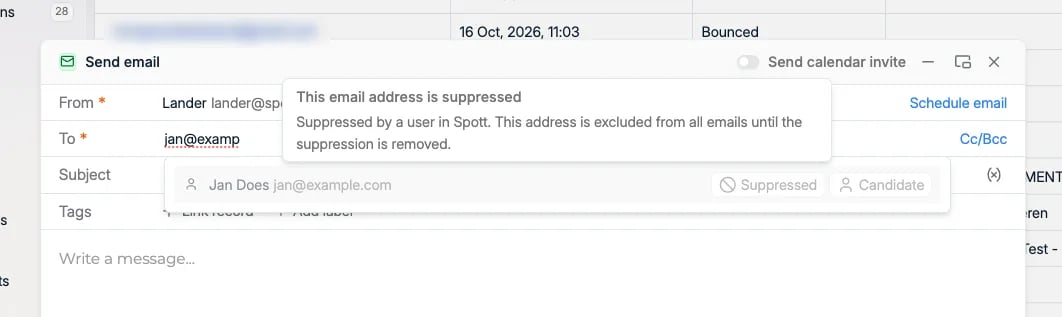
Spott does not let the email go out, and there is no option to send it anyway:- Writing an email: the address is refused as you add it, with “address is suppressed and can’t receive emails, so it wasn’t added as a recipient.” That goes for To, Cc, Bcc, and the attendees of a calendar invite. In the recipient suggestions, the address carries a Suppressed tag.
- Bulk email: suppressed people are skipped, and Spott tells you how many: ”# people were skipped because their email address is suppressed”.
- Scheduled email: if an address is suppressed after you scheduled the email, the email fails when it is due, rather than going out.
- Outreach campaign: you can still enrol the person. When their next email step comes up, that step and the rest of their sequence are cancelled, and they show Recipient is suppressed.
- Marketing campaign: the person shows as Skipped.
One address, not the whole person
A suppression belongs to one email address, matched regardless of upper and lower case. The person’s other addresses can still be used, and when you email them Spott picks an address that is not suppressed. If someone left their old job and their work address now bounces, their personal address still works. Marketing is stricter: a marketing campaign leaves out the whole person if any one of their addresses is suppressed.Read the list
Each row shows:- Suppressed at, the date and time, with an Exempted badge when an exemption applies
- Reason, such as Manual (all channels) or Unsubscribed
- Source: the colleague who added a manual entry, or the campaign or automation an automatic one came from
Lift a suppression
How you lift a suppression depends on where it came from.- A manual entry can be removed: use Delete on the row and confirm.
- An unsubscribe, a bounce, or another automatic entry cannot be deleted. An unsubscribe is a record of what someone asked for, so it stays. Use Exempt instead and give a reason, up to 1,000 characters, so the next person can see why you are emailing them again. The suppression stays on the list with an Exempted badge.