Quickstart
- Connect your Microsoft Outlook or Google calendar under Settings → Accounts. Spott syncs your calendar on a rolling basis to identify upcoming online meetings.
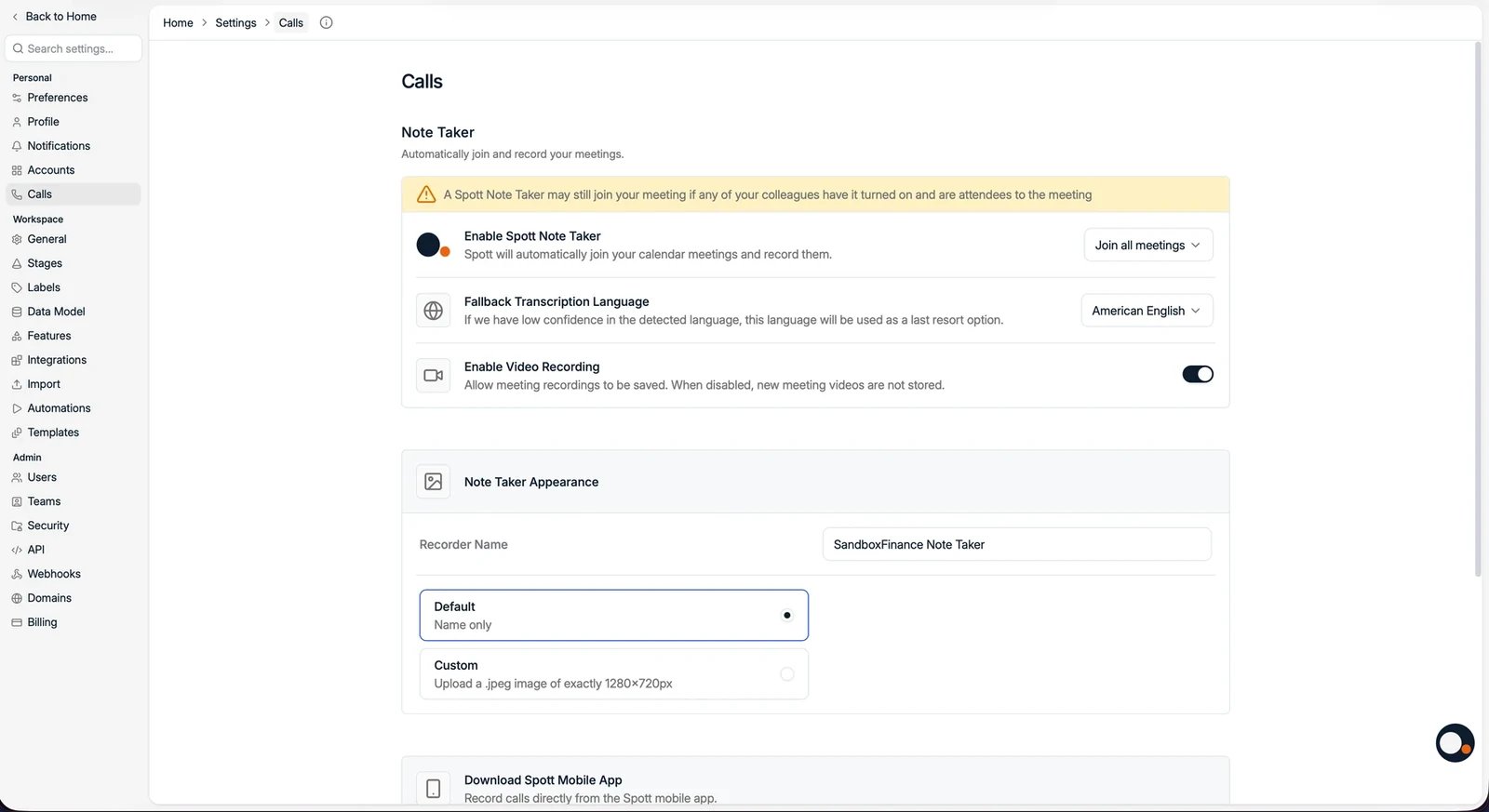
- Go to Settings → Calls and toggle Enable Spott Note Taker on.
- Accept the terms and conditions.
Turning the Note Taker on and off
The same toggle in Settings → Calls controls both directions. Switching Enable Spott Note Taker off immediately unschedules the bot from upcoming meetings and stops it being scheduled for new ones. Existing transcripts and summaries are kept. You do not have to choose once and live with it. Even with the Note Taker off, you can let it join a specific meeting by hand. For a step-by-step video, click here. You can also dial the Note Taker in mid-meeting, which is what you want when someone removed it or you forgot to switch it on. Use Dial in Note Taker from the meeting in Spott and it joins the call in progress.Turn it off for the whole workspace
The toggle above is per user. An admin can also switch the Note Taker off for everyone, for example while your company settles its policy on recording meetings: Settings → Features → Spott Note Taker → Note Taker Settings, then Enable Note Taker. It is on by default, changing it needs the permission to manage the workspace, and Spott asks you to confirm with “Turn off the Spott Note Taker?” While it is off:- The bot is removed from every upcoming meeting. A meeting that is already running, or starts within about two minutes, keeps its bot.
- Each user’s Enable Spott Note Taker stays visible under Settings → Calls, but the workspace switch overrides it.
- Allow Note Taker to join and Dial in Note Taker disappear, so nobody can bring it into a meeting by hand.
- Transcripts and recordings you already have are kept.
- Call transcription from your phone integrations is not affected. It has its own settings.
Keep it out of a specific meeting
The bot joins any meeting you are an attendee of, which includes an invitation that was merely forwarded to you. That is how it turns up in a client meeting you were copied on but are not really part of.- For one meeting, open that meeting in the calendar and deselect the note taker.
- By default, set Settings → Calls to Do not join by default, then switch it on per meeting, or dial it in once the call has started.
bookings@ holds a Spott seat, its own setting is what schedules the bot onto
everything it books, so change it on that account rather than on yours.
- Other participants can trigger the Note Taker. Even if you disabled it, the bot may join if another invited participant has automatic joining enabled.
- Settings changes take time to apply to already-scheduled meetings.
- You can disconnect Spott at any time to stop future meeting joins altogether.
How it works
Once enabled, the Note Taker will:- Schedule the Spott bot to join the lobby of your future online meetings from your synced calendar. Meetings do not need to be created in Spott.
- Join when admitted by the organizer.
- Capture the meeting to transcribe what was said, regardless of language, and generate concise, structured meeting minutes. These appear in Spott typically 2 to 5 minutes after the meeting ends.
The meeting page
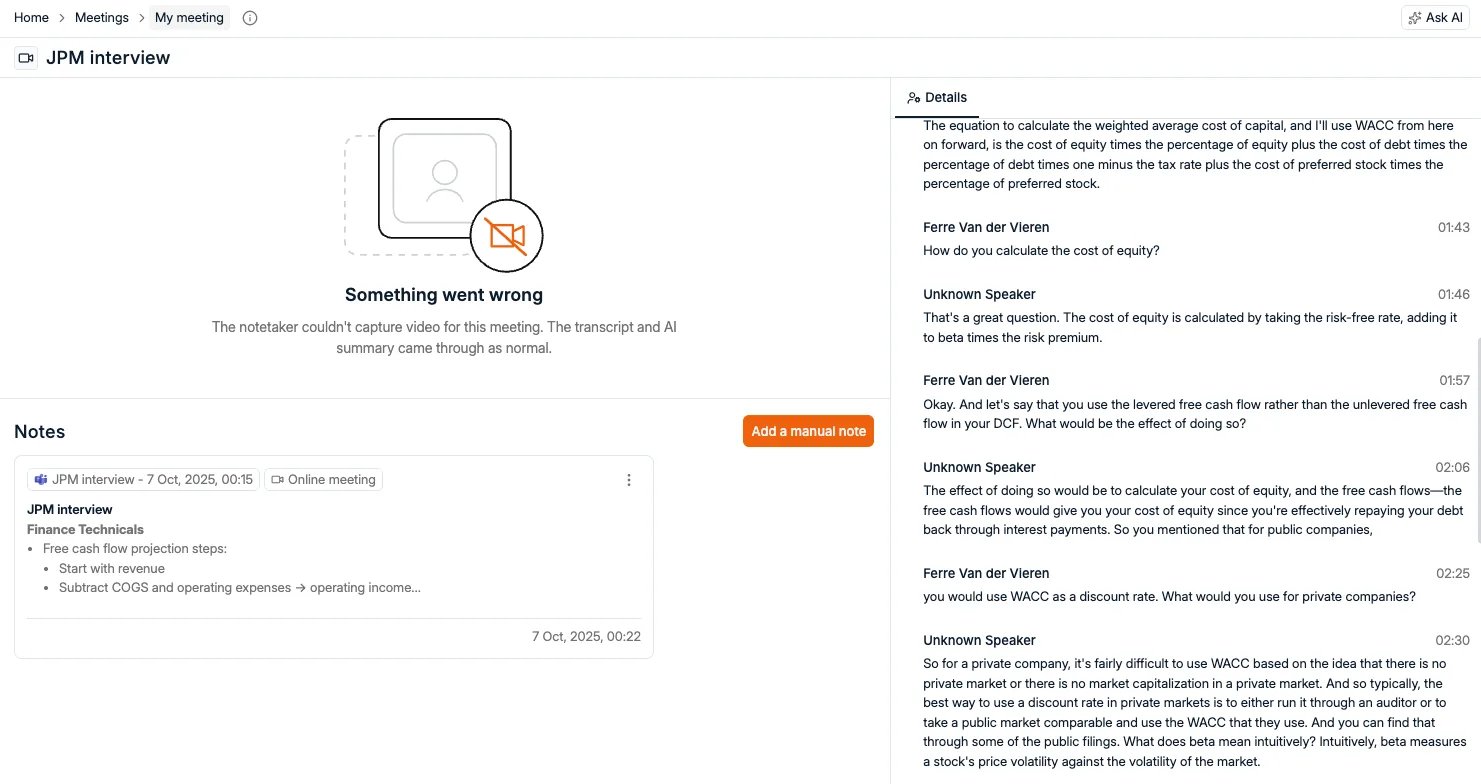
Every meeting gets its own page in Spott, laid out in two columns so you can read and listen at the same time.- On the left, the recording, then Suggested actions picked up from the conversation, then Notes, where the meeting summary lands and where Add a manual note lets you write your own.
- On the right, the Details tab holds the meeting details (date, time, platform and join link), the Participants, and the Transcript. Next to it, Ask AI answers questions about the meeting.
Who can read the notes
Where a conversation should not be written up at all, keep the Note Taker out of it in the first place, using the per-meeting opt-out above.Video recording
Admins can decide whether video recording is enabled for the whole workspace with the Enable Video Recording setting. When disabled, new meeting videos are not stored. Individual recordings can also be deleted per meeting; deletion is permanent. To share a meeting with a client, download the transcript or the video from the note and send it on yourself. There is no way to give someone outside your workspace access to the note.Troubleshooting
Note Taker not showing up? Make sure the calendar event has a valid Zoom, Teams,
or Google Meet link and was created in the connected account. Meetings the Note Taker
will join show a small camera icon in the Spott Calendar.Note Taker did not join? Check that the toggle is enabled and that the organizer
did not reject it from the lobby.