G then C. See all
keyboard shortcuts.
Make sure Outlook or Google are synced with Spott
Before scheduling a meeting, ensure your Outlook or Google account is synced. In Spott, go to Settings → Accounts, find the Microsoft Outlook or Google integration, and make sure one of them is connected.First-time sync takes time. Spott syncs years of calendar and email history, which
typically takes 8 to 12 hours. Your calendar can look empty for most of that, so
give it time and check again the next day. After the initial sync, changes appear in
near real time.
The Calendar page
The page has two tabs. Calendar is your own week, in a list or a calendar view, with your upcoming meetings in the sidebar and your teammates’ calendars available next to yours so a shared slot is easy to find. From either view you can reschedule or cancel an invite directly.
Schedule a new meeting
Click Schedule Meeting in the top right corner, or double-click (or click and drag) a time slot in the calendar, like in your native calendar client. In the meeting dialog, make sure Send calendar invite is toggled on, as well as Online meeting if you plan to meet via Microsoft Teams or Google Meet. The meeting URL is created on the platform of your primary email account.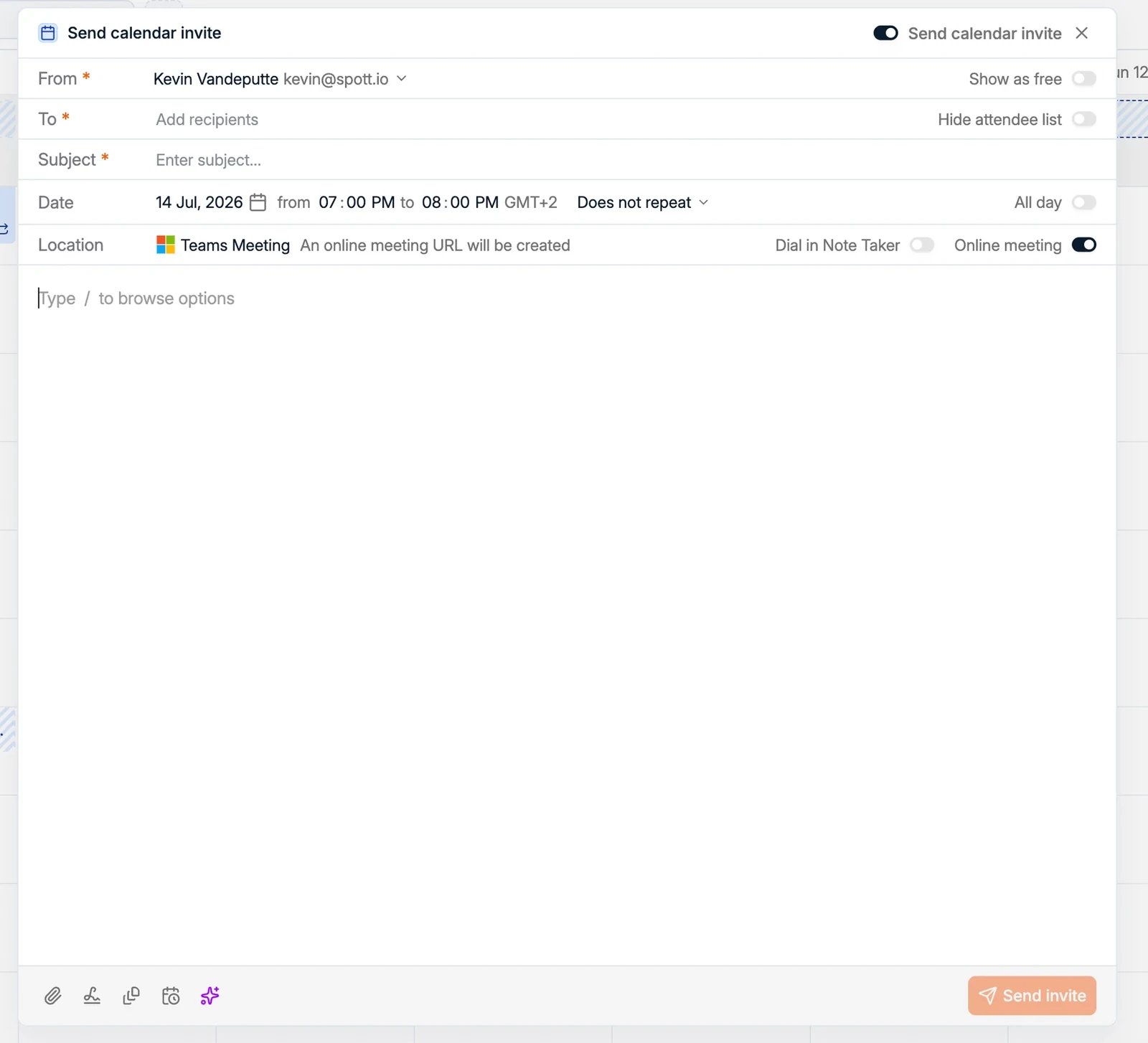
- Recipients: the people to meet with.
- Subject and email body.
- Date and time, with options to repeat the meeting or mark it as All day. The time zone chip after the time, such as GMT+2, starts on your own time zone. Click it to pick another from a searchable list grouped by region, which is how you book 11:30 in the candidate’s time rather than converting it in your head.
- Location: a physical location, or an online meeting. With online meeting on, Spott creates the Microsoft Teams or Google Meet URL for you on your primary email account’s platform. A Zoom link is never generated, though the Note Taker can still join a Zoom meeting it is invited to.
- Show as free: keep the slot open on your calendar instead of marking it busy.
- Hide attendee list: send the invite without showing recipients each other.
- Dial in Note Taker: have the Note Taker join the online meeting to record and summarize it.
The composer toolbar
Along the bottom of the message body sit five controls:
{ in the subject or the message and pick from
Recipient, Candidate, Company or Job, so the invite you send about a role
reads like it was written for that role rather than pasted from a template.
These are the record variables only. AI Generated content is not offered on an invite,
so a template that leans on a written passage falls back to its fixed text here.
Attach files without leaving the invite
When the meeting is with a candidate or contact, the right-hand Browse files panel lists the files already on the relevant records, so you can attach one without hunting for it on your desktop. It groups them:- CVs, the originals on the candidate
- Reformatted CVs, the branded versions produced by CV and client documents, each labelled with its language so you can pick the right one for the client
- Other, everything else held on the record, such as a work permit or a signed document

Manage an event
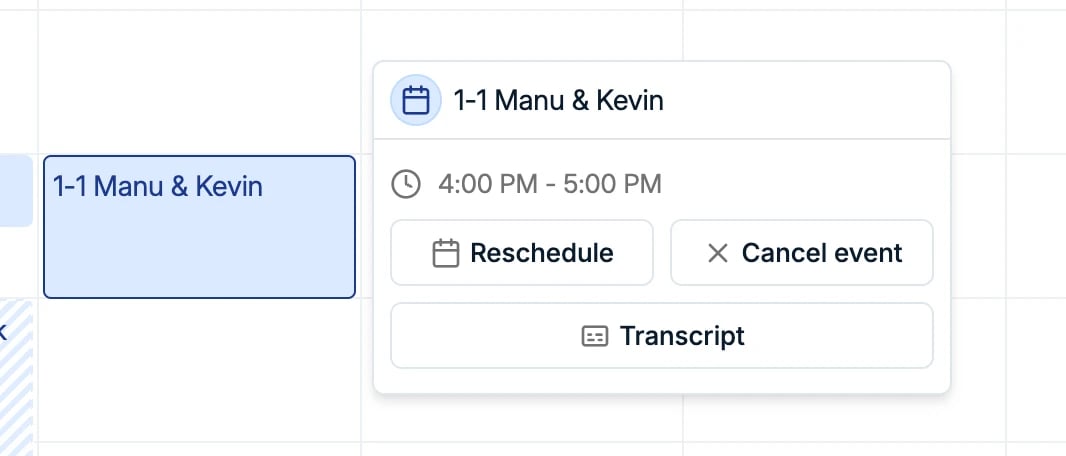
Click an event in the calendar to open its details, where you can:- Reschedule: change the date or time and send the update to attendees.
- Cancel event: cancel the meeting and notify attendees.
- Transcript: open the Note Taker transcript and summary for a meeting that was recorded.