

Choose a method
Upload a CV
Drag & drop one or many CVs. Spott parses them and pre‑fills the form for you to review.
Forward by email
Send CVs to
cv@spott.io from your work email and Spott creates the candidates automatically.Add manually
Enter the details by hand, best when you only have a name or partial info.
From LinkedIn
Import a profile directly with the Spott Chrome extension.
Upload a CV (drag-and-drop)
The fastest way when you have CVs in hand. Spott parses each CV and drops you into the candidate form with the fields already filled in.1
Open the upload dialog
Open the Candidates page (shortcut: 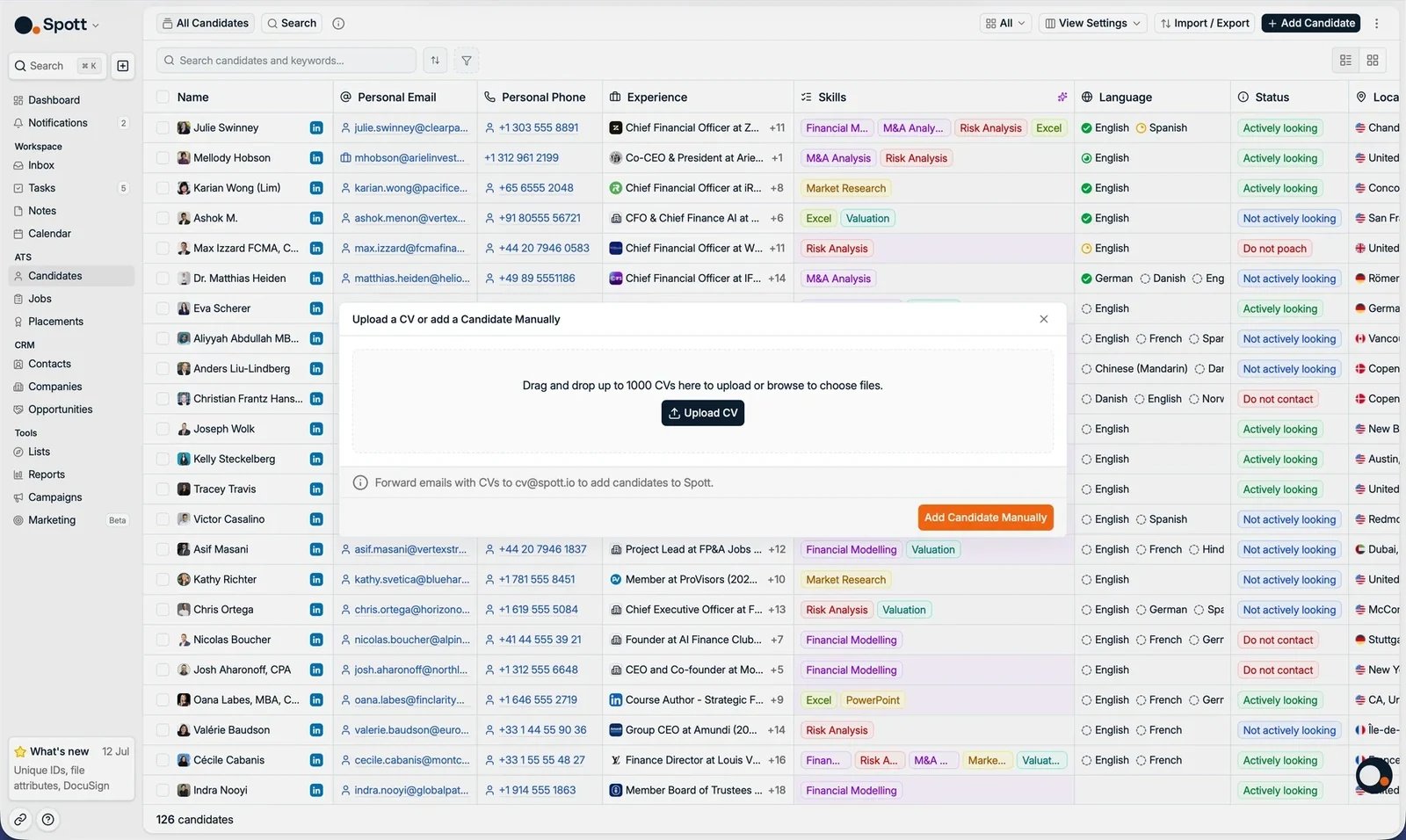
G then A) and click Add from CV
in the top-right.2
Add your CVs
Drag files onto the drop zone, or click Upload CV to browse. You can add
up to 1,000 CVs at once.The parser reads image files as well as documents, so a photo or a scan of a
printed CV works the same way an exported PDF does. That is what makes it possible
to add a candidate from a document you photograph on your phone; see the
mobile app.
3
Review the parsed details
Spott extracts what it can (name, email, phone, LinkedIn URL, work experience,
education, and certifications) and pre‑fills the form across the Basic
attributes, Experience, Education, and Certificates tabs. Correct
anything that needs it.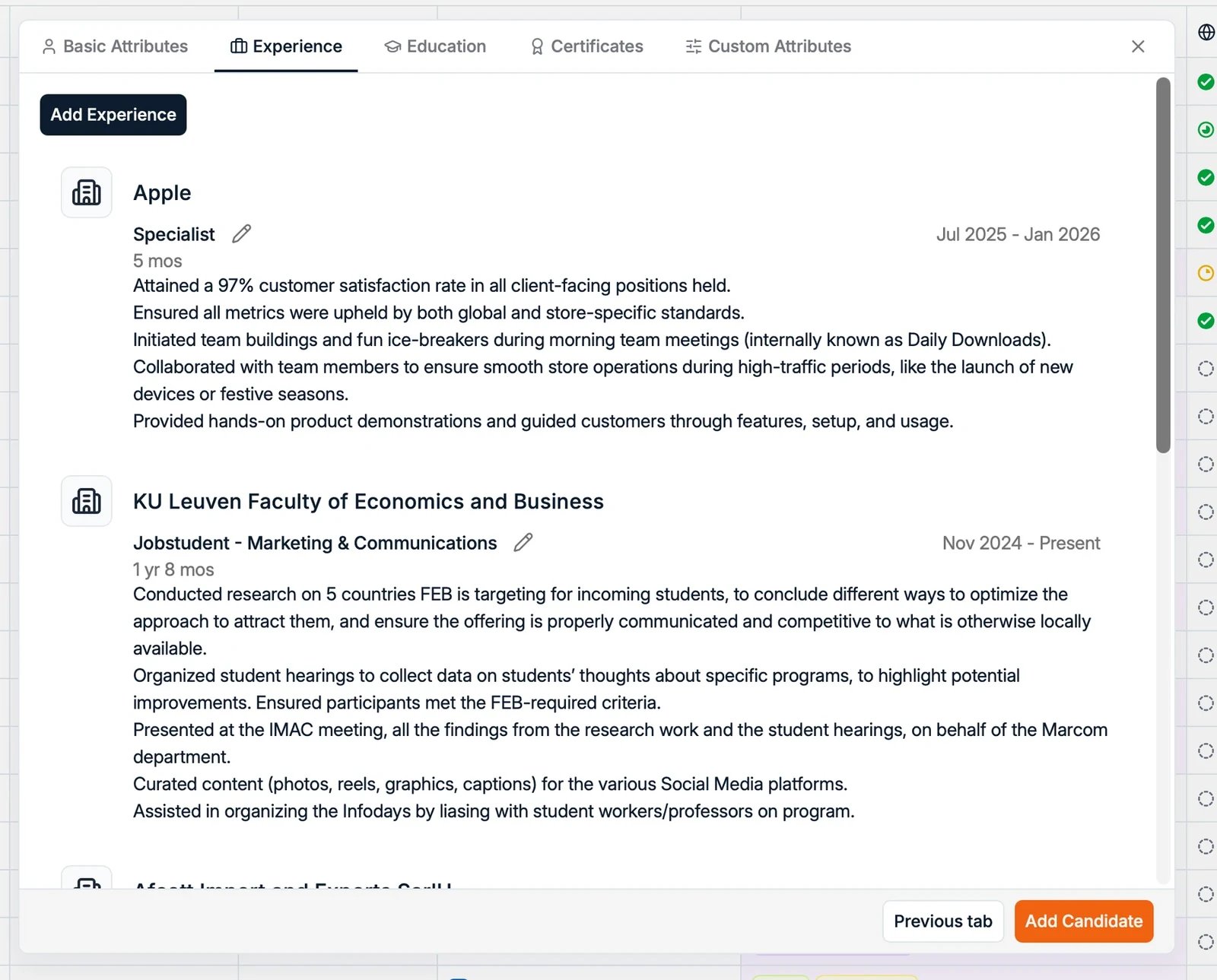
4
Send them straight to a job or a list
At the top of the form, Add candidate to takes a Job or a List, one or
the other rather than both. Set it and every candidate in the batch lands there as it
is created, so a stack of CVs from a client becomes a populated pipeline in one pass
instead of an import followed by a round of selecting and moving.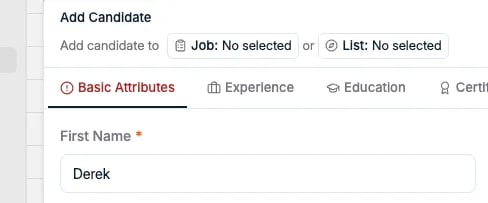
5
Save
Click Add All Candidates. They now appear in your database.
Uploading fewer than 20 CVs at once is a supervised flow: you review the
parsed values before saving. Larger batches are processed automatically, without the
review step. If you’d rather skip the review step altogether, forward the CVs by
email instead (below).
Forward CVs by email
Forward CVs as email attachments (PDF or DOCX) tocv@spott.io and Spott parses
them and creates the candidate records. No need to log in.
One email can carry up to 250 attachments. To send more CVs than that, split them
across several emails.
Candidates created this way get you as their Main Contact, since you are the
person who forwarded the CV. The same applies to a bulk CV upload. That keeps ownership
attached to whoever actually sourced the person, instead of leaving a batch of records
with nobody’s name on them.
This is an unsupervised flow: there’s no review step, so an occasional field may be
missed. You’ll always get an email back if something goes wrong:
No CV was attached
No CV was attached
The email arrived without a CV attachment. Reply‑forward with the file attached.
The CV couldn't be read
The CV couldn't be read
The file was corrupted or image‑only without recognizable text. Re‑export a clean
PDF or DOCX and resend.
The CV matched more than one existing profile
The CV matched more than one existing profile
The CV’s email, phone, or LinkedIn URL points to two different existing records, so
Spott can’t safely deduplicate. It surfaces the conflict instead of guessing. Resolve
it in the app. See deduplication.
Add a candidate manually
Best when you have only a name, an email, or partial information, with no CV.1
Open the form
Click Add from CV, then Add Candidate Manually.
2
Fill in the details
Enter name, email, phone, and location, then add experience, education, and any
custom fields your workspace has configured.
3
Save
The candidate is created and added to your database.
Other ways to add candidates
CSV import
Bulk‑upload candidates, contacts, or companies from a spreadsheet.
Sourcing integrations
Push candidates from connected tools like Juicebox or Pin directly into Spott.
API
Insert candidates programmatically via the Spott API.
Good to know
- Duplicates are handled for you. Spott deduplicates on email, phone, and LinkedIn URL, so re‑adding someone enriches the existing profile rather than creating a copy. See managing candidates.
- Keep profiles complete. Fuller profiles improve search accuracy and matching results.