

G then J. See all
keyboard shortcuts.
1. Open the Jobs view
From the left-hand navigation bar, select Jobs to open your full job list. You can work in list view or board view. The list is the table you see by default; the board groups your jobs into columns so you can read the whole desk at a glance. Switch between them at the top of the view. Whichever you pick, the filters and sorting below work the same way, and you can save the result as a view. See using views. Next to Jobs, tabs at the top of the page open the other tables that hang off your jobs: Job Candidates, every candidate in every job’s pipeline; Inbound Applications, the people who applied and are waiting for review (see inbound applications); Speculative Presentations; and Advertising, every job advert in the workspace (see below).2. Search with keywords
Use the search bar at the top of the Jobs view to find jobs by text in their fields. The search bar supports full Boolean queries (AND, OR, NOT). Spott switches to Boolean mode automatically when your query contains double quotes. Anywhere else in Spott that asks you to pick a job, the autocomplete puts open jobs first rather than ranking purely on how well the title or company name matches. The role you are staffing today comes up before the one you filled last year. Autocompletes throughout Spott also keep loading as you scroll, instead of stopping at the first twenty or so results. On a common surname or a client with many similar job titles, the record you want is no longer hidden behind a list that refuses to go any further: keep scrolling until you reach the end of the matches.3. Filter your jobs
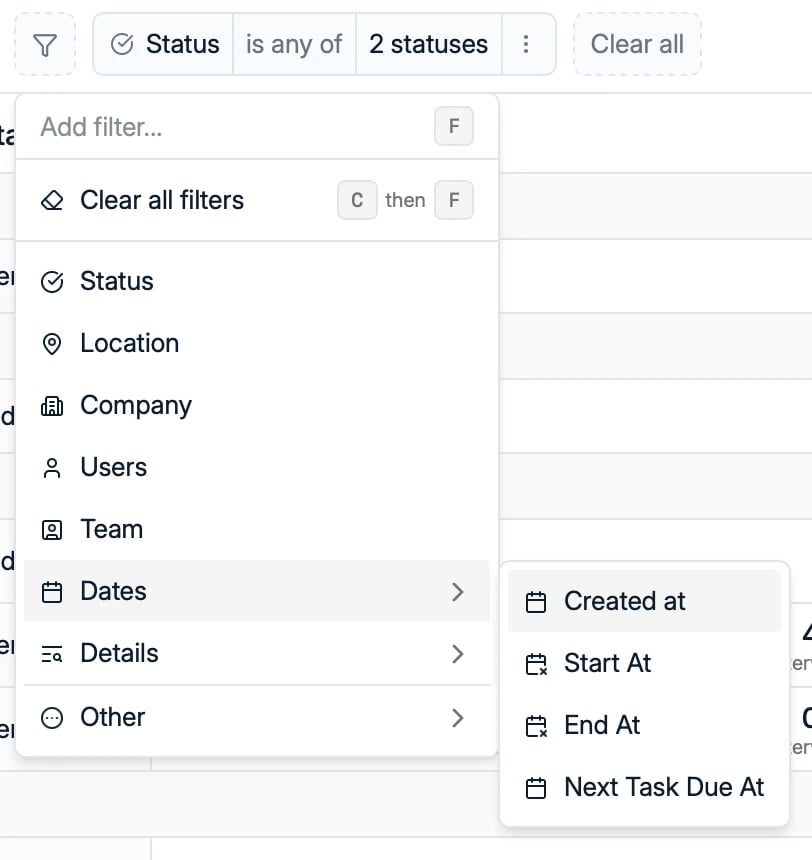
- Status: the job’s stage
- Location and Company. Location filters on a named area, a radius, or a ZIP or postal code
- Users and Team: who works on the job. The owner filter takes a team as well as a person, so you can see every job owned by anyone in that team. The same works for application owners on the Job Candidates tab.
- Dates: created at, start at, end at, next task due, and Job Advert Published At
- Details: location type, employment type, and Job Board Status
- More fields under Other, such as the job name and target company
- Any custom fields your workspace has configured
See which jobs are live on job boards
Add active job board postings as a column in list view, or as a row on the cards in board view, to read at a glance which jobs are actually advertised. You can filter on it too, which is the fast way to catch the open role nobody ever posted. See multiposting for how postings get there. The Job Adverts column also filters on when an advert went up and came down, its published at and unpublished at dates. That answers the questions a single on/off filter cannot: which roles went live this week, or which adverts come off the boards in the next few days and may need reposting.See every advert in one place
The Advertising tab on the Jobs page lists the adverts of every job in the workspace in one table, so you no longer open job after job to see what is live. Search, filter and sort it like any other table, and use Open advert on a row to see the live advert as a candidate does. The tab is for reading. To repost or unpublish an advert, click its row: that opens the job, where the advert is managed. See advertising.4. Sort your results
Arrange your job list by the field of your choice. Sorting options include:- Name and Company Name
- Stage Order, which sorts by status: jobs are ordered by where their status sits in your configured status order, not alphabetically. The Status column header itself cannot be sorted.
- Created at and Modified at
- Start At and End At
- Employment Type and Location Type
- Next Task Due At