

Access a job’s Advertising tab
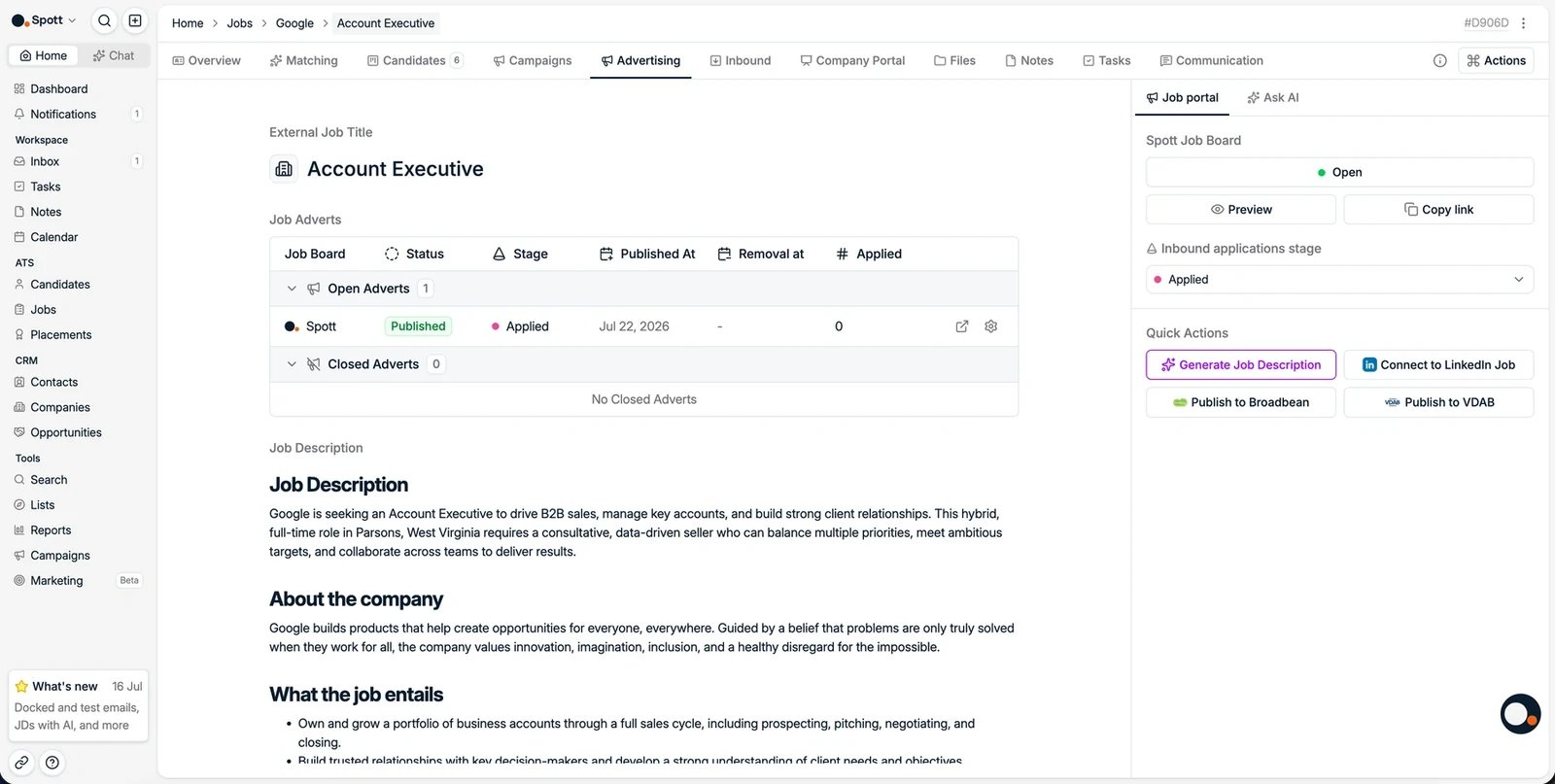
Write or generate a job description
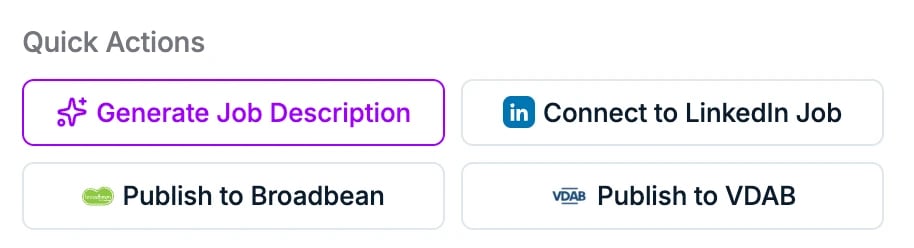
- Type the description manually, or paste an existing one.
- Click Generate Job Description to create it with AI from your job details. You can also use this to rewrite or translate an existing description.
- Refine the result with the Ask AI assistant in the sidebar: prompt it to adjust the tone, add requirements, or shorten a section, and keep iterating until it reads right, instead of relying on a single one-click rewrite.
Advertise the same job in several languages
A job description can hold multiple language versions. In the Job portal panel on the right, click + New language and pick one. Each language you add appears in that panel with its own Open or Closed status, and a chip above the description switches which version you are editing. Each open language gets its own public URL on the Spott job board, so you advertise one role in several markets without creating a separate job for each. Jobs also carry a Language attribute, which you can filter and report on like any other job field. A job holds one description per language, so a language you have already added drops out of the + New language picker. A language that seems to have gone missing is usually one you already have.Split the description into sections
By default a description is a single content block. You can instead have job descriptions split into structured sections, for example the role, the requirements, and the offer. It is a workspace-wide choice, set on your job description template under Settings → Templates, not something you pick per job. Keep the single block if you only publish through Spott. Choose sections when you push descriptions out through the API or through multiposters to job boards that expect separate fields, which is common for Benelux and DACH boards.Publish your vacancy
Option 1: the Spott Job Board
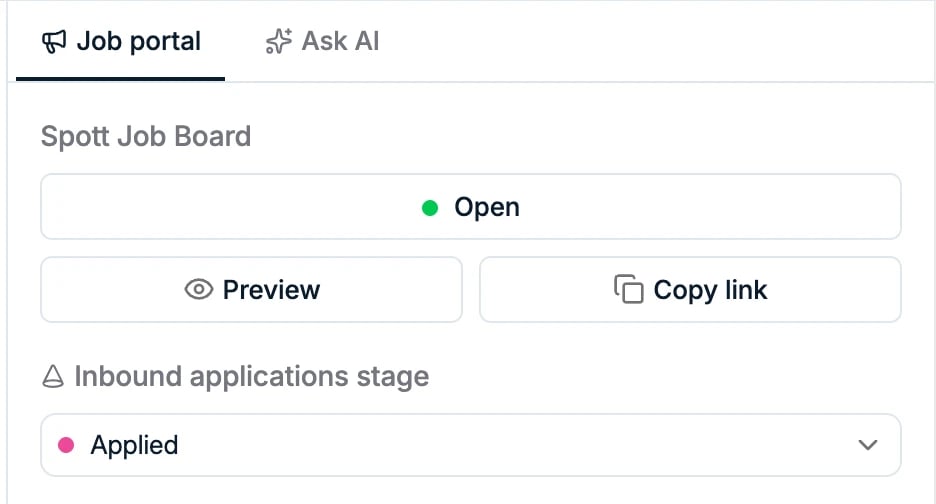
The Spott job board showcases your open positions online and receives applications directly into Spott. In the right-hand panel:- Switch the Spott Job Board toggle to Open to publish the vacancy. You can set it back to Closed at any time.
- Pick the inbound applications stage where new applicants should land.
- Use Preview to see the posting as candidates will, and Copy link to share the application link.
What candidates see
The job board is a public page carrying your open roles, with the vacancy text you wrote and an application form that files applicants straight into the job’s Applicants tab. Use Preview before you open a vacancy: it shows the posting exactly as a candidate gets it. The board carries your branding, not Spott’s: your logo, your accent colour on the buttons, and your own privacy policy and consent disclaimer on the application form. All of it is set once in Settings → Workspace & Branding and applies to every vacancy you publish. See workspace and branding.

Option 2: LinkedIn
Link a LinkedIn Recruiter job posting so applications flow into Spott. See connecting a LinkedIn job board post.Option 3: multiposters
With a multiposter integration enabled, you can distribute the vacancy to many job boards at once:- Publish to Broadbean: see the Broadbean integration
- Publish to Idibu
- Publish to VDAB, for the Flemish public job board
Closing a job in Spott does not automatically close its published adverts. Close
each advert from this list, or set up an automation to
do it, so a filled role stops collecting applications.