

Access a job’s Matching tab
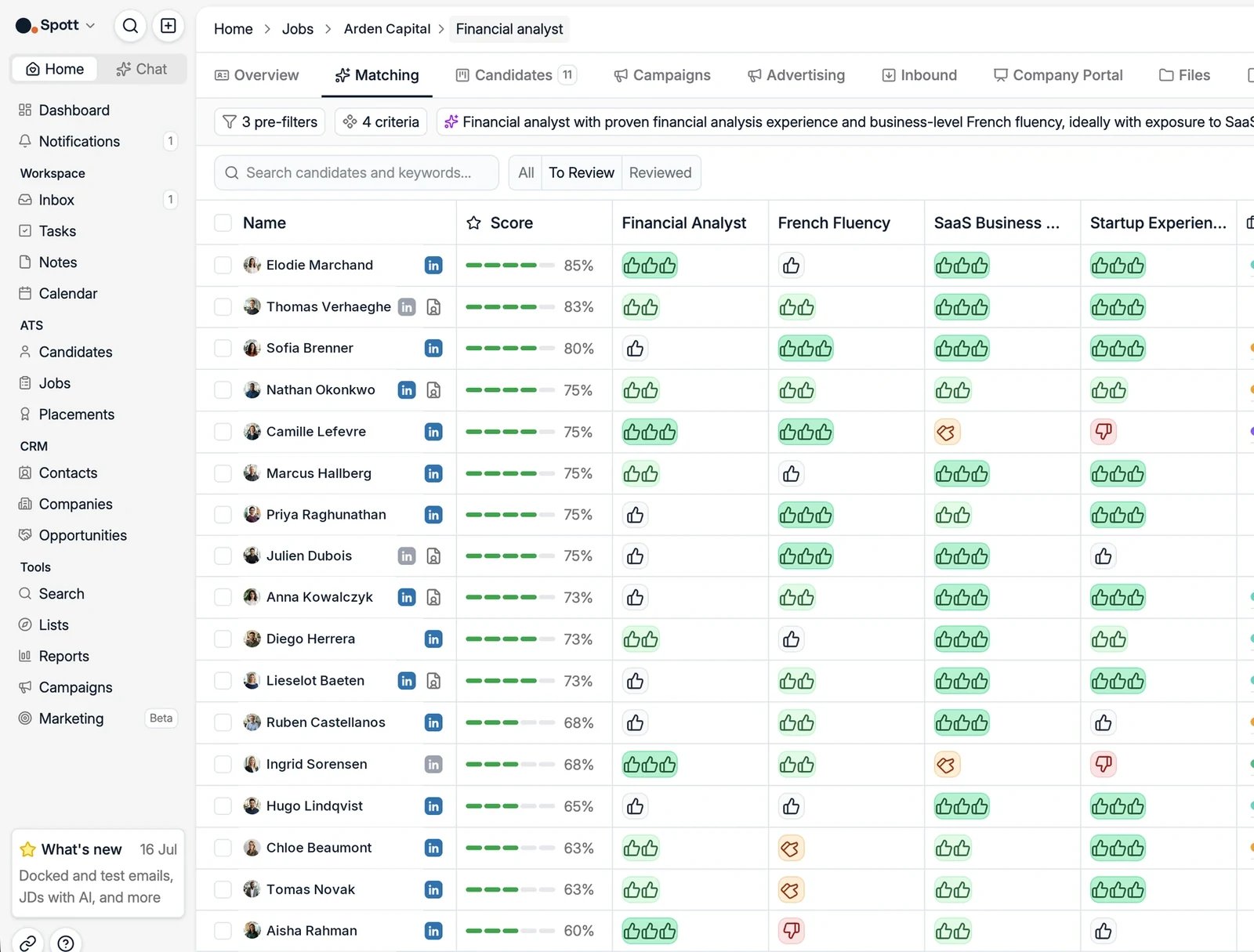
Run a search for the job
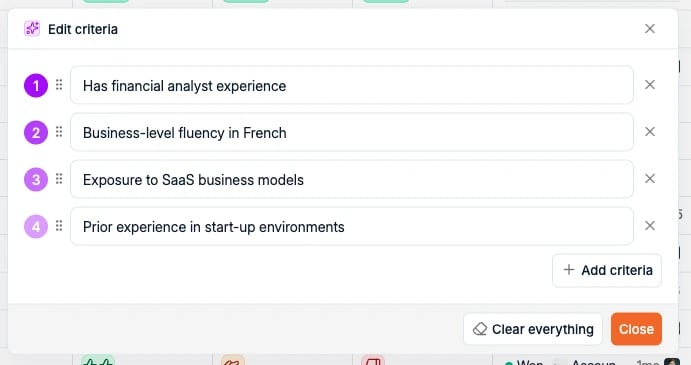
The first time, click Start new job search. Spott converts the job’s context from the Overview tab into filters and criteria, which you can review and adjust with Edit criteria before clicking Run search. Results stream in as they are scored, so the strongest matches are on screen while the rest of the database is still being worked through. Start reading the top of the list straight away: the list keeps growing under you rather than making you wait for a complete set.Filters vs criteria
When Spott builds the search from the job, it splits your requirements into two parts, shown separately when you use Edit criteria: Pre-filters narrow the candidate pool before ranking. They are structured conditions such as Job Title, Field of Study, Keywords, and Years of Experience. Use the Match all filters toggle to require every filter (AND) or any of them (OR). Spott shows how many candidates currently match, so you can widen the filters when too few come through.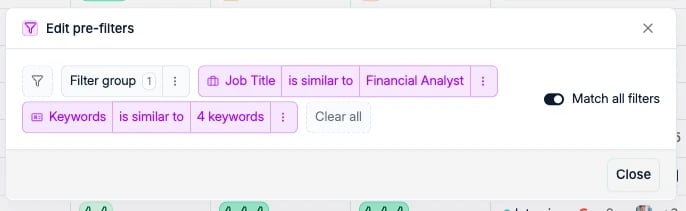
Read the results
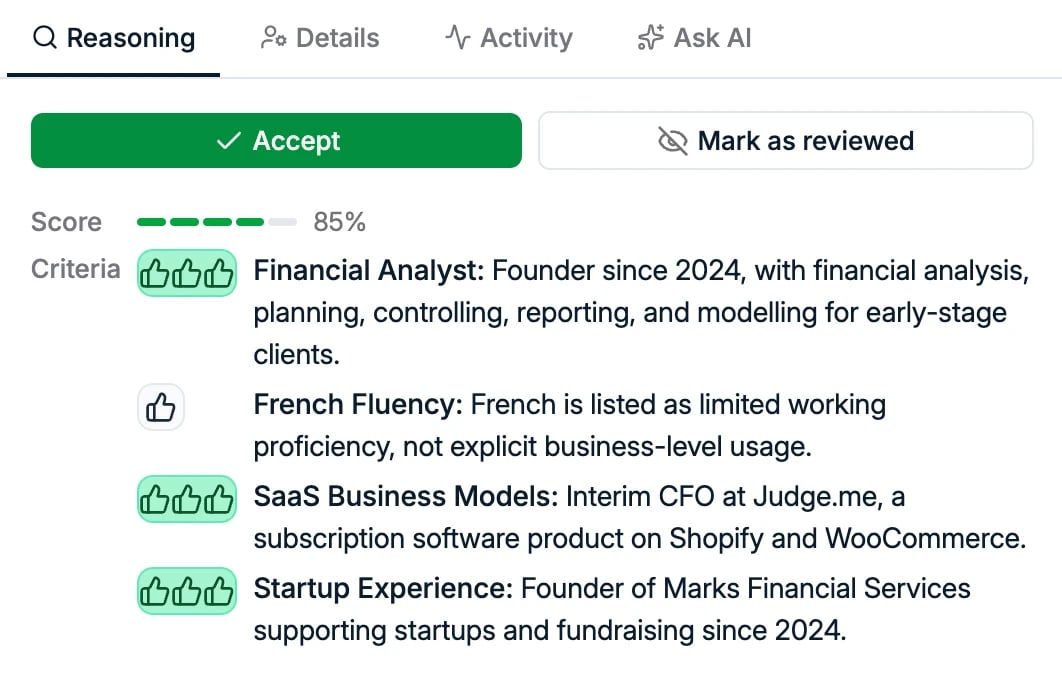
Candidates are ranked by a match score from 0 to 100, from Very Weak to Very Strong Match. Every criterion you set also becomes its own column: each candidate gets a thumbs rating for it, from one to three thumbs-up for a match down to a thumbs-down where they fall short. This lets you see at a glance which requirements a candidate meets, not just their overall score.The score only judges the criteria. Every candidate in your results already
passes the pre-filters, including the ones at the bottom of the list. A Very Weak
Match is not someone who failed your hard requirements: they met all of those, and
then scored poorly on the criteria you asked Spott to rank on.
Card view and table view
Results come in two shapes, switched with the two icons above the results on the right. Card view gives each candidate room for their current and past roles, education, and the reasoning behind every criterion, which reads better when you work through the top of the list one person at a time.

Search history and export
The same row of icons holds two more:- Search history, which keeps every search you have run on this job. Go back to what you ran last week, see what it returned, and pick it up again instead of rebuilding the criteria.
- Export, to take the results out of Spott.

Review workflow
Use the All, To Review, and Reviewed tabs to work through the results:- Review the candidates with the highest match scores.
- Add strong fits directly to the job’s pipeline.
- You can re-run or refine the search at any time by editing the criteria.
Accept, Reject, and Reviewed only track your progress through the list.
They do not train or personalize the matching model, so marking candidates does not
change future results.
Matching on a company
Company records have their own Matching tab. It does not run a job search: it lists the candidates you already have within a chosen distance of the client, which is useful for speculative approaches. See suggested candidates for a company.Next steps
Present candidates
Send your best matches to the client.
Work the pipeline
Track applicants through the job’s stages.
AI in Spott
Every other place Spott uses AI, in one map.