

- Record the engagement type on every contract placement, and filter your placements on it.
- Model on-costs from defaults you set per country and engagement type, and adjust them for a single placement.
- See your margin before and after on-costs, so you know what a placement really earns.
- Keep the rate you agreed with the client: on-costs come out of your margin instead of changing the client’s price.
Countries and engagement types
Spott comes with engagement types for four countries:
Every engagement type has its own default on-cost lines, which you can change in
Settings. Engagement types where the contractor isn’t on
your payroll, such as Umbrella company or Ltd company (outside IR35), start without
on-cost lines, because the umbrella company or the contractor’s own company carries those
costs.
Add the engagement type to a placement
Engagement types are part of contract placements. Make sure the job’s Fee Structure is set to Contract.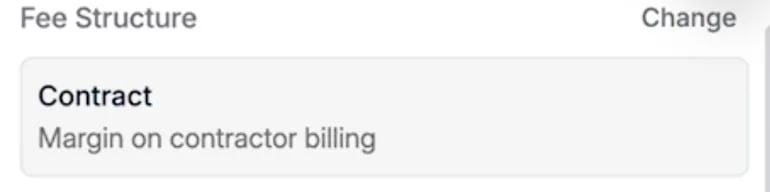
- Open the candidate’s application on the job and click Mark placed.
- In the Fee Details step, fill in the dates, working schedule and unit as usual.
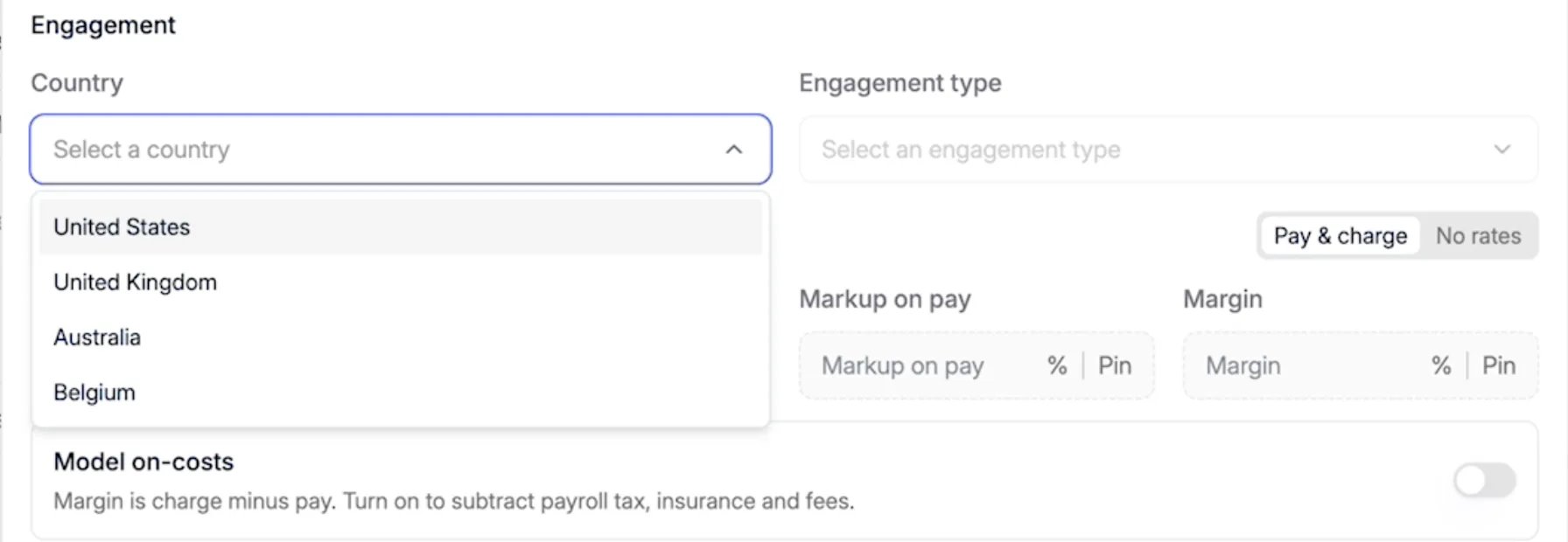
- Under Engagement, choose the Country.
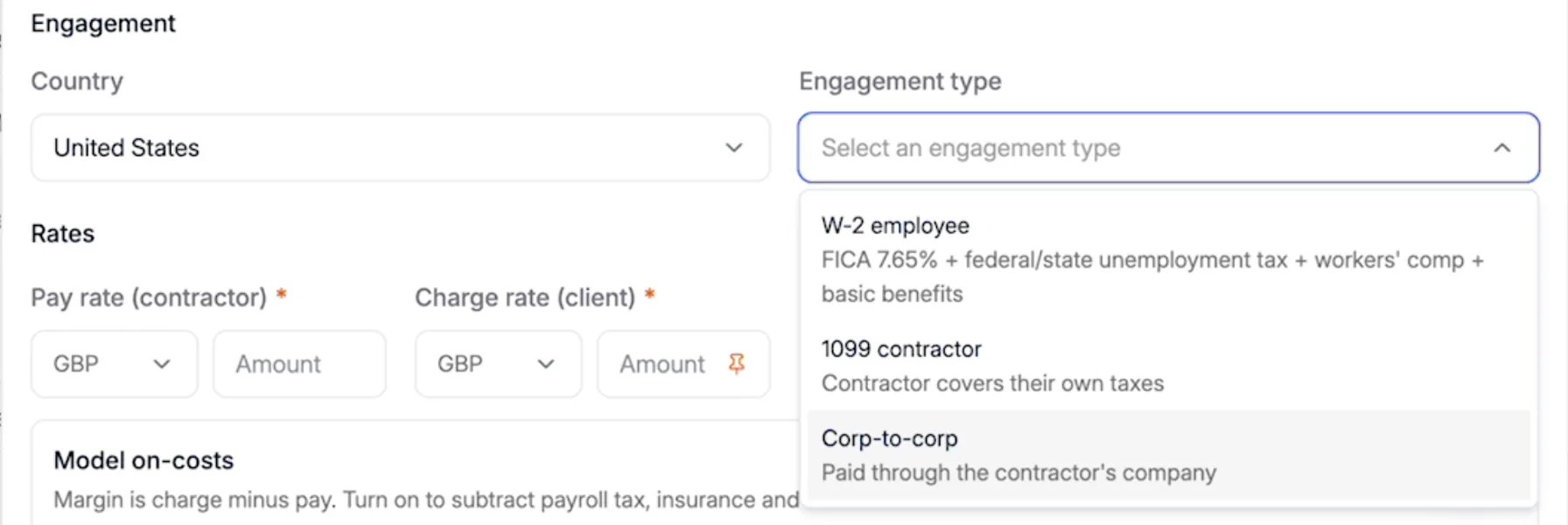
- Choose the Engagement type. The list shows the engagement types for that country, each with a short description.
Model on-costs
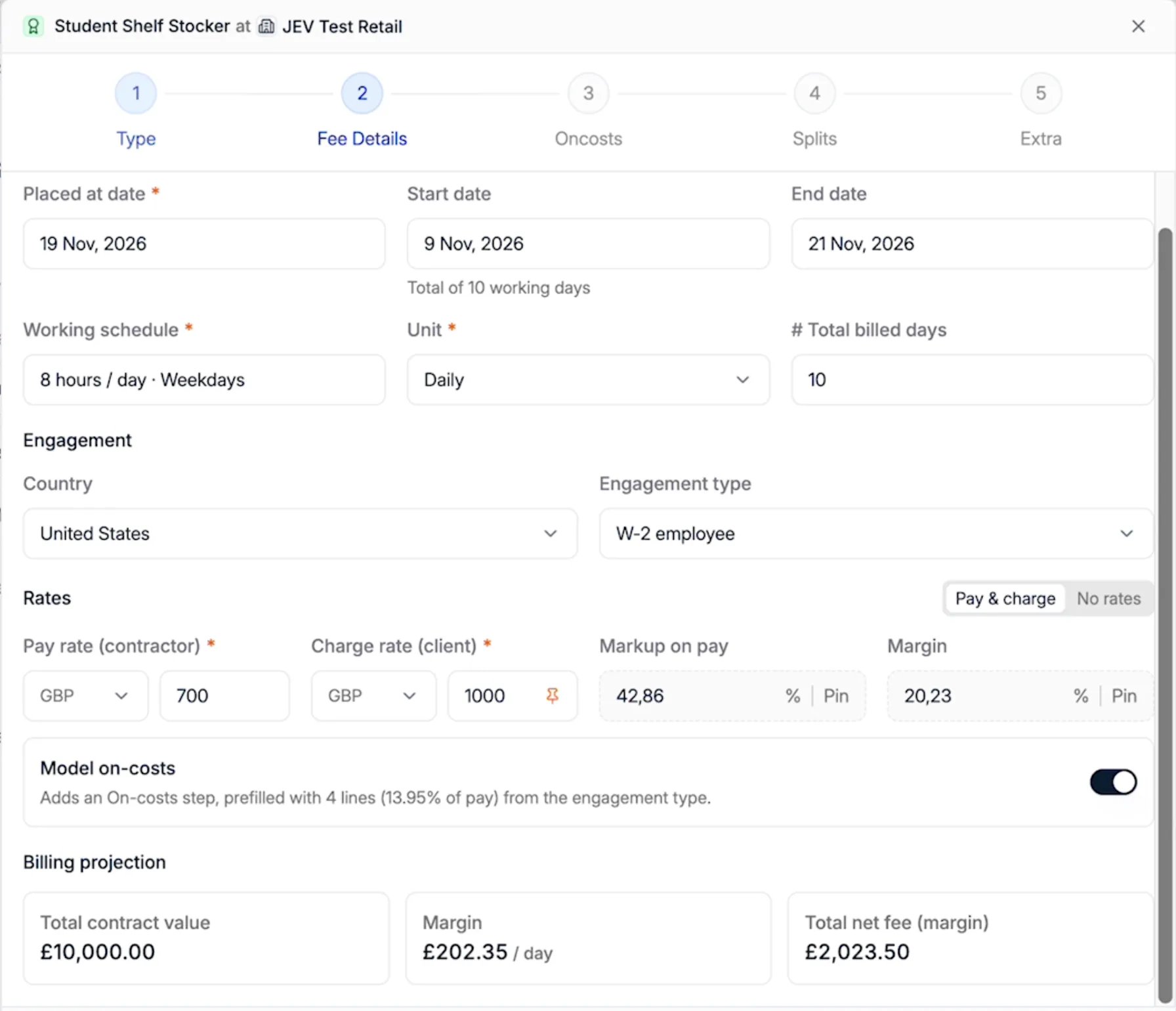
To model on-costs, the placement needs an engagement type.- In the Fee Details step, turn on Model on-costs. Spott adds an Oncosts step to the placement, prefilled with the default on-cost lines of the engagement type.
- Under Rates, enter the Pay rate (contractor) and the Charge rate (client). Spott works out the Markup on pay and the Margin.
- Click Next to check the on-cost lines in the Oncosts step.
- Markup on pay is the difference between charge rate and pay rate, as a percentage of the pay rate. It doesn’t include on-costs.
- Margin is what you keep after the pay rate and the on-costs, as a percentage of the charge rate.
Adjust on-costs for one placement
The Oncosts step lists each on-cost line as a percentage of the pay rate, with the amount it adds per day. Changes here only apply to this placement:- To change a percentage, type the new value in its field.
- To remove a line, click the bin icon next to it.
- To add a line, click + Add oncost.
- To undo your changes, click Reset to defaults. This brings back the defaults from Settings.
Example
A W-2 employee in the United States is paid 700 a day and charged to the client at 1,000 a day, for 10 days. The on-costs add up to 13.95% of pay.
The markup on pay is 42.86%. Because on-costs are calculated on the pay rate, changing the
charge rate doesn’t change them: it only changes your margin.
Keep the rate you agreed with the client
The charge rate, the markup and the margin depend on each other. The charge rate is pinned, shown by the pin icon in its field, so it stays fixed when the other numbers change. With the charge rate pinned, adding or raising on-costs lowers your margin. It never raises the client’s price. The Oncosts step reminds you of this with a banner, for example Charge rate pinned: editing on-costs moves the margin (now 20.23%).Save the placement
Fill in the Splits and Extra steps as usual, then click Save Placement. The placement shows on the application with its Rates (charge, pay and on-cost amount), the Oncosts percentage and the Margin.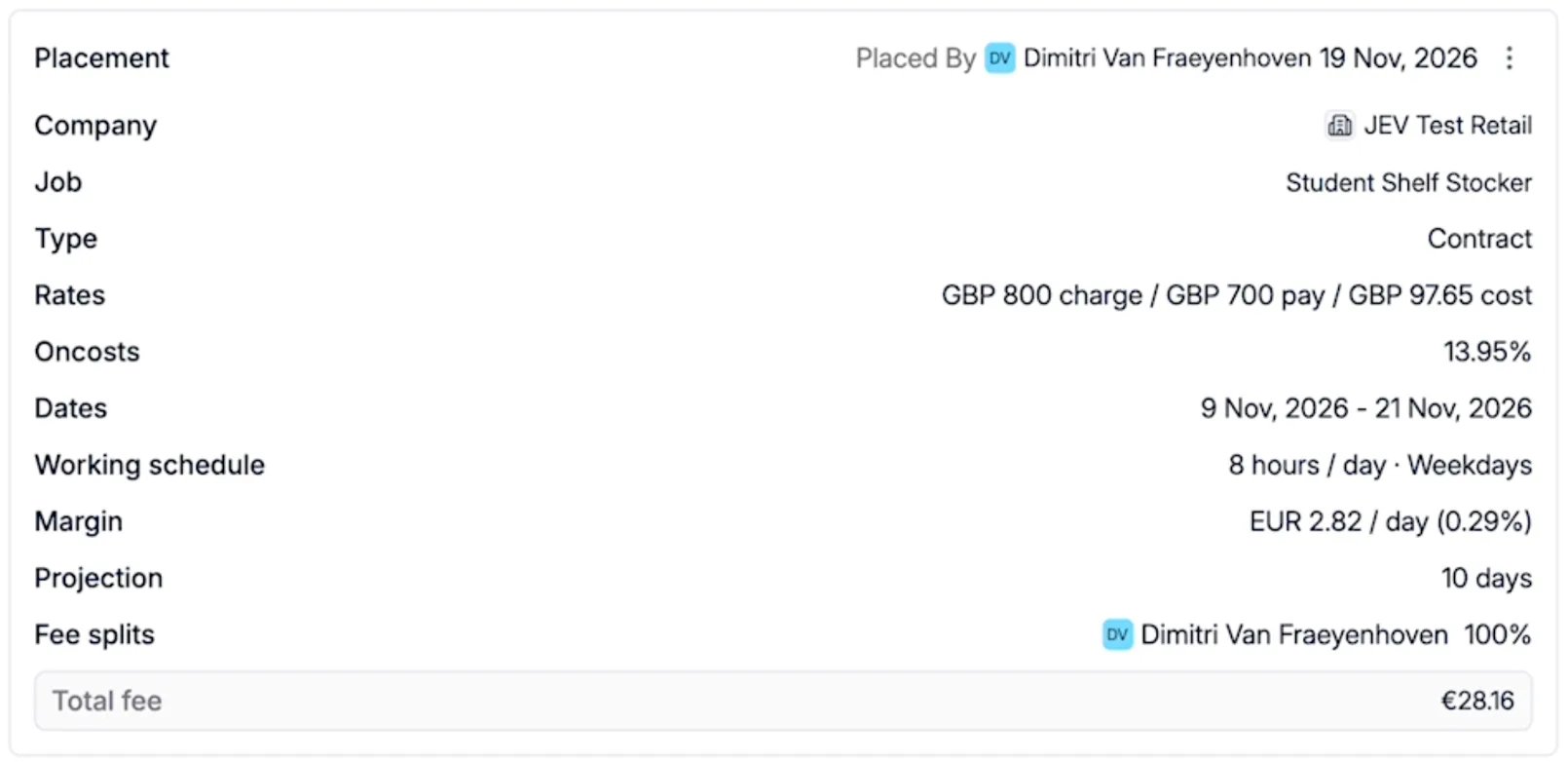
Filter placements by engagement type
- Go to Placements and open the Contract tab.
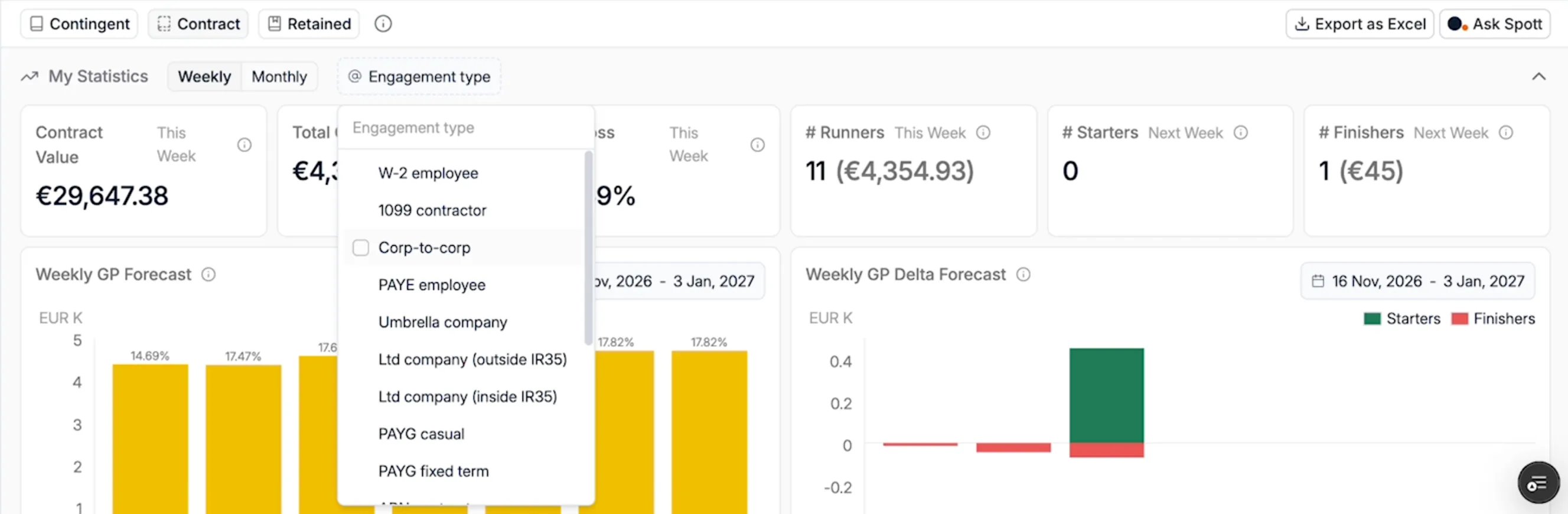
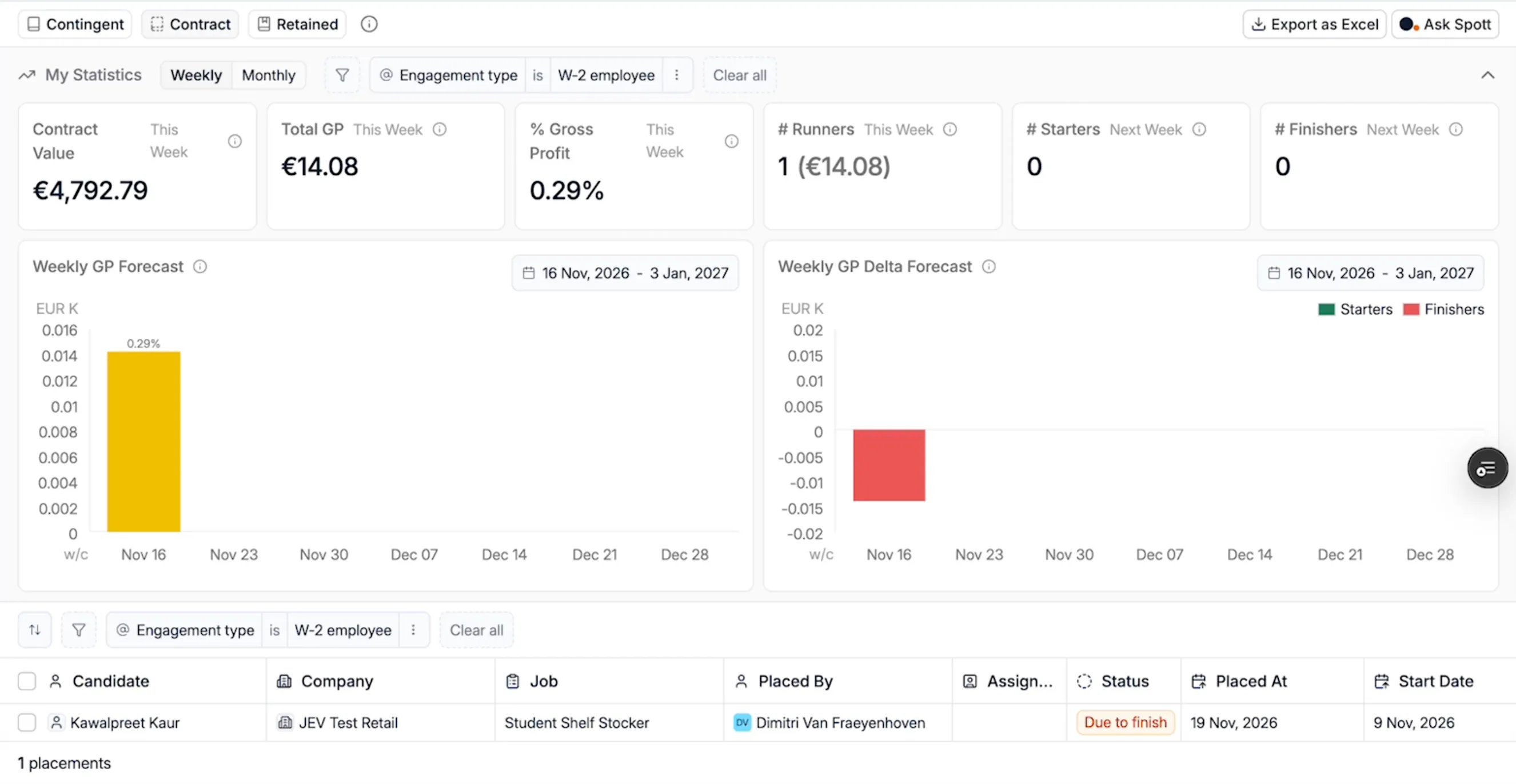
- Click Engagement type, next to Weekly and Monthly, and select one or more engagement types.
Limitations
- Engagement types and on-costs are available for the United States, the United Kingdom, Australia and Belgium.
- On-costs are a percentage of the pay rate. Fixed amounts per hour or day aren’t supported.