

Create a dashboard
- Go to Settings → Performance → Dashboards and click New Dashboard.
- Enter a Name and choose the Default scope, for example Current user.
- Click Create.
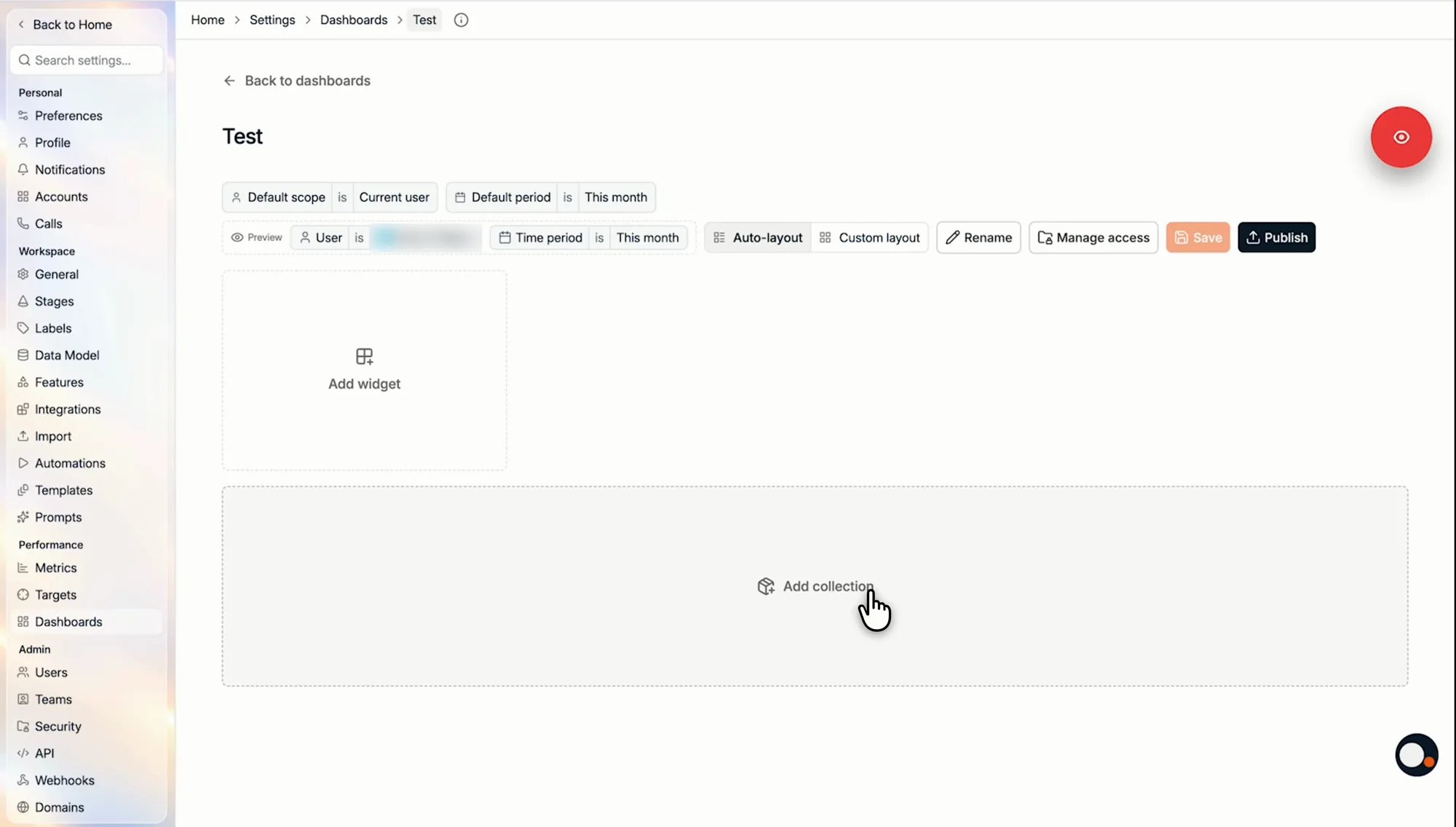
- Add widget: add a single block to the dashboard.
- Add collection: add a named group of widgets.
- Set the dashboard’s Default scope and Default period.
- Preview the dashboard as a specific user and for a specific time period.
- Switch between Auto-layout and Custom layout.
- Rename the dashboard, Manage access, Save, and Publish.
Add widgets
Click Add widget, give the widget a Title, and choose its Type. Every widget also has a Default period and a Default scope. A preview on the right updates while you set it up.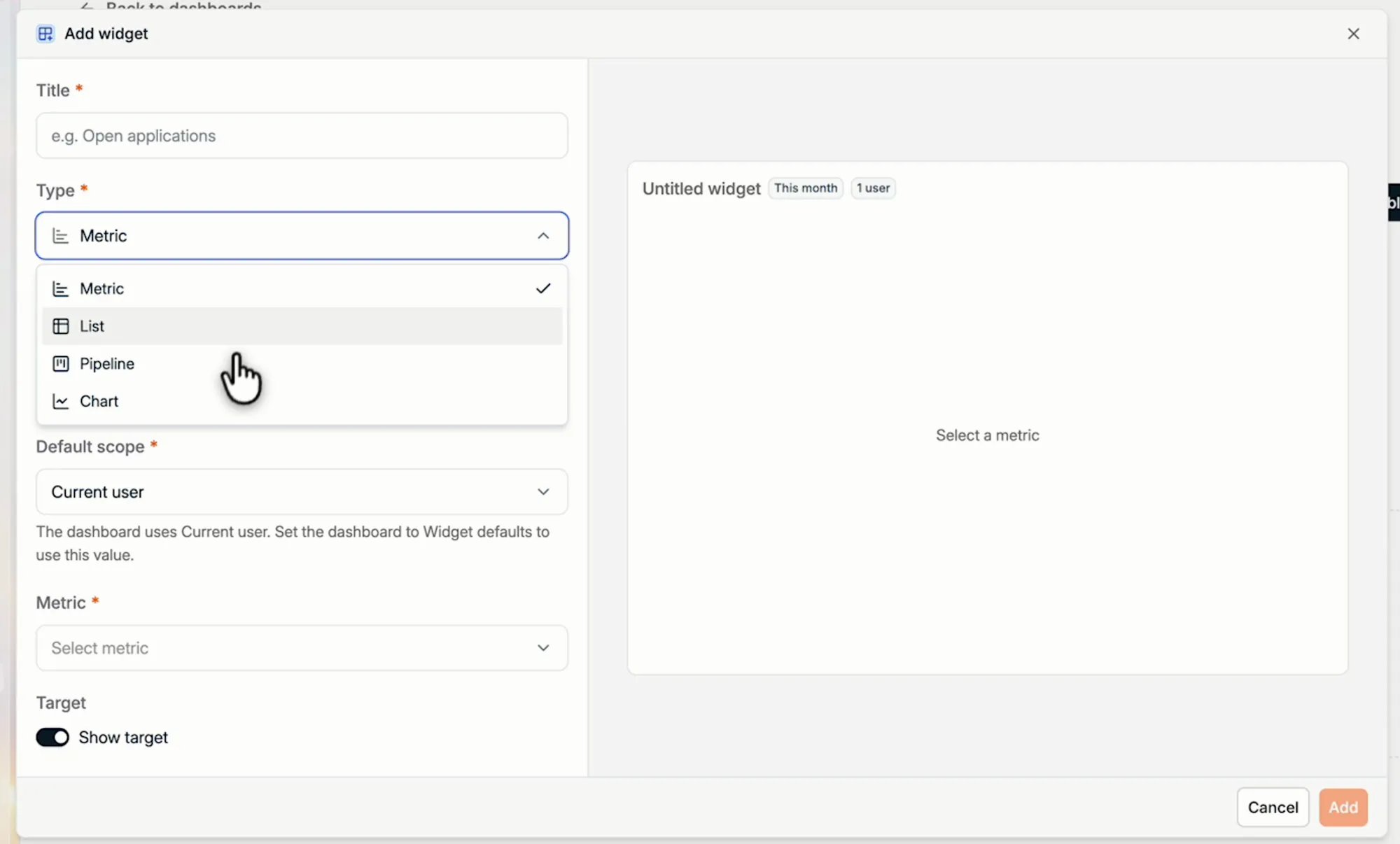
- Current user: the person looking at the dashboard.
- Current team: that person’s team.
- All teams: every team, side by side.
- Company: the whole workspace.
Metric
Shows a single saved metric as one number. Select the Metric, and switch on Show target to show progress against the target for the viewer.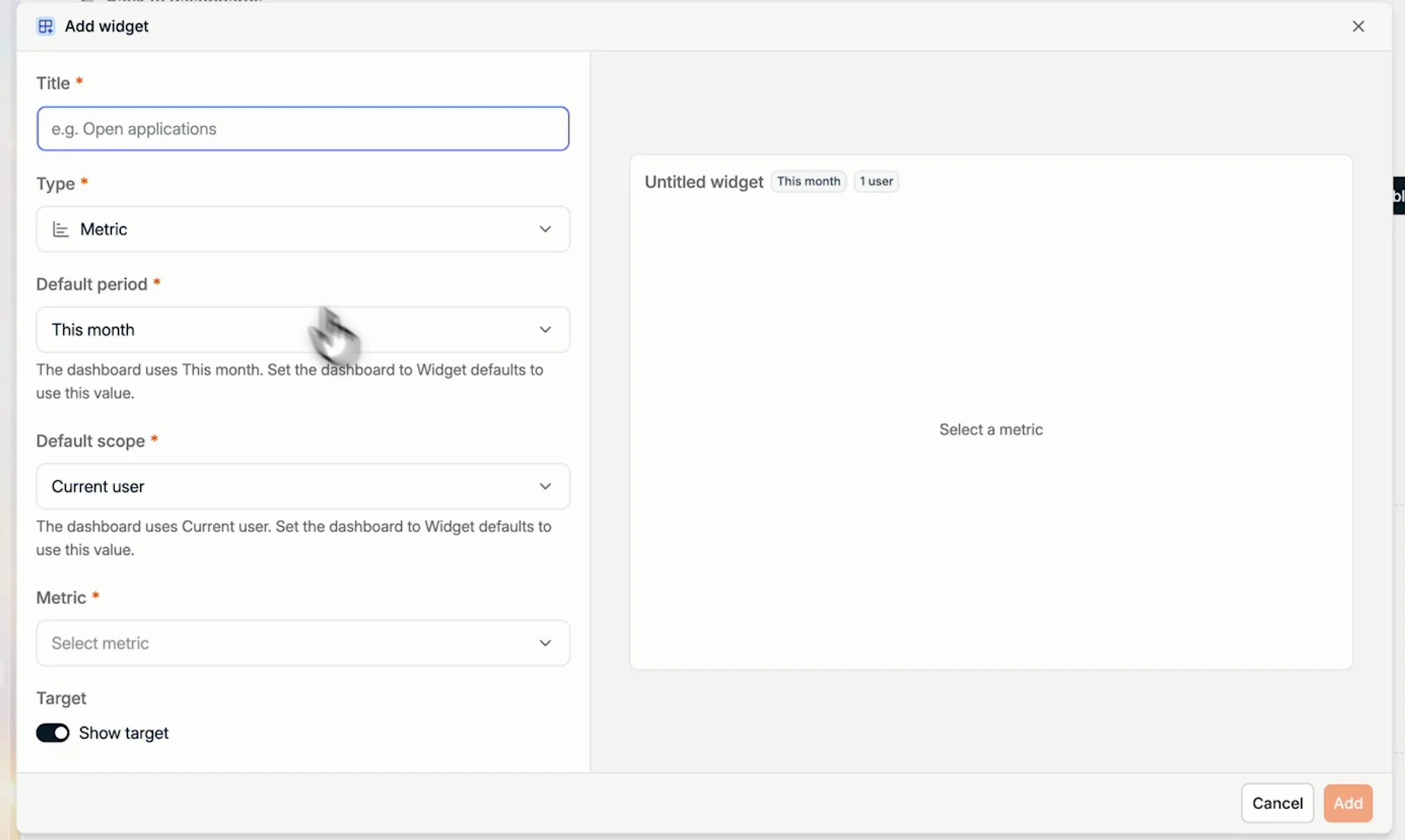
List
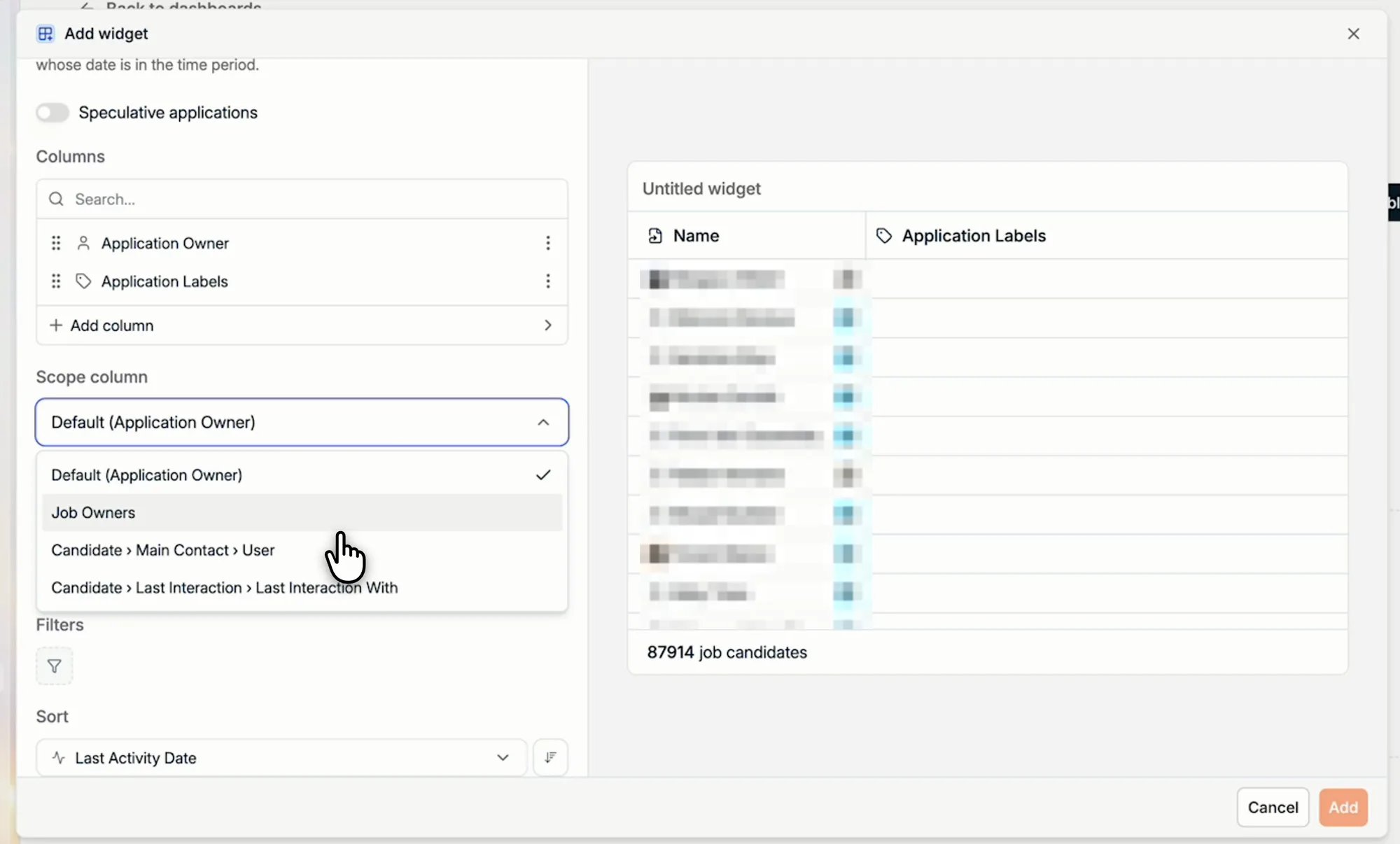
Shows a table of records, for example all of your applications. You design the table yourself:- Record type: what the list shows, for example Candidates or Applications.
- Columns: add the columns you want to see, such as Application Owner or Application Labels, and drag them into order.
- Scope column: decides whose records each viewer sees. For applications the default is the Application Owner. Change it to Job Owners, for example, so that the owners of a job see every application on that job.
- Filters: for example, only applications that are in process, without the rejected ones.
- Sort: how the list is ordered.
Pipeline
Works the same way as the job pipeline you already know: one bar per stage, with the number of applications in each. Set the scope, typically Current user, choose whether to include speculative applications, and add filters on top of the default ones, which leave out closed jobs, rejected applications, and placed candidates.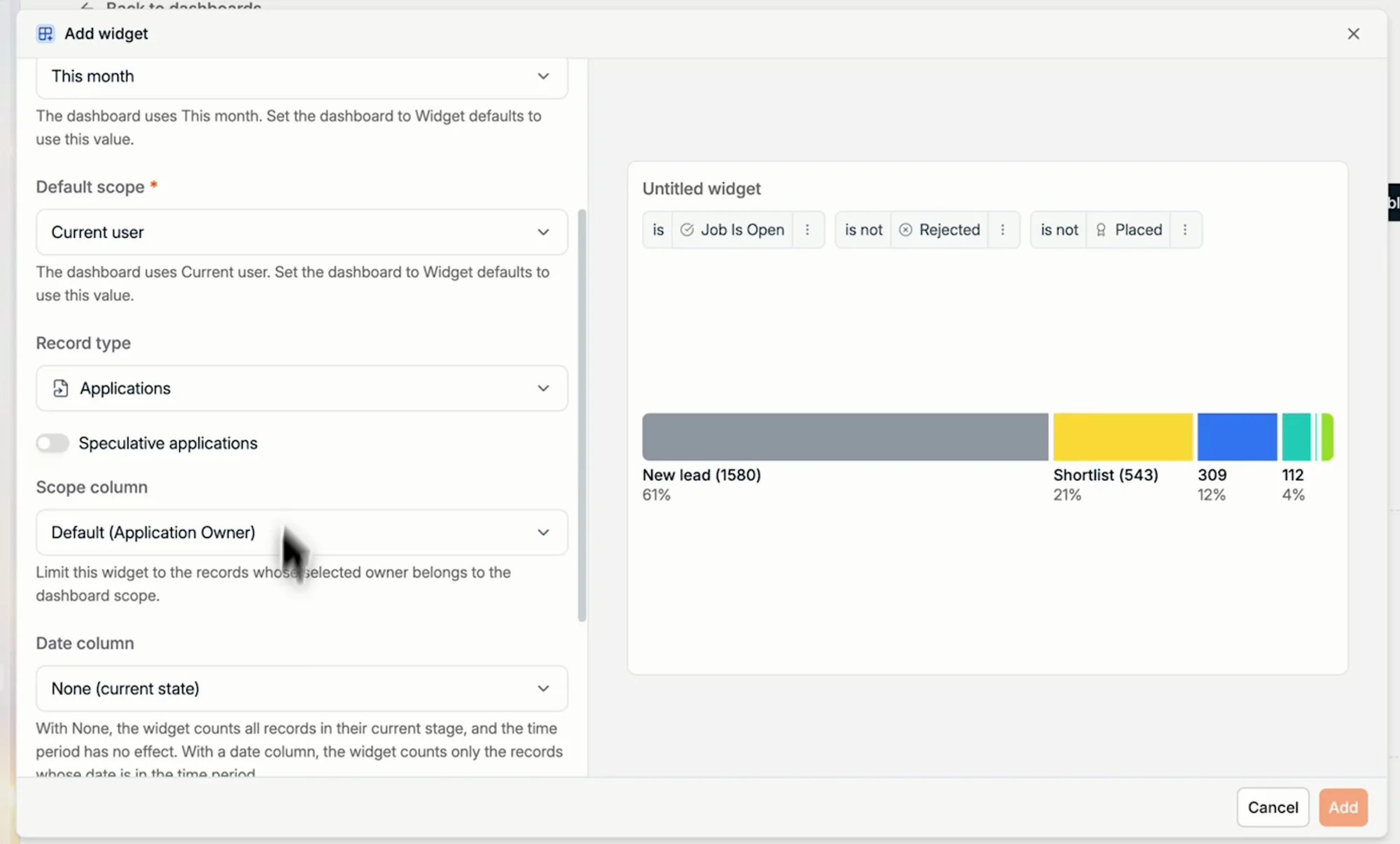
Chart
Works the same way as an insight in Reports. Choose the Data, for example Applications, Opportunities, or Candidates, the Metrics, and an optional Group by. Then pick the Type of insight and the Visualisation: Bar, Line, Pie, Single Metric, or Table. The Type of insight is Pivot or Historical Values. Use Historical Values to show a trend over time instead of a breakdown. Funnel and Time in Stage stay in Reports.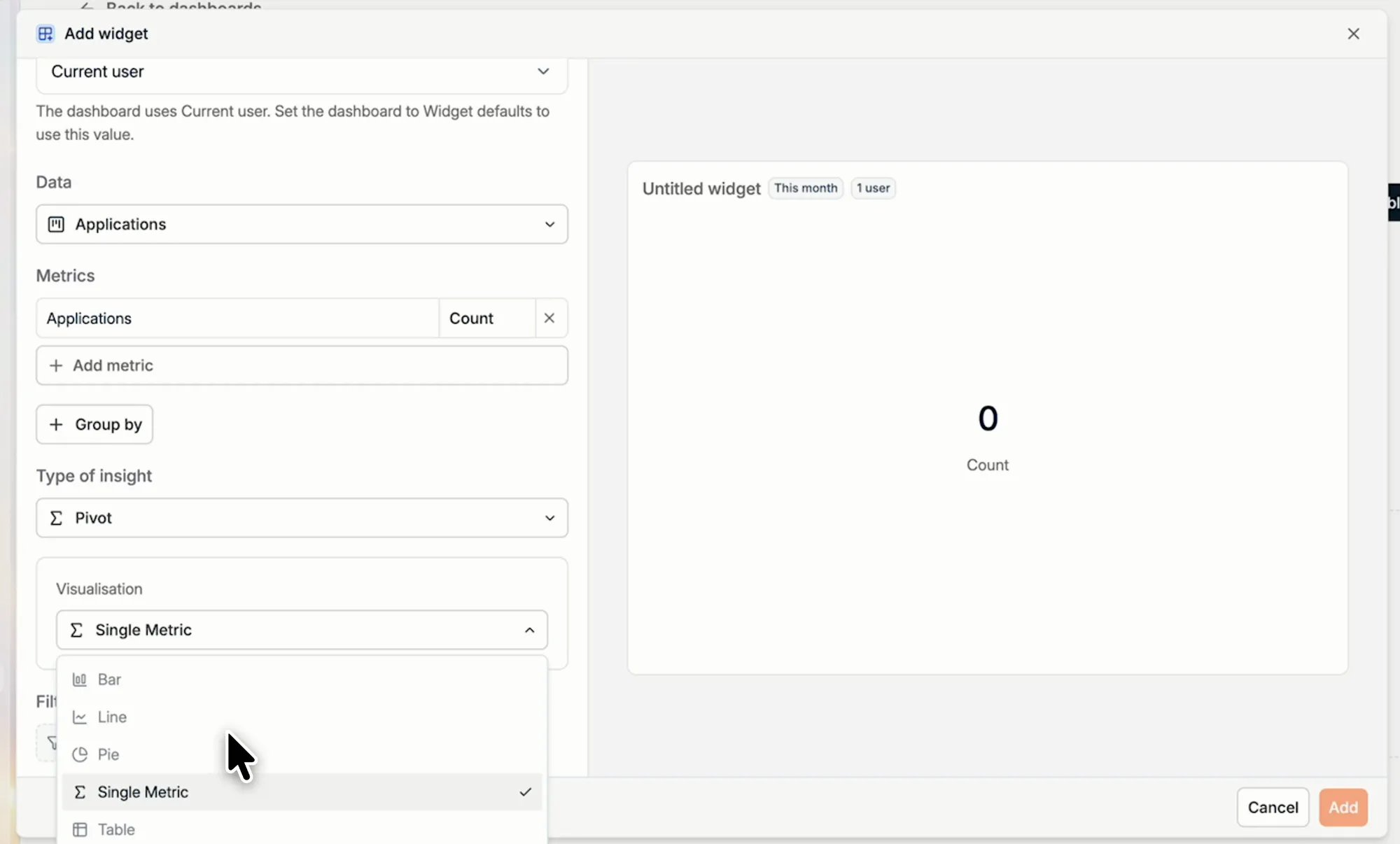
Organise widgets in collections
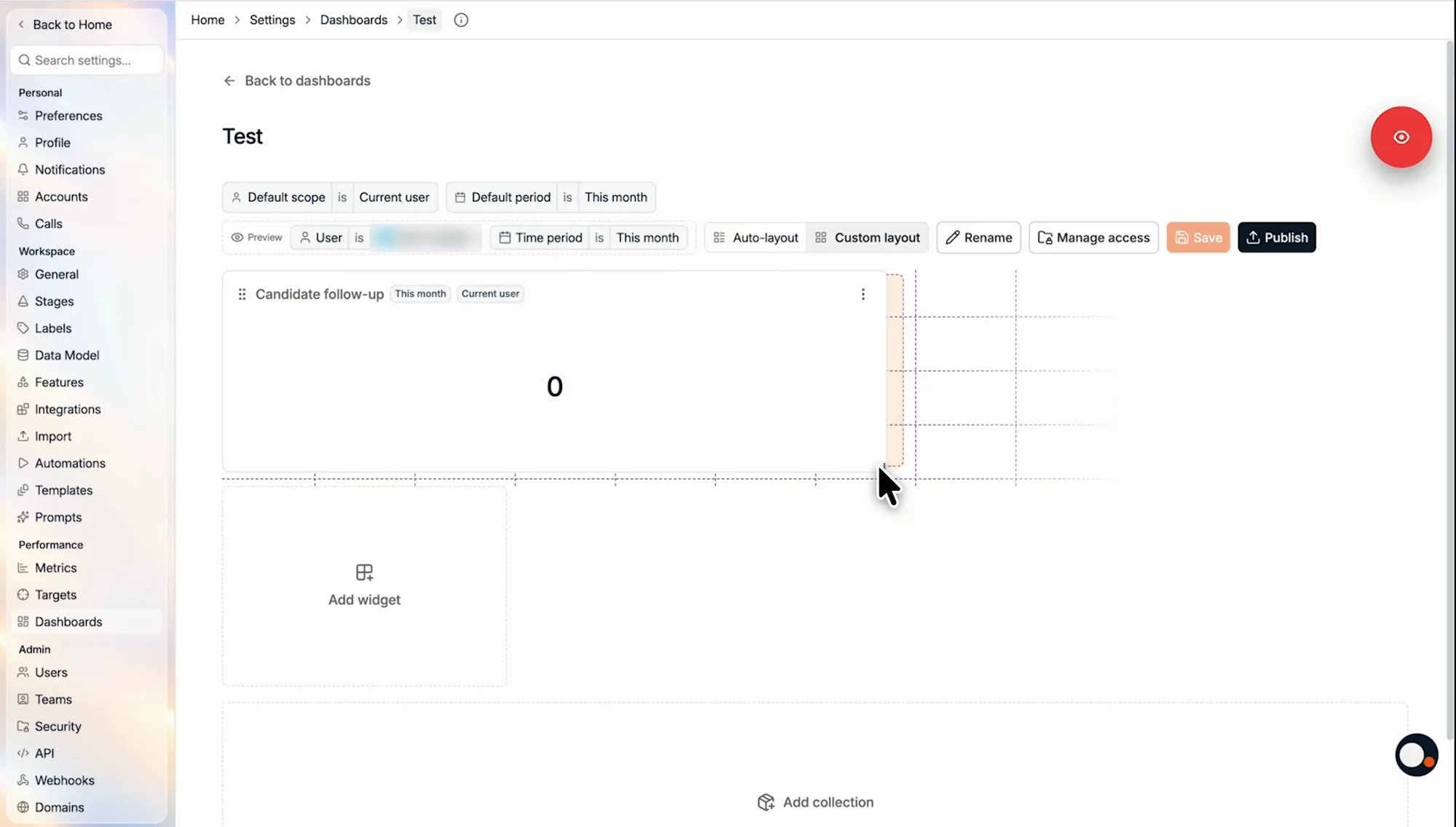
A collection is a named group of widgets on the dashboard, for example Business development, Talent pipeline, or Matching. Collections keep a busy dashboard readable. Choose a layout per dashboard:- Auto-layout: every widget gets the same size.
- Custom layout: drag the corner of a widget to resize it, so you can design the dashboard exactly the way you want.
Time periods: dashboard defaults and widget defaults
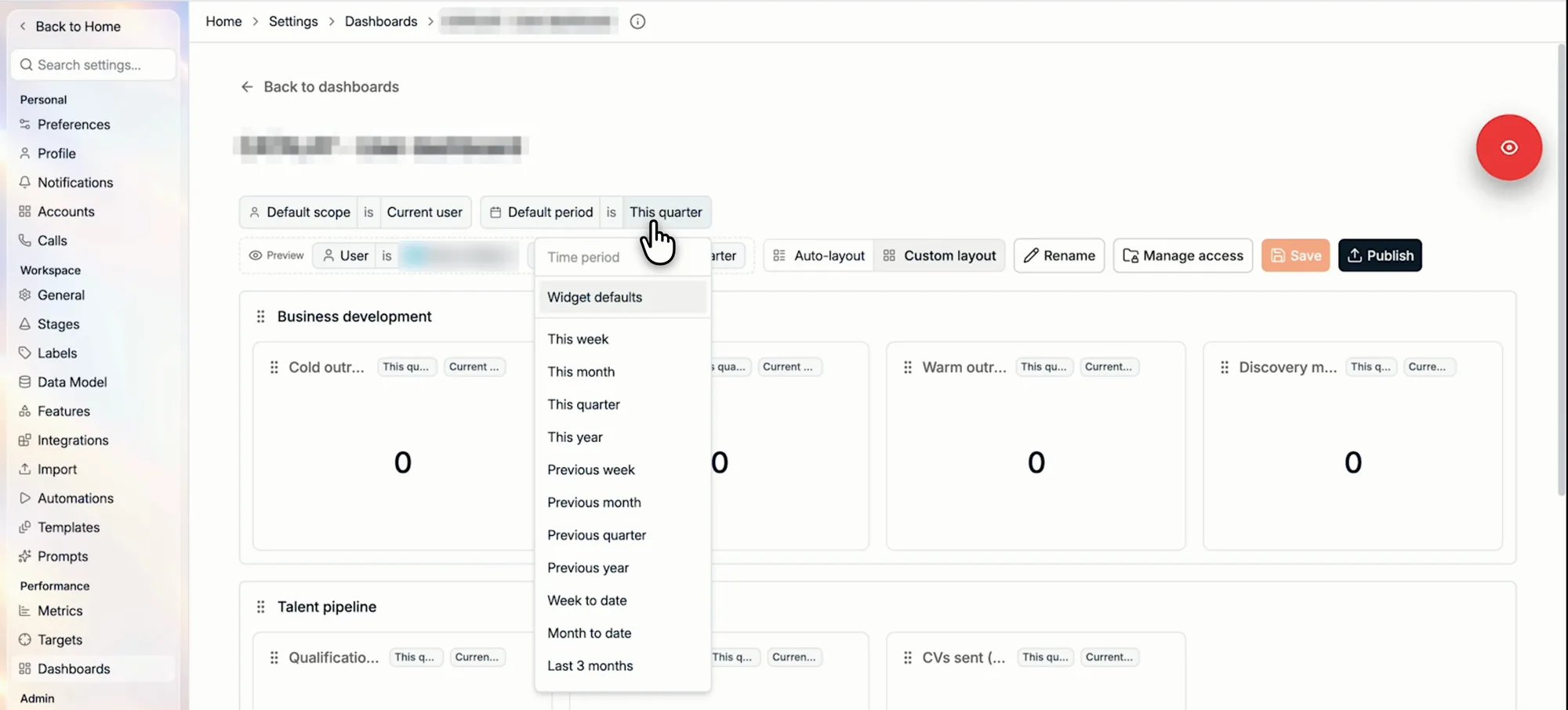
Each widget has its own default period, and the dashboard has a Default period too. On the dashboard, choose one of two options:- Widget defaults: every widget uses the period set on the widget itself. Use this to show different periods side by side, for example this quarter next to last quarter.
- A specific period, for example This quarter: every widget on the dashboard uses it.
Manage access and publish
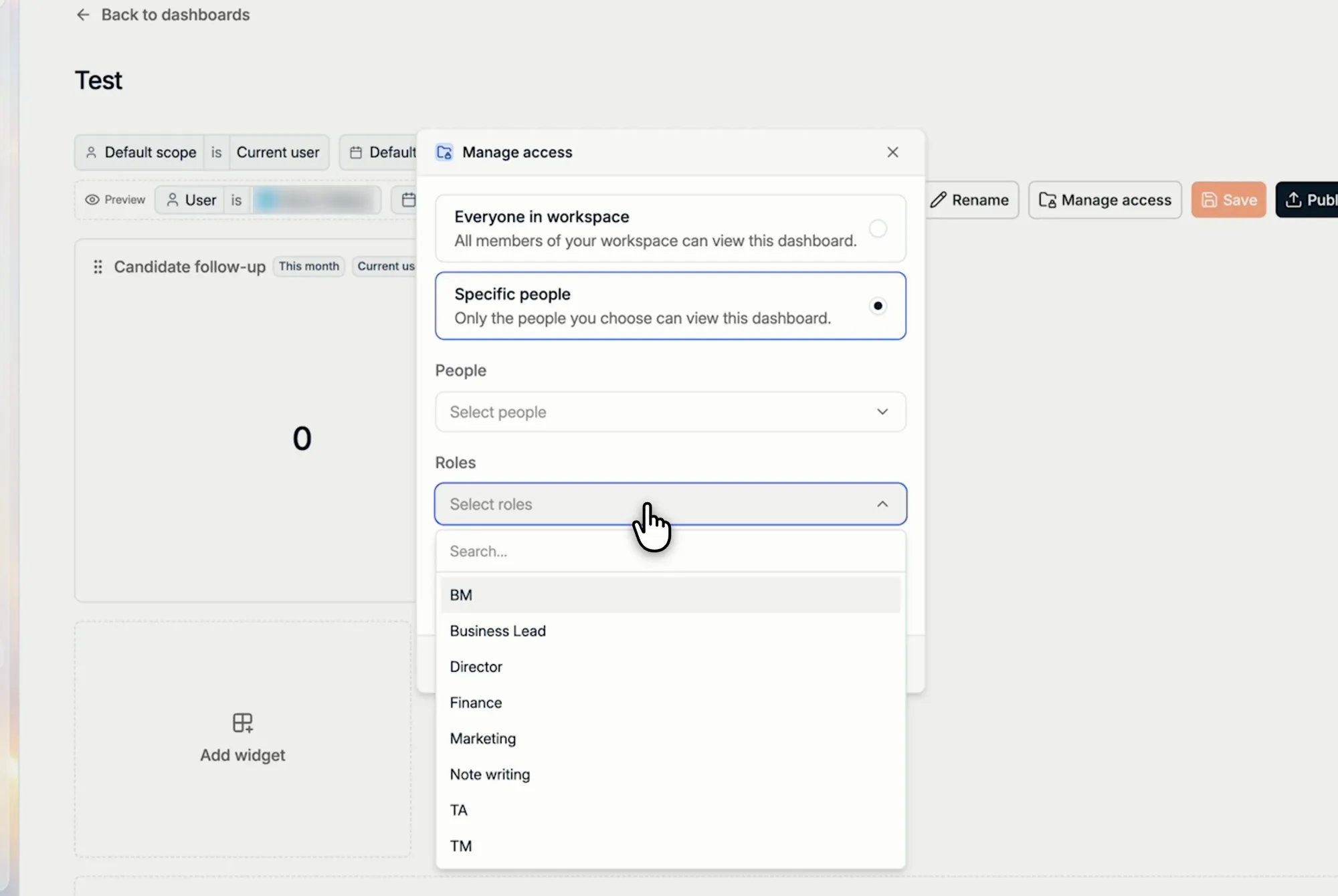
Click Manage access to choose who can view the dashboard:- Everyone in workspace: all members of your workspace.
- Specific people: only the people you choose, picked as individual People, Roles, or Teams.
Manage your dashboards
The Dashboards tab lists every dashboard with its Status (Draft or Published), its Access, its Sync status, and when it was created and last changed. Open the ⋮ menu on a dashboard to Rename, Duplicate, Manage access, or Archive it.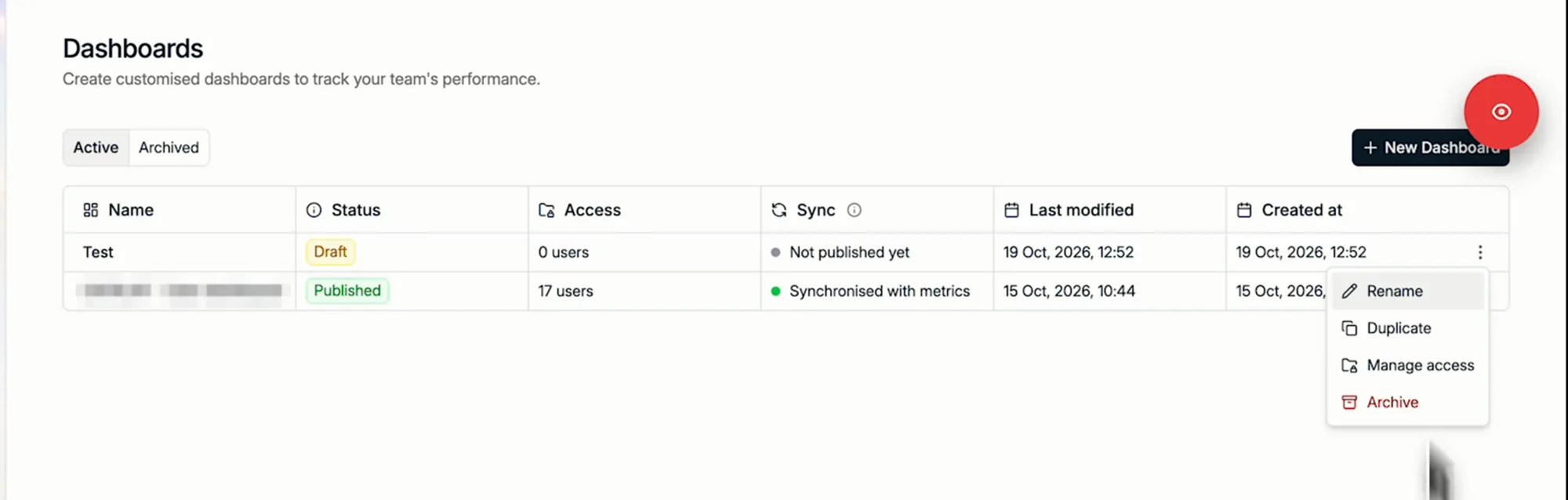
Home dashboard
What viewers see: switching dashboards, filters, refresh, and periods.
Reporting overview
How metrics, targets, dashboards and reports fit together.