

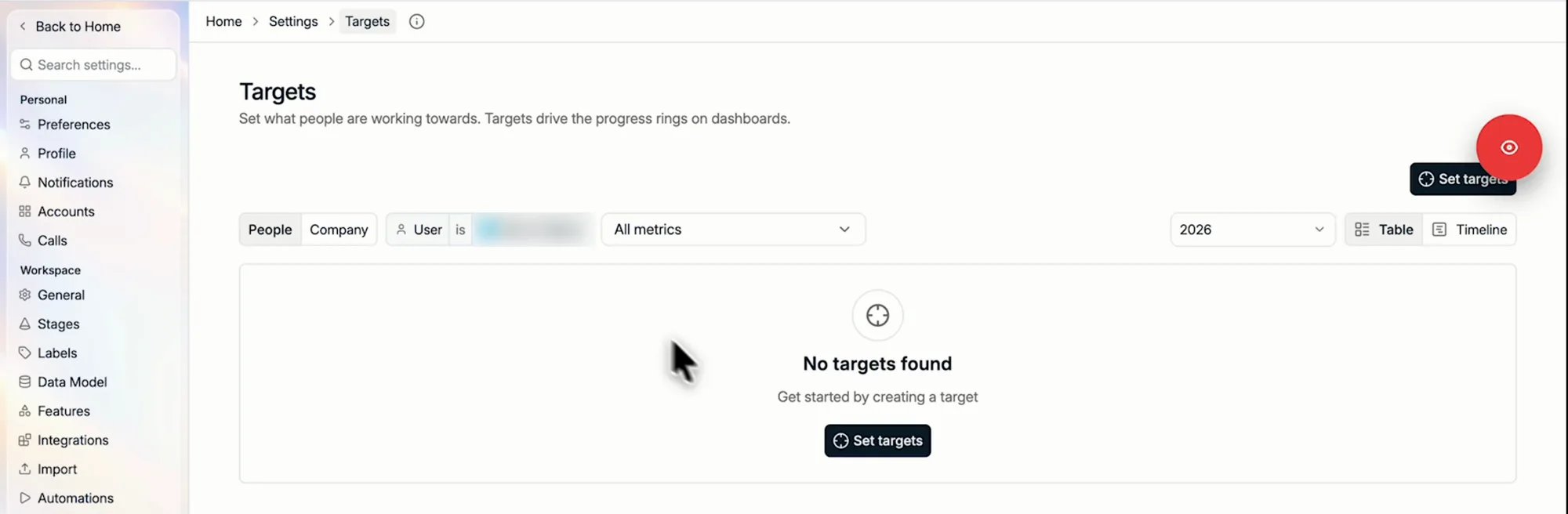
Find a target
Use People or Company at the top to switch between targets for users and teams, and the targets for the whole company. Narrow the list with the user and metric filters, and view it as a Table or a Timeline.Set a target
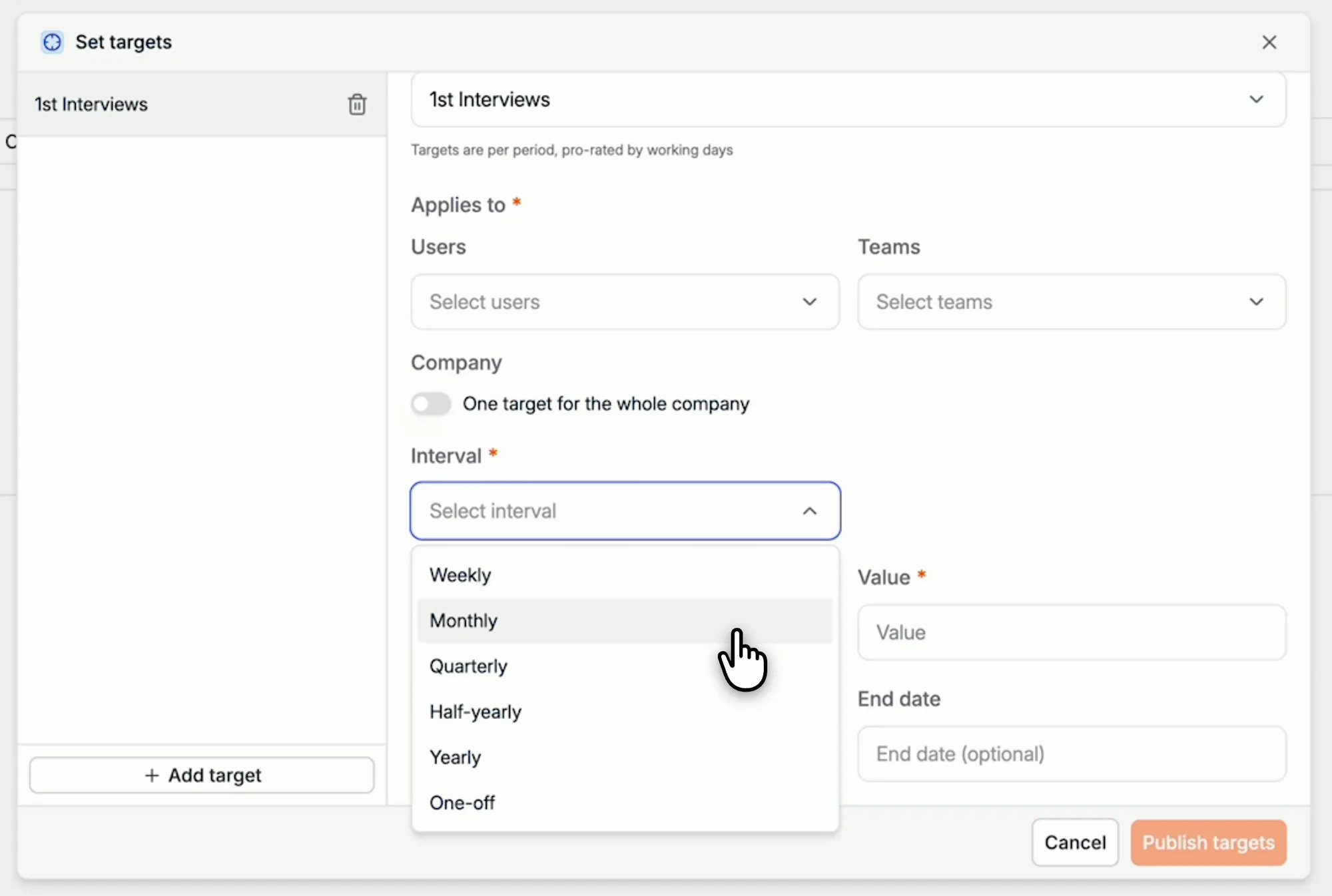
- Click Set targets.
- Select the Metric the target applies to. If the metric you need does not exist yet, Configure metrics at the bottom of the list takes you to the Metrics tab.
- Under Applies to, choose who the target is for: specific Users, specific Teams, or One target for the whole company.
- Choose the Interval: Weekly, Monthly, Quarterly, Half-yearly, Yearly, or One-off.
- Set the Operator, for example At least, and the Value.
- Set a Start date and, optionally, an End date.
- Click Publish targets.
Why targets have start and end dates
Targets do not have to stay the same all year. If your targets are lower in summer, or a new starter ramps up over their first three months, create a separate target for each period, each with its own start and end date.View and adjust targets in the timeline
Switch to Timeline to see every target over time. Click a target in the timeline to change or extend it.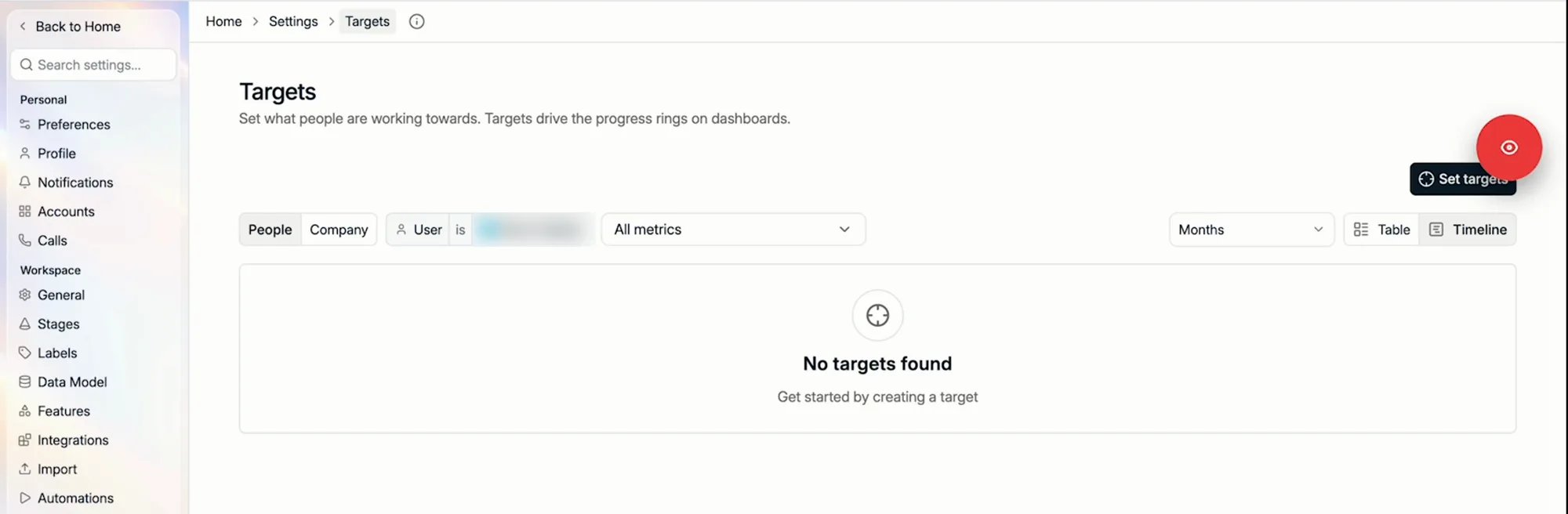
Next: build a dashboard
Put your metrics and their targets in front of the people working towards them.