

- Collect documents, such as an updated CV or an ID card, before a placement.
- Fill in custom attributes, such as availability, driving licences or preferred locations.
- Run a consent campaign: send a form with just a consent question to a list of candidates, and each answer records a consent on their profile.
Create a candidate form
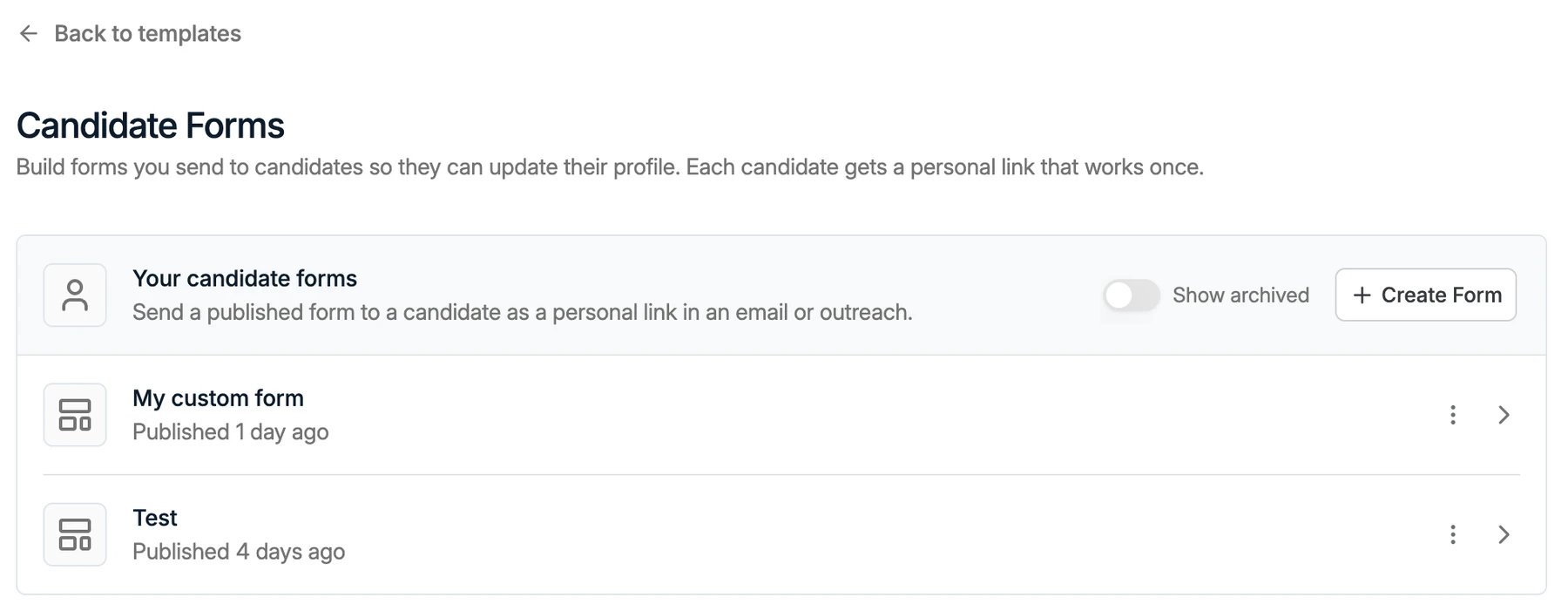
- Go to Settings → Templates and select Candidate Forms.
- Click + Create Form.
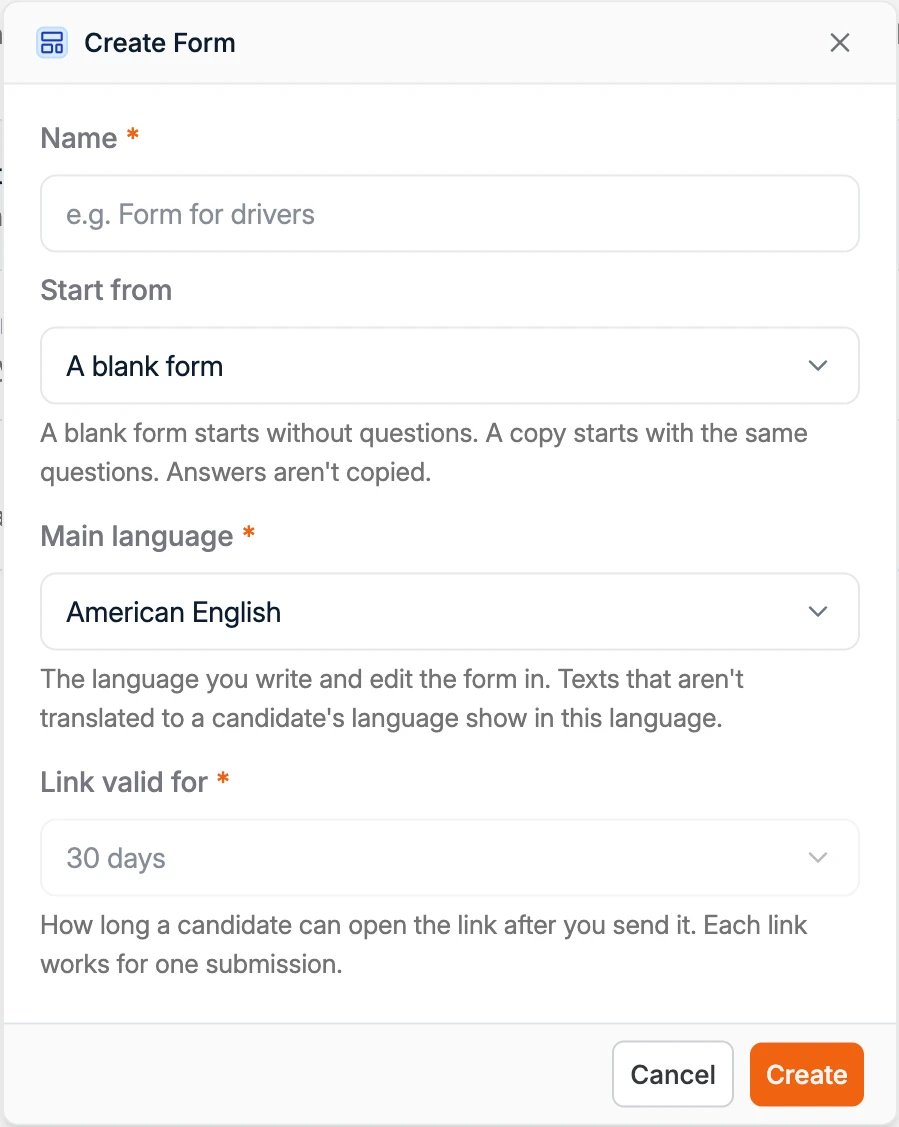
- Enter a Name for the form. This is also the name you pick when you add the form to an email.
- Under Start from, choose A blank form, or an existing form to copy its questions. Answers are never copied.
- Choose the Main language. This is the language you write and edit the form in. Texts that aren’t translated into a candidate’s language show in this language.
- Under Link valid for, choose how long a candidate can open the link after you send it, for example 30 days.
- Click Create.
Build the form
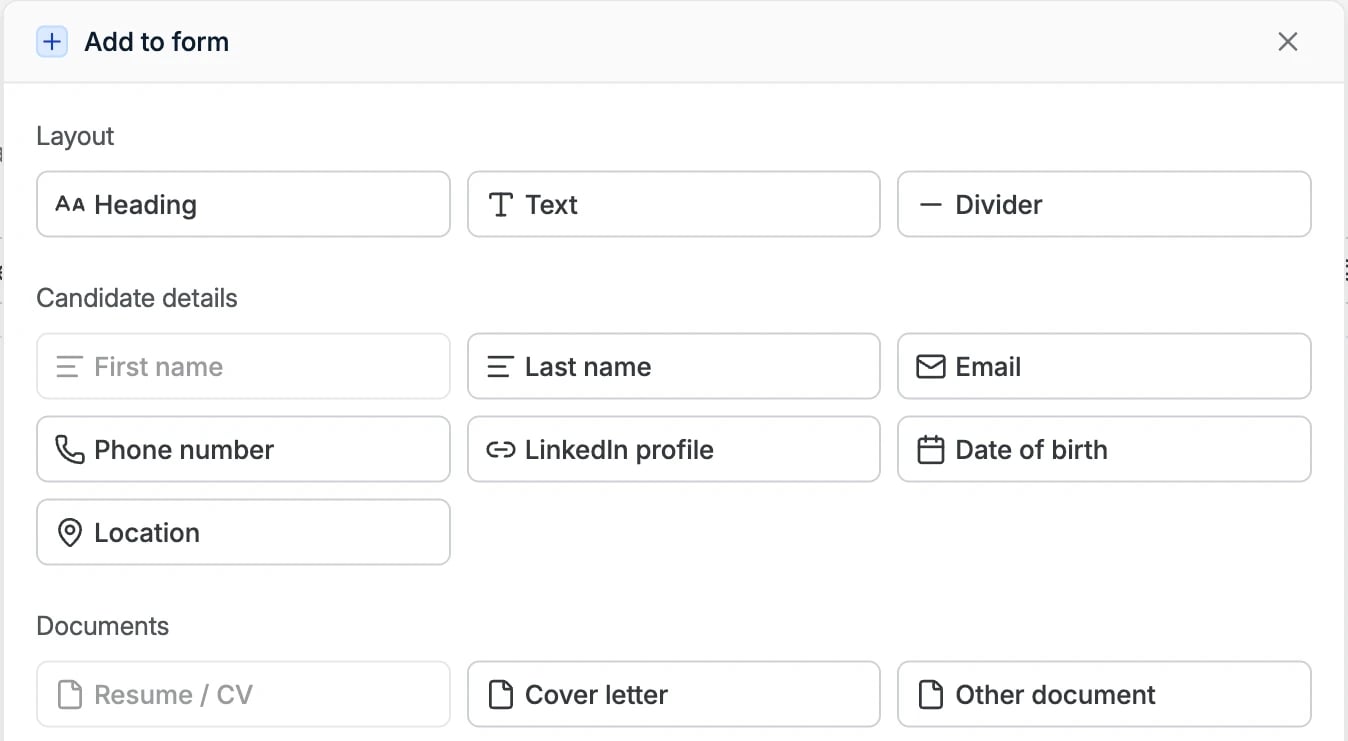
Click + Add to form to add headings, text, candidate details, documents, a consent question or your own questions, and choose under Where the answer goes which field stores each answer. The form editor covers every element and setting. To ask for documents:- Resume / CV saves the file as the candidate’s CV. It only takes PDF and Word files.
- Other document saves the file to the document type you choose, such as ID Card. Under Accepted formats, choose PDF, Word, spreadsheet or image files, and set Maximum files to let the candidate upload more than one.
Send the form to a candidate
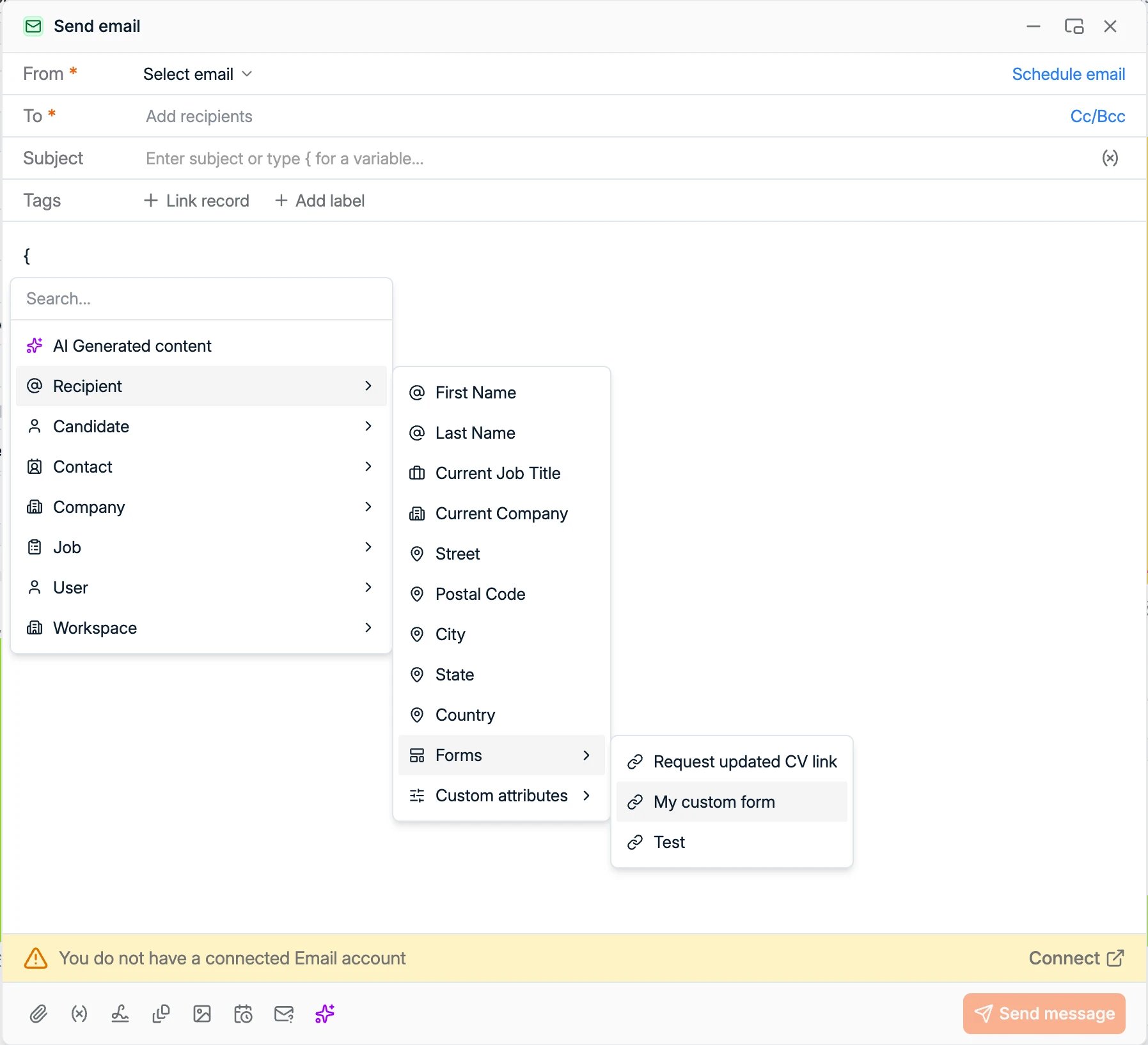
You add a candidate form to an email as a variable. When the email goes out, the variable becomes the recipient’s personal link.- Start an email to the candidate.
- In the message, type
{or click the variables icon, then select Recipient → Forms and choose your form. The variable shows as{ Recipient > form name }. - Click Preview message to check the email. The variable is replaced by the candidate’s link.
- Click Send message.
What the candidate sees
The link opens the form on a page with your workspace branding, set in workspace and branding. The page shows the form’s title and the date until which the link works. When the candidate clicks Submit, their answers are saved to the candidate profile. If they open the link again, they see You already filled in this form.How the links work
- Each link is personal and works for one submission.
- The link expires after the period set in Link valid for, counted from when you send it.
- One open link per form. If you send the same form again before the candidate has filled it in, they get the same link, so they never have several links to the same form. Once they’ve submitted, the next email contains a new link.
Related
Job Candidate Forms
Choose what applicants fill in when they apply to one of your jobs.
Form Editor
Every element and setting, translations, publishing and version history.