

- Connect your Timesheet Portal account once for the whole workspace.
- Publish a contract placement straight from the placement record, and update it later.
- Review and complete the client, contact, candidate, consultant, placement and rate details before they are sent.
- See the timesheets from Timesheet Portal on the placement’s Timesheets tab.
Connect Timesheet Portal
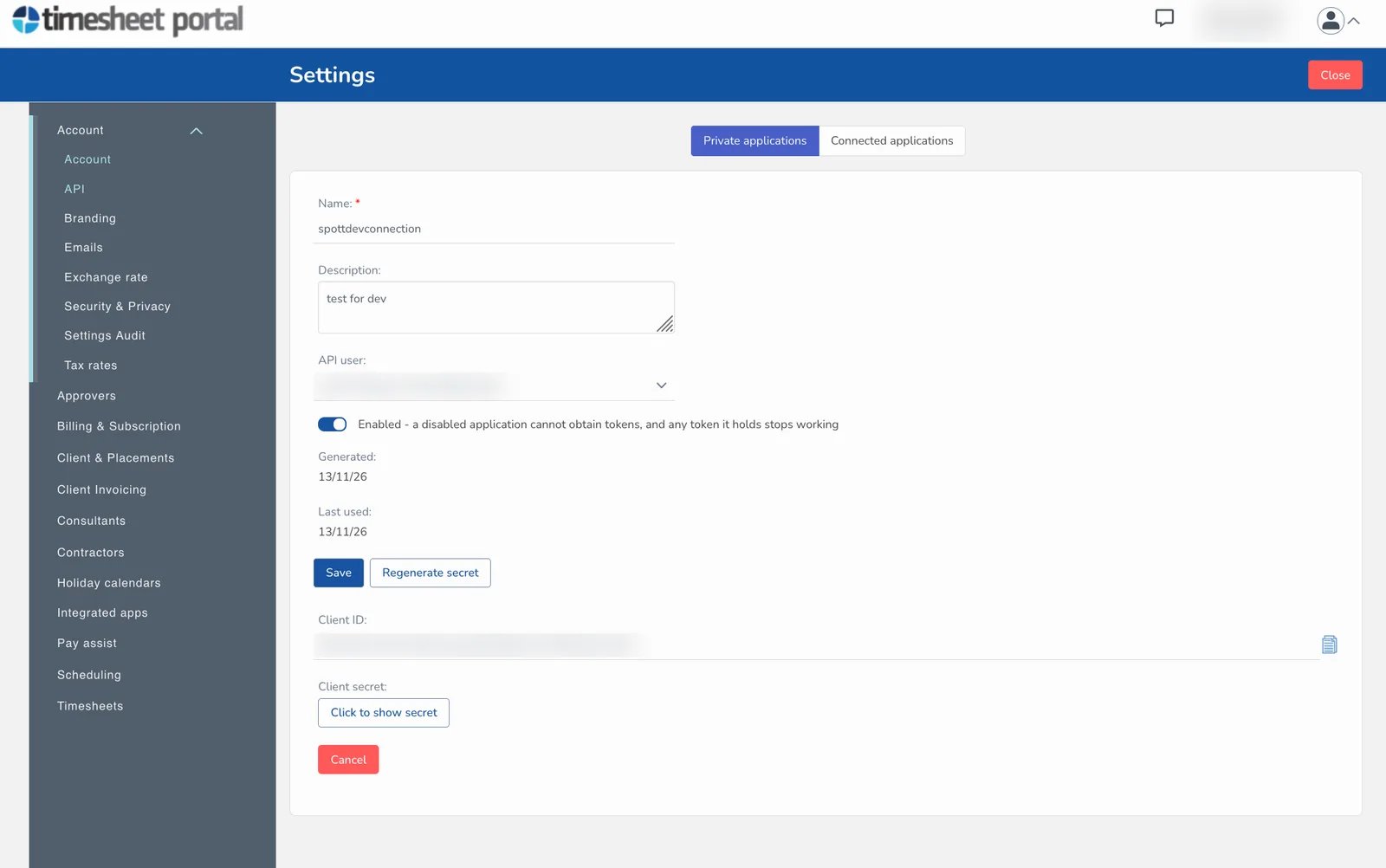
An admin connects Timesheet Portal once for the whole workspace. You need API credentials from Timesheet Portal first, created against a System Administrator user there.Create the API credentials in Timesheet Portal
- In Timesheet Portal, go to Settings → Account → API.
- On the Private applications tab, click + New application.
- Give it a name, for example Spott, choose a System Administrator as the API user, make sure it is Enabled, and click Save.
- Copy the Client ID. Then click Click to show secret and copy the Client secret.
Connect in Spott
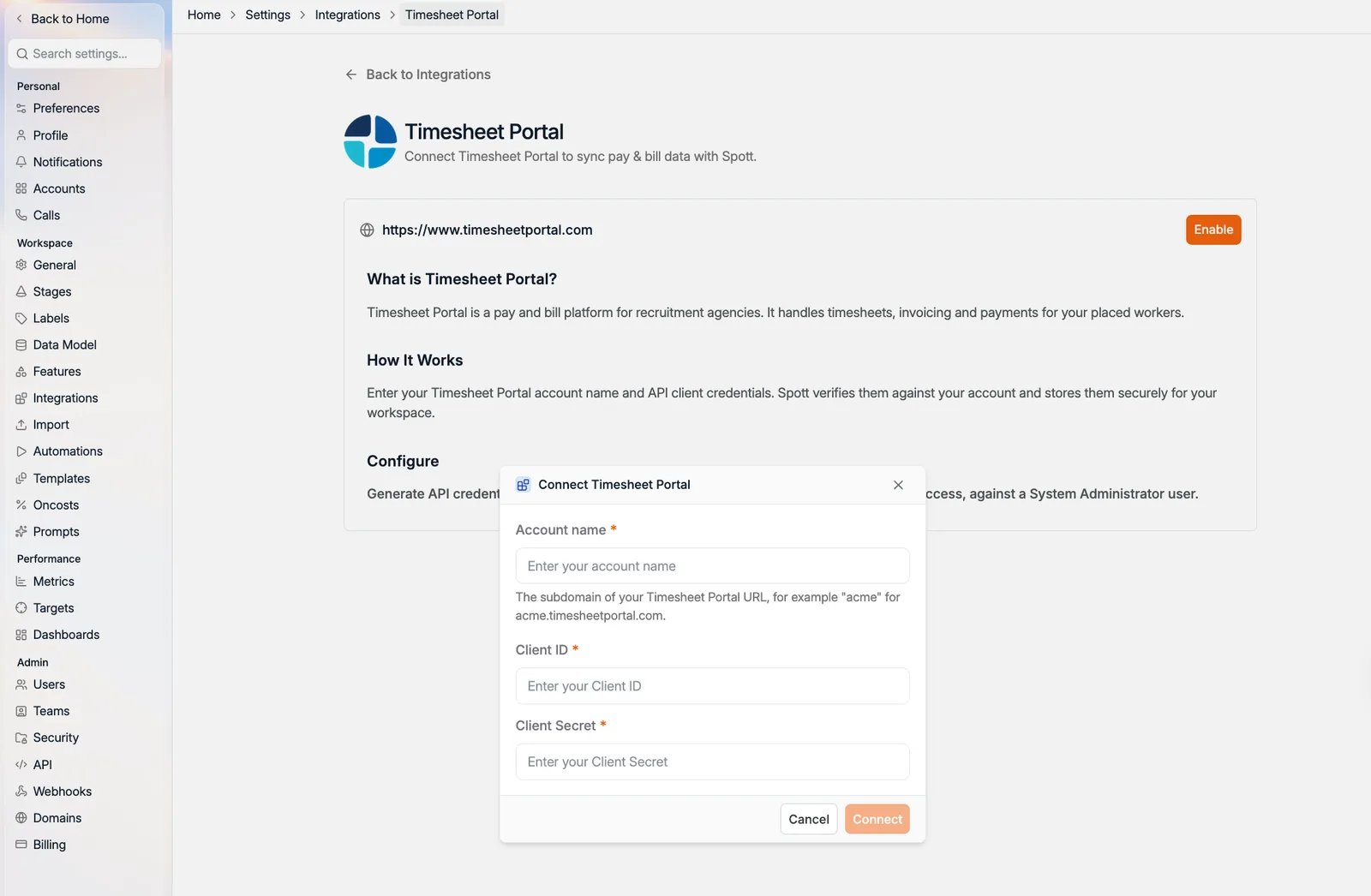
- Go to Settings → Integrations and select Timesheet Portal.
- Click Enable. The Connect Timesheet Portal dialog opens.
- Fill in:
- Account name: the subdomain of your Timesheet Portal URL. If you log in at
acme.timesheetportal.com, it isacme. Letters, numbers and hyphens only. - Client ID and Client Secret: the credentials you just copied.
- Account name: the subdomain of your Timesheet Portal URL. If you log in at
- Click Connect.
Only workspace admins can connect or disconnect this integration. Publishing placements is
open to anyone who may edit placements.
Publish a placement
Only contract placements can be published, including their extensions. Contingent and retained placements have no timesheets, so the option does not appear on them. Check two things on the placement first:- It has a rate card. Without one, Publish to Timesheet Portal is greyed out. Choose Create rate card in the same menu, see set up a rate card.
- Each rate has a pay code that exists in Timesheet Portal. The codes live in Timesheet
Portal under Settings → Timesheets → Rates & Units, for example
STDorOT1. Pick the matching Pay code on each rate with Edit rate card.
Start the publish
- Open the contract placement.
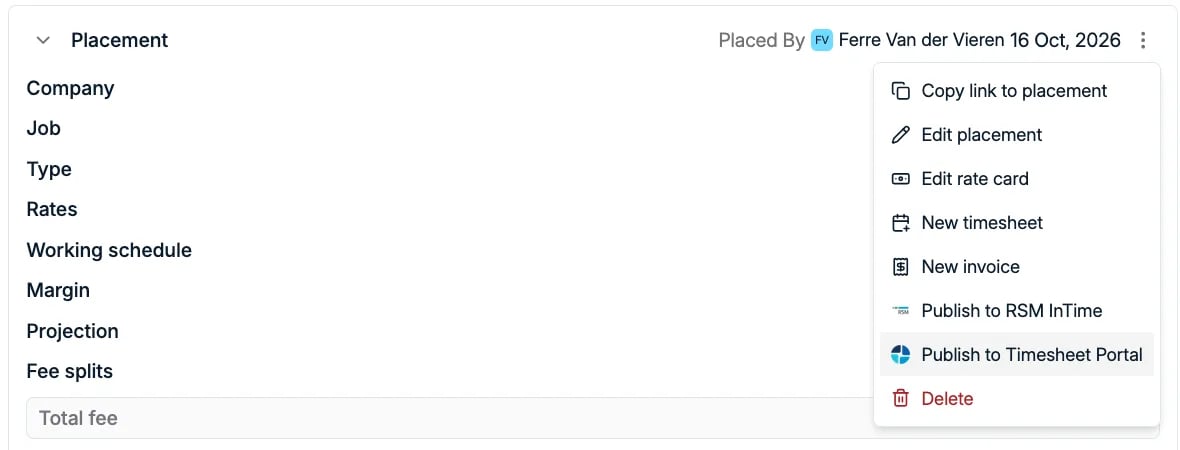
- Click the ⋮ menu at the top right of the Placement card.
- Choose Publish to Timesheet Portal.
Complete the form
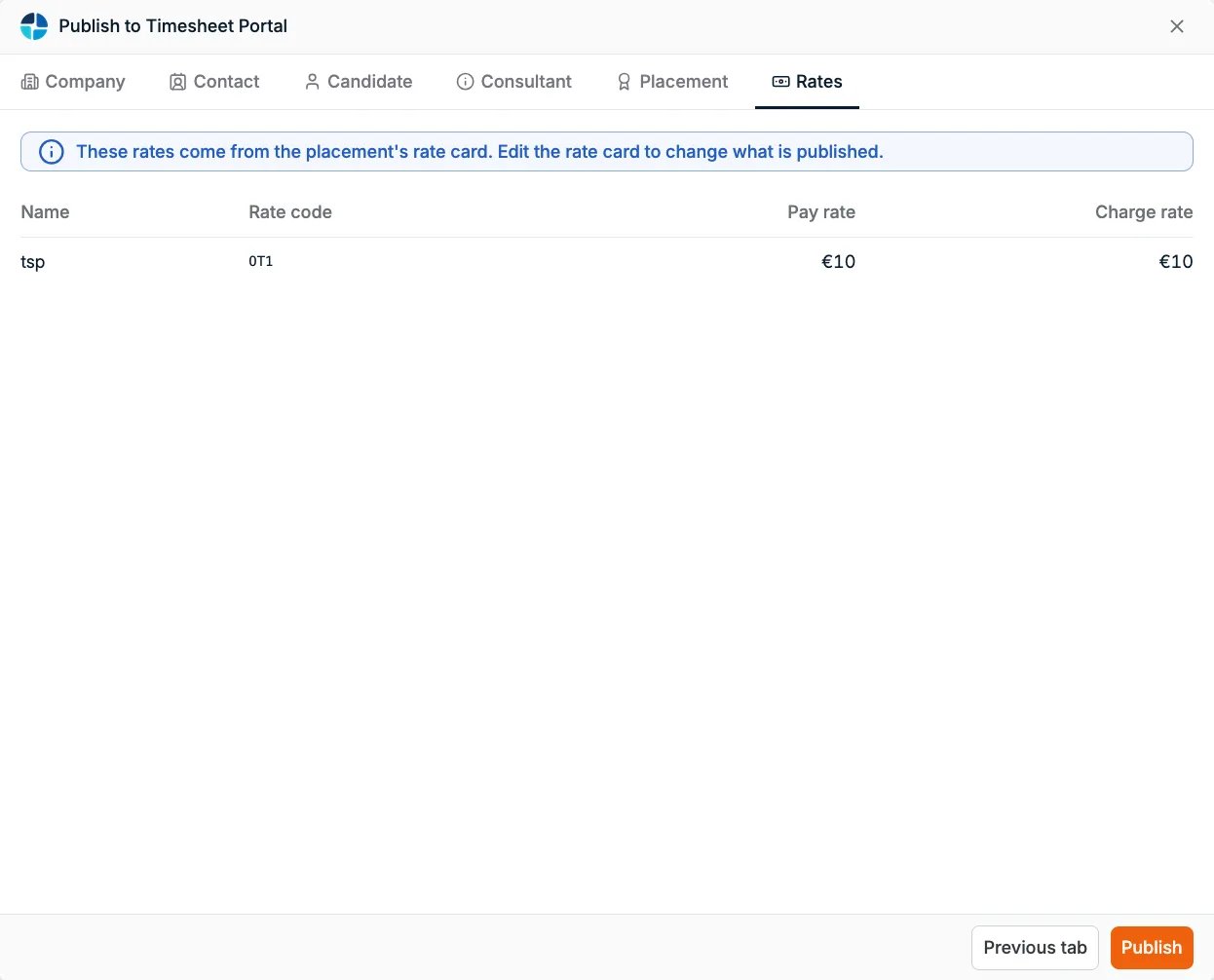
The form has six tabs. Spott fills in everything it already knows. Work through them with Review next tab and Previous tab, or click a tab to jump to it. When a required field is empty, the form shows Field is required and takes you to the first tab with a gap.
A contact and a consultant are always required, and so are the placement’s description and
start date. For the timesheet frequency, invoicing frequency and IR35 status, leave Use the
Timesheet Portal default unless this placement is different.
The Rates tab is read-only: “These rates come from the placement’s rate card. Edit the rate
card to change what is published.” A rate card can send at most 20 rates, and each rate
code can appear on it only once.
New and linked records
The first time you publish, Spott creates the client, contact, candidate and consultant in Timesheet Portal and links each one to its Spott record. Later placements for the same people reuse that link, so they are not created twice. Spott does not match records that already exist in Timesheet Portal, by name, email or otherwise. Each client, contact, candidate and consultant you publish for the first time is created as a new record in Timesheet Portal, even when the same company or person is already there. To reuse an existing Timesheet Portal record instead, contact support before you publish. A record that is already linked is not updated from Spott. Its tab says so and asks you to edit it in Timesheet Portal instead.Publish
Click Publish on the Rates tab. Spott confirms with “Placement published to Timesheet Portal”, and the placement exists in Timesheet Portal, linked to its client, approver, contractor and consultant. From then on the menu shows Update in Timesheet Portal instead. Use it to push later changes, for example new rates. It updates the same placement in Timesheet Portal rather than creating another one. The placement itself shows no badge or link to Timesheet Portal; the menu item is how you tell it was published.What happens next
- Timesheets are filled in and approved in Timesheet Portal. About once an hour, Spott collects them and shows them on the placement’s Timesheets tab, with their status: Draft, Submitted, Approved, Rejected or Void. They can only be changed in Timesheet Portal. Spott does not mark them as read-only, but it refuses a change to one: you get a general error message when you save.
- Invoicing runs in Timesheet Portal. Timesheets that come from Timesheet Portal cannot be invoiced from Spott, so the same hours are never billed twice. Invoices you create in Timesheet Portal do not show in Spott.
Troubleshooting
Frequently asked
- Who can connect the integration? A workspace admin, from Settings → Integrations.
- What is my account name? The subdomain of your Timesheet Portal URL:
acmeforacme.timesheetportal.com. - Why is Publish to Timesheet Portal greyed out? The placement has no rate card yet.
- Why is there no Publish to Timesheet Portal at all? The placement is not a contract placement, or Timesheet Portal is not connected for the workspace.
- Do I need to publish every placement? Yes. Only placements you publish are sent. Nothing goes to Timesheet Portal automatically.
- Can I invoice Timesheet Portal timesheets from Spott? No. Invoice them in Timesheet Portal, which keeps the same hours from being billed twice.