

Invoice a contingent placement
- Open the placement and click New invoice under Quick Actions, or + New invoice in the Invoices section.
- Provider: select Xero.
- Recipient: Spott selects the placement’s company. Switch to Contact if you bill a person instead.
- Xero contact: the first time you invoice a company, pick its matching Xero contact and confirm Link. Spott remembers the link for every future invoice to that company, so you will not see this step again. The link cannot be undone, so double-check the contact before you confirm.
- Click Next and check the invoice details:
- Invoice date and Due date, both required.
- Currency, taken from the placement. Spott does not convert between currencies.
- Line items: choose a pay code and Spott fills in the description. Set Units and Unit cost. For a one-off placement fee, units is usually 1 and unit cost is the placement’s total fee.
- Click Create. The invoice appears in the placement’s Invoices table with status Draft and provider Xero.
Invoice a retained search
Retained searches are invoiced per milestone, so you can bill each stage as it is reached. The milestones come from the fee structure on the job, set up as described under retained placements.- Open the retained search and click New invoice.
- Under What would you like to invoice?, tick the milestones to include, for example only Shortlist for the first payment. Each shows its percentage and amount.
- Click Next and continue with provider, recipient, Xero contact and line items, as for a contingent placement.
- Click Create. The draft appears under the search’s Invoices.
Invoice a contract placement from timesheets
For contract placements, revenue comes from the days or hours actually worked. You set up a rate card once per placement, log timesheets, and invoice each approved timesheet.1. Set up a rate card
A rate card sets what you charge the client and pay the contractor for the days and times worked, and which pay code applies.- Open the contract placement and choose Create rate card from the ⋮ menu.
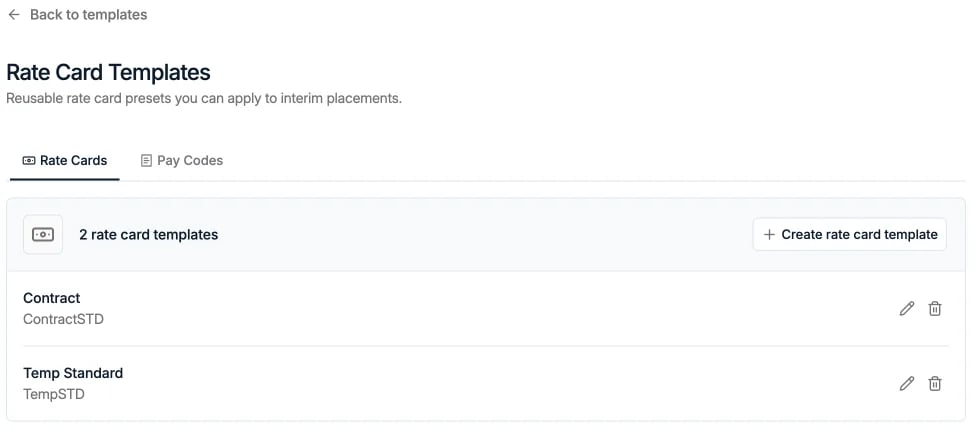
- Pick a Template if your admin has created one, or fill in the fields yourself:
- Name, for example “Standard rates”.
- Pay code, the Xero pay code used when you invoice.
- Unit, Day or Hour. If you only bill daily, use Day.
- Currency, Base charge rate (billed to the client) and Base pay rate (paid to the contractor).
- Click Next to add rules for rates that differ from the base, such as overtime. For each
rule, set:
- Rule name, for example “Overtime”.
- Applies to, the whole day or part of the day. Part of the day takes a start and end time and is only available on hourly rate cards.
- Days, for example Saturday and Sunday.
- Pay code, Billable, Charge rate and Pay rate.
- Add more rules with + Add rule, then click Create.
2. Log a timesheet
- On the placement, choose New timesheet from the ⋮ menu or the Timesheets section.
- Period: choose This week, Last week, Last 2 weeks, This month or Custom. A timesheet must fall within the placement dates and cannot overlap an existing one.
- Leave Prefill the week from the working schedule ticked to start from the placement’s normal working days and hours.
- Days / Hours: adjust what was worked.
- Daily rate cards: toggle each day worked. Only full days are supported.
- Hourly rate cards: set start and end times per day. Double-click the bar to add another block, for example evening overtime. Each color is a different rate card rule.
- Check: review the total time, charge and pay per day, then click Next and Save.
3. Submit and approve the timesheet
A saved timesheet starts as Draft. From the ⋮ menu on its row, choose Submit, then Approve once the client has signed off. You can also Edit or Void it.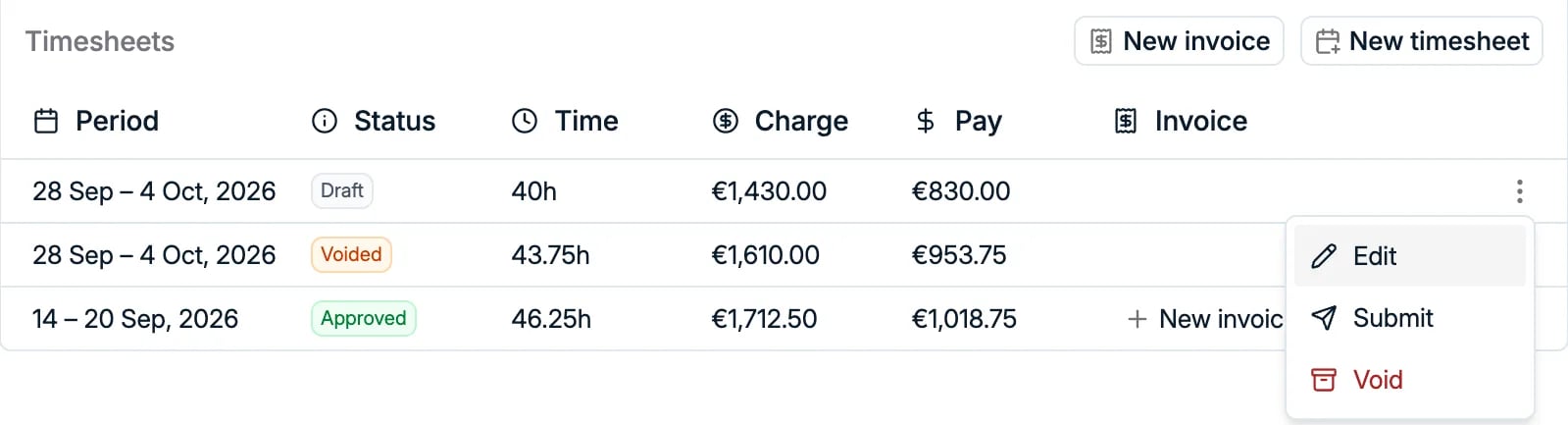
4. Invoice the approved timesheet
- On the approved timesheet’s row, click + New invoice in the Invoice column.
- Confirm provider, recipient and Xero contact, as for any other invoice.
- Spott fills in the line items from the timesheet: pay code, description, units worked and unit cost. Lines are split by rate, so standard and overtime hours appear separately.
- Click Create. The timesheet row now links to the new draft invoice.
Track invoice status
Once an invoice is pushed to Xero, Spott keeps its invoice number and status in sync. Each invoice’s status in Spott follows its progress in Xero. Updates can take a minute or two to appear and may need a page refresh.
Once an invoice leaves Draft, finance handles it in Xero. Changes made there, such as a
corrected tax rate or amount, do not sync back to Spott yet. Only the status and invoice
number do.
Frequently asked
- Can I record a payment in Spott? No. Record payments in Xero, and Spott updates the invoice to Paid.
- The Xero contact I need is not in the list. Create the contact in Xero first, then open the invoice again. Creating Xero contacts from Spott is not available yet.
- A pay code is missing. Ask an admin to click Sync pay codes under Settings → Templates → Rate Card Templates → Pay Codes. If it is still missing, check that the item exists in Xero.
- Can contractors submit their own timesheets? Not yet. Timesheets are logged, submitted and approved by your team in Spott.
- Can I link more than one Xero organization? Not yet. Support for several organizations is coming in the next few weeks.