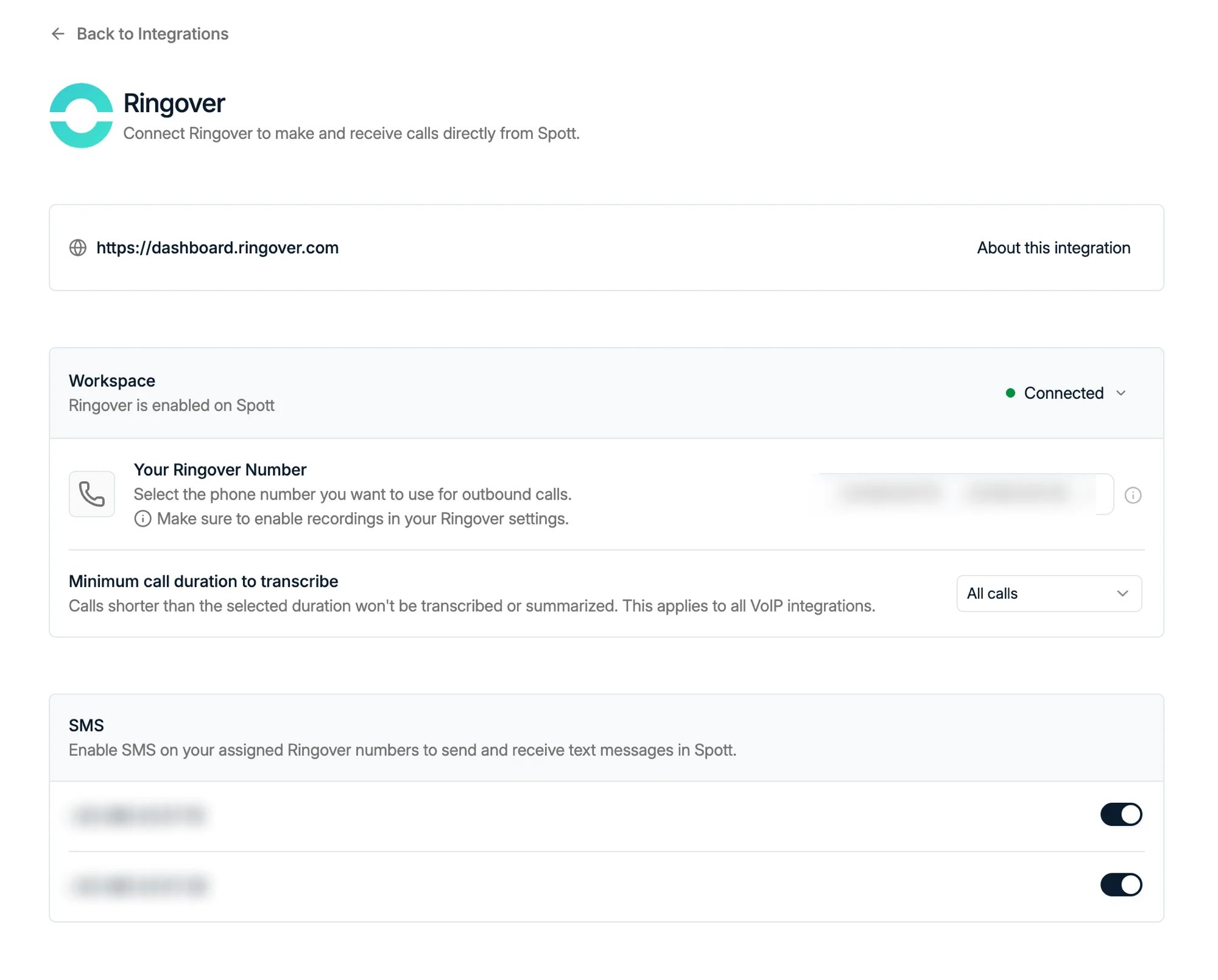
Overview
Ringover is a VoIP provider. Connecting it to Spott lets you call any Candidate or Contact with Click-to-Dial, so you can launch calls without switching tools.How it works
Spott automatically syncs and summarizes your call transcripts into Notes. Each call creates a Note that includes a short summary, the date and time of the call, and a link to the correct caller and recipient. Incoming calls automatically open the caller’s file in Spott, so you don’t need to scramble for information. Once Ringover is connected:- Open any Candidate or Contact record with a phone number and click the Call button.
- If the Ringover app or browser widget isn’t open, you are prompted to launch it. The phone number is prefilled automatically.
- Click Call in Ringover to dial directly from your browser.
Enable Ringover for your workspace
Set up the connection with an account that is an admin in both Spott and Ringover.
Connecting with someone else’s Ringover admin credentials is a common cause of failed
connections.
1. Create an API key in Ringover
-
Go to
https://dashboard.ringover.com/api. - Click Create API key.
- Select a user from the dropdown menu.
- Add a label to identify your key (for example, “Spott Integration”).
- Click Create to generate your API key.
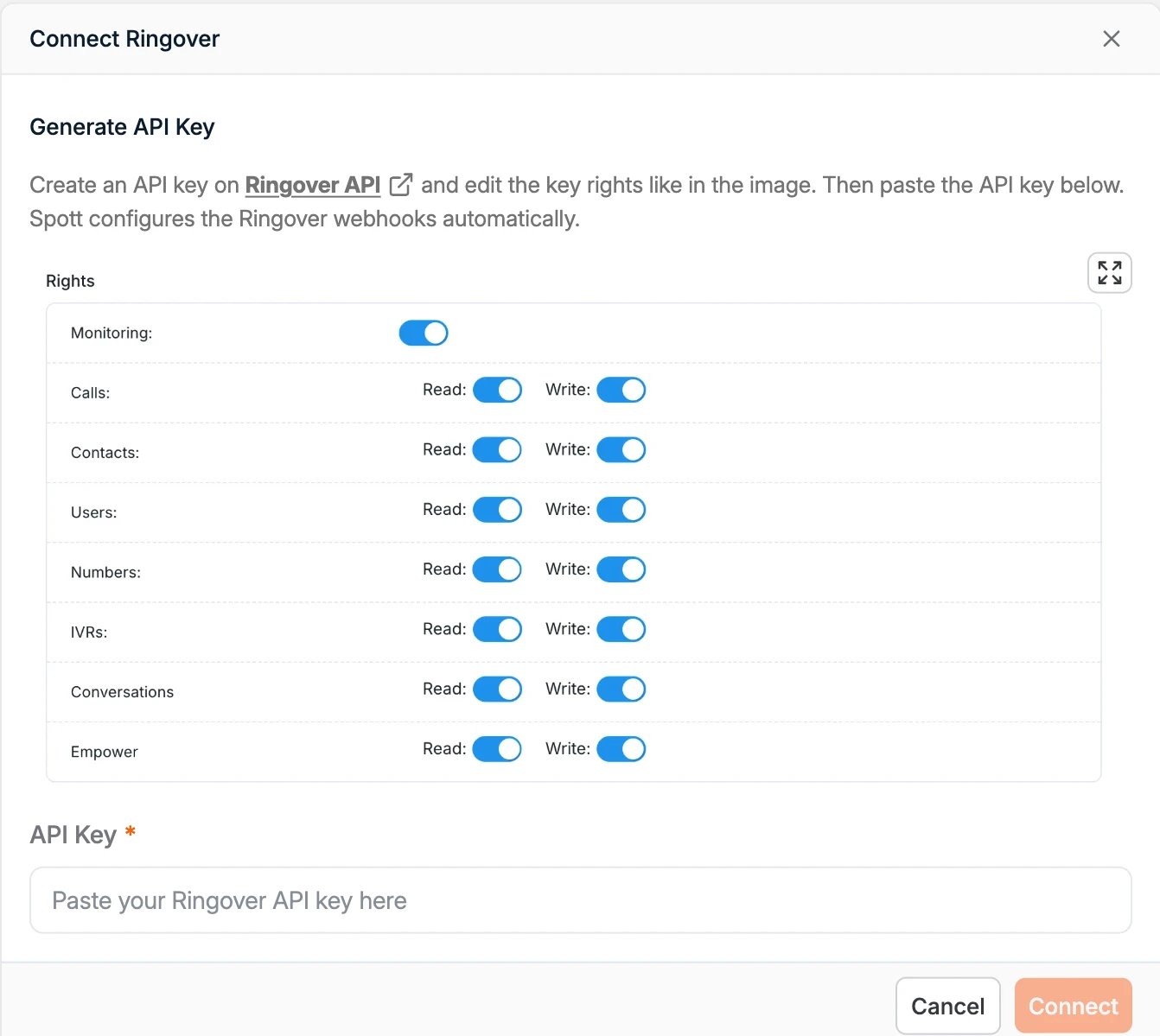
- Scroll down to the Rights section and enable all permissions (both Read and Write) for: Monitoring, Calls, Contacts, Users, Numbers, IVRs, Conversations, and Empower.
2. Connect Spott
- Go to Settings → Integrations → Ringover and click Enable.
- Paste the API key into the Connect Ringover window.
- Click Connect.
Select your Ringover number
- Go to Settings → Personal → Calls. You should now see Ringover listed as active.
- Choose your Ringover number from the available list. This number is essential for receiving incoming calls and linking call notes to the correct caller.
Enable SMS
Ringover numbers can also carry SMS. On the same Ringover page in Spott, scroll to the SMS block and toggle on the numbers you want to text from. Ringover enables SMS workspace-wide, so this is a one-time job. Unlike RingCentral, there is no per-user account to connect afterwards.