

Overview
SAP Fieldglass is SAP’s vendor management system. Clients use it to publish contingent and contract roles to their approved suppliers, collect submissions, and track each worker through to placement. If you staff for a client who runs Fieldglass, their postings and your submissions already live there. Fieldglass sends a notification every time something moves. Spott picks those up and makes the matching update on your side, so your board keeps up with the client’s portal without anyone retyping it.This integration works from the notifications Fieldglass already sends you. There is no
login or API key to configure, and Spott never writes anything back to Fieldglass.
How it works
- Fieldglass sends a notification, for example when a job seeker is shortlisted.
- It arrives in a mailbox connected to Spott through Microsoft or Google.
- Spott processes the notification, determines which event it describes, and matches it to your records through their External IDs.
- Spott applies the action you mapped to that event.
What you need first
Nothing happens until all three of these are true.1
Spott enables the feature for your workspace
Ask your Spott contact. This one is not self-serve. Fieldglass does not word its
notifications the same way in every environment, so a setup sometimes needs an
adjustment before every event is picked up.
2
3
An admin turns on mail parsing and maps at least one event
Both live on the settings page below. Out of the box every event is set to
Do nothing.
Turn on mail parsing
Go to Settings > Integrations > SAP Fieldglass and switch on Enable SAP Fieldglass mail parsing. The event mapping table appears once it is on.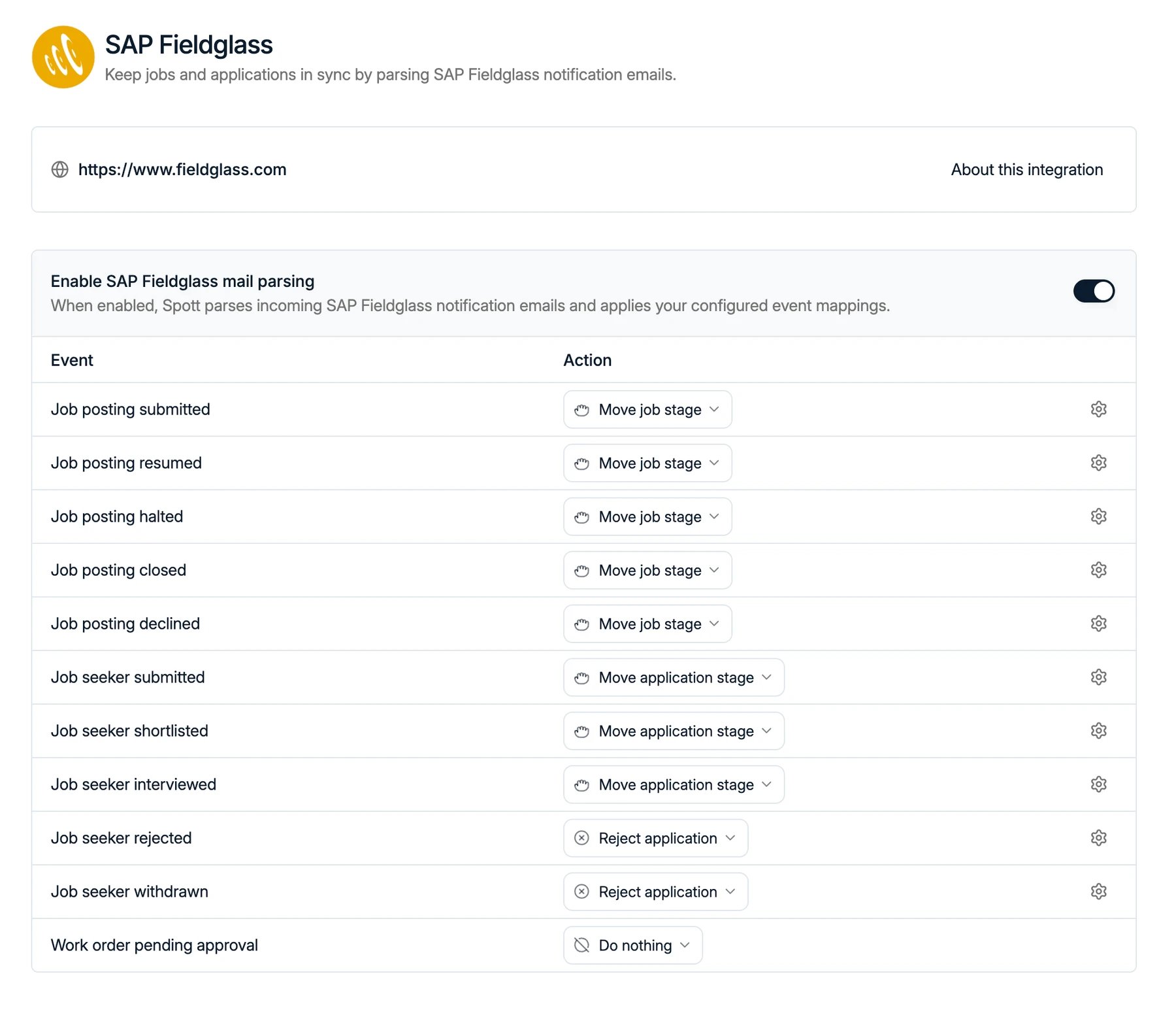
Only workspace admins can enable this integration or change its mappings. If you do not
see it, contact your workspace admin.
Map each event to an action
Spott recognizes eleven Fieldglass notifications at the moment. For each one you choose what should happen in Spott. Nothing is mapped by default, so an event left on Do nothing is simply ignored. Which actions are available depends on what the notification is about. Events about a posting act on the job; events about a job seeker act on that person’s application. Several events can point at the same stage.
The job seeker events work on an application that is already there. The person has to exist
in Spott as a candidate with an application on that job, otherwise the notification has
nothing to move and is ignored. Spott updates an application, it never creates one.
Picking an action opens a short form:
- Move job stage asks for the job stage to move to.
- Move application stage asks for an application stage, and optionally a status within it. The stage has to come from your standard pipeline.
- Reject application asks for a rejection label, who turned the candidate down, and an optional reason. It also closes the application.
Link your records with External IDs
Fieldglass identifies everything by reference, so Spott needs to know which of your records each reference belongs to. That link is the External IDs button on a company, job or candidate. The buyer code goes on the client company, the job posting ID goes on the job, and the job seeker ID goes on the candidate. All three come from Fieldglass and appear on the notifications you receive. Open the record in Spott, click External IDs, and paste the reference under SAP Fieldglass. A candidate can hold several, which is what you need when the same person is submitted to more than one buyer. A company and a job each hold one.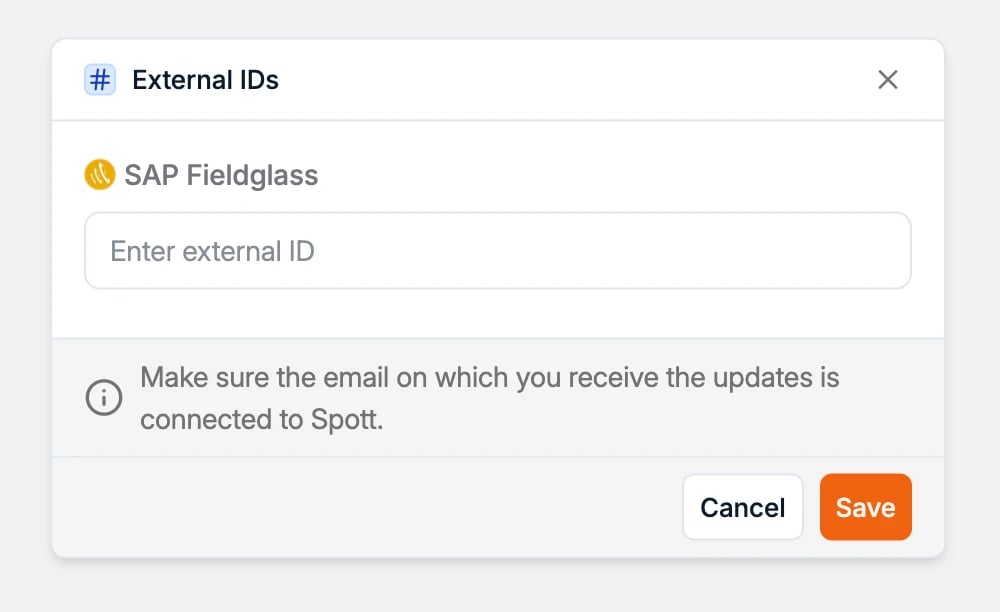
Good to know
- Fieldglass drives Spott, never the reverse. Moving a card in Spott changes nothing in the client’s portal. Their system stays the record of truth and your board follows it.
- Spott updates the records you already have. The company, job, candidate and application live in Spott, and their External IDs are what connect them to Fieldglass.
- A notification that cannot be matched to a candidate or job is ignored.
Set up your pipeline first
Pipeline stages in Settings. The stages you map Fieldglass events onto, and how moving
between them feeds your reporting.