

Invoice a contingent placement
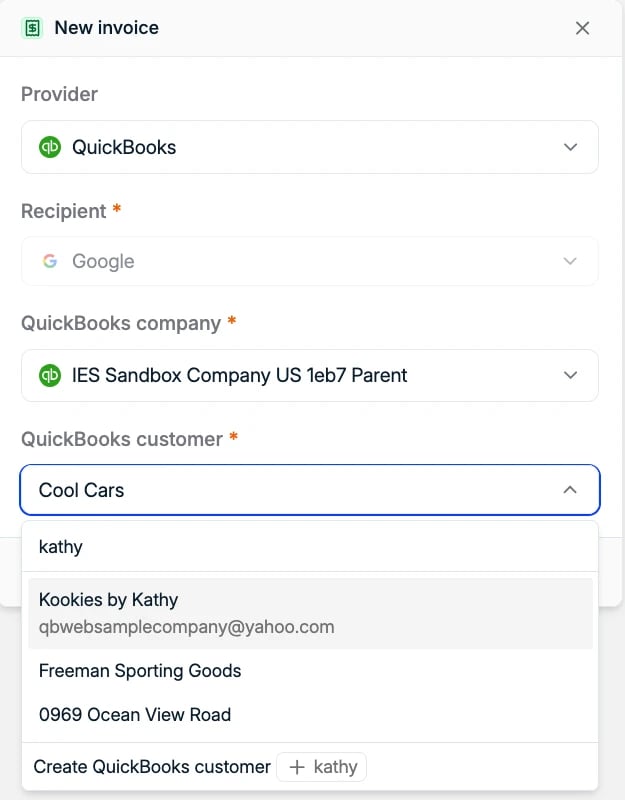
- Open the placement and click + New invoice in the Invoices section.
- Provider: select QuickBooks.
- Recipient: Spott selects the placement’s company. Switch to Contact if you bill a person instead.
- QuickBooks company: pick the QuickBooks company the invoice goes to. It is only shown when more than one company is connected. Spott preselects the primary company if the Spott company already has a QuickBooks customer there, otherwise a company where it has one, otherwise the primary. Settle it before the customer and line items, because changing it clears both. It cannot be changed once the invoice is created.
- QuickBooks customer: the first time you invoice a company in a QuickBooks company, start typing to search for its customer, or choose Create QuickBooks customer if it does not exist yet. Confirm Link. Spott remembers the link for every future invoice to that company in that QuickBooks company, so you will not see this step again. To change it later, unlink it from External Links on the company page.
- Click Next and check the invoice details:
- Invoice date and Due date, both required.
- Currency, taken from the placement. Spott does not convert between currencies.
- Line items: choose a pay code from those of the invoice’s QuickBooks company, and Spott fills in the description. Set Units and Unit cost. For a one-off placement fee, units is usually 1 and unit cost is the placement’s total fee. Add more lines with + Line item.
- Click Create. The invoice appears in the placement’s Invoices table with its QuickBooks invoice number, status Authorised and provider QuickBooks.
Edit or open an invoice
From the ⋮ menu on the invoice’s row:- Open in QuickBooks opens the invoice in QuickBooks, where you can see the full history of changes. The invoice history is kept in QuickBooks, not in Spott.
- Edit lets you change the invoice while it is Authorised. The recipient and QuickBooks company are locked. Your changes sync to the invoice in QuickBooks.
Invoice a retained search
Retained searches are invoiced per milestone, so you can bill each stage as it is reached. The milestones come from the fee structure on the job, set up as described under retained placements.- Open the retained search and click New invoice.
- Under What would you like to invoice?, tick the milestones to include, for example only Shortlist for the first payment. Each shows its percentage and amount.
- Click Next and continue with provider, recipient, QuickBooks company, QuickBooks customer and line items, as for a contingent placement.
- Click Create. The invoice appears under the search’s Invoices.
Invoice a contract placement from timesheets
For contract placements, you invoice the time actually worked. Each placement needs a rate card, and you invoice its approved timesheets. Setting up rate cards and logging, submitting and approving timesheets is covered in Timesheets, since none of it depends on QuickBooks.- Click New invoice on the placement. Under What would you like to invoice?, choose Specific timesheets and tick the ones to bill. Only Approved timesheets can be ticked; the others say “Only approved timesheets can be invoiced.” To bill a single timesheet, you can also click + New invoice in the Invoice column of its row.
- Confirm provider, recipient, QuickBooks company and QuickBooks customer, as for any other invoice.
- Spott fills in the line items from the timesheets: pay code, description, units worked and unit cost. Lines are split by rate, so standard and overtime hours appear separately.
- Click Create. Each timesheet on the invoice now links to the new invoice.

Invoice the placement as a whole
Choose Placement instead of Specific timesheets and Spott suggests a single line for the whole placement: the charge rate times the estimated units, worked out from the working schedule and the start and end dates, or 1 unit when the placement has no end date. It does not look at the hours actually logged, so check the line and edit it before you click Create.Track invoice status
Once an invoice is in QuickBooks, Spott keeps its invoice number and status in sync. Updates can take a minute or two to appear and may need a page refresh.Frequently asked
- Can I create a draft first? No. Invoices from Spott go to QuickBooks as open invoices and show as Authorised. You can still edit them from Spott while they are Authorised.
- My customer received the invoice before we checked it. Automatically send imported invoices is on in QuickBooks. Turn it off under Settings → Account and settings → Sales → Invoice payments.
- Can I record a payment in Spott? No. Record payments in QuickBooks, and Spott updates the invoice to Paid.
- The QuickBooks customer I need is not in the list. The list starts empty, so type part of the name to search. If the customer does not exist in QuickBooks, choose Create QuickBooks customer.
- A pay code is missing. Ask an admin to click Sync next to Sync pay codes under Settings → Templates → Rate Card Templates → Pay Codes. If it is still missing, check that the product or service exists in QuickBooks.
- I deleted an invoice in QuickBooks. Spott shows it as Deleted after a refresh.
- Can I link more than one QuickBooks company? Yes. An admin can connect several, for example one per legal entity, with Connect another company on the QuickBooks integration page. Each invoice goes to the company you pick in the New invoice dialog. See Connect your QuickBooks companies.