

In this section you learn how to create and organise tasks, link follow-ups to the right
records, add manual and automated notes, and use templates to keep meeting summaries useful
and consistent.
1. Use tasks as reminders across the platform
Tasks keep calls, interview preparation, offer chasing, and other follow-ups visible. Link each task to the records it concerns, so the next step appears wherever your team is working.1.1 Create and link a task
Open Tasks and click Add task in the top right corner. Add a title and a due date, then type@ followed by a person, company, or job name to link the task to that record.
A linked task appears in the Tasks tab of every connected candidate, contact, company,
or job. That keeps the reminder next to the context you need to act on it.

1.2 Find and manage your tasks
When you open Tasks, Spott applies two filters automatically:- Status: Open, so completed tasks stay out of your active list.
- Assigned to: you, so the list starts with the tasks you are responsible for.
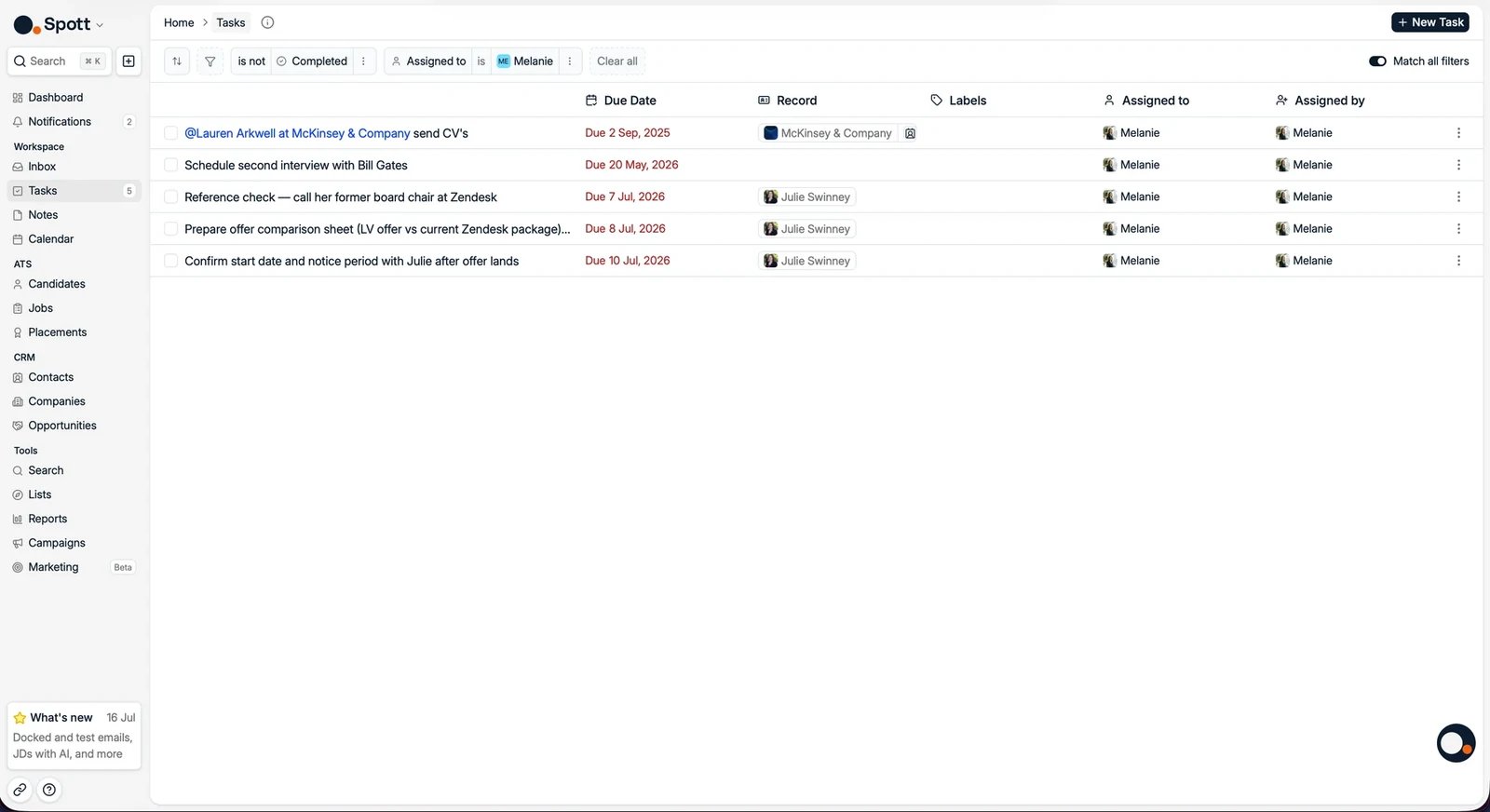
- Work by urgency: group tasks by due date, with overdue tasks highlighted in red. You can also group them by completion, job or campaign, or not at all.
- Find a task: use the search bar to locate a specific follow-up.
- Edit a task: click its title to change its details.
- Complete a task: mark it complete when the action is done, and it leaves the default view.
1.3 Choose how task notifications reach you
To control task alerts, open Settings → Notifications and choose whether assignments, completions, and mentions reach you in the app, by email, or both. These preferences are personal, so every user configures their own notifications.Tasks reference
Manual and automated tasks, filters, labels, and linked records.
Notification settings
Choose which task events reach you in the app or by email.
2. Use notes to give your team and the AI context
Notes preserve what your team learns from calls and meetings. Once linked to the right records, they also improve matching, summaries, reports, job descriptions, and Ask AI.2.1 Create, organise, and link a manual note
Open Notes and click Add note. Write the note in the editor. It saves automatically, so there is no save button. Use the side panel to add:- Properties: review who the note belongs to, use Link meeting to attach a calendar event, and choose an activity type such as an online meeting, an inbound call, or a voicemail.
- Labels: categorise the note so your team can filter and report on consistent activity types.
- Linked records: connect the note to one or more candidates, contacts, companies, or jobs.
2.2 Capture meetings and calls automatically
Automated notes are created when the Spott Note Taker joins an online meeting, or when a connected VoIP integration records a call. Each note carries an AI summary, the full transcript, and a link to the recording. To enable the Note Taker:- Open Settings → Accounts and connect your Google or Microsoft Outlook calendar.
- Open Settings → Calls and switch on Enable Spott Note Taker.
- Accept the terms and conditions.
Switching the Note Taker off stops it from being scheduled for new meetings and
unschedules upcoming joins, but existing recordings, transcripts, and summaries stay
available.
2.3 Use note and insight templates correctly
Open Settings → Templates to manage the structures Spott reuses.- Note templates are reusable layouts for manual notes, such as interview debriefs or client call summaries. You choose one when starting a note.
- Insight templates are the instructions the AI follows when summarising meetings and calls. Spott picks the template itself by reading each template’s description, so you do not choose one per meeting.
Changing an insight template affects future notes only. To update an existing automated
note, open its ⋮ menu and select Resummarize transcript, then choose the template
and the output language.
Adding notes
Manual notes, automated notes, labels, linking, and resummarising.
Note Taker
Enable it, add it to meetings, and troubleshoot missing notes.
Templates
Create note templates and AI insight templates.
AI in Spott
What the AI reads, and how linked context improves it.
Now your turn
- Create one task that tags a candidate and a job, then find it in the candidate’s Tasks tab
- Let the Note Taker join one meeting and read the note it creates
- Create one note template, use it for a meeting or a call, link the note to a candidate or contact, and find it in their Notes tab
Next: reporting
Build the reports and insights the dashboard does not answer.