

In this section you learn where to check your plan and active seats, how to read your
credit balance, how to buy more credits, and which actions spend them.
Billing is an admin area. If you do not see it in the settings sidebar, your role does
not have access to it.
1. Billing section
Here you find the number of active seats against your entitlement, along with your current plan and billing status.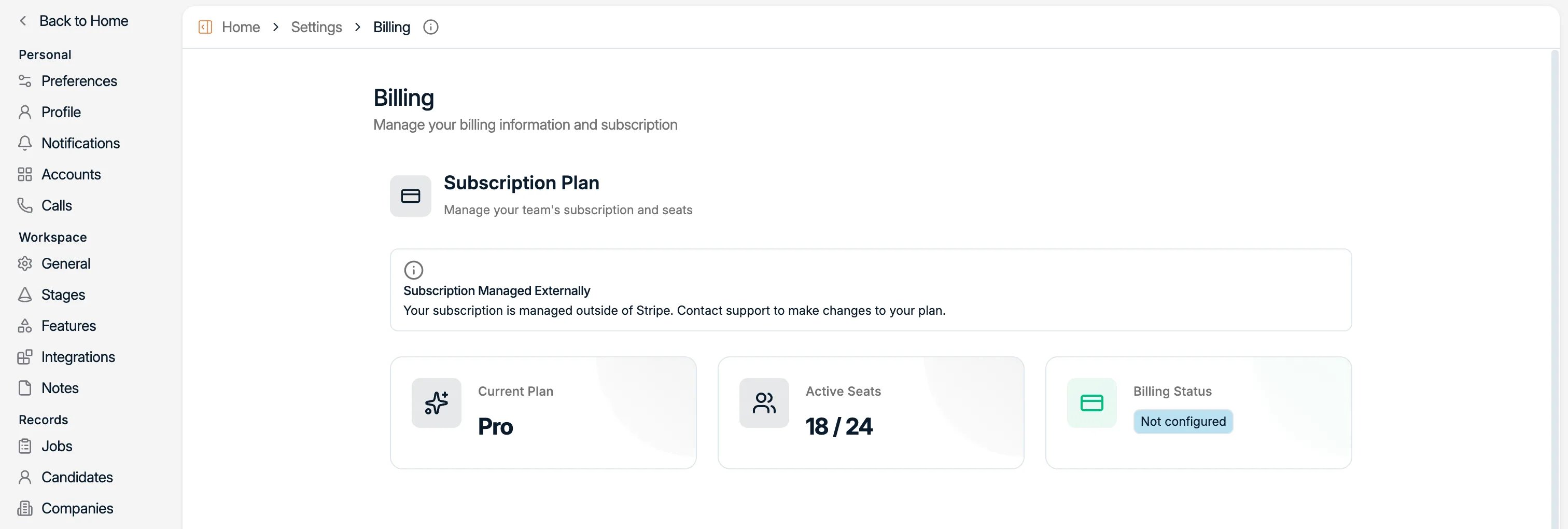
2. Credits section
Credits are what AI actions in Spott spend: enriching a profile, auto-updating a record, and similar. This section shows your balance and lets you buy more.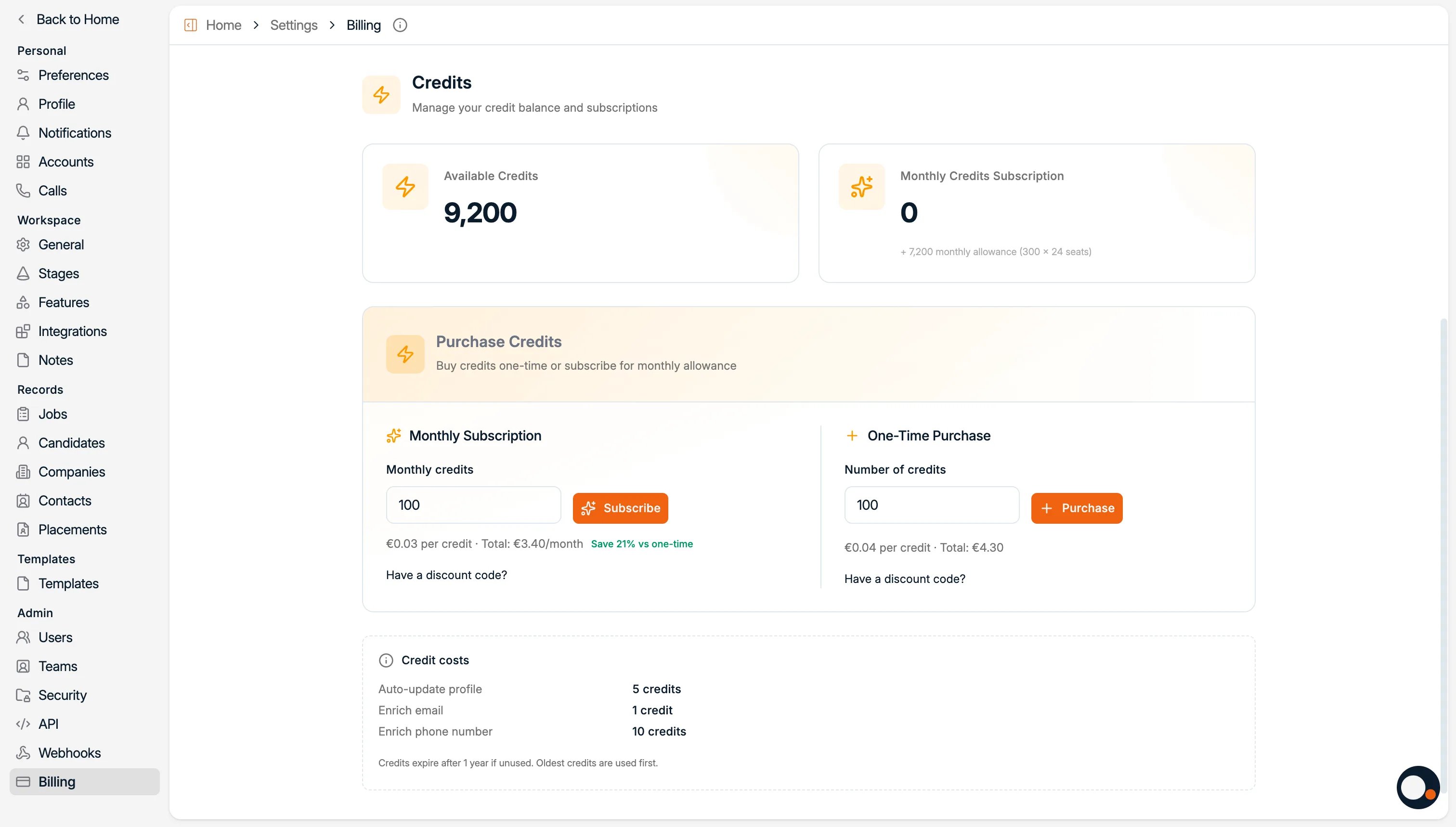
2.1 What you can see
- Available credits: what you can use right now.
- Monthly subscription: credits you receive each month, if you are subscribed.
- Credit costs: how many credits each action uses.
2.2 What you can do
- Subscribe monthly for discounted credits.
- Buy credits one-time as needed.
3. Where credits get spent
Enrichment is the main consumer of credits. If you want the full picture of what each action costs before you turn features on, the reference pages go deeper:Contact and candidate enrichment
What enrichment finds, and what each lookup costs.
Auto-updating profiles
Keep profiles current automatically, and what that spends.
Features
Turn credit-consuming features on or off for the workspace.
AI in Spott
Everything Spott’s AI does, so you know what you are paying for.
Now your turn
- Check your active seats against your plan
- Read your credit balance
- Decide between a monthly subscription and a one-time top-up
Next: manage candidates
Now that your workspace and data are ready, start working the records.