

The connector exposes tools only: there is no separate Spott workspace inside ChatGPT. Every action runs against your live Spott account, and respects the same permissions you have in the Spott UI.
Prerequisites
- An active Spott workspace, trials included
- A Spott user account with the permissions you’d normally use in the Spott UI
- A role that carries the AI assistant connection permission, set under
Settings → Security. Without it the sign-in completes and every request then fails
with
MCP_ACCESS_DENIED. See Spott MCP - A ChatGPT account on any plan (Free, Go, Plus, Pro, Business, Enterprise, or Education)
Install the Spott plugin
Spott is listed in ChatGPT’s plugin directory, so installing it takes a few clicks and no configuration. This works in the ChatGPT web and desktop apps.1
Find Spott in the plugin directory
In ChatGPT, select Plugins in the sidebar, or go to
chatgpt.com/plugins, and search for Spott. The listing
is published by Spott and described as Run recruiting workflows.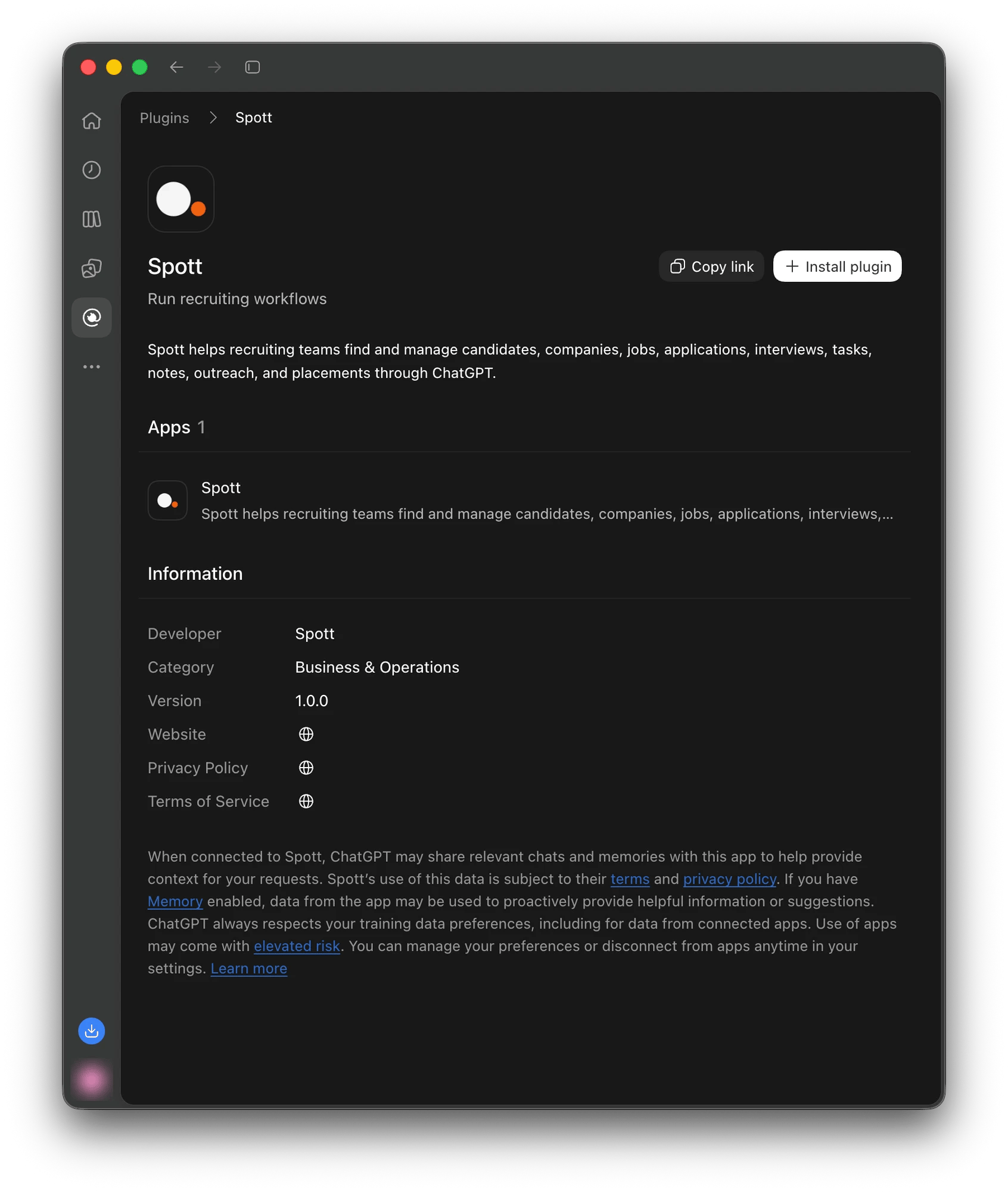
2
Install the plugin
Click Install plugin. ChatGPT sends you to Spott to sign in and grant access. If that
page does not load correctly, clear the cookies on 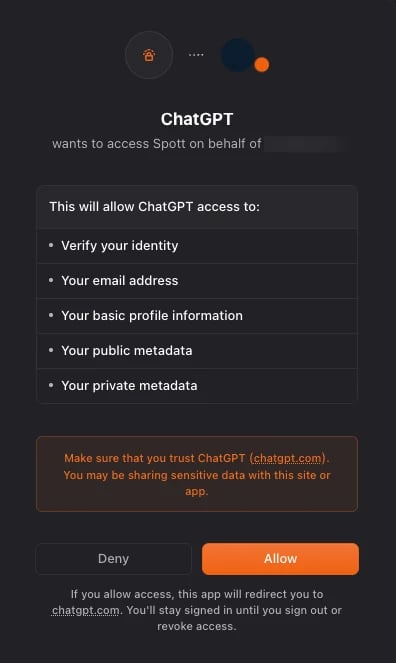
app.spott.io and try again.3
Use Spott in a conversation
Mention @Spott in your message, or click
+ → More → Spott to add it to the
conversation.On a ChatGPT Business, Enterprise, or Education workspace, an admin decides which plugins
members can install. If Install plugin is missing or shows Disabled by admin, ask
your ChatGPT admin to allow Spott under Workspace settings → Plugins.
Connect manually with Developer mode
If the plugin is not available on your ChatGPT plan or in your region, you can still add Spott as a custom app pointing at the Spott MCP server. Creating a custom MCP connection is currently only supported in the web version of ChatGPT and is not available in the desktop or mobile apps.1
Enable Developer Mode
In ChatGPT, click your profile icon in the bottom-left corner and open Settings. From there, navigate to Apps → Advanced settings and enable Developer mode.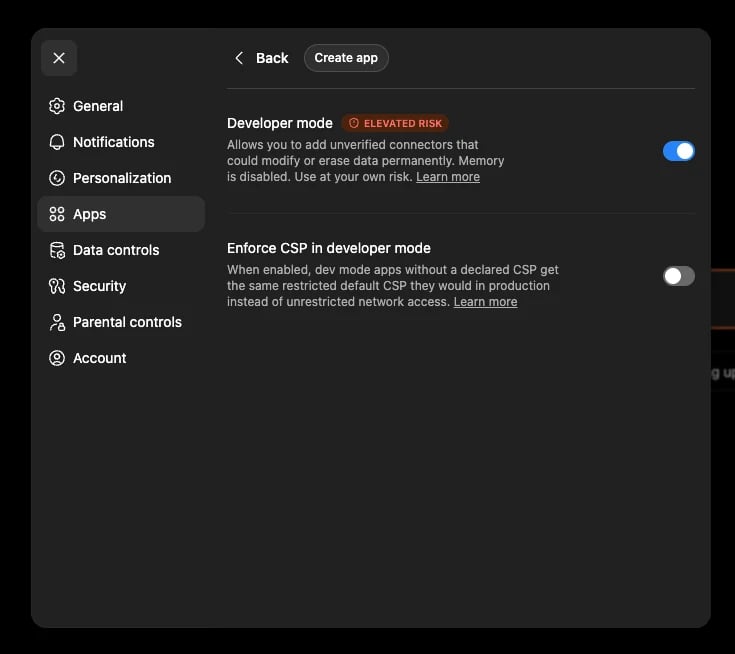
2
Create a New App
Once Developer mode is enabled, go to Settings → Apps and click Create app. You can choose any name for the app, but we recommend using Spott MCP for clarity. In the MCP Server URL field, enter 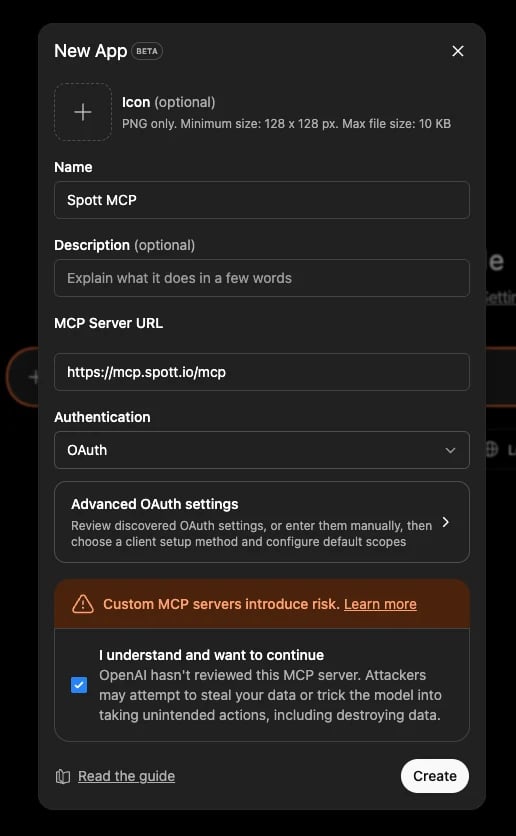
https://mcp.spott.io/mcp, and set the Authentication method to OAuth. After reviewing the configuration, confirm by selecting the “I understand and want to continue” checkbox, then click Create to finish setting up the app.3
Connect the App
Go back to Settings → Apps → Spott and click Connect.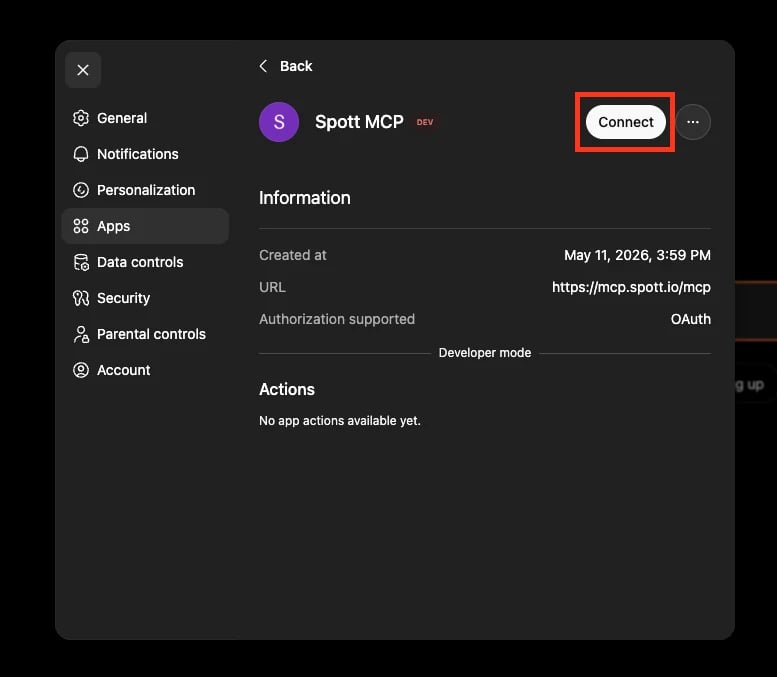
app.spott.io and try again.4
Enable for your conversation
Click 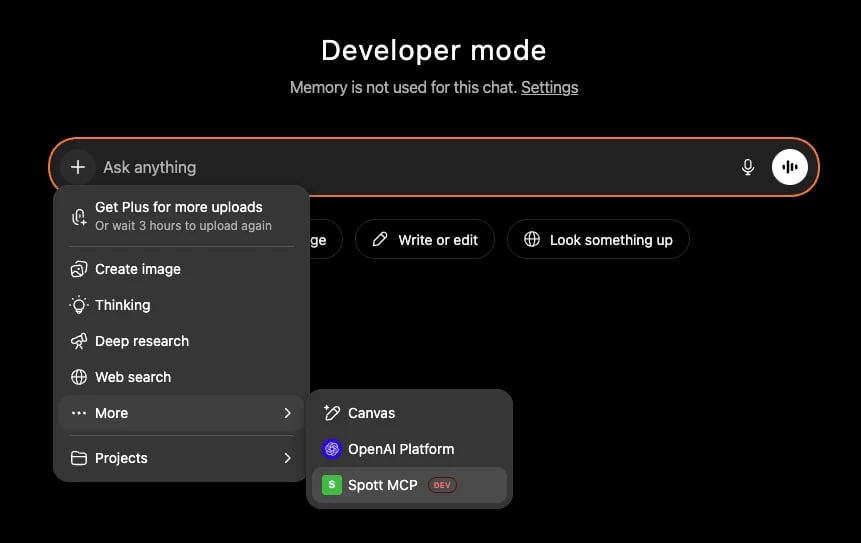
+ → More → Spott MCP in your chat to enable the Spott connector for this conversation.What you can do
You can use the Spott connector to:Search candidates, jobs & companies
“Find Python engineers in Brussels with 5+ years of experience”
Manage applications & pipeline
“Move Emma to the offer stage and email her the offer letter”
Schedule interviews
“Book a 30-minute intro between Mario and Dimitri from Forum Jobs tomorrow at 2pm”
Log calls, notes & activity
“Log a call with John yesterday, 3 month notice, €85k, available next week”
Parse CVs & enrich candidates
“Create a candidate from this CV and enrich their email and LinkedIn”
Place candidates & close deals
“Place Sarah at Google as Senior PM, start date Feb 1, 25% fee”
Permissions and data scope
The Spott connector respects every permission and role configured in your Spott workspace. ChatGPT can only see and modify records you have access to in the Spott UI.- Tenant isolation: Each user authenticates with their own Spott credentials. ChatGPT never sees data outside your tenant.
- Read and write: The connector includes both read tools (search, lookup, activity) and write tools (create, update, send). Write tools with external side effects (sending emails, scheduling interviews, placing candidates) are flagged so ChatGPT treats them with extra care.
- Confirmation for high-impact actions: ChatGPT will confirm with you before sending external communications or making irreversible changes like placing a candidate or rejecting an application.
Troubleshooting
OAuth fails or times out
OAuth fails or times out
Disconnect and reconnect Spott from ChatGPT → Settings → Plugins, or
Settings → Apps if you added it manually. Clear cookies for
app.spott.io if the issue persists. If your workspace uses SSO, make sure your identity provider session is active before connecting.ChatGPT doesn't use Spott when I expect it to
ChatGPT doesn't use Spott when I expect it to
Make sure Spott is enabled for the current conversation: mention @Spott, or add
it from
+ → More.I can't find Spott or install the plugin
I can't find Spott or install the plugin
Plugin availability depends on your ChatGPT plan, your region, and, on a Business,
Enterprise, or Education workspace, on what your admin allows. Ask your admin to allow
Spott under Workspace settings → Plugins, or
connect manually with Developer mode.
A tool returns 'permission denied' or 'not found'
A tool returns 'permission denied' or 'not found'
The Spott MCP enforces the same permissions as the Spott UI. If you can’t see a record in Spott itself, ChatGPT can’t either. Ask your workspace admin to grant the required role.
Interview scheduling fails
Interview scheduling fails
spott_schedule_interview schedules an interview against an existing application. If the candidate doesn’t have an application on the relevant job yet, create the application first (for example: “Add Mario as an applicant on the Forum Jobs Senior Backend role”) and try again.Placement fails or returns an error
Placement fails or returns an error
spott_place_candidate advances an existing application to the placed stage. The candidate must already be on a job’s pipeline. If they aren’t, create the application first.Privacy and security
- Spott is hosted in the EU and is GDPR-compliant.
- Customer data is never used to train AI models.
- All data is encrypted in transit (TLS) and at rest.
- A Data Processing Agreement (DPA) is available on request.
Support
Email support
Spott documentation
docs.spott.io