> ## Documentation Index
> Fetch the complete documentation index at: https://docs.spott.io/llms.txt
> Use this file to discover all available pages before exploring further.
# Tasks
> Create tasks, link them to people, companies, and jobs, and stay on top of your follow-ups.
Tasks keep your follow-ups on track: call reminders, interview prep, offer chasing.
Every task can be linked to the records it is about, so it shows up in the right
context across Spott.
You can quickly navigate to Tasks with `G` then `T`, or create a task from anywhere
with `A` then `T`. See all [keyboard shortcuts](/docs/settings/keyboard-shortcuts).
## Add a task
From the left-hand navigation bar, select **Tasks**, then click **Add Task** in the
top-right corner.
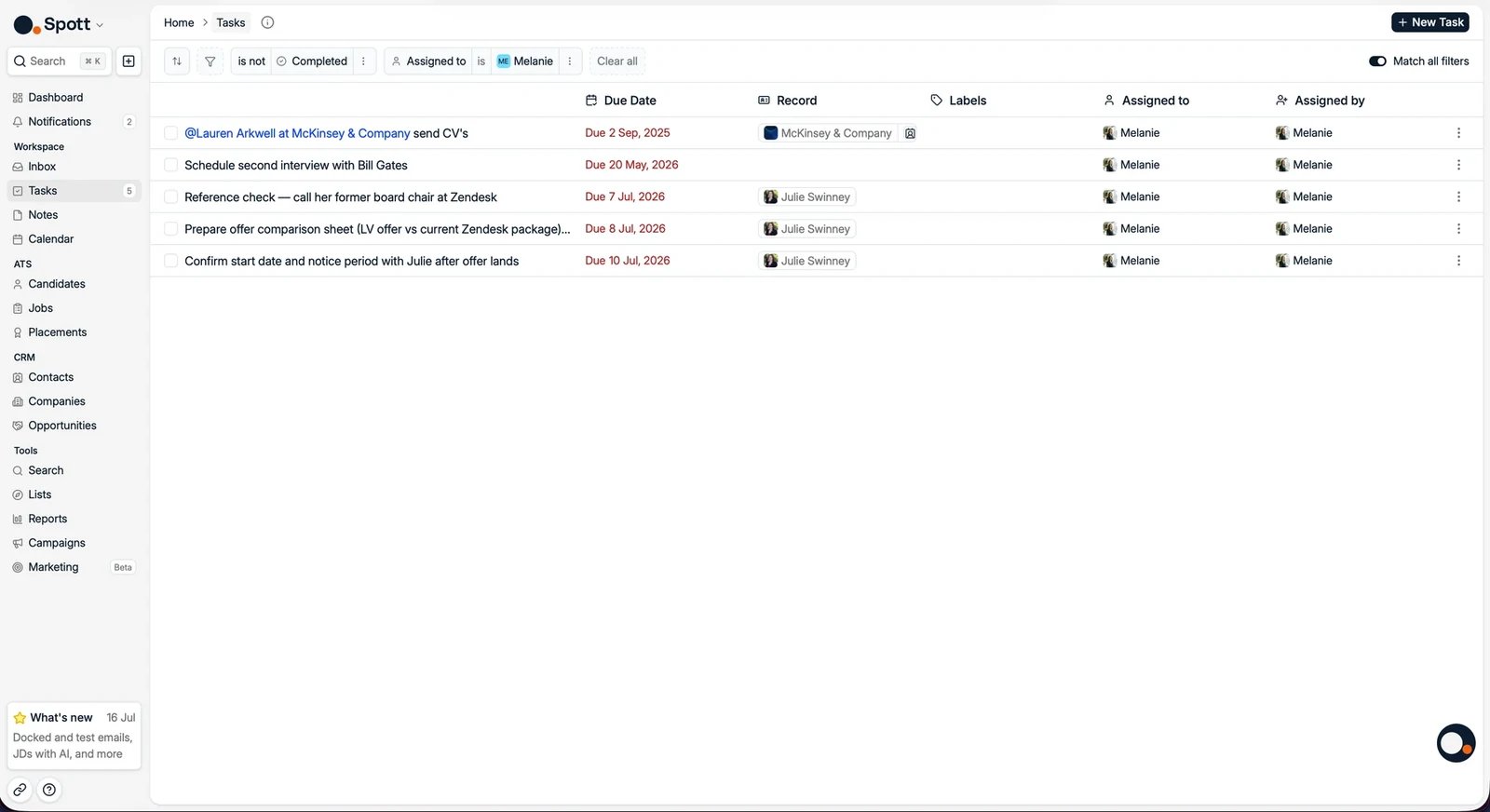 Fill in the task **title** and **due date**. Type **@** followed by a person,
company, or job name to link the task to that record.
Fill in the task **title** and **due date**. Type **@** followed by a person,
company, or job name to link the task to that record.
 Linked tasks are accessible directly from the linked record's **Tasks** tab, so use
the @ links generously. You can turn on notifications for tasks assigned to you and
for completion of tasks you assigned. See
[notifications](/docs/settings/notifications).
## The default filters
When you open the Tasks view, two filters are applied by default:
* **Status**: only **Open** tasks
* **Assigned to**: only tasks assigned to **you**
These defaults keep you focused on your own active work. Remove a filter by clicking
its chip, or add filters like assignee, due date range, or status.
## Manage and track tasks
* Edit a task directly from the list by clicking its title.
* Mark tasks as **complete** once finished; completed tasks leave the default view.
Completing a task that is linked to a record posts an entry in that record's activity
feed and updates its
[Last Activity Date](/docs/candidates/last-interaction), so the follow-up you just did
is visible to whoever opens the record next.
* The list is grouped into **due date blocks** rather than one long run of tasks, so
you see what is overdue and what is due today before the rest. Overdue tasks are
highlighted in red.
* Use the search bar to find specific tasks.
Tasks also appear on **every record they are linked to**, each on its own Tasks tab:
the candidate, the contact, the company, and the [job](/docs/jobs/job-tasks).
## Tasks Spott creates for you
Not every task is one you typed. Two things generate tasks automatically:
* **[Campaigns](/docs/outreach/campaigns)**, for their manual steps. A sequence that
includes a phone call or a WhatsApp message drops that step in your task list when
the recipient reaches it.
* **[Automations](/docs/settings/automations)**, when you have set one up to create a
task on a trigger, for example a follow-up whenever an application moves stage.
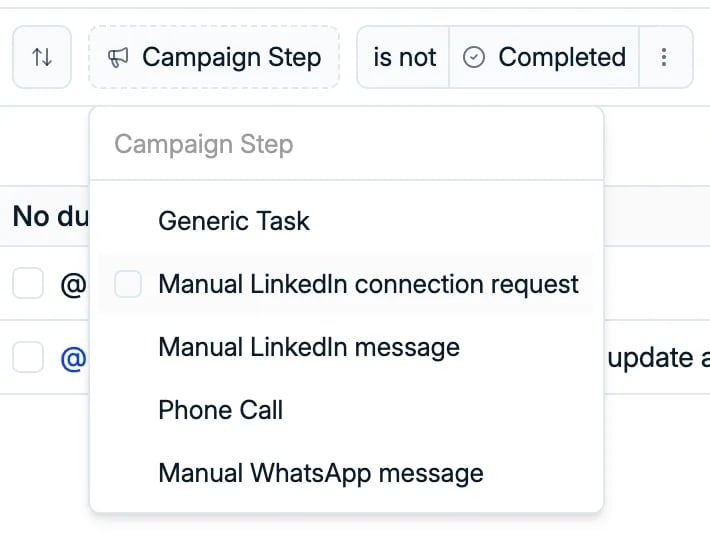
Campaign tasks can be **filtered out on their own**. Add the **Campaign Step** filter
and pick the kind you want to work through: generic task, phone call, manual WhatsApp
message, manual LinkedIn connection request, or manual LinkedIn message. That way you
do a run of calls in one sitting instead of picking them out of your general list.
Linked tasks are accessible directly from the linked record's **Tasks** tab, so use
the @ links generously. You can turn on notifications for tasks assigned to you and
for completion of tasks you assigned. See
[notifications](/docs/settings/notifications).
## The default filters
When you open the Tasks view, two filters are applied by default:
* **Status**: only **Open** tasks
* **Assigned to**: only tasks assigned to **you**
These defaults keep you focused on your own active work. Remove a filter by clicking
its chip, or add filters like assignee, due date range, or status.
## Manage and track tasks
* Edit a task directly from the list by clicking its title.
* Mark tasks as **complete** once finished; completed tasks leave the default view.
Completing a task that is linked to a record posts an entry in that record's activity
feed and updates its
[Last Activity Date](/docs/candidates/last-interaction), so the follow-up you just did
is visible to whoever opens the record next.
* The list is grouped into **due date blocks** rather than one long run of tasks, so
you see what is overdue and what is due today before the rest. Overdue tasks are
highlighted in red.
* Use the search bar to find specific tasks.
Tasks also appear on **every record they are linked to**, each on its own Tasks tab:
the candidate, the contact, the company, and the [job](/docs/jobs/job-tasks).
## Tasks Spott creates for you
Not every task is one you typed. Two things generate tasks automatically:
* **[Campaigns](/docs/outreach/campaigns)**, for their manual steps. A sequence that
includes a phone call or a WhatsApp message drops that step in your task list when
the recipient reaches it.
* **[Automations](/docs/settings/automations)**, when you have set one up to create a
task on a trigger, for example a follow-up whenever an application moves stage.
Campaign tasks can be **filtered out on their own**. Add the **Campaign Step** filter
and pick the kind you want to work through: generic task, phone call, manual WhatsApp
message, manual LinkedIn connection request, or manual LinkedIn message. That way you
do a run of calls in one sitting instead of picking them out of your general list.
 **Completing one of these tasks does not send anything.** A WhatsApp or LinkedIn step
is manual on purpose: Spott writes the message and hands it to you, you send it
yourself in WhatsApp or LinkedIn, and then you tick the task off. Marking it complete
only clears it from your list.
Spott does not send or sync LinkedIn messages itself. A **manual LinkedIn message**
step is a reminder with the text prepared for you, nothing more.
**Completing one of these tasks does not send anything.** A WhatsApp or LinkedIn step
is manual on purpose: Spott writes the message and hands it to you, you send it
yourself in WhatsApp or LinkedIn, and then you tick the task off. Marking it complete
only clears it from your list.
Spott does not send or sync LinkedIn messages itself. A **manual LinkedIn message**
step is a reminder with the text prepared for you, nothing more.