> ## Documentation Index
> Fetch the complete documentation index at: https://docs.spott.io/llms.txt
> Use this file to discover all available pages before exploring further.
# Template Builder
> Turn your own branded Word document into a CV or shortlist template, with an AI agent that builds it and a preview on a real candidate before your team uses it.
**Template Builder** turns a Word document in your house style into a reusable template
for [formatted CVs and shortlists](/docs/candidates/client-documents). You upload a
`.docx` file, an AI agent works out which parts of it should be filled with candidate
information and builds the template, and you check the result on a real candidate before
publishing it for your team.
**Template Builder is not switched on by default.** If you do not see it under
**Settings → Templates**, ask Customer Support at
[support@spott.io](mailto:support@spott.io) to enable it for your workspace.
Once it is on, admins and anyone whose role has the **Manage Templates** permission can
use it. See [managing access](/docs/settings/managing-access).
## Prepare your Word file
The agent works from a regular Word file. That can be either of these:
* **A sample CV in your house style**, for example a real CV that was already formatted
the way you send them to clients. The agent works out the structure by itself.
* **A template you prepared yourself**, with placeholders and written instructions in the
document.
What makes the result better:
* **Use Word `.docx`.** Not `.doc`, not Pages, and not a PDF of the template.
* **Put every section in, in the order you want.** The agent fills in text and does not
change your formatting, so the layout you upload is the layout you get. Adding,
removing, or rearranging sections is easiest in Word before you upload.
* **Write your rules into the document.** For example *"only show this section when the
candidate has certificates"*, *"when anonymized, show the region instead of the city"*,
how dates should read (`Jan 2024 - Mar 2025`), or whether a section is bullet points or
prose. This is optional: when something is unclear the agent asks, and you can refine
everything afterwards.
* **Keep the layout simple.** Single-column layouts work best. Avoid text boxes, floating
frames, and SmartArt; tables and inline images are fine.
You do not need to describe the layout itself. The agent reads that from the document.
## Open Template Builder
Go to **Settings → Templates** and click **Template Builder**. The page has two lists:
* **Templates in progress**: templates you are still building with the agent. Open one to
continue where you left off. This list is personal, so you do not see what colleagues
are working on.
* **Published templates**: every live template in the workspace, CV and shortlist alike,
whoever published it.
## Create a template
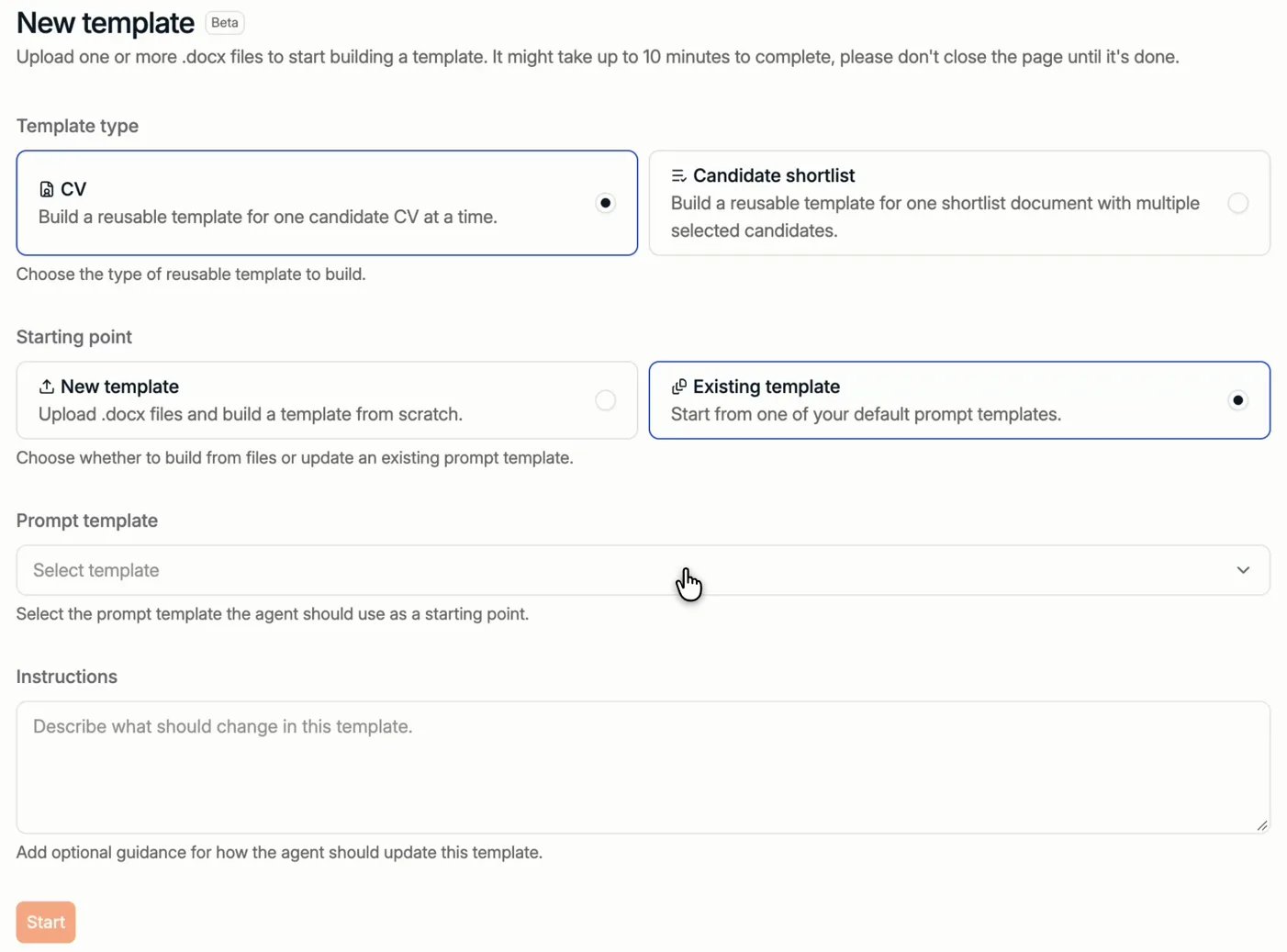
Click **+ New template** and choose:
1. **Template type**
* **CV**: a template for one candidate's CV at a time.
* **Candidate shortlist**: a template for one shortlist document that holds several
selected candidates.
Both types follow exactly the same steps.
2. **Starting point**
* **New template**: upload one or more `.docx` files and build a template from scratch.
* **Existing template**: start from a template you already have. See
[change a published template](#change-a-published-template).
3. Click **Start**.
 ### Change a published template
A published template cannot be edited directly. To change one, create a new template
with **Existing template** as the starting point, pick the template to start from, and
describe under **Instructions** what should change. The agent works from that template,
and you publish the result as a new version. The current template keeps working in the
meantime, and you can go back to the previous version.
## Answer the agent's questions
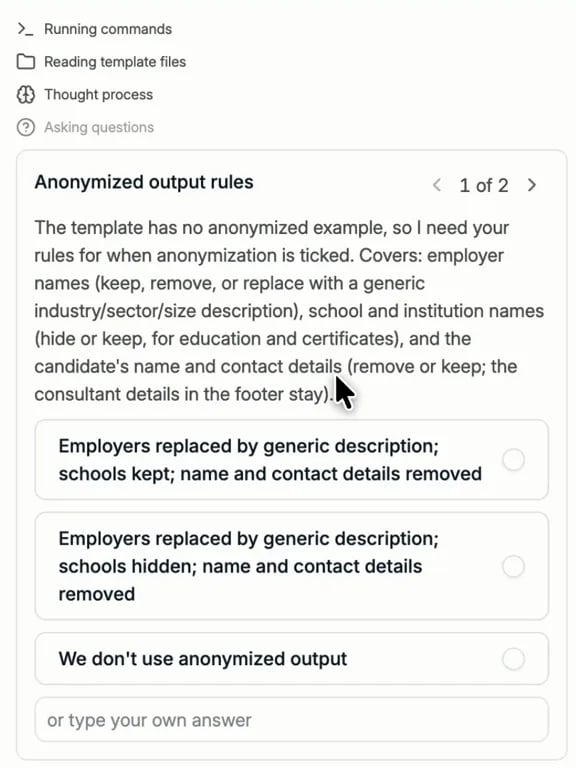
Clicking **Start** opens the **Template Studio**, where the agent reads your document and
starts working. It first asks a few questions to understand what you want. It always asks
how anonymized CVs should look, unless your document already explains that. Pick one of
the suggested answers or type your own.
### Change a published template
A published template cannot be edited directly. To change one, create a new template
with **Existing template** as the starting point, pick the template to start from, and
describe under **Instructions** what should change. The agent works from that template,
and you publish the result as a new version. The current template keeps working in the
meantime, and you can go back to the previous version.
## Answer the agent's questions
Clicking **Start** opens the **Template Studio**, where the agent reads your document and
starts working. It first asks a few questions to understand what you want. It always asks
how anonymized CVs should look, unless your document already explains that. Pick one of
the suggested answers or type your own.
 Depending on the document there may be more questions. Answer them and send. They do not
have to be perfect: you can be more specific once you see a preview.
## Let the agent build the template
Building a first version usually takes **2 to 5 minutes**, depending on how complex your
template is. The agent panel on the right shows what it is doing while it works.
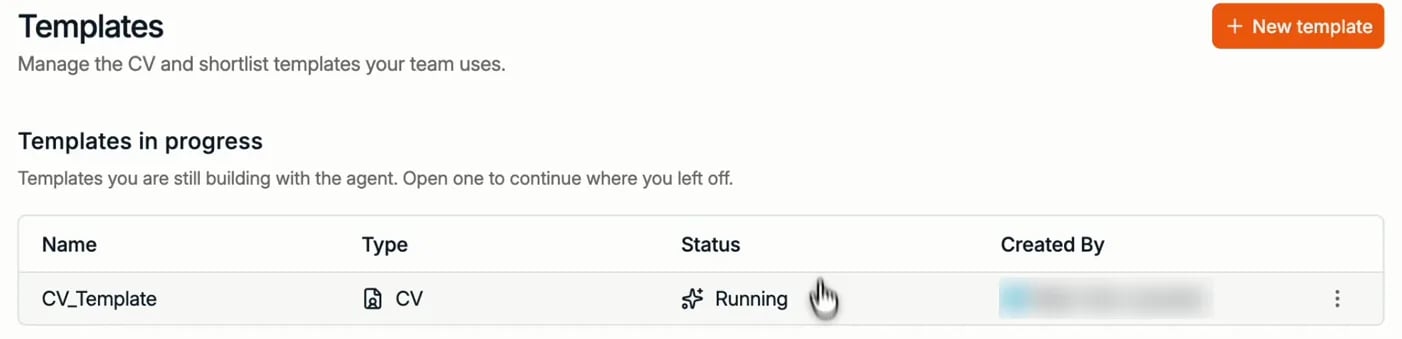
You do not have to wait on the page. Go back to your work and return later: the template
shows as **Running** under **Templates in progress**, and nothing is lost.
Depending on the document there may be more questions. Answer them and send. They do not
have to be perfect: you can be more specific once you see a preview.
## Let the agent build the template
Building a first version usually takes **2 to 5 minutes**, depending on how complex your
template is. The agent panel on the right shows what it is doing while it works.
You do not have to wait on the page. Go back to your work and return later: the template
shows as **Running** under **Templates in progress**, and nothing is lost.
 ## Review the template
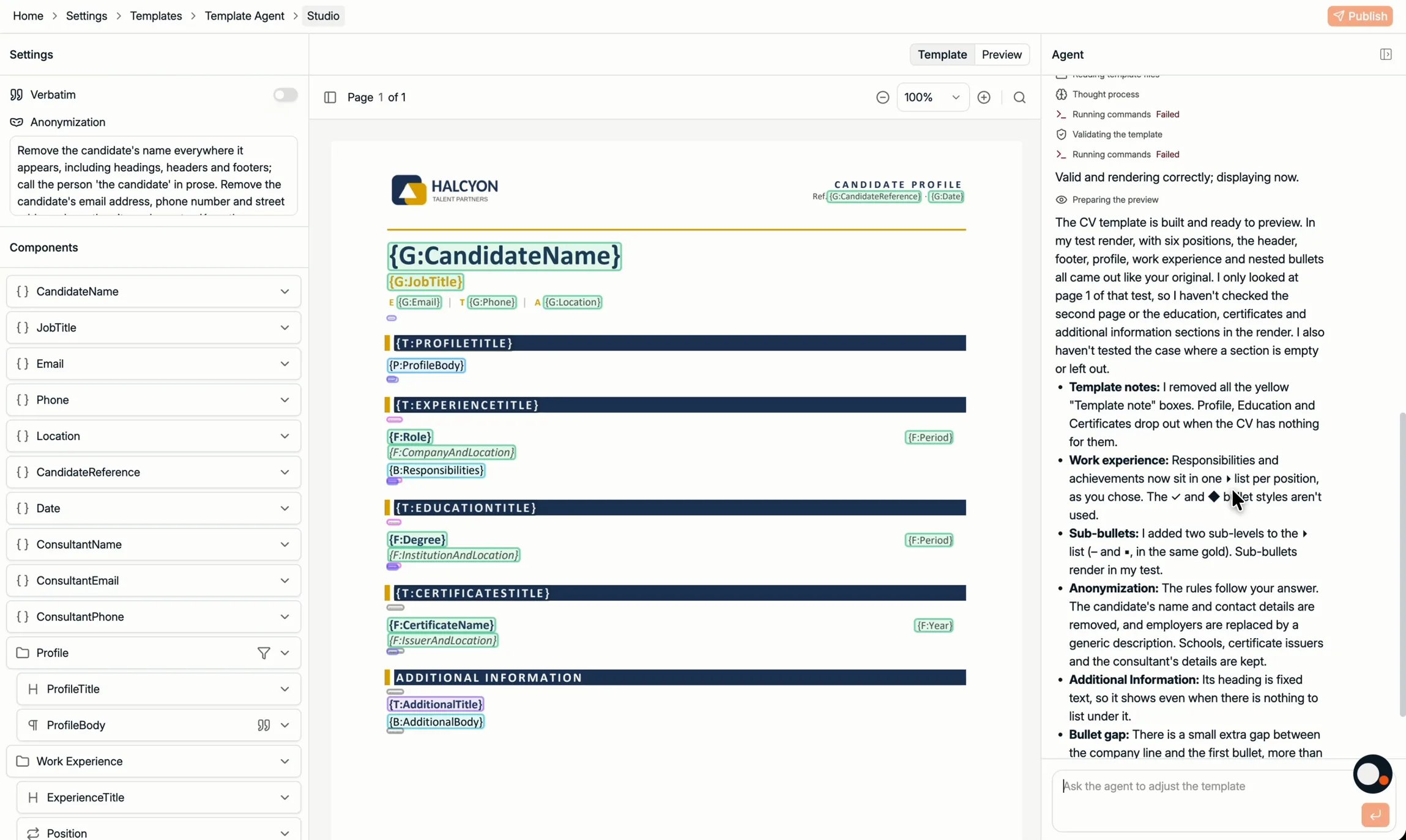
When the agent is done, the Template Studio has three panels:
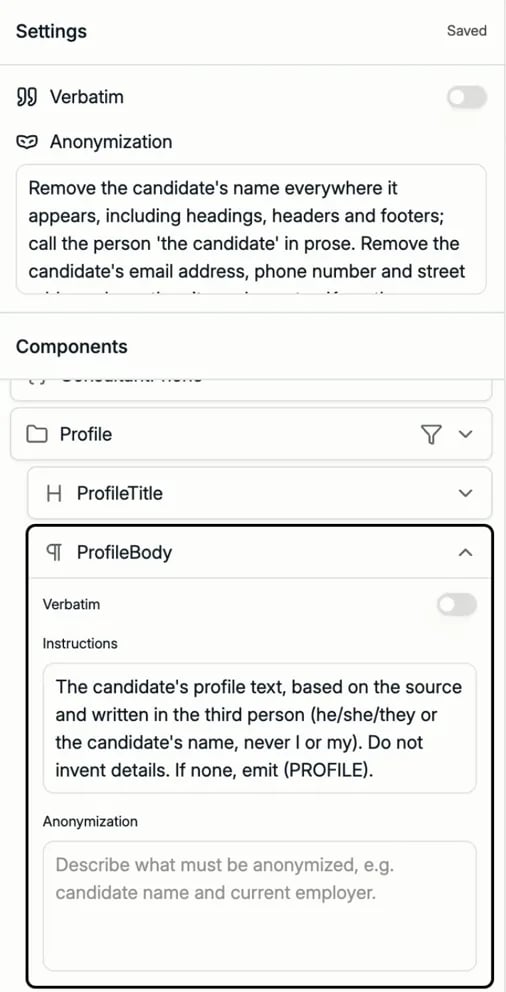
* **Left, Settings and Components**: the settings for the whole template, and every
component in it, each with its own configuration.
* **Middle, Template and Preview**: your document with every placeholder highlighted. The
tabs switch between the template and a preview.
* **Right, Agent**: a summary of what the agent built, and a chat box to ask for changes.
## Review the template
When the agent is done, the Template Studio has three panels:
* **Left, Settings and Components**: the settings for the whole template, and every
component in it, each with its own configuration.
* **Middle, Template and Preview**: your document with every placeholder highlighted. The
tabs switch between the template and a preview.
* **Right, Agent**: a summary of what the agent built, and a chat box to ask for changes.
 ### Template settings
At the top left are two settings that apply to the whole template:
* **Anonymization**: the instructions used whenever a document is generated with
**Anonymize output** ticked. The agent writes them from your answer to its question.
Read them and change them if needed, by editing the text or by asking the agent.
* **Verbatim**: when this is on, every section copies the text exactly as it appears on
the candidate's original CV, so you do not have to repeat "use the exact wording" in
every instruction.
### Components
**Click any part of the document** in the middle panel and the matching component opens
on the left, showing how that part is filled. A component is either a single field, such
as the candidate's name, or a section that groups several of them.
Every component has:
* **Instructions**: how the content should be filled.
* **Verbatim**: copy the text exactly as written on the original CV, for this component
only. For example, keep education, experience, and certificates verbatim but let the
profile summary be rewritten: switch Verbatim off for that one and describe in its
instructions how it should read.
* **Anonymization**: extra anonymization rules for this component, on top of the
template's own.
### Template settings
At the top left are two settings that apply to the whole template:
* **Anonymization**: the instructions used whenever a document is generated with
**Anonymize output** ticked. The agent writes them from your answer to its question.
Read them and change them if needed, by editing the text or by asking the agent.
* **Verbatim**: when this is on, every section copies the text exactly as it appears on
the candidate's original CV, so you do not have to repeat "use the exact wording" in
every instruction.
### Components
**Click any part of the document** in the middle panel and the matching component opens
on the left, showing how that part is filled. A component is either a single field, such
as the candidate's name, or a section that groups several of them.
Every component has:
* **Instructions**: how the content should be filled.
* **Verbatim**: copy the text exactly as written on the original CV, for this component
only. For example, keep education, experience, and certificates verbatim but let the
profile summary be rewritten: switch Verbatim off for that one and describe in its
instructions how it should read.
* **Anonymization**: extra anonymization rules for this component, on top of the
template's own.
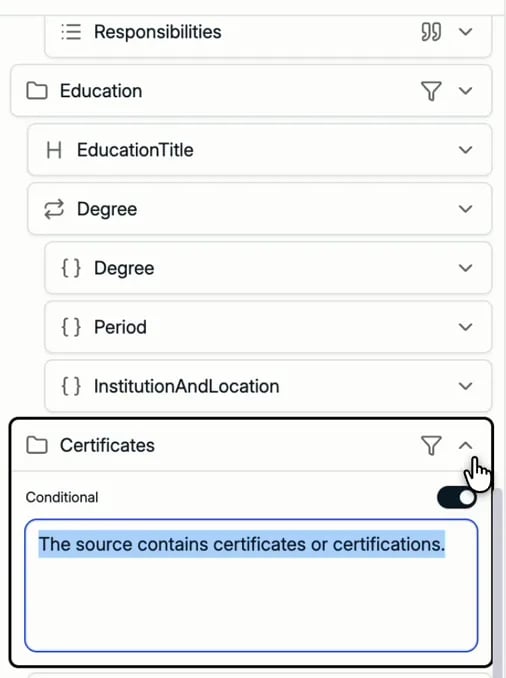
 A **section** also has a **Conditional** switch, so the whole section only appears when a
condition is met. Write the condition as a sentence, for example *"The source contains
certificates or certifications."* A CV with no certificates then simply has no
Certificates section, rather than an empty heading.
A **section** also has a **Conditional** switch, so the whole section only appears when a
condition is met. Write the condition as a sentence, for example *"The source contains
certificates or certifications."* A CV with no certificates then simply has no
Certificates section, rather than an empty heading.
 Icons in the component list show the key settings at a glance: a **filter** icon marks a
conditional section, and a **quote** icon marks verbatim content. Blocks that repeat once
per item, such as one per position or per degree, carry a **two-arrow** icon.
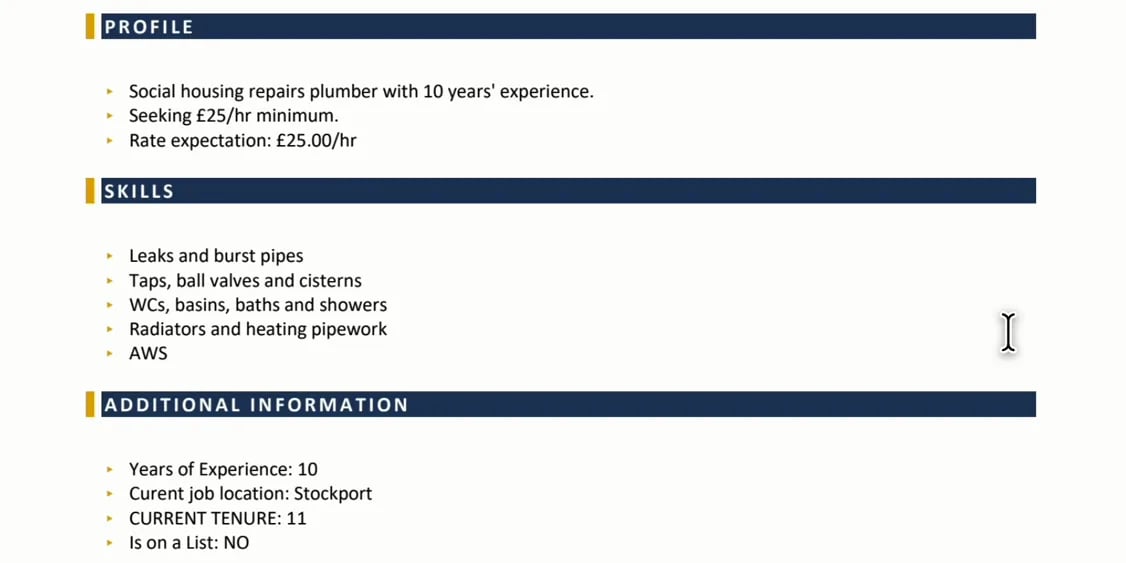
### Dynamic sections
A candidate's CV often holds information your template has no section for. A **dynamic
section**, such as *Additional Information* at the end, catches it: Spott looks for
anything relevant on the CV that is not covered elsewhere and adds each piece as its own
section with its own heading, for example *Skills* or *Languages*.
Icons in the component list show the key settings at a glance: a **filter** icon marks a
conditional section, and a **quote** icon marks verbatim content. Blocks that repeat once
per item, such as one per position or per degree, carry a **two-arrow** icon.
### Dynamic sections
A candidate's CV often holds information your template has no section for. A **dynamic
section**, such as *Additional Information* at the end, catches it: Spott looks for
anything relevant on the CV that is not covered elsewhere and adds each piece as its own
section with its own heading, for example *Skills* or *Languages*.
 ### Work with the agent
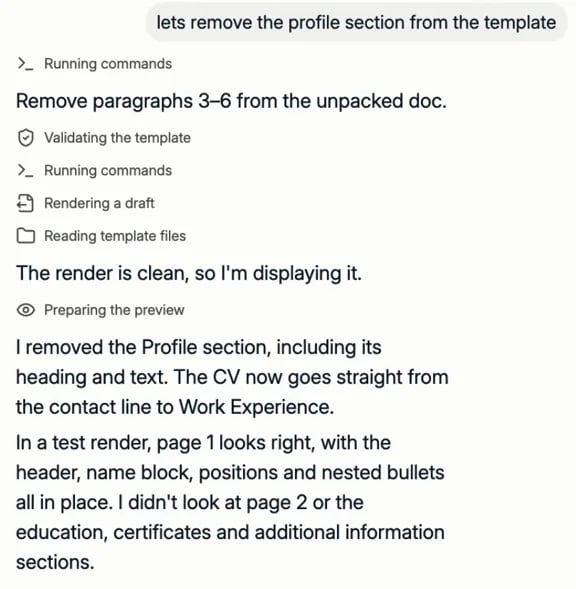
Change anything by hand, or ask the agent in the chat box at the bottom right. For
example, after switching Verbatim off for the profile, ask it to *"update the profile
instruction to be written in the third person"*. It updates the instruction and explains
what it changed. You and the agent can work on the same template: when you edit something
yourself, the agent is told exactly what changed and does not overwrite it.
Bigger changes work the same way, such as removing a section. When the agent is done, it
renders the template again to check the result.
### Work with the agent
Change anything by hand, or ask the agent in the chat box at the bottom right. For
example, after switching Verbatim off for the profile, ask it to *"update the profile
instruction to be written in the third person"*. It updates the instruction and explains
what it changed. You and the agent can work on the same template: when you edit something
yourself, the agent is told exactly what changed and does not overwrite it.
Bigger changes work the same way, such as removing a section. When the agent is done, it
renders the template again to check the result.
 ## Preview with a real candidate
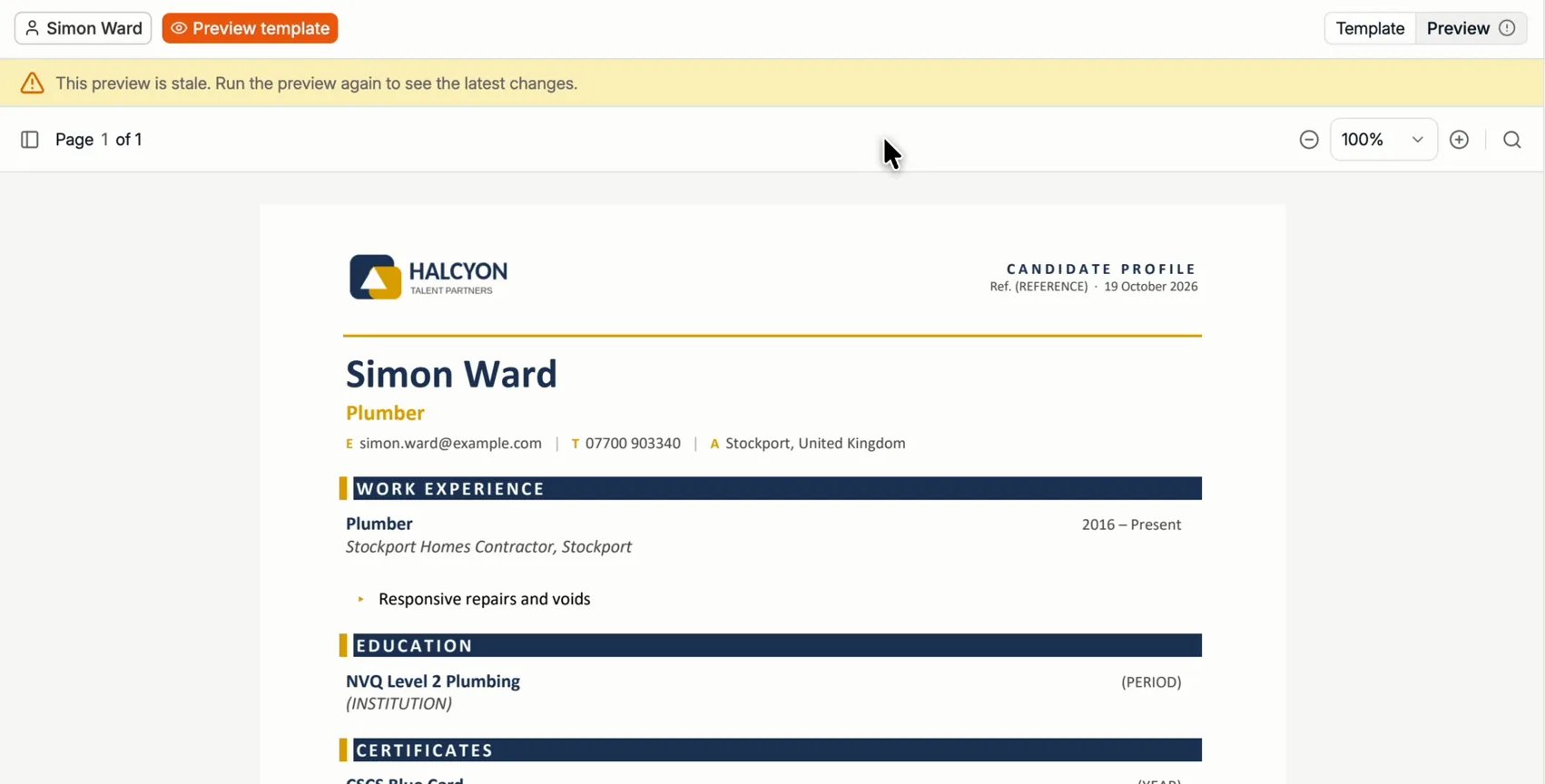
Open the **Preview** tab, pick a candidate, and click **Preview template**. Any candidate
in your database works, so choose one whose profile you know is complete. For a
**Candidate shortlist** template, pick several candidates.
The preview is the best check you have. If something is not right, tell the agent what to
change straight from the preview, then preview again. That loop, **preview, give
feedback, check, preview again**, is how a template gets good.
When the template changes after a preview, the preview is marked **stale**. Run it again
before publishing: **Publish** stays unavailable until the preview matches the template.
## Preview with a real candidate
Open the **Preview** tab, pick a candidate, and click **Preview template**. Any candidate
in your database works, so choose one whose profile you know is complete. For a
**Candidate shortlist** template, pick several candidates.
The preview is the best check you have. If something is not right, tell the agent what to
change straight from the preview, then preview again. That loop, **preview, give
feedback, check, preview again**, is how a template gets good.
When the template changes after a preview, the preview is marked **stale**. Run it again
before publishing: **Publish** stays unavailable until the preview matches the template.
 ### What the preview fills in
Candidate information is filled from the profile, along with fields such as the date.
Anything Spott has nothing for appears in brackets, for example `(INSTITUTION)` for a
degree with no school on the record, or `(CONSULTANT NAME)` in a footer. That is
deliberate: the document shows you what is missing rather than inventing it.
## Publish
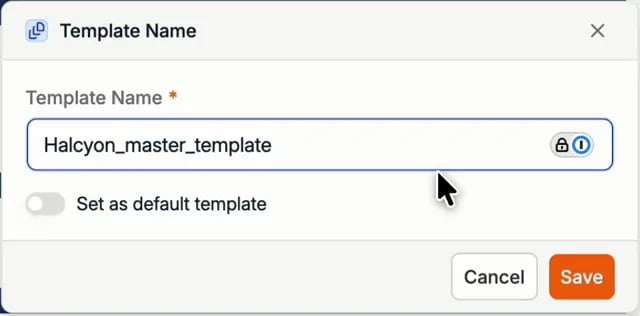
When the preview looks right, click **Publish** at the top right. Give the template a
name, optionally switch on **Set as default template** to make it the default for your
workspace, and click **Save**.
### What the preview fills in
Candidate information is filled from the profile, along with fields such as the date.
Anything Spott has nothing for appears in brackets, for example `(INSTITUTION)` for a
degree with no school on the record, or `(CONSULTANT NAME)` in a footer. That is
deliberate: the document shows you what is missing rather than inventing it.
## Publish
When the preview looks right, click **Publish** at the top right. Give the template a
name, optionally switch on **Set as default template** to make it the default for your
workspace, and click **Save**.
 The template appears under **Published templates** and your team can use it straight
away. To make it the default later, click the **star** next to it. To generate a document
with it, see [CVs & client documents](/docs/candidates/client-documents).
## Quick reference
| Setting or icon | What it does |
| - | - |
| **Verbatim**, template level | Every section copies text exactly as written on the original CV. |
| **Verbatim**, component level, quote icon | This component copies text exactly as written on the original CV. |
| **Anonymization** | What to remove or generalize when a document is generated anonymized. |
| **Conditional**, filter icon | The section only appears when its condition is met. |
| **Dynamic section** | Collects relevant information not covered elsewhere, as separate sections with their own headings. |
| **Stale preview** | The template changed since the last preview. Run it again before publishing. |
This documentation is built and hosted on [Mintlify](https://mintlify.com), a developer documentation platform.
The template appears under **Published templates** and your team can use it straight
away. To make it the default later, click the **star** next to it. To generate a document
with it, see [CVs & client documents](/docs/candidates/client-documents).
## Quick reference
| Setting or icon | What it does |
| - | - |
| **Verbatim**, template level | Every section copies text exactly as written on the original CV. |
| **Verbatim**, component level, quote icon | This component copies text exactly as written on the original CV. |
| **Anonymization** | What to remove or generalize when a document is generated anonymized. |
| **Conditional**, filter icon | The section only appears when its condition is met. |
| **Dynamic section** | Collects relevant information not covered elsewhere, as separate sections with their own headings. |
| **Stale preview** | The template changed since the last preview. Run it again before publishing. |
This documentation is built and hosted on [Mintlify](https://mintlify.com), a developer documentation platform.