> ## Documentation Index
> Fetch the complete documentation index at: https://docs.spott.io/llms.txt
> Use this file to discover all available pages before exploring further.
# Personal Preferences
> Set your personal defaults, formatting, appearance, and notification preferences in Spott.
Personal preferences only affect your own account, not the rest of your workspace.
Open them from **Settings → Preferences** and **Settings → Notifications**.
## General preferences
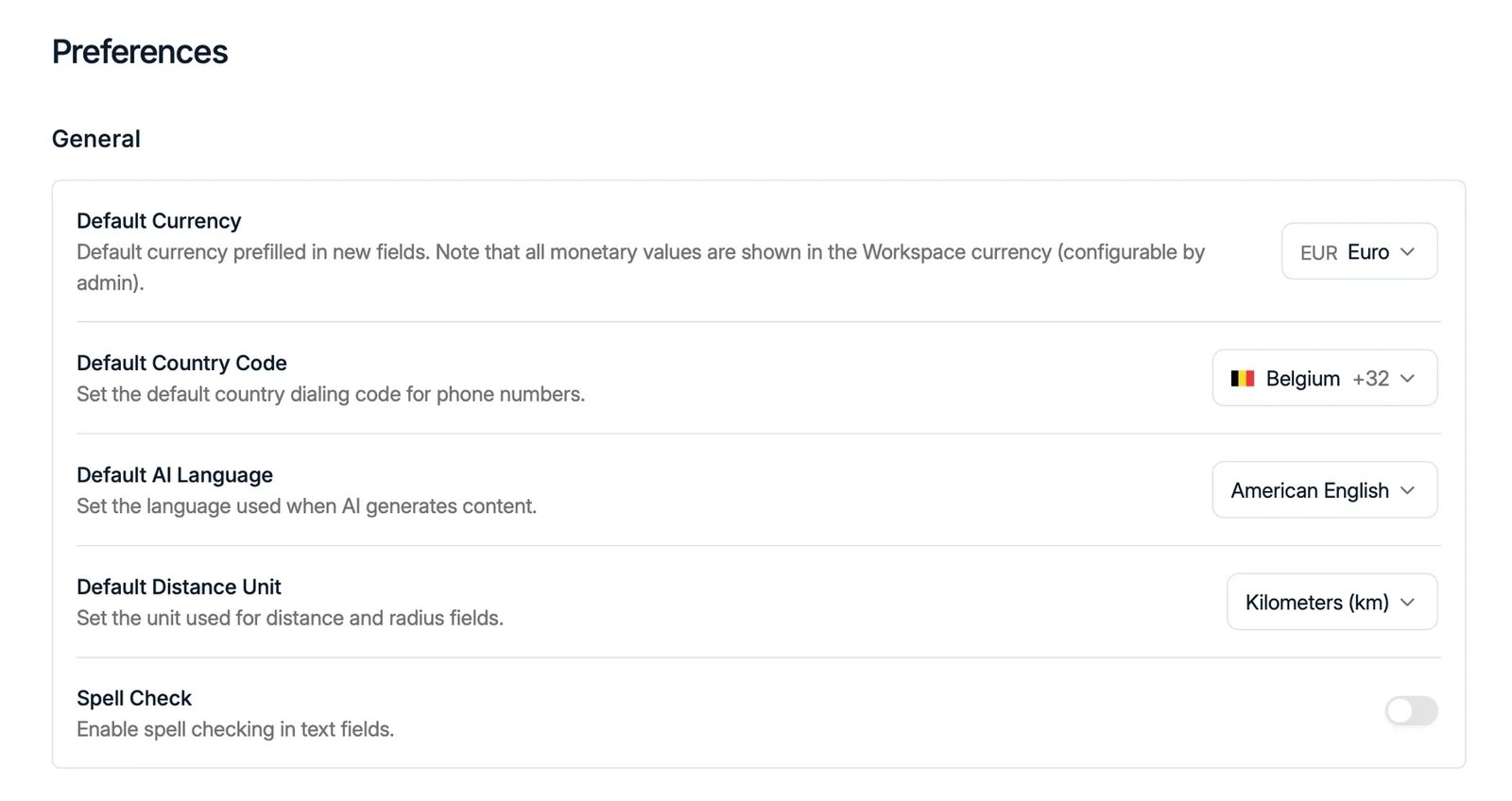
Under **Settings → Preferences → General** you set the defaults used when you create
records and content:
* **Default Currency**, prefilled in new currency fields. All monetary values are
shown in the Workspace currency, which an admin configures.
* **Default Country Code**, the dialing code prefilled for new phone numbers.
* **Default AI Language**, the language Spott uses when it generates content.
* **Default Distance Unit**, used for distance and radius fields.
* **Spell Check**, browser spell checking in text fields.
 ## Time and appearance
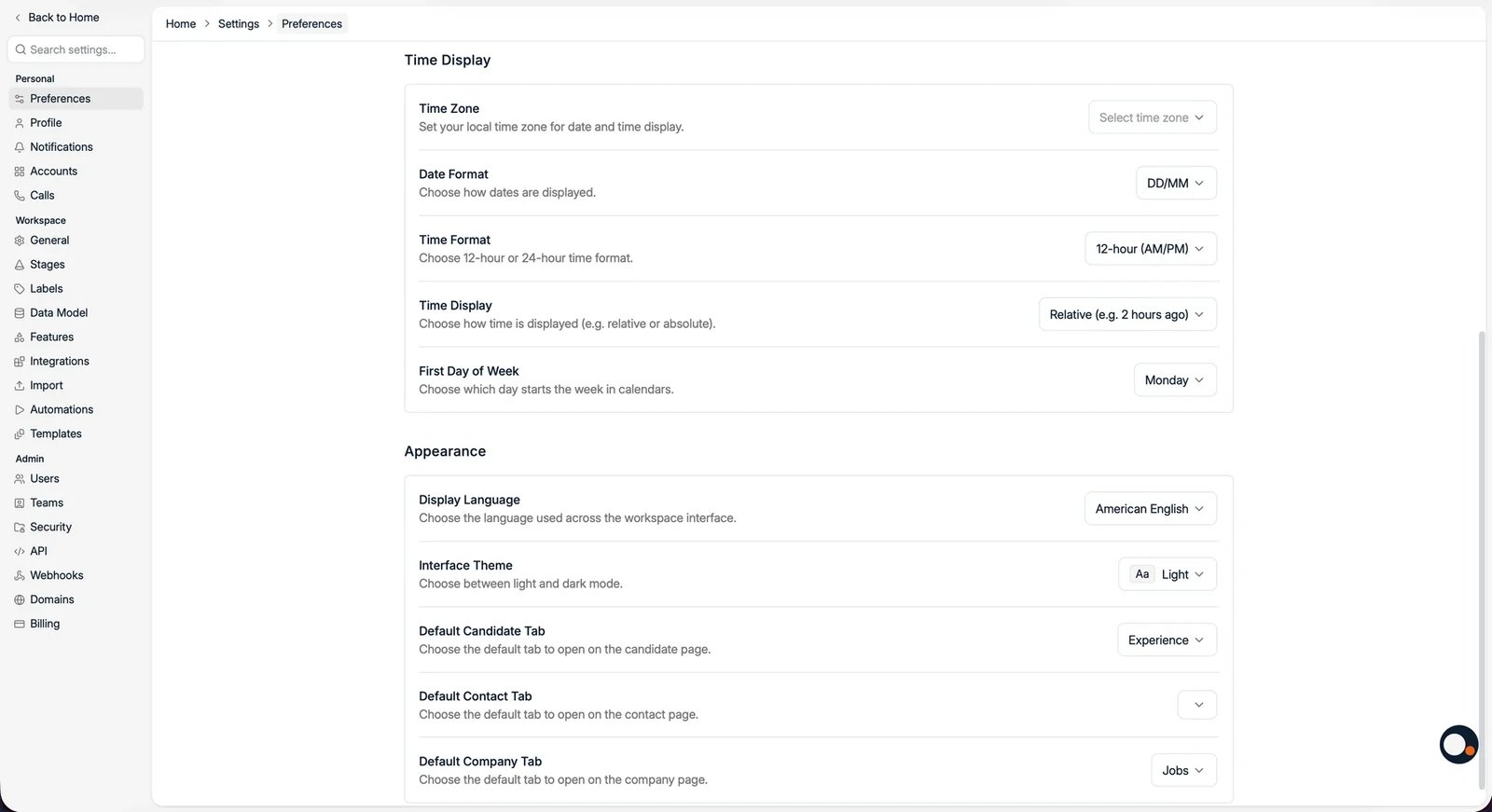
Scroll down for **Time Display** and **Appearance**:
* **Time Zone**, **Date Format**, and **Time Format** (12 or 24 hour).
* **Time Display**, relative (for example "2 hours ago") or absolute.
* **First Day of Week**, which day starts the week in calendars.
* **Display Language**, the language of the Spott interface.
* **Interface Theme**, light or dark mode.
* **Default Candidate / Contact / Company Tab**, which tab opens first on each record.
## Time and appearance
Scroll down for **Time Display** and **Appearance**:
* **Time Zone**, **Date Format**, and **Time Format** (12 or 24 hour).
* **Time Display**, relative (for example "2 hours ago") or absolute.
* **First Day of Week**, which day starts the week in calendars.
* **Display Language**, the language of the Spott interface.
* **Interface Theme**, light or dark mode.
* **Default Candidate / Contact / Company Tab**, which tab opens first on each record.
 ## Notifications
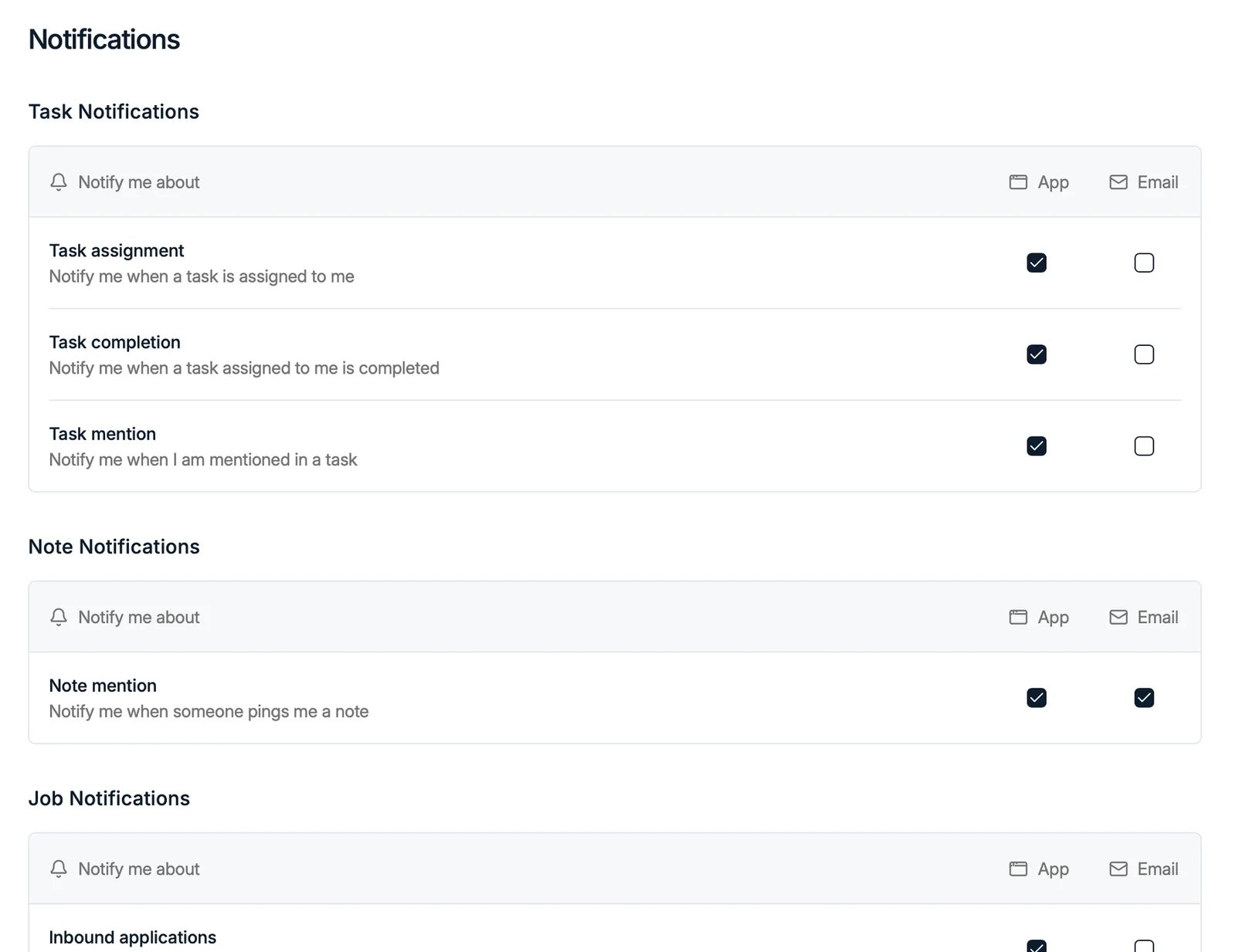
Under **Settings → Notifications** you choose which events notify you, and whether
each one reaches you in the **App**, by **Email**, or both:
* **Task Notifications**: assignment, completion, and mentions.
* **Note Notifications**: when someone mentions you in a note.
* **Job Notifications**: inbound applications and other job events.
## Notifications
Under **Settings → Notifications** you choose which events notify you, and whether
each one reaches you in the **App**, by **Email**, or both:
* **Task Notifications**: assignment, completion, and mentions.
* **Note Notifications**: when someone mentions you in a note.
* **Job Notifications**: inbound applications and other job events.
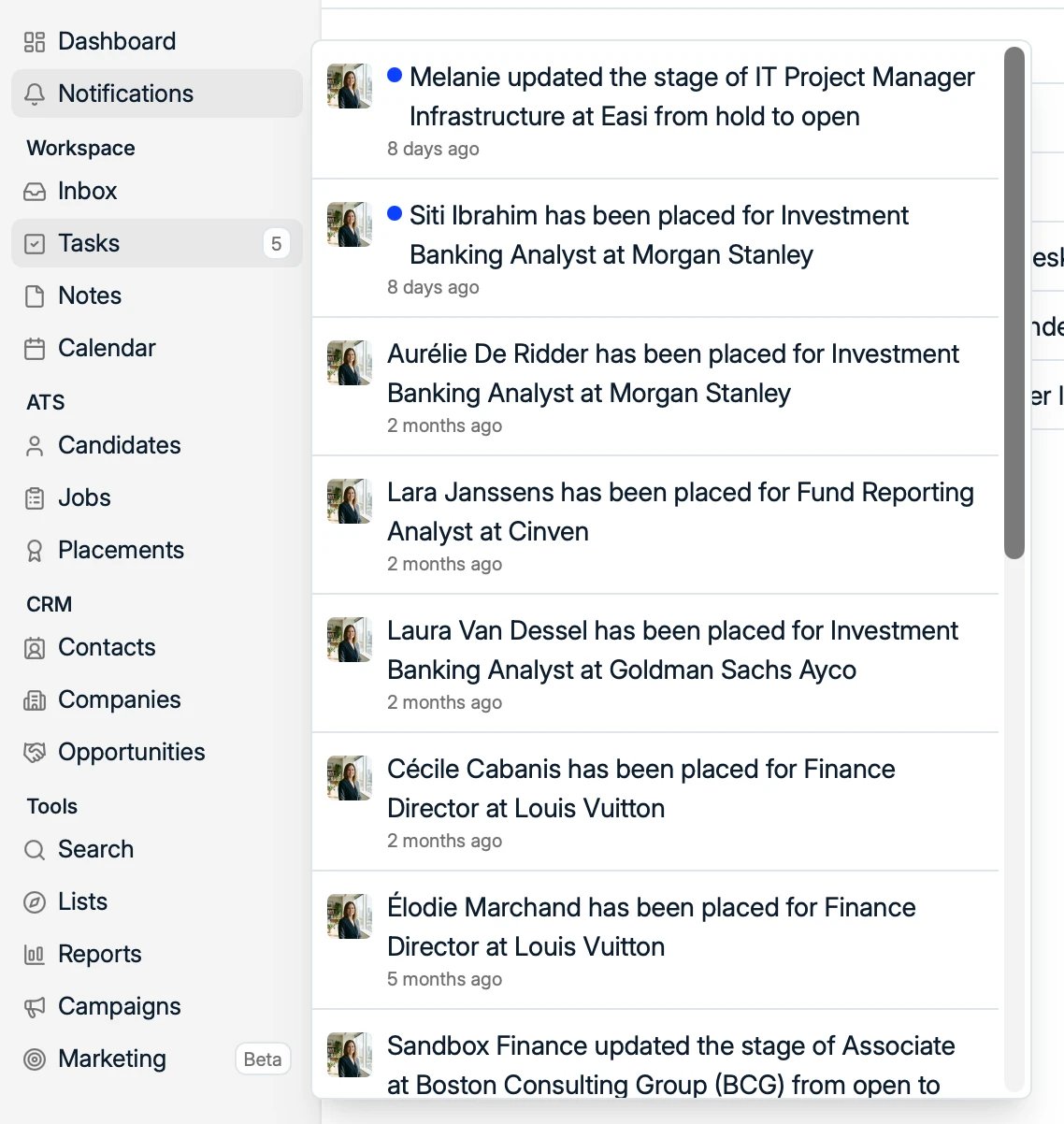
 The notifications themselves appear in the **Notifications** feed, opened from the
left sidebar, where you can see events such as placements, stage changes, and
mentions.
The notifications themselves appear in the **Notifications** feed, opened from the
left sidebar, where you can see events such as placements, stage changes, and
mentions.