> ## Documentation Index
> Fetch the complete documentation index at: https://docs.spott.io/llms.txt
> Use this file to discover all available pages before exploring further.
# Managing Teams
> Create and organize teams in Spott to group users and manage collaboration more effectively.
Teams help you organize members by department, office, or project, making it easier
to manage ownership, visibility, and collaboration.
## **Go to Teams settings**
1. In Spott, go to **Settings**.
2. Scroll to the **Admin** section and click **Teams**.
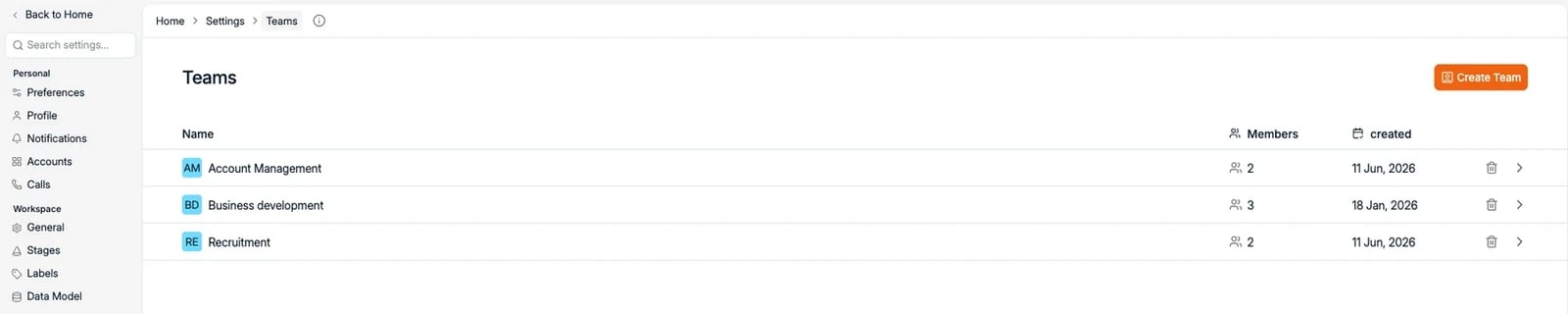 If no teams exist yet, you’ll see an empty state inviting you to create your first one.
## **Create a new team**
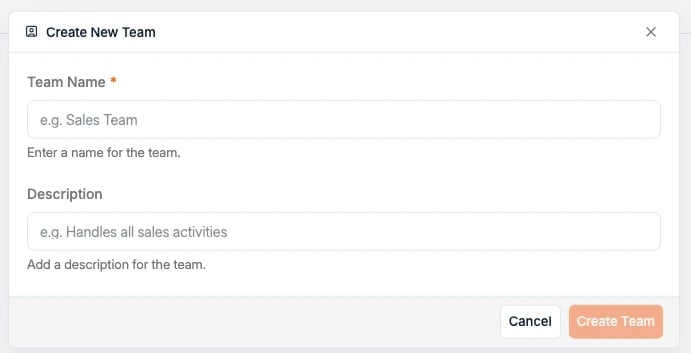
1. Click **Create Team** in the top-right corner.
2. Enter a **Team Name** (for example: *Accountancy & Finance*, *Brussels Office*).
3. Optionally, add a **Description** to clarify the team’s purpose.
4. Click **Create Team**.
If no teams exist yet, you’ll see an empty state inviting you to create your first one.
## **Create a new team**
1. Click **Create Team** in the top-right corner.
2. Enter a **Team Name** (for example: *Accountancy & Finance*, *Brussels Office*).
3. Optionally, add a **Description** to clarify the team’s purpose.
4. Click **Create Team**.
 Each team can have its own set of members and permissions, ideal for larger organizations or multi-office setups.
## **View and manage existing teams**
After creation, your new team will appear in the Teams list, along with the number of members and creation date.
Click on a team name to view and manage its members.
## **Add members to a team**
Inside the team view, click **Add user to team** to assign existing users to this group.
Each team can have its own set of members and permissions, ideal for larger organizations or multi-office setups.
## **View and manage existing teams**
After creation, your new team will appear in the Teams list, along with the number of members and creation date.
Click on a team name to view and manage its members.
## **Add members to a team**
Inside the team view, click **Add user to team** to assign existing users to this group.
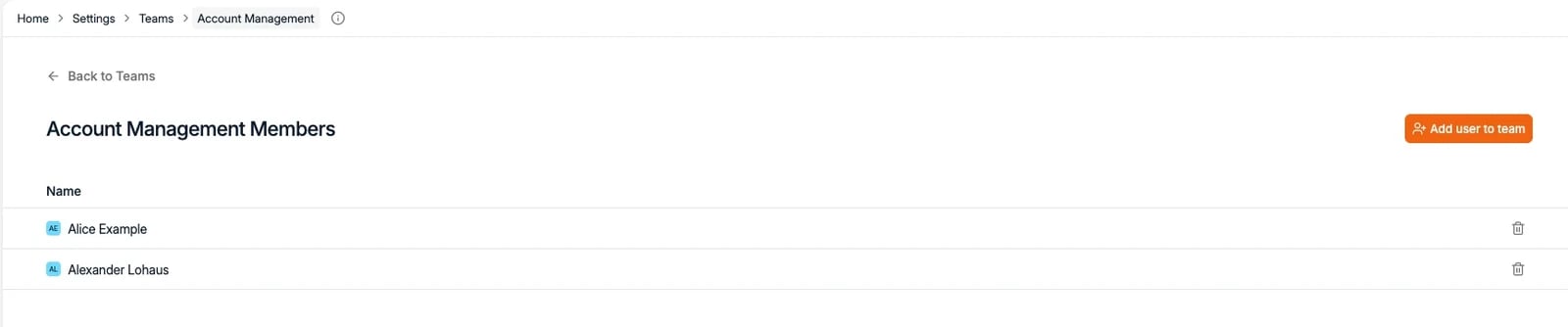 Use the search box to find and add users from your workspace.
A user can belong to multiple teams. Their role and access level remain consistent across all teams they’re part of.
## **Remove a team or edit details**
From the main Teams list:
* Click the **trash icon** to delete a team.
* Or click the **arrow icon** to open and edit it.
Deleting a team does not delete its members — only the team grouping.
Teams are available for Admins and Owners. Standard users can see only the teams they belong to.
Use the search box to find and add users from your workspace.
A user can belong to multiple teams. Their role and access level remain consistent across all teams they’re part of.
## **Remove a team or edit details**
From the main Teams list:
* Click the **trash icon** to delete a team.
* Or click the **arrow icon** to open and edit it.
Deleting a team does not delete its members — only the team grouping.
Teams are available for Admins and Owners. Standard users can see only the teams they belong to.