> ## Documentation Index
> Fetch the complete documentation index at: https://docs.spott.io/llms.txt
> Use this file to discover all available pages before exploring further.
# GDPR Consent Management
> Track candidate consents and marketing opt-outs to manage compliance requirements such as GDPR.
Candidate consents let you manage compliance requirements such as GDPR. They are
stored directly on the candidate profile and include the purpose, type, source,
lawful basis, and validity period.
Consent tracking is available when it is enabled for your workspace under
**Settings → Features**.
## Where consents live
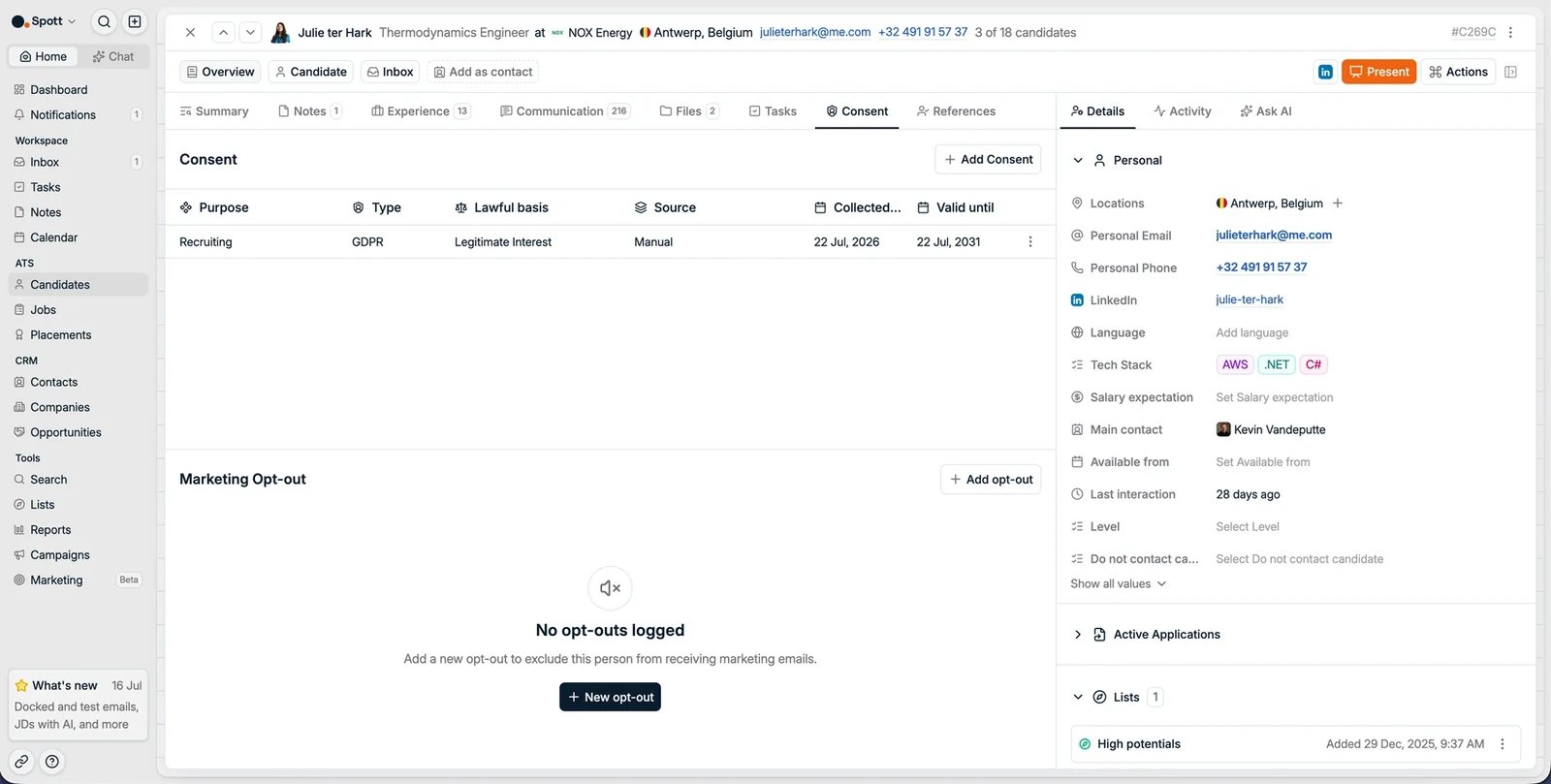
Open a candidate and go to the **Consent** subtab on the Overview tab. It has two
sections:
* **Consent**: the candidate's consent records.
* **Marketing Opt-out**: opt-outs that exclude the candidate from marketing emails.
 ## Configure consent purposes
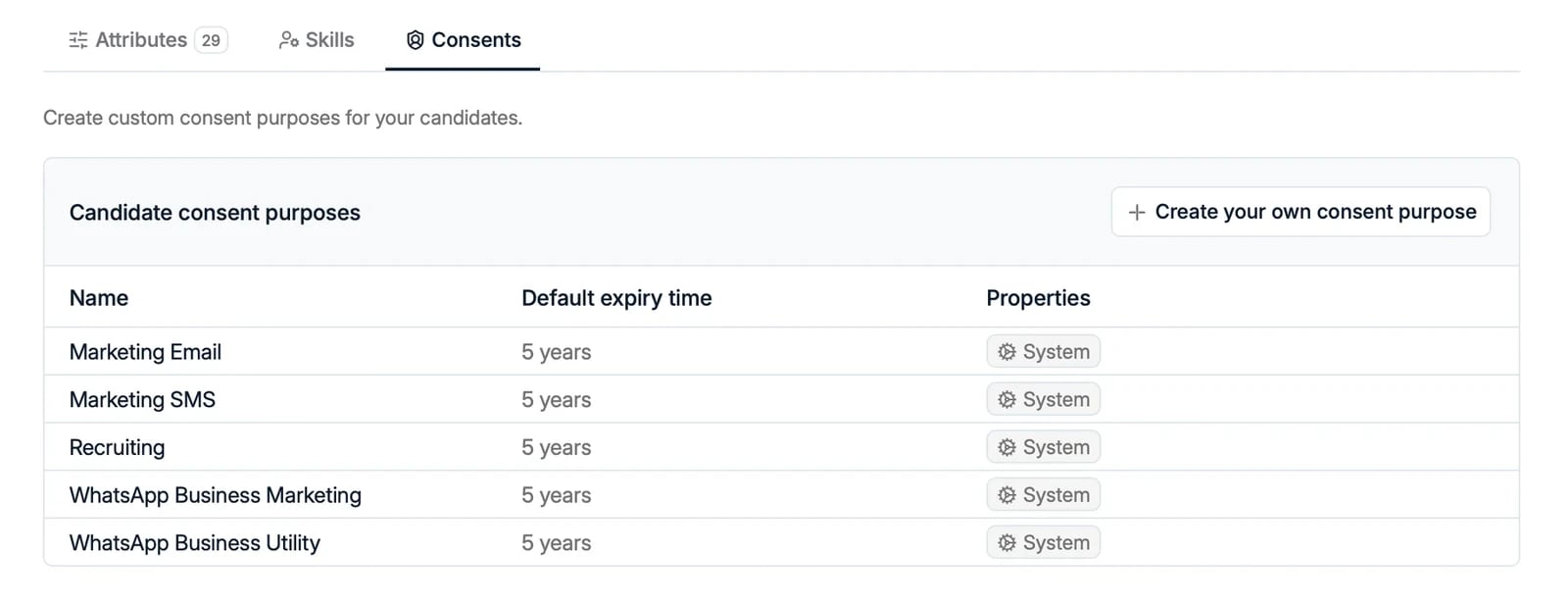
The consent purposes candidates can be tracked against are managed from
**Settings → Data Model → Candidates → Consents**. Spott ships with system purposes
such as **Recruiting**, **Marketing Email**, **Marketing SMS**, and **WhatsApp
Business Marketing**, each with a default expiry time. Use **Create your own consent
purpose** to add custom purposes for your workspace.
## Configure consent purposes
The consent purposes candidates can be tracked against are managed from
**Settings → Data Model → Candidates → Consents**. Spott ships with system purposes
such as **Recruiting**, **Marketing Email**, **Marketing SMS**, and **WhatsApp
Business Marketing**, each with a default expiry time. Use **Create your own consent
purpose** to add custom purposes for your workspace.
 ## Consents created automatically
When candidates update their own information through the
[Request updated CV link](/docs/candidates/update-profile-from-cv),
they accept your terms and conditions and privacy policy, and Spott automatically
creates a consent record. Your terms and privacy policy are configured under
**Settings → General**.
## Add a consent manually
1. Open the candidate and go to **Overview → Consent**.
2. Click **Add Consent**.
3. Fill in the fields:
* **Purpose**, for example Recruiting, Marketing Email, or a custom purpose
* **Type** and **Source**
* **Lawful basis**, for example Consent, Legitimate Interest, or Contract
* **Valid until**
4. Save.
The consent appears in a table with its purpose, type, lawful basis, source,
collection date, and expiry date. From there you can add more consents or delete
existing ones.
You can also track consent by **attaching the signed file** to the record, each
attachment with its own expiry date. This is useful for migrations and whenever a
compliance officer needs the signed original on file.
Each consent has a **Framework** field, set to **GDPR** by default and extendable to
other frameworks if you need them.
## Stay compliant
* **Track expiry dates** and renew consents before they lapse.
* Use the **compliance filters** on the Candidates view to find candidates whose
consent is about to expire.
* Combine both with the Request updated CV link, sent in bulk via a campaign, to let
candidates renew their consent themselves.
Expiry **flags** a record; it does not act on it. When a consent or retention period
lapses, Spott does not automatically delete or anonymize the candidate or their CV.
Use the compliance filters to find lapsed records and delete or anonymize them
yourself.
## Consents created automatically
When candidates update their own information through the
[Request updated CV link](/docs/candidates/update-profile-from-cv),
they accept your terms and conditions and privacy policy, and Spott automatically
creates a consent record. Your terms and privacy policy are configured under
**Settings → General**.
## Add a consent manually
1. Open the candidate and go to **Overview → Consent**.
2. Click **Add Consent**.
3. Fill in the fields:
* **Purpose**, for example Recruiting, Marketing Email, or a custom purpose
* **Type** and **Source**
* **Lawful basis**, for example Consent, Legitimate Interest, or Contract
* **Valid until**
4. Save.
The consent appears in a table with its purpose, type, lawful basis, source,
collection date, and expiry date. From there you can add more consents or delete
existing ones.
You can also track consent by **attaching the signed file** to the record, each
attachment with its own expiry date. This is useful for migrations and whenever a
compliance officer needs the signed original on file.
Each consent has a **Framework** field, set to **GDPR** by default and extendable to
other frameworks if you need them.
## Stay compliant
* **Track expiry dates** and renew consents before they lapse.
* Use the **compliance filters** on the Candidates view to find candidates whose
consent is about to expire.
* Combine both with the Request updated CV link, sent in bulk via a campaign, to let
candidates renew their consent themselves.
Expiry **flags** a record; it does not act on it. When a consent or retention period
lapses, Spott does not automatically delete or anonymize the candidate or their CV.
Use the compliance filters to find lapsed records and delete or anonymize them
yourself.