> ## Documentation Index
> Fetch the complete documentation index at: https://docs.spott.io/llms.txt
> Use this file to discover all available pages before exploring further.
# Sending Domains
> Verify your sending domain step by step: add DNS records, troubleshoot common issues, and register sender addresses for marketing campaigns.
**Settings → Domains** is where you manage and verify the domains you send email from.
Setting this up is required before you can use the [Marketing module](/docs/outreach/marketing).
## Why domain verification matters
Email providers use authentication protocols to confirm that a sender is legitimate.
In short: verified domains reach inboxes, unverified ones risk being flagged as spam.
## Verify your domain
1. Go to **Settings → Domains**.
2. Click **Add Domain**.
3. Enter your domain name.
Use a **subdomain** (for example `mail.yourcompany.com` or
`marketing.yourcompany.com`) instead of your root domain. This protects your main
domain's reputation and isolates marketing email deliverability. Create the
subdomain upfront via your domain registrar or DNS provider.
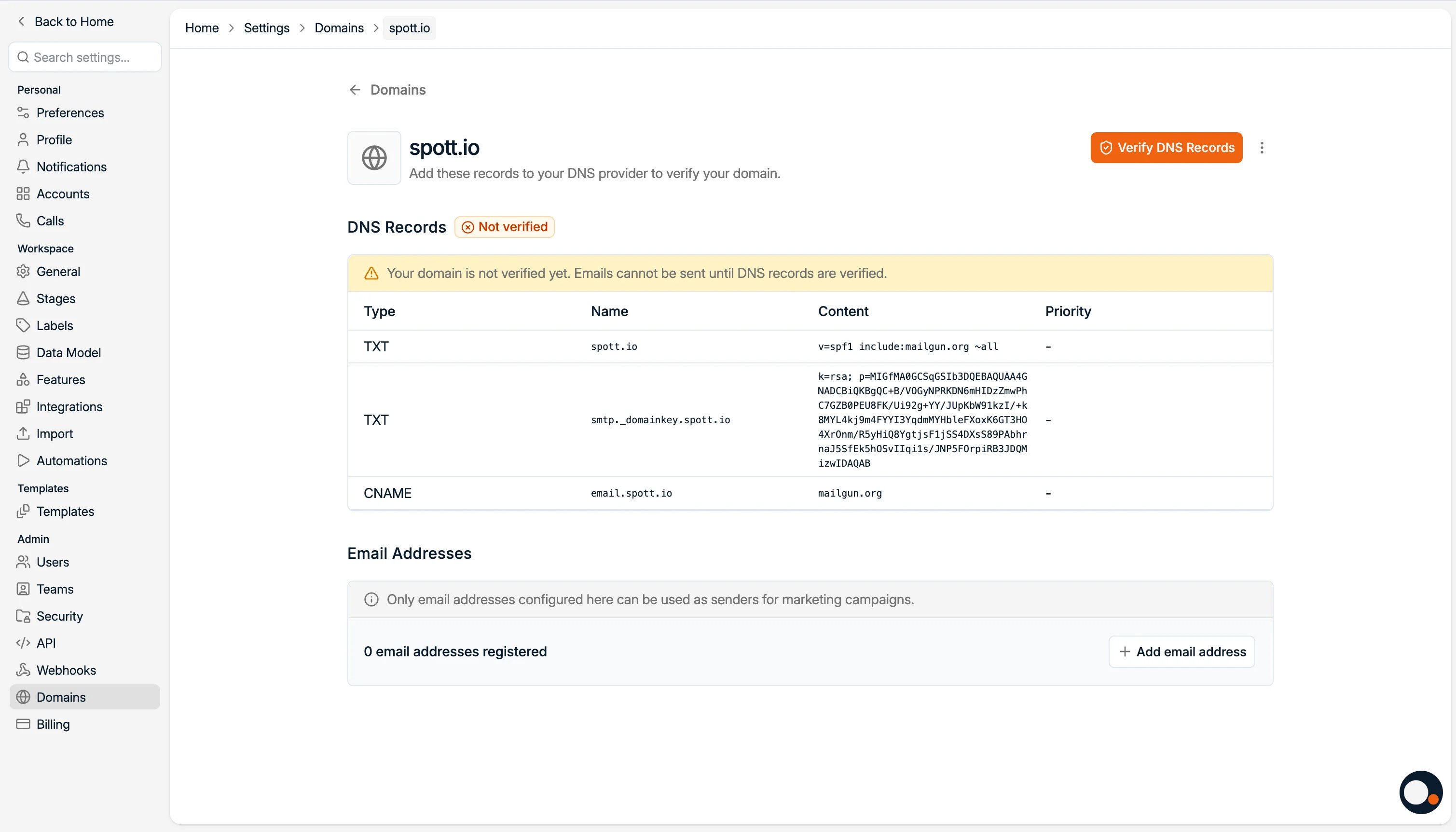
4. Spott **generates three DNS records** with your own values: a **TXT** record
(SPF), a **DKIM** record, and a **CNAME** record. Copy those values and paste
them into your domain registrar's DNS settings, or send them to the partner who
manages your domain.
 5. **Wait for the records to go live.** DNS changes are not instant; they can take
anywhere from a few minutes up to 24 hours to propagate. If you click **Verify
DNS Records** too soon, it may fail simply because the records have not spread
yet, not because anything is wrong. You can confirm they are live with a free
lookup tool such as [DNS Checker](https://dnschecker.org): enter the host you
added, choose the matching record type, and check that the value returned
matches what Spott gave you.
6. Back in Spott, click **Verify DNS Records**.
7. **Register email addresses** under the domain. Only email addresses configured
here can be used as senders for marketing campaigns. Note that they are shared
across your workspace.
If you plan to send high volumes through the Marketing module, do not register
your personal mailbox as the sender; this could damage its reputation. Use a
dedicated address instead, such as `news@marketing.yourcompany.com`.
We also recommend publishing a **DMARC** record for the domain. Major inbox
providers like Gmail and Yahoo now require it from high-volume senders, and it
protects your domain from spoofing while improving deliverability.
## Troubleshooting: common DNS questions
### What do I put in the Host/Name field?
Most DNS providers automatically append your domain to whatever you type in the
Name/Host field, because every record in that zone already belongs to your domain.
So you only enter the part *in front of* your domain, not the full address:
* For a record on `email.yourcompany.com`, enter just `email`
* For a record on `abc._domainkey.yourcompany.com`, enter just `abc._domainkey`
* For a record on your root domain (`yourcompany.com`), enter `@`; some providers
want the field left blank instead
If you type the full `email.yourcompany.com` instead, many providers turn it into
`email.yourcompany.com.yourcompany.com`, and the record will not verify.
### Will this affect our normal, day-to-day email?
Almost never. The records you are adding only govern the domain or subdomain you
are verifying for marketing sending. Your everyday mailbox uses its own separate
records and is not touched. The one exception is the SPF record; see below.
### We already have an SPF record. Can we add a second one?
No. A domain can only have **one** SPF record (one `v=spf1…` entry). If your domain
already has SPF for your existing provider (Microsoft 365, Google Workspace, and so
on), do not add a second one. Instead, merge the new value into the existing
record, for example:
```
v=spf1 include:_spf.yourprovider.com include:mailgun.org ~all
```
A duplicate SPF record is invalid and *is* the one change that can disrupt your
live email.
Using a dedicated subdomain, as recommended above, avoids most of this: the
marketing records sit on their own subdomain, cleanly separated from the records
your main email depends on.
## Next step: protect your deliverability
A verified domain gets your email out the door; reaching inboxes consistently also
depends on how you send. Before your first campaign, read the
[email deliverability best practices](/docs/outreach/email-deliverability),
especially if your sending domain is brand new and needs warming up.
5. **Wait for the records to go live.** DNS changes are not instant; they can take
anywhere from a few minutes up to 24 hours to propagate. If you click **Verify
DNS Records** too soon, it may fail simply because the records have not spread
yet, not because anything is wrong. You can confirm they are live with a free
lookup tool such as [DNS Checker](https://dnschecker.org): enter the host you
added, choose the matching record type, and check that the value returned
matches what Spott gave you.
6. Back in Spott, click **Verify DNS Records**.
7. **Register email addresses** under the domain. Only email addresses configured
here can be used as senders for marketing campaigns. Note that they are shared
across your workspace.
If you plan to send high volumes through the Marketing module, do not register
your personal mailbox as the sender; this could damage its reputation. Use a
dedicated address instead, such as `news@marketing.yourcompany.com`.
We also recommend publishing a **DMARC** record for the domain. Major inbox
providers like Gmail and Yahoo now require it from high-volume senders, and it
protects your domain from spoofing while improving deliverability.
## Troubleshooting: common DNS questions
### What do I put in the Host/Name field?
Most DNS providers automatically append your domain to whatever you type in the
Name/Host field, because every record in that zone already belongs to your domain.
So you only enter the part *in front of* your domain, not the full address:
* For a record on `email.yourcompany.com`, enter just `email`
* For a record on `abc._domainkey.yourcompany.com`, enter just `abc._domainkey`
* For a record on your root domain (`yourcompany.com`), enter `@`; some providers
want the field left blank instead
If you type the full `email.yourcompany.com` instead, many providers turn it into
`email.yourcompany.com.yourcompany.com`, and the record will not verify.
### Will this affect our normal, day-to-day email?
Almost never. The records you are adding only govern the domain or subdomain you
are verifying for marketing sending. Your everyday mailbox uses its own separate
records and is not touched. The one exception is the SPF record; see below.
### We already have an SPF record. Can we add a second one?
No. A domain can only have **one** SPF record (one `v=spf1…` entry). If your domain
already has SPF for your existing provider (Microsoft 365, Google Workspace, and so
on), do not add a second one. Instead, merge the new value into the existing
record, for example:
```
v=spf1 include:_spf.yourprovider.com include:mailgun.org ~all
```
A duplicate SPF record is invalid and *is* the one change that can disrupt your
live email.
Using a dedicated subdomain, as recommended above, avoids most of this: the
marketing records sit on their own subdomain, cleanly separated from the records
your main email depends on.
## Next step: protect your deliverability
A verified domain gets your email out the door; reaching inboxes consistently also
depends on how you send. Before your first campaign, read the
[email deliverability best practices](/docs/outreach/email-deliverability),
especially if your sending domain is brand new and needs warming up.