> ## Documentation Index
> Fetch the complete documentation index at: https://docs.spott.io/llms.txt
> Use this file to discover all available pages before exploring further.
# Create Custom Attributes
> Create custom attributes for Jobs, Candidates, Companies, and Contacts to track, filter, and search the information relevant to your business.
For Jobs, Candidates, Companies, and Contacts, you can create custom attributes to
track, filter, and search information relevant to your business.
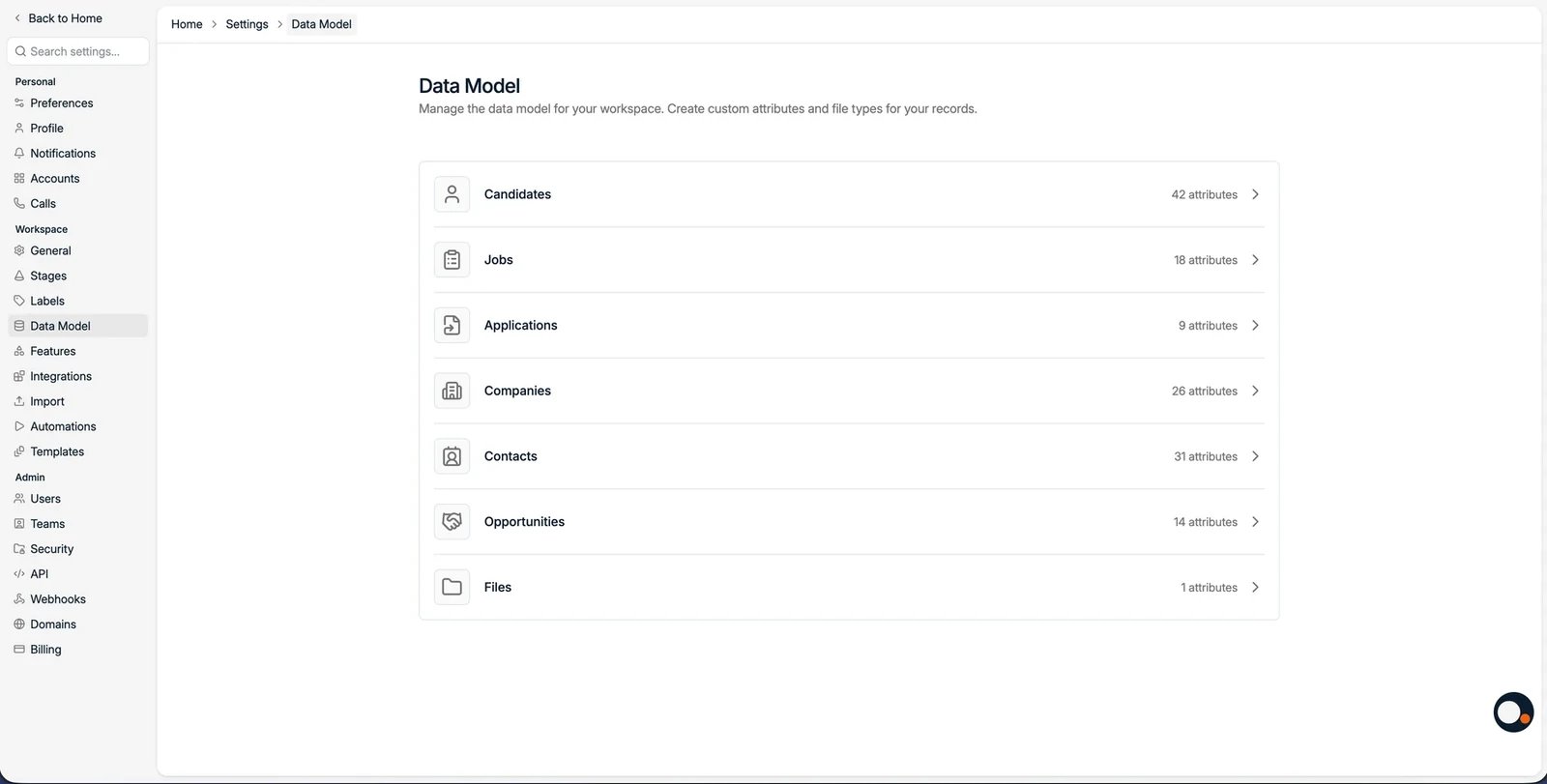
## 1. Open the Data Model settings
1. Go to **Settings**.
2. Under **Workspace**, open **Data Model** and pick the record type you want to
create a custom attribute for.
 ## 2. Create custom attributes
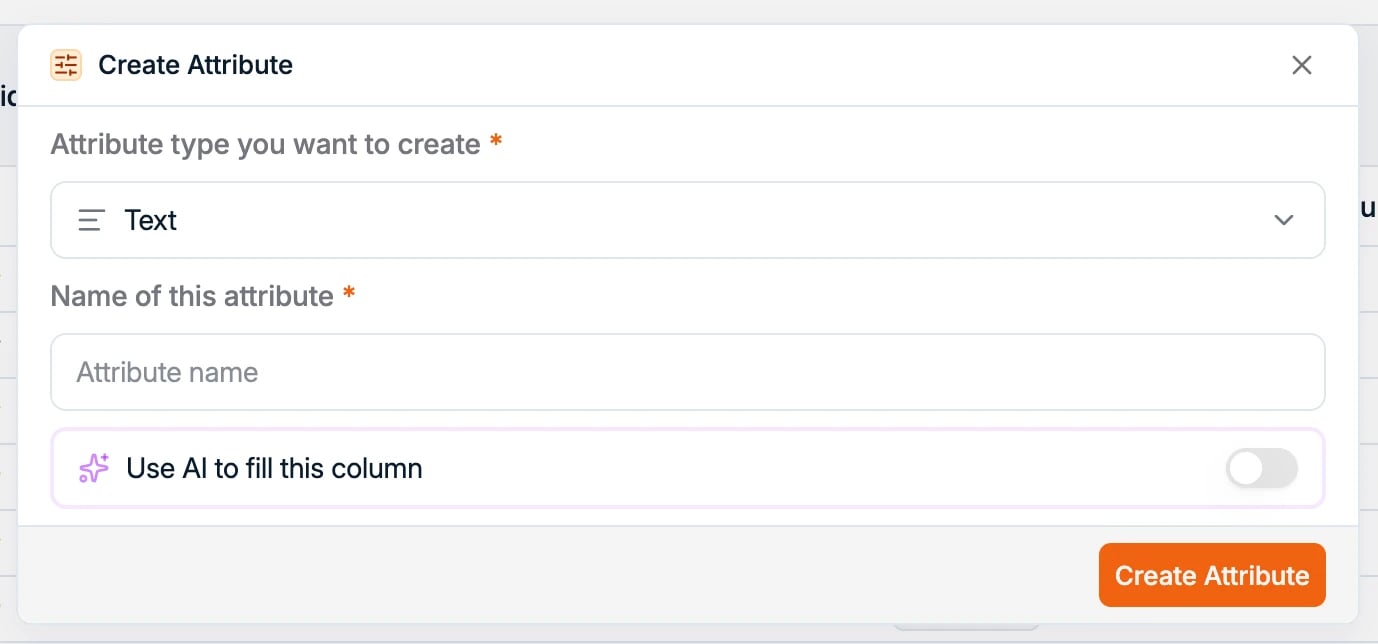
Click **Create your own attribute** and choose the data type:
* **Text**: free text input
* **Number**: numeric values
* **Checkbox**: a yes or no answer
* **Select**: pick one option from a list
* **Multi-select**: pick one or more options from a list
* **Date**: date fields, for example an availability date
* **Rating**: a score, which you can also filter on
* **Currency**: monetary fields
* **URL**: a web link
* **Entity** and **Multi-entity**: reference one or more users
## 2. Create custom attributes
Click **Create your own attribute** and choose the data type:
* **Text**: free text input
* **Number**: numeric values
* **Checkbox**: a yes or no answer
* **Select**: pick one option from a list
* **Multi-select**: pick one or more options from a list
* **Date**: date fields, for example an availability date
* **Rating**: a score, which you can also filter on
* **Currency**: monetary fields
* **URL**: a web link
* **Entity** and **Multi-entity**: reference one or more users
 Once a custom attribute is created, it is available on all records of that type in
your database.
Built-in **System attributes** (such as Location, Personal Email, or Language) are
managed by Spott. You can star and reorder them, but you cannot rename them, change
their type, or delete them. Only attributes you create can be edited or removed, and
an attribute's **type is fixed when you create it** and cannot be changed afterward.
**Attachments** support custom attributes too, along with shared file types across
records, for example contract or certificate types with expiry dates. Configure
them in the same Data Model section. Everything is also accessible via the API.
### AI-filled columns
When creating an attribute, you can enable **AI autofill**. The system then populates
the attribute automatically based on the record's profile and CVs, following the
prompt you write. See [setting up AI-filled columns](/docs/settings/ai-filled-columns).
Examples:
* Age calculation based on graduation dates
* Skills extraction from CVs
* Category matching based on candidate profiles
## Use and manage custom attributes
Once created, custom attributes are directly usable across Spott. You can:
* Fill in values directly in the table or on the record's profile
* Show custom attributes as columns and reorder them via View Settings
* Filter and search on custom attributes
* **Star** an attribute so it shows by default on records; unstarred attributes stay
available under **Show all values**
Customizing your records helps you capture the data points unique to your process,
making searches and filters more effective.
Once a custom attribute is created, it is available on all records of that type in
your database.
Built-in **System attributes** (such as Location, Personal Email, or Language) are
managed by Spott. You can star and reorder them, but you cannot rename them, change
their type, or delete them. Only attributes you create can be edited or removed, and
an attribute's **type is fixed when you create it** and cannot be changed afterward.
**Attachments** support custom attributes too, along with shared file types across
records, for example contract or certificate types with expiry dates. Configure
them in the same Data Model section. Everything is also accessible via the API.
### AI-filled columns
When creating an attribute, you can enable **AI autofill**. The system then populates
the attribute automatically based on the record's profile and CVs, following the
prompt you write. See [setting up AI-filled columns](/docs/settings/ai-filled-columns).
Examples:
* Age calculation based on graduation dates
* Skills extraction from CVs
* Category matching based on candidate profiles
## Use and manage custom attributes
Once created, custom attributes are directly usable across Spott. You can:
* Fill in values directly in the table or on the record's profile
* Show custom attributes as columns and reorder them via View Settings
* Filter and search on custom attributes
* **Star** an attribute so it shows by default on records; unstarred attributes stay
available under **Show all values**
Customizing your records helps you capture the data points unique to your process,
making searches and filters more effective.