> ## Documentation Index
> Fetch the complete documentation index at: https://docs.spott.io/llms.txt
> Use this file to discover all available pages before exploring further.
# Automations
> Trigger actions automatically on events in Spott: open dialogs at the right moment, send emails, update fields, and more.
**Automations** are workflows that fire on events inside Spott and run a chain of
actions. They are configured by admins and apply to the whole workspace, so every
teammate follows the same process automatically.
## Enable and configure
1. An admin toggles **Automations** on under **Settings → Features**.
2. Automations are then created under **Settings → Automations**.
Automations are workspace-wide. They cannot be scoped to an individual user: once
configured, an automation runs for everyone. Treat them as shared infrastructure,
not personal shortcuts.
 ## How an automation is structured
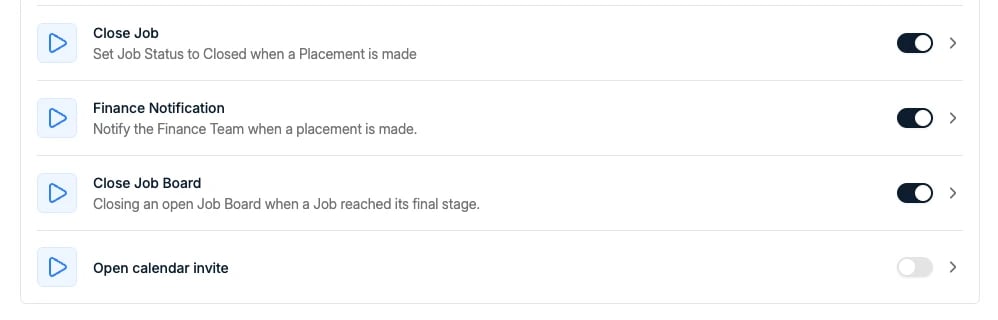
Every automation has the same shape:
* **One trigger**: the event that fires it, for example an application moving to a
stage, a candidate being created, or a placement being created. Time-based
triggers let automations run at a set moment or immediately upon the trigger.
* **One or more actions**, chained in sequence.
* **Optional filters** to narrow exactly when it runs, for example only for a
specific placement form type.
## Interactive automations
Interactive automations change what you see: they open a dialog or form at the right
moment, keeping the user in the loop for actions that need judgment. Common patterns:
* **Open the placement dialog** when an application moves to a Placed stage, so the
fee and dates are recorded on the spot.
* **Open the email dialog** when an application moves to a specific stage, for
example "Mailed".
For rejection emails, use the native **Mark rejected** quick action instead of an
automation. It has built-in template selection and records the rejection reasons.
## Background automations
## How an automation is structured
Every automation has the same shape:
* **One trigger**: the event that fires it, for example an application moving to a
stage, a candidate being created, or a placement being created. Time-based
triggers let automations run at a set moment or immediately upon the trigger.
* **One or more actions**, chained in sequence.
* **Optional filters** to narrow exactly when it runs, for example only for a
specific placement form type.
## Interactive automations
Interactive automations change what you see: they open a dialog or form at the right
moment, keeping the user in the loop for actions that need judgment. Common patterns:
* **Open the placement dialog** when an application moves to a Placed stage, so the
fee and dates are recorded on the spot.
* **Open the email dialog** when an application moves to a specific stage, for
example "Mailed".
For rejection emails, use the native **Mark rejected** quick action instead of an
automation. It has built-in template selection and records the rejection reasons.
## Background automations
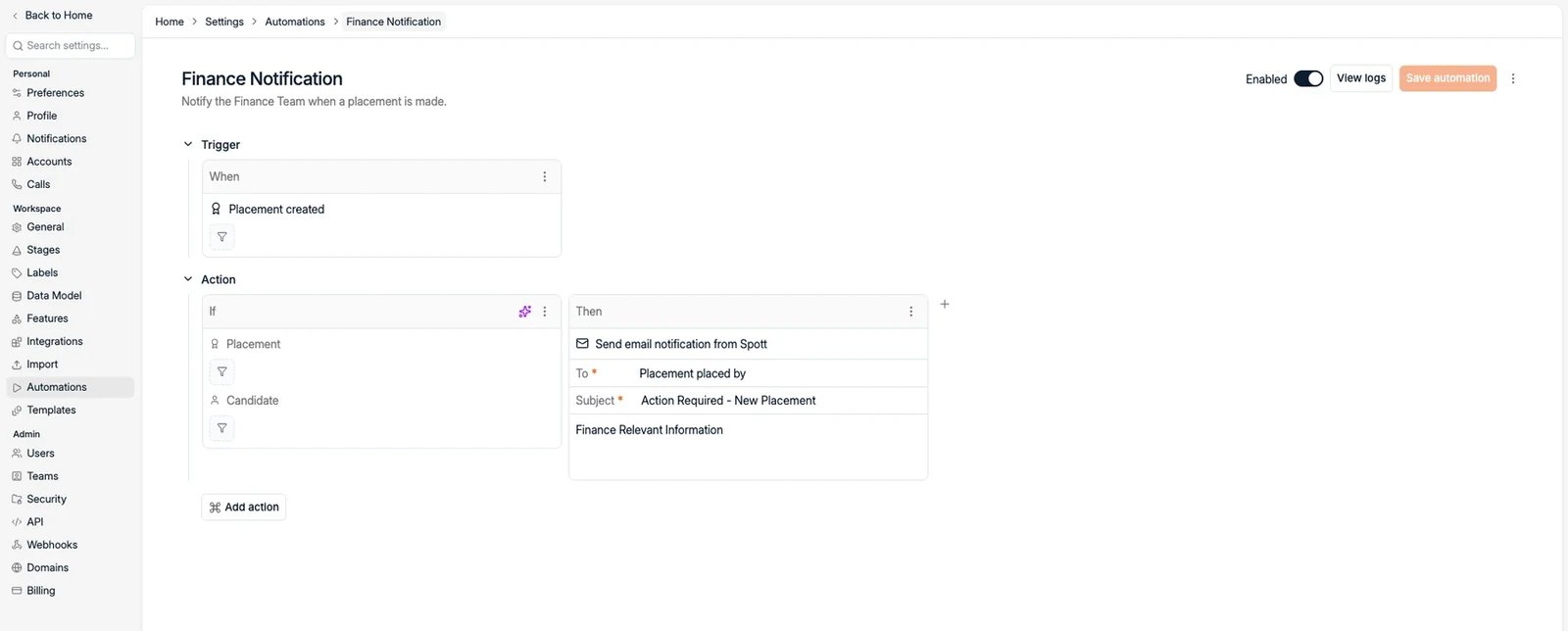 Background automations run silently, with no dialog. Use them when the action is
deterministic and should always happen. Common patterns:
* **Auto-send a consent email** when a candidate reaches your GDPR check stage, from
one of your configured domains.
* **Auto-close a job** when a candidate is placed on it.
* **Auto-update a custom attribute** when an application reaches a stage, keeping
reporting fields accurate without manual upkeep.
Background automations can send emails to addresses outside Spott too, for example
your invoicing department, and can use variables in their emails, including
placement details such as fee splits, start and end dates, and contract value.
Emails sent by an automation are **not logged on the candidate's activity feed**
unless the recipient replies. If you rely on automations to send consent emails, keep
your own record of what was sent, since the activity feed alone will not show it.
The catalog of triggers and actions grows with the weekly releases, so check
**Settings → Automations** for what is currently available.
Background automations run silently, with no dialog. Use them when the action is
deterministic and should always happen. Common patterns:
* **Auto-send a consent email** when a candidate reaches your GDPR check stage, from
one of your configured domains.
* **Auto-close a job** when a candidate is placed on it.
* **Auto-update a custom attribute** when an application reaches a stage, keeping
reporting fields accurate without manual upkeep.
Background automations can send emails to addresses outside Spott too, for example
your invoicing department, and can use variables in their emails, including
placement details such as fee splits, start and end dates, and contract value.
Emails sent by an automation are **not logged on the candidate's activity feed**
unless the recipient replies. If you rely on automations to send consent emails, keep
your own record of what was sent, since the activity feed alone will not show it.
The catalog of triggers and actions grows with the weekly releases, so check
**Settings → Automations** for what is currently available.