> ## Documentation Index
> Fetch the complete documentation index at: https://docs.spott.io/llms.txt
> Use this file to discover all available pages before exploring further.
# How to setup AI-filled columns
> Let AI automatically populate custom attributes based on candidate profiles and CVs.
## Usage
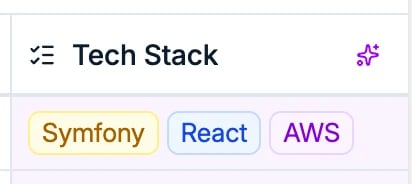 Once AI-filled columns are enabled and configured, the system automatically populates
the attributes based on candidate profiles and CVs. The AI analyzes the available
information and fills in the attributes according to your prompt.
For example, you can create attributes for:
* Age calculation based on graduation dates
* Skills extraction from CVs
* Category matching based on candidate profiles
AI autofill is **forward-only**: records added or updated after you set it up have the
attribute filled automatically. It does not retroactively backfill records that already
exist, and there is no bulk refresh, so existing values only change when the record
itself changes.
## Setup AI-filled columns
1. Go to **Settings** in your workspace.
2. Navigate to the **Features** section.
3. Toggle on **Enable AI-Filled Columns**. This feature needs to be active before you
can create AI-powered attributes.
Once AI-filled columns are enabled and configured, the system automatically populates
the attributes based on candidate profiles and CVs. The AI analyzes the available
information and fills in the attributes according to your prompt.
For example, you can create attributes for:
* Age calculation based on graduation dates
* Skills extraction from CVs
* Category matching based on candidate profiles
AI autofill is **forward-only**: records added or updated after you set it up have the
attribute filled automatically. It does not retroactively backfill records that already
exist, and there is no bulk refresh, so existing values only change when the record
itself changes.
## Setup AI-filled columns
1. Go to **Settings** in your workspace.
2. Navigate to the **Features** section.
3. Toggle on **Enable AI-Filled Columns**. This feature needs to be active before you
can create AI-powered attributes.
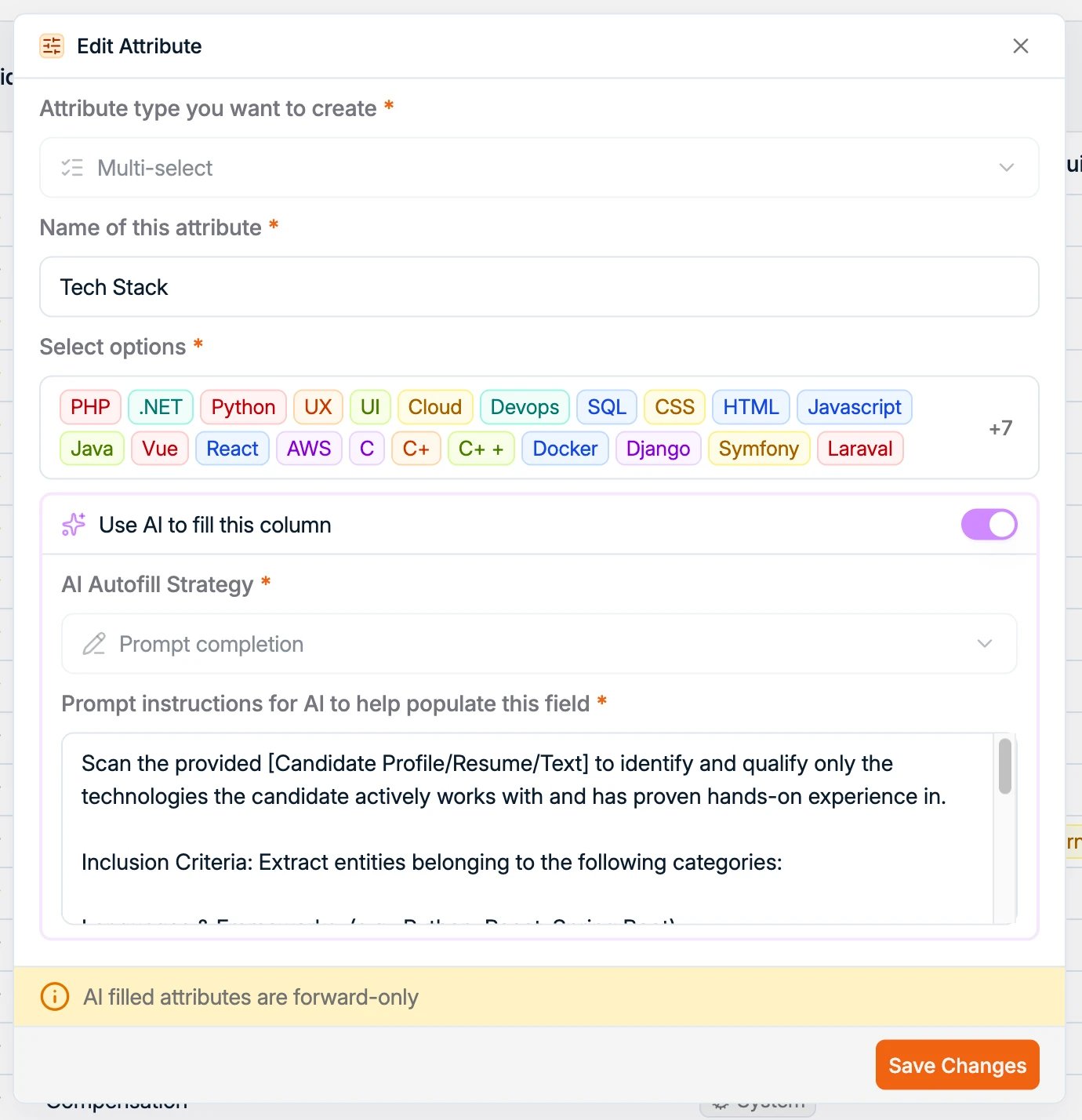
 4. Go to **Settings → Data Model** and pick the record type you want to create an AI
column for.
5. Click **Create your own attribute**.
6. Configure the attribute type and name.
7. Enable the **AI autofill** option.
8. Write a clear prompt describing what the AI should extract or calculate for this
attribute.
4. Go to **Settings → Data Model** and pick the record type you want to create an AI
column for.
5. Click **Create your own attribute**.
6. Configure the attribute type and name.
7. Enable the **AI autofill** option.
8. Write a clear prompt describing what the AI should extract or calculate for this
attribute.