> ## Documentation Index
> Fetch the complete documentation index at: https://docs.spott.io/llms.txt
> Use this file to discover all available pages before exploring further.
# Connected Accounts
> Connect your email, calendar, and messaging accounts so data flows into Spott.
**Settings → Accounts** is where you connect the external tools you work in, so email,
calendar, and messages sync into Spott.
## Email & Calendar
Connect a Google or Microsoft account to sync your email and calendar. You can connect
more than one account with **Connect a second Microsoft account** or **Connect a second
Google account**. The account marked **Default** is the one Spott sends from unless you
pick another.
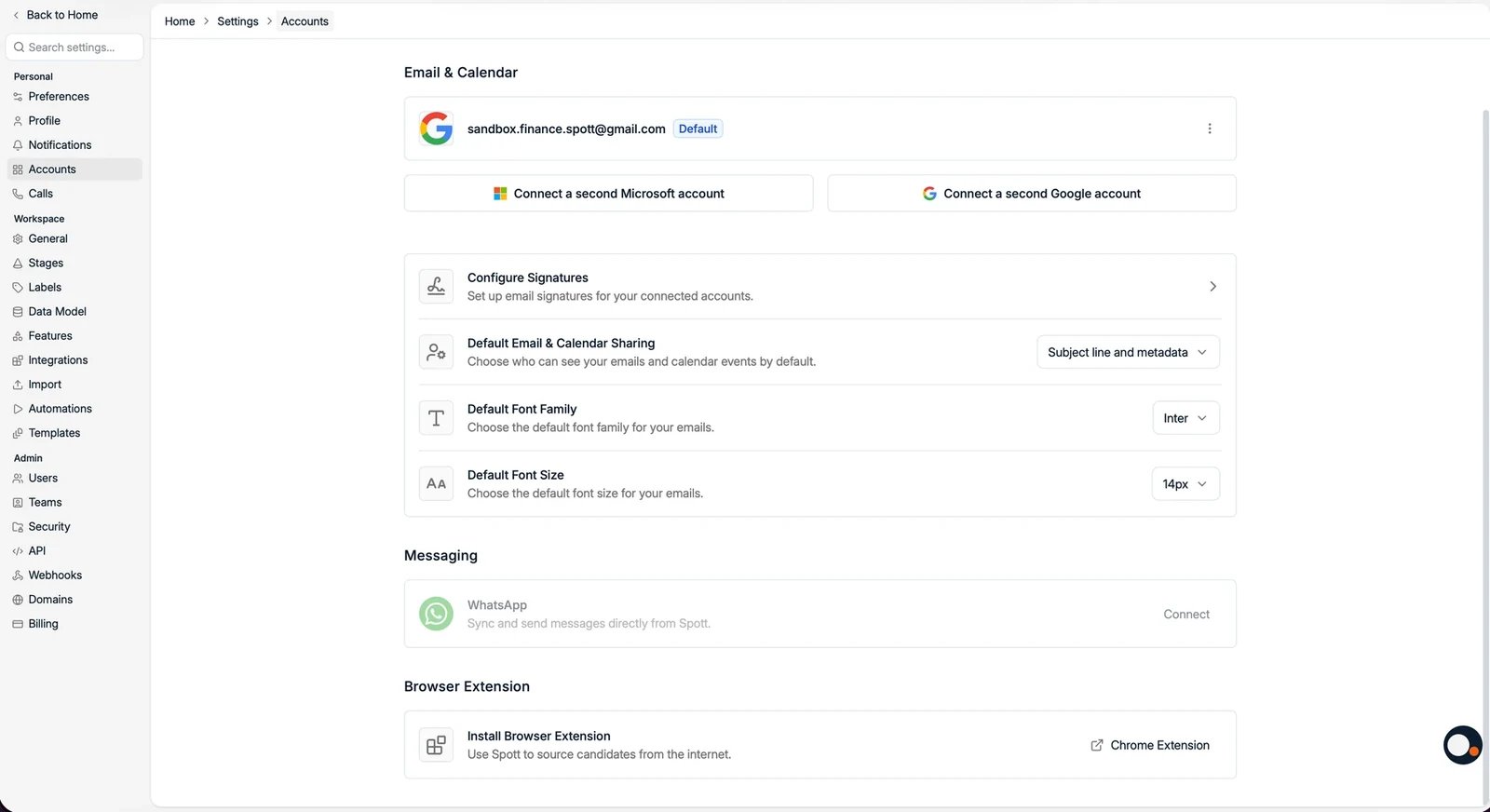 From the same page you can configure:
* **Configure Signatures**: set up email signatures for your connected accounts.
* **Default Email & Calendar Sharing**: control what colleagues see of your synced
emails and events, from **Metadata only** to **Subject line and metadata** to full
access.
* **Default Font Family** and **Default Font Size** for the emails you write.
* **Blocklist**: block specific email addresses or entire domains from the email
sync. Messages from blocked senders are hidden across Spott and no longer
imported, keeping your database clean. Changes can take some time to apply.
If a single synced email should not be in Spott, for example because it contains
confidential information, you can also **delete that individual email** from the
mail sync.
A generic mailbox such as `jobs@` or `info@` can be linked to **one Spott account
only**. Campaigns from that address therefore run from that single account.
## Messaging
Connect **WhatsApp** to sync and send WhatsApp messages directly from Spott.
## Browser Extension
Install the **Chrome Extension** to source candidates from the internet. See the
[Chrome extension guide](/docs/settings/chrome-extension) for how to use it.
From the same page you can configure:
* **Configure Signatures**: set up email signatures for your connected accounts.
* **Default Email & Calendar Sharing**: control what colleagues see of your synced
emails and events, from **Metadata only** to **Subject line and metadata** to full
access.
* **Default Font Family** and **Default Font Size** for the emails you write.
* **Blocklist**: block specific email addresses or entire domains from the email
sync. Messages from blocked senders are hidden across Spott and no longer
imported, keeping your database clean. Changes can take some time to apply.
If a single synced email should not be in Spott, for example because it contains
confidential information, you can also **delete that individual email** from the
mail sync.
A generic mailbox such as `jobs@` or `info@` can be linked to **one Spott account
only**. Campaigns from that address therefore run from that single account.
## Messaging
Connect **WhatsApp** to sync and send WhatsApp messages directly from Spott.
## Browser Extension
Install the **Chrome Extension** to source candidates from the internet. See the
[Chrome extension guide](/docs/settings/chrome-extension) for how to use it.