> ## Documentation Index
> Fetch the complete documentation index at: https://docs.spott.io/llms.txt
> Use this file to discover all available pages before exploring further.
# Self-migration guide
> Bring your candidates into Spott yourself, with CSV import or bulk CV upload.
If you are migrating without help from our internal teams, you have two ways to get your
candidates into Spott. Pick whichever matches the shape of the data you are holding.
Migrating a full ATS with jobs, applications, and history? Our team can run that for
you instead. See [Data migration](/docs/get-started/data-migration).
## 1. Import a candidate CSV
The import wizard bulk adds candidates to Spott, for example when migrating from another
system or uploading a sourcing list. Each row in your file becomes one candidate. You can
import **up to 1,000 records** per import, from **CSV or Excel (.xlsx)** files.
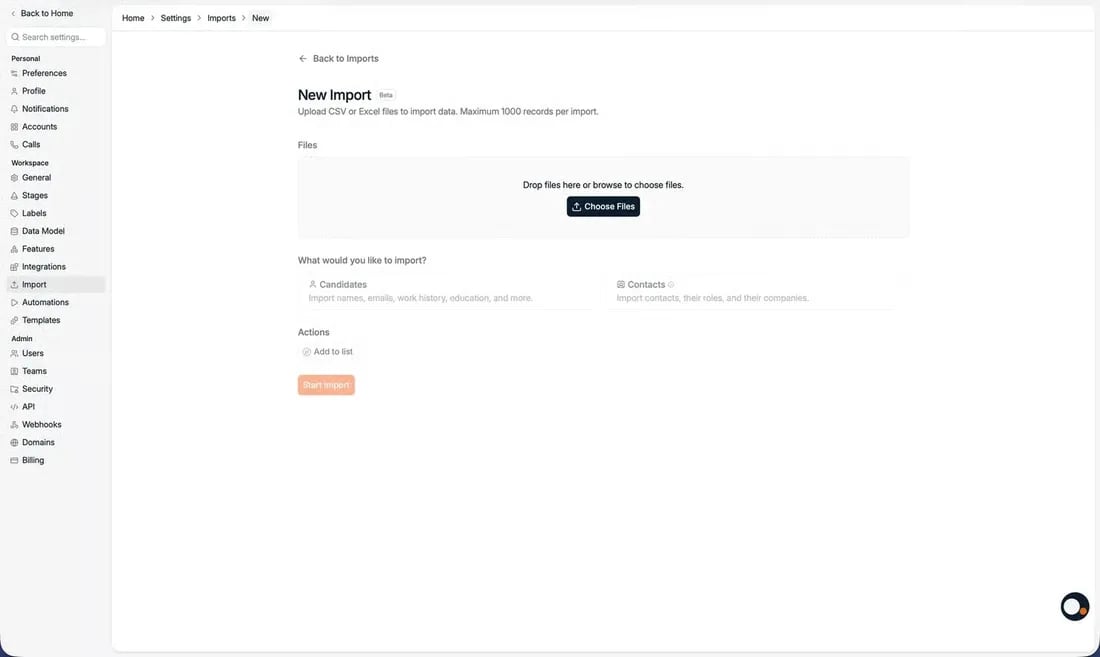 The wizard guides you through mapping your columns onto Spott fields, then runs the
import. Here is what the experience looks like end to end:
Candidates can be imported straight into jobs and lists. Contacts can be imported
straight into lists.
**CSV import limitations**
* Only system fields can be imported via CSV. Custom fields are either added as notes
or skipped from the import.
* Candidates and contacts can be **created** via CSV, but not **updated**. An import
that matches an existing profile adds it to the job or list without overwriting its
data.
* Companies cannot be created via CSV directly. However, if you import a list of
contacts, their associated company is created as part of the import.
Column by column: what each field expects, and how matching works.
## 2. Import CVs in batches of 1,000
If your data lives as CV files rather than a spreadsheet, upload them and let Spott parse
each one into a candidate record.
You can upload **up to 1,000 CVs at once**. Above 20 CVs there is no preview step, so the
records are created directly. Duplicate records are flagged in red and you decide whether
to create them anyway or skip them.
Every route into the database, including maildrop and the extension.
How Spott spots duplicates and how to merge them.
Now that your data is in, start adding to it and working the records.
The wizard guides you through mapping your columns onto Spott fields, then runs the
import. Here is what the experience looks like end to end:
Candidates can be imported straight into jobs and lists. Contacts can be imported
straight into lists.
**CSV import limitations**
* Only system fields can be imported via CSV. Custom fields are either added as notes
or skipped from the import.
* Candidates and contacts can be **created** via CSV, but not **updated**. An import
that matches an existing profile adds it to the job or list without overwriting its
data.
* Companies cannot be created via CSV directly. However, if you import a list of
contacts, their associated company is created as part of the import.
Column by column: what each field expects, and how matching works.
## 2. Import CVs in batches of 1,000
If your data lives as CV files rather than a spreadsheet, upload them and let Spott parse
each one into a candidate record.
You can upload **up to 1,000 CVs at once**. Above 20 CVs there is no preview step, so the
records are created directly. Duplicate records are flagged in red and you decide whether
to create them anyway or skip them.
Every route into the database, including maildrop and the extension.
How Spott spots duplicates and how to merge them.
Now that your data is in, start adding to it and working the records.