> ## Documentation Index
> Fetch the complete documentation index at: https://docs.spott.io/llms.txt
> Use this file to discover all available pages before exploring further.

# Home dashboard

> See what needs attention, track your progress, and open the records behind each number.

<div className="in-this-section">
  In this section you learn how to read your recruitment activity, review your pipeline and
  open jobs, set performance targets, and find records from the home dashboard.

  <div className="section-links">
    1. [Understand your performance](#1-understand-your-performance)
    2. [Review your current pipeline and open work](#2-review-your-current-pipeline-and-open-work)
    3. [Find a record with global search](#3-find-a-record-with-global-search)
  </div>
</div>

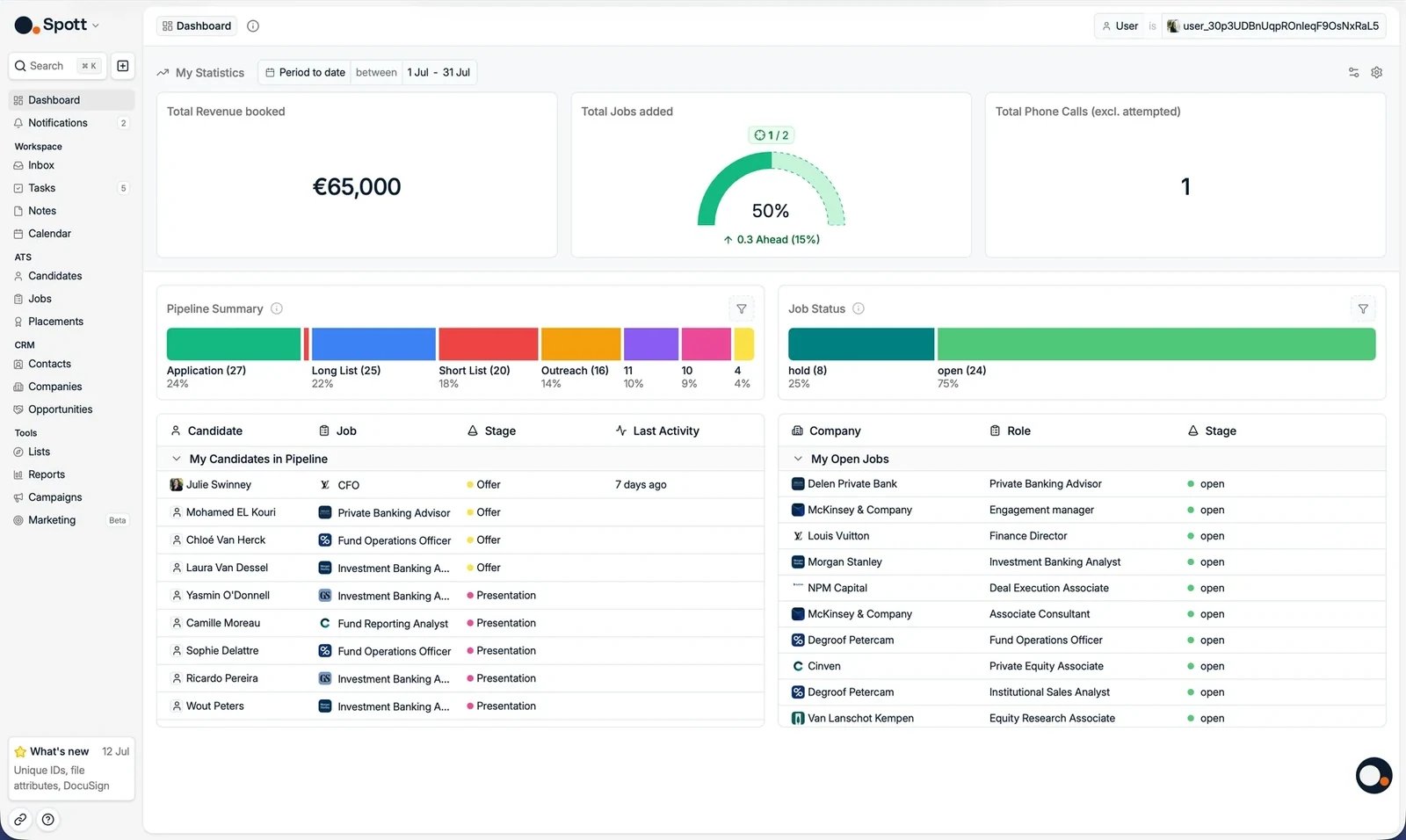
The dashboard is your personal home screen when you open Spott. It gives you a real-time
snapshot of your recruitment activity, from revenue and calls to open jobs and candidate
progress. If you are elsewhere in the platform, click **Dashboard** at the top of the
left-hand navigation bar, or use the two-key shortcut: press **G**, then **D**.

<Frame>
  <img src="https://mintcdn.com/spott-docs/p014P0_PfappR2TU/images/general/dashboard-overview.webp?fit=max&auto=format&n=p014P0_PfappR2TU&q=85&s=494b405ea288b27ecd0dce9c26121284" alt="The Spott home dashboard" width="1600" height="956" data-path="images/general/dashboard-overview.webp" />
</Frame>

## 1. Understand your performance

The **My statistics** area gives you a real-time view of recruitment activity for the
period and the people you select.

### 1.1 Choose whose activity and which period to review

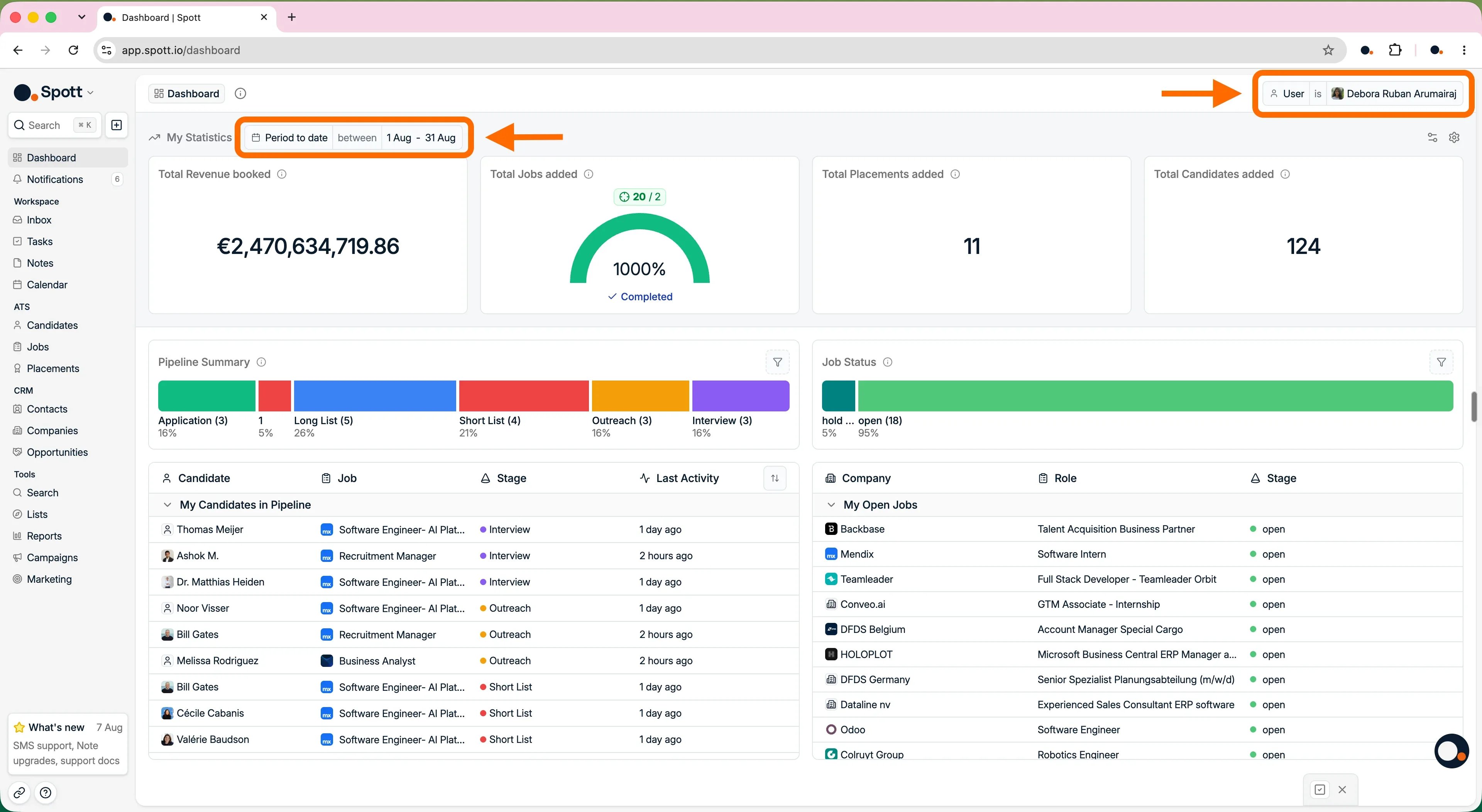
Use the **time period filter** in the top right corner to review figures for this week,
this month, this quarter, or a custom date range.

If you have permission to manage analytics, use the **user filter** to switch between your
own activity, a teammate, or a team.

<Note>
  Without permission to manage analytics the user filter does not appear, and the
  dashboard shows only your own figures.
</Note>

<Frame>
  <img src="https://mintcdn.com/spott-docs/9Q5zDbUG9mqD9No8/images/onboarding/dashboard-filters.webp?fit=max&auto=format&n=9Q5zDbUG9mqD9No8&q=85&s=591105c2f0d90263f781212c7e3d115a" alt="The user filter and time period filter above the metric cards" width="3840" height="2104" data-path="images/onboarding/dashboard-filters.webp" />
</Frame>

### 1.2 Choose which metrics appear

Open **Configure Dashboard** from the gear icon to choose the metric cards shown at the top
of the dashboard. Drag the cards into the order that makes the most sense for your team.

<AccordionGroup>
  <Accordion title="Available metrics">
    * **Revenue and hiring:** total revenue booked, total placements added, total jobs
      added, and total candidates added.
    * **Calls and meetings:** total phone calls excluding attempted calls, total outbound
      calls, total online meetings, and total in-person meetings.
    * **CV activity:** total CVs sent, total standard CVs sent, and total speculative CVs
      sent. These totals are mapped to stages in the
      [settings](/docs/settings/stages).
    * **Interview activity:** total 1st interviews, total 1st standard interviews, and
      total 1st speculative interviews.
    * **Conversion:** CV sent fill rate and 1st interview fill rate.
  </Accordion>
</AccordionGroup>

<Warning>
  Dashboard configuration is workspace-wide. Turning a metric on or off changes
  everybody's dashboard, not only yours.
</Warning>

<video className="w-full aspect-video rounded-xl" autoPlay muted loop playsInline controls preload="metadata" src="https://spott-media.b-cdn.net/docs/onboarding/v3/dashboard-configure.mp4" />

### 1.3 Set targets and track progress

Open **Configure Targets** to set a goal per user and per metric. The target grid has one
row per teammate and one column per metric. Leave a cell at **0** when that target does not
apply to someone.

Choose the **time window for targets**, for example **Every month**, to define the period
each target covers. Metric cards then show actual performance against the goal for the
dashboard period you are looking at.

<Warning>
  Changing the target time window rescales every target value automatically. Targets also
  scale to match your dashboard filter, so a monthly target of 20 appears as 5 in a weekly
  view.
</Warning>

<video className="w-full aspect-video rounded-xl" controls playsInline preload="metadata" poster="/images/onboarding/dashboard-targets-poster.webp" src="https://spott-media.b-cdn.net/docs/onboarding/v3/dashboard-targets.mp4" />

### 1.4 Open the records behind a number

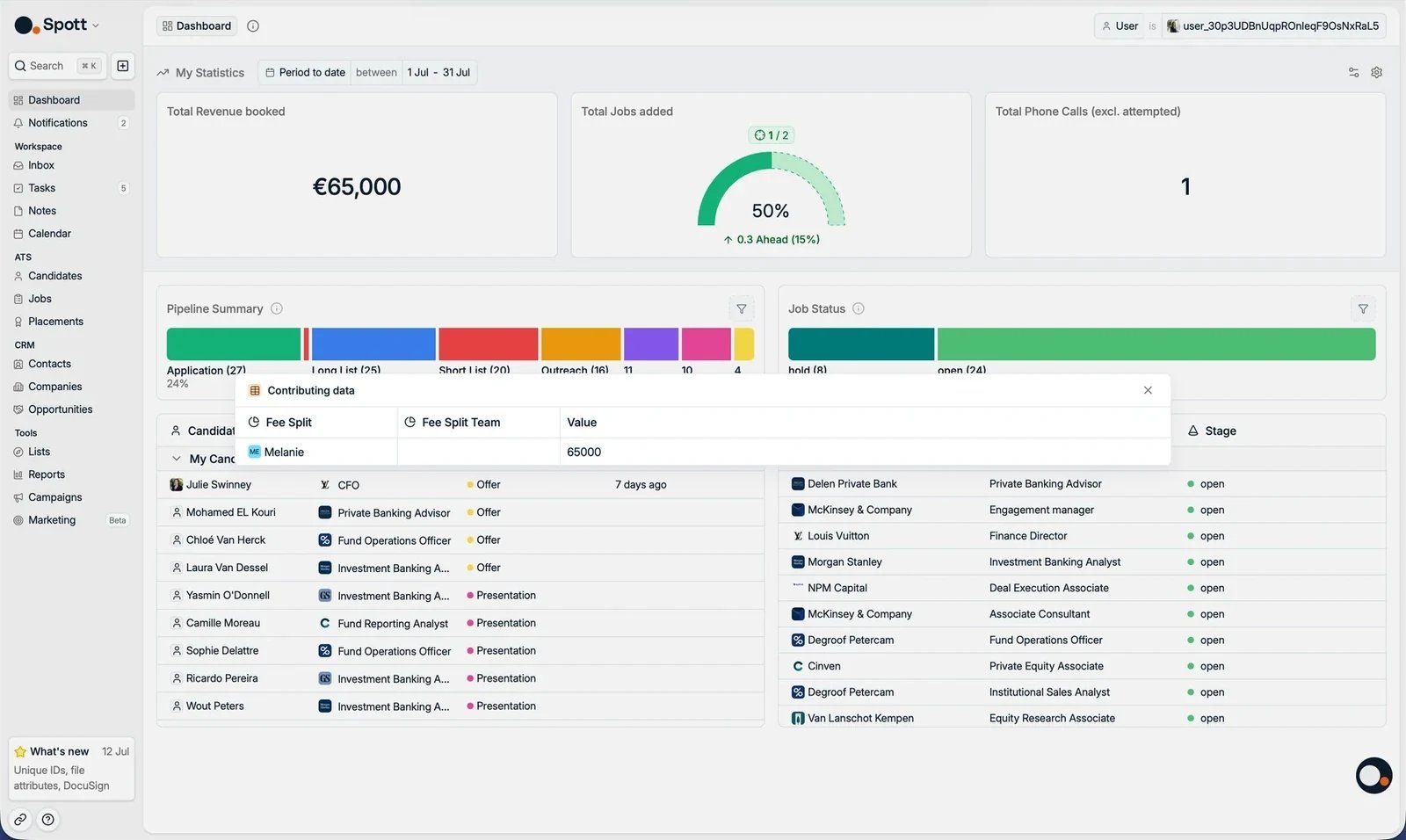
Click any metric card to see the records included in its total. Click **12 CVs sent**, for
example, to review which twelve CVs were sent.

<Frame>
  <img src="https://mintcdn.com/spott-docs/p014P0_PfappR2TU/images/general/dashboard-drilldown.webp?fit=max&auto=format&n=p014P0_PfappR2TU&q=85&s=4555563155423226de6076b752459137" alt="Drilling down from a metric card into the records behind it" width="1600" height="956" data-path="images/general/dashboard-drilldown.webp" />
</Frame>

<Note>
  Dashboard metrics are a fixed set. To measure something these cards do not cover, build
  a custom insight in [Reports](/docs/onboarding/reporting), or see
  [building reports](/docs/get-started/reports) for the full builder.
</Note>

## 2. Review your current pipeline and open work

The lower part of the dashboard shows what is moving through your pipeline, and lets you
open the applications, candidates, and jobs behind it.

### 2.1 Check Pipeline summary and Job status

Use these two panels to understand the volume behind each stage or status:

* **[Pipeline summary](/docs/jobs/job-pipeline)** shows the applications you own in each
  pipeline stage. Sort the
  panel to put the stages you use most at the top, then click a stage to see the
  applications behind its total.
* **Job status** shows the jobs you are a team member on, grouped by status. Click a status
  to see the jobs behind its total.

### 2.2 Open a candidate from My candidates in pipeline

Use **My candidates in pipeline** to review the candidates you are managing across active
job stages. Each row shows the candidate, job, client, current stage, and recent activity.
Click a row to open the application.

### 2.3 Open a job from My open jobs

Use **My open jobs** to review the active roles you own or collaborate on. Click a job to
open its record and carry on working on it.

<Note>
  The dashboard updates in real time as you log calls, add candidates, or move applications
  through stages.
</Note>

## 3. Find a record with global search

Global search opens a record directly when you already know who or what you need.

### 3.1 Search from anywhere

Click **Search** in the top left corner, or press `⌘K` / `Ctrl+K`. See
[global search](/docs/get-started/global-search) for everything it matches. You can search for:

* **People and organisations:** candidates, contacts, and companies by name.
* **Contact details:** phone numbers and email addresses.
* **Unique identifiers:** any supported record by its unique identifier, when that feature
  is turned on in the settings.

<video className="w-full aspect-video rounded-xl" controls playsInline preload="metadata" poster="/images/onboarding/dashboard-global-search-poster.webp" src="https://spott-media.b-cdn.net/docs/onboarding/v3/dashboard-global-search.mp4" />

<CardGroup cols={2}>
  <Card title="Dashboard reference" icon="gauge" href="/docs/get-started/dashboard">
    Every card on the dashboard, the targets, the drill-downs, and who can see what.
  </Card>

  <Card title="Keyboard shortcuts" icon="keyboard" href="/docs/settings/keyboard-shortcuts">
    The two-key jumps like G then D, and the rest of them.
  </Card>
</CardGroup>

<div className="your-turn">
  ## Now your turn

  * [ ] Open **one candidate** from **My candidates in pipeline**
  * [ ] Use the **global search bar** to find a record
  * [ ] Set a **target** on one metric and check how you are tracking
</div>

<Card title="Next: inbox and calendar" icon="arrow-right" href="/docs/onboarding/inbox-calendar">
  Email and meetings, in one place.
</Card>