> ## Documentation Index
> Fetch the complete documentation index at: https://docs.spott.io/llms.txt
> Use this file to discover all available pages before exploring further.
# Billing and credits
> Check your seats, read your credit balance, and top up when you run low.
The **Billing** tab is where you check what your workspace is entitled to and how many
AI credits you have left. Open it from **Settings → Billing**.
Billing is an admin area. If you do not see it in the settings sidebar, your role does
not have access to it.
## 1. Billing section
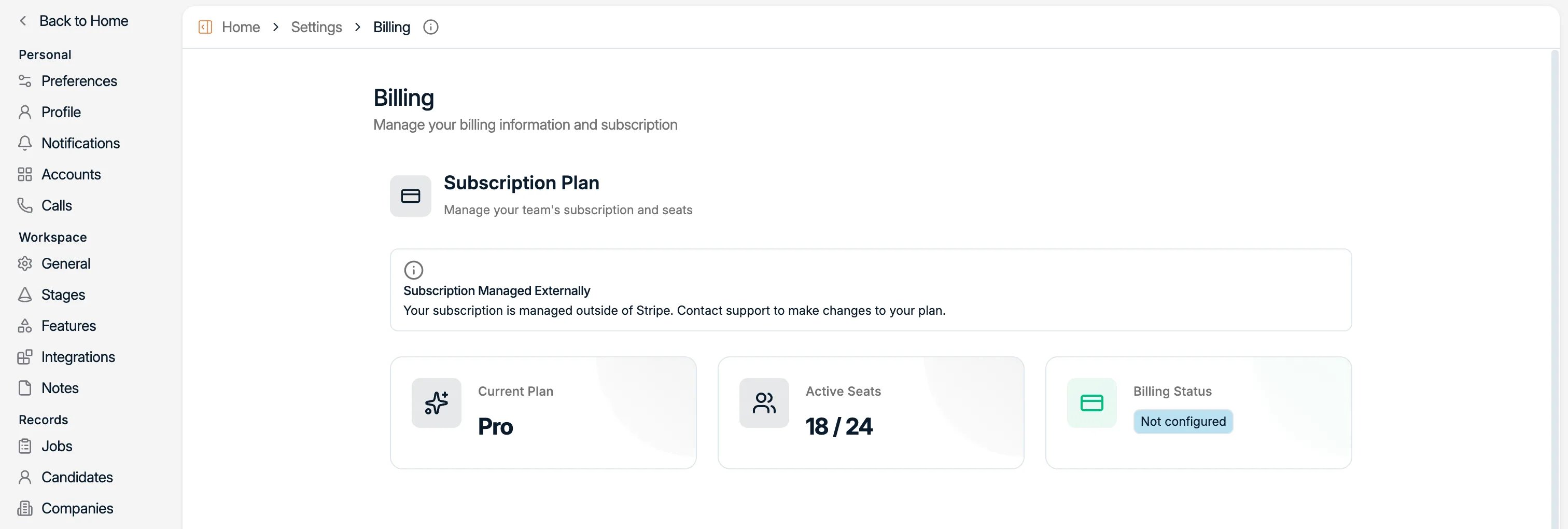
Here you find the number of active seats against your entitlement, along with your
current plan and billing status.
 ## 2. Credits section
Credits are what AI actions in Spott spend: enriching a profile, auto-updating a record,
and similar. This section shows your balance and lets you buy more.
## 2. Credits section
Credits are what AI actions in Spott spend: enriching a profile, auto-updating a record,
and similar. This section shows your balance and lets you buy more.
 ### 2.1 What you can see
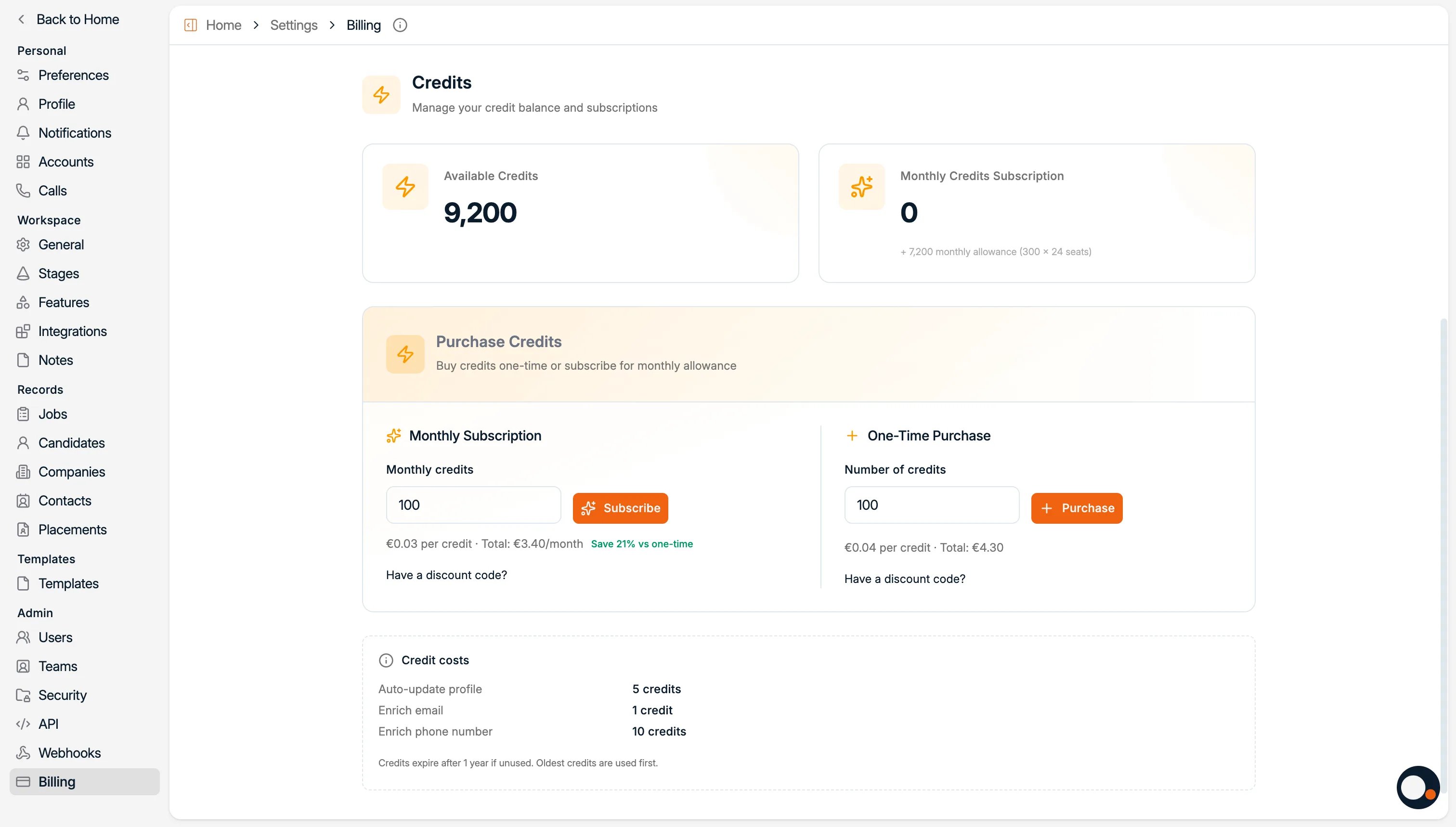
* **Available credits**: what you can use right now.
* **Monthly subscription**: credits you receive each month, if you are subscribed.
* **Credit costs**: how many credits each action uses.
### 2.2 What you can do
* **Subscribe monthly** for discounted credits.
* **Buy credits one-time** as needed.
Credits are pooled at workspace level, so the balance you see is shared across your
whole team rather than held per user.
## 3. Where credits get spent
Enrichment is the main consumer of credits. If you want the full picture of what each
action costs before you turn features on, the reference pages go deeper:
What enrichment finds, and what each lookup costs.
Keep profiles current automatically, and what that spends.
Import your candidates yourself with CSV or bulk CV upload.
### 2.1 What you can see
* **Available credits**: what you can use right now.
* **Monthly subscription**: credits you receive each month, if you are subscribed.
* **Credit costs**: how many credits each action uses.
### 2.2 What you can do
* **Subscribe monthly** for discounted credits.
* **Buy credits one-time** as needed.
Credits are pooled at workspace level, so the balance you see is shared across your
whole team rather than held per user.
## 3. Where credits get spent
Enrichment is the main consumer of credits. If you want the full picture of what each
action costs before you turn features on, the reference pages go deeper:
What enrichment finds, and what each lookup costs.
Keep profiles current automatically, and what that spends.
Import your candidates yourself with CSV or bulk CV upload.