> ## Documentation Index
> Fetch the complete documentation index at: https://docs.spott.io/llms.txt
> Use this file to discover all available pages before exploring further.
# Spott Note Taker
> Connect your calendar and let the Spott Note Taker transcribe and summarize your Zoom, Teams, and Google Meet meetings.
The Spott Note Taker joins your online meetings, transcribes them in any language,
and turns them into structured meeting notes.
## Quickstart
1. Connect your **Microsoft Outlook** or **Google** calendar under
**Settings → Accounts**. Spott syncs your calendar on a rolling basis to identify
upcoming online meetings.
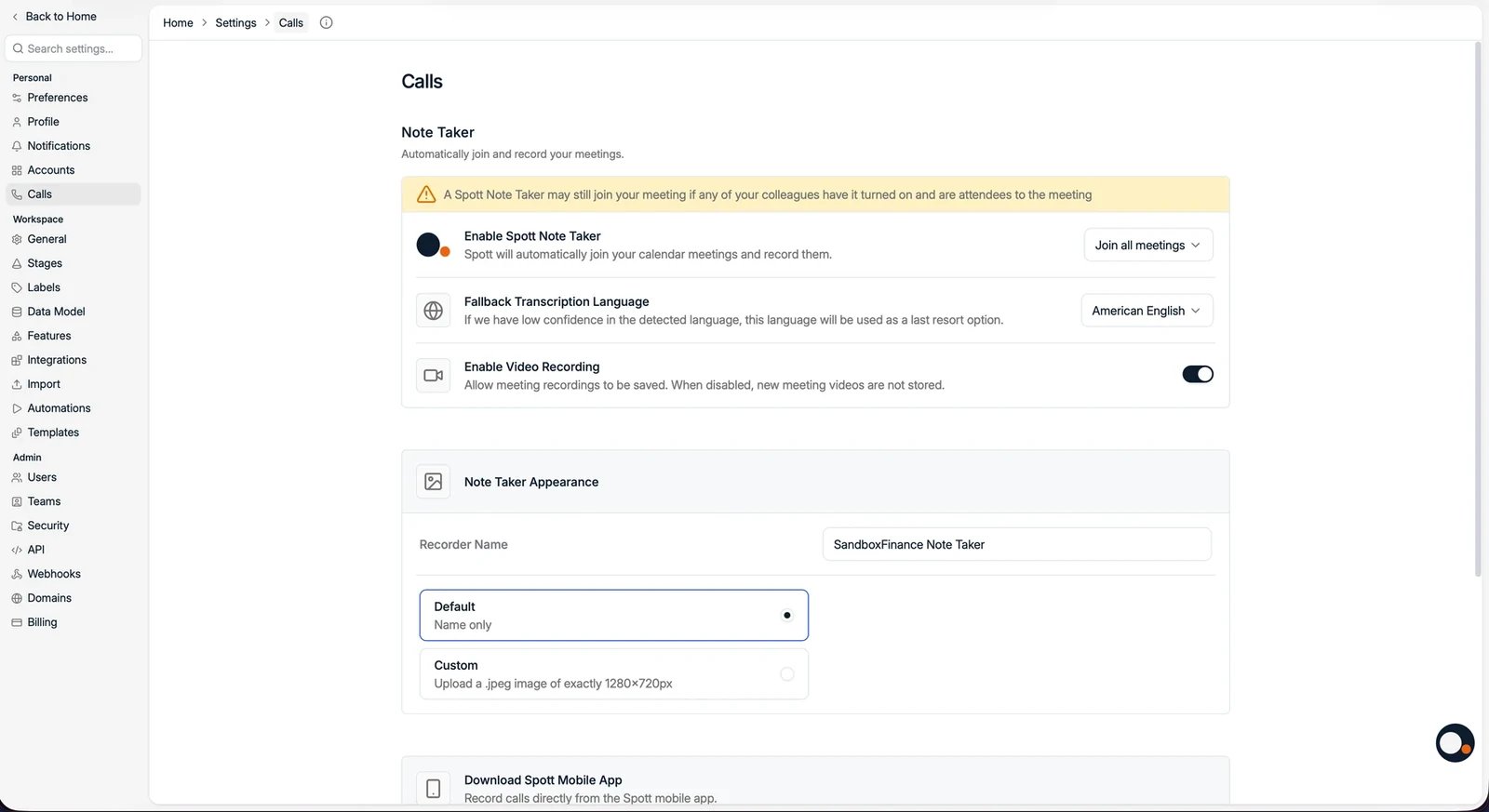
2. Go to **Settings → Calls** and toggle **Enable Spott Note Taker** on.
3. Accept the terms and conditions.
 Spott only joins meetings that include a valid Zoom, Teams, or Google Meet link.
## How it works
Once enabled, the Note Taker will:
* Schedule the Spott bot to join the **lobby** of your future online meetings from
your synced calendar. Meetings do not need to be created in Spott.
* Join when admitted by the organizer.
* Capture the meeting to **transcribe** what was said, regardless of language, and
generate concise, structured meeting minutes. These appear in Spott typically 2 to
5 minutes after the meeting ends.
The summaries follow the **Insights templates** you can customize in Settings. The
Note Taker can be denied or removed from any meeting at any time; you stay in
control.
Spott only joins meetings that include a valid Zoom, Teams, or Google Meet link.
## How it works
Once enabled, the Note Taker will:
* Schedule the Spott bot to join the **lobby** of your future online meetings from
your synced calendar. Meetings do not need to be created in Spott.
* Join when admitted by the organizer.
* Capture the meeting to **transcribe** what was said, regardless of language, and
generate concise, structured meeting minutes. These appear in Spott typically 2 to
5 minutes after the meeting ends.
The summaries follow the **Insights templates** you can customize in Settings. The
Note Taker can be denied or removed from any meeting at any time; you stay in
control.
 ## Video recording
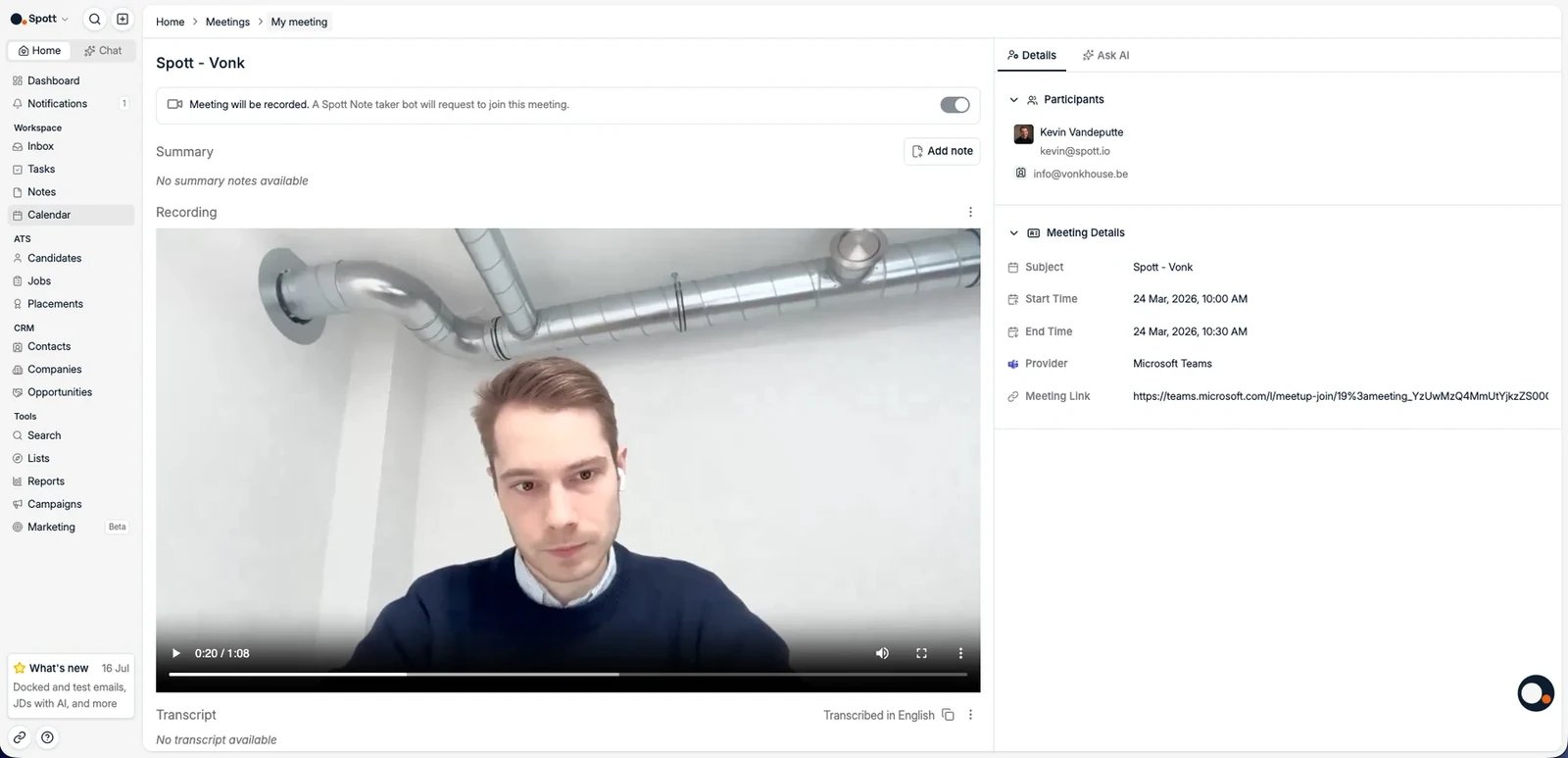
Admins can decide whether **video recording** is enabled for the whole workspace with
the **Enable Video Recording** setting. When disabled, new meeting videos are not
stored. Individual recordings can also be **deleted per meeting**; deletion is
permanent.
## Data and privacy
* Spott accesses your meeting metadata to schedule the Note Taker.
* The Note Taker only has access to the meeting when accepted into it.
* Recordings, transcripts, and minutes are stored for your organization.
* You can disconnect Spott at any time to stop future meeting joins.
## Disabling the Note Taker
Toggle **Enable Spott Note Taker** off in **Settings → Calls**. This immediately
unschedules the bot from upcoming meetings and stops scheduling it for new ones.
Existing transcripts and summaries are retained for your team.
## Troubleshooting
**Note Taker not showing up?** Make sure the calendar event has a valid Zoom, Teams,
or Google Meet link and was created in the connected account. Meetings the Note Taker
will join show a small camera icon in the Spott Calendar.
**Note Taker did not join?** Check that the toggle is enabled and that the organizer
did not reject it from the lobby.
## Important considerations
* **Other participants can trigger the Note Taker.** Even if you disabled it, the bot
may join if another invited participant has automatic joining enabled.
* **Settings changes take time** to apply to already-scheduled meetings.
## Video recording
Admins can decide whether **video recording** is enabled for the whole workspace with
the **Enable Video Recording** setting. When disabled, new meeting videos are not
stored. Individual recordings can also be **deleted per meeting**; deletion is
permanent.
## Data and privacy
* Spott accesses your meeting metadata to schedule the Note Taker.
* The Note Taker only has access to the meeting when accepted into it.
* Recordings, transcripts, and minutes are stored for your organization.
* You can disconnect Spott at any time to stop future meeting joins.
## Disabling the Note Taker
Toggle **Enable Spott Note Taker** off in **Settings → Calls**. This immediately
unschedules the bot from upcoming meetings and stops scheduling it for new ones.
Existing transcripts and summaries are retained for your team.
## Troubleshooting
**Note Taker not showing up?** Make sure the calendar event has a valid Zoom, Teams,
or Google Meet link and was created in the connected account. Meetings the Note Taker
will join show a small camera icon in the Spott Calendar.
**Note Taker did not join?** Check that the toggle is enabled and that the organizer
did not reject it from the lobby.
## Important considerations
* **Other participants can trigger the Note Taker.** Even if you disabled it, the bot
may join if another invited participant has automatic joining enabled.
* **Settings changes take time** to apply to already-scheduled meetings.