> ## Documentation Index
> Fetch the complete documentation index at: https://docs.spott.io/llms.txt
> Use this file to discover all available pages before exploring further.
# Lists
> Create and use Lists in Spott to organize and collaborate on Candidates, Contacts, and Companies.
The **Lists** feature in Spott lets you group records into custom collections across **Candidates**, **Contacts**, and **Companies**.
Lists are ideal for keeping track of important records, such as a hotlist of highly placeable candidates.
**Lists are static, views are dynamic.** A list holds exactly the records you put in
it until you add or remove one yourself. A [view](/docs/settings/using-views) is a
saved set of filters, so records join and leave it on their own as they start or stop
matching. Use a list for a curated shortlist you want to keep working this quarter
even when those candidates no longer match the filter that found them. Lists still
support filtering, exporting, and saved views inside them.
## Create a new List
### Step 1. Open the Lists page
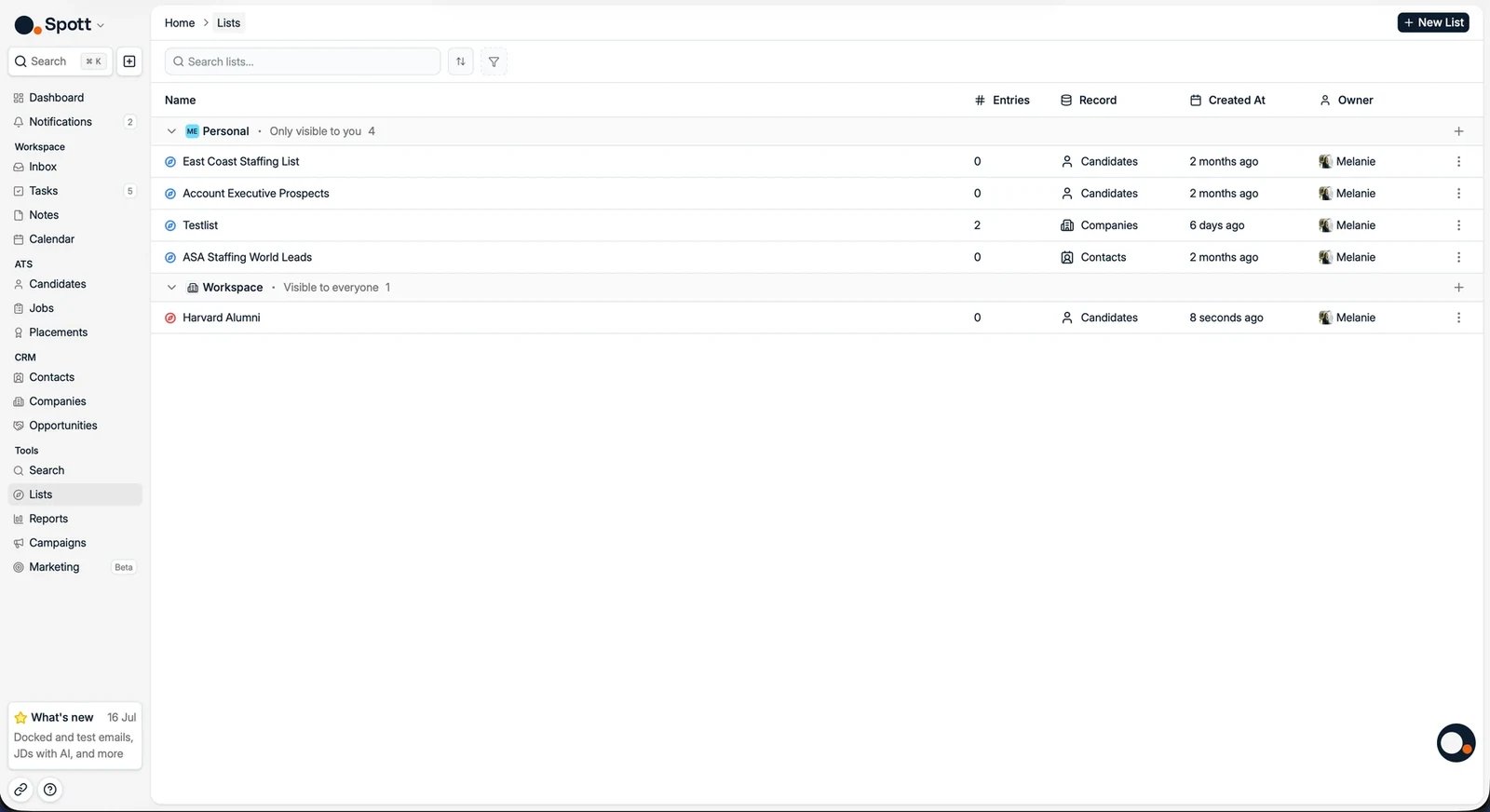
At the top of the page, you will find the **New List** button along with the Lists you have already created. Lists are grouped into **Personal** (only visible to you) and **Workspace** (visible to everyone).
 ### Step 2. Choose an entity type
When creating a new List, select one of the following types:
* Candidates
* Companies
* Contacts
## Work with a List
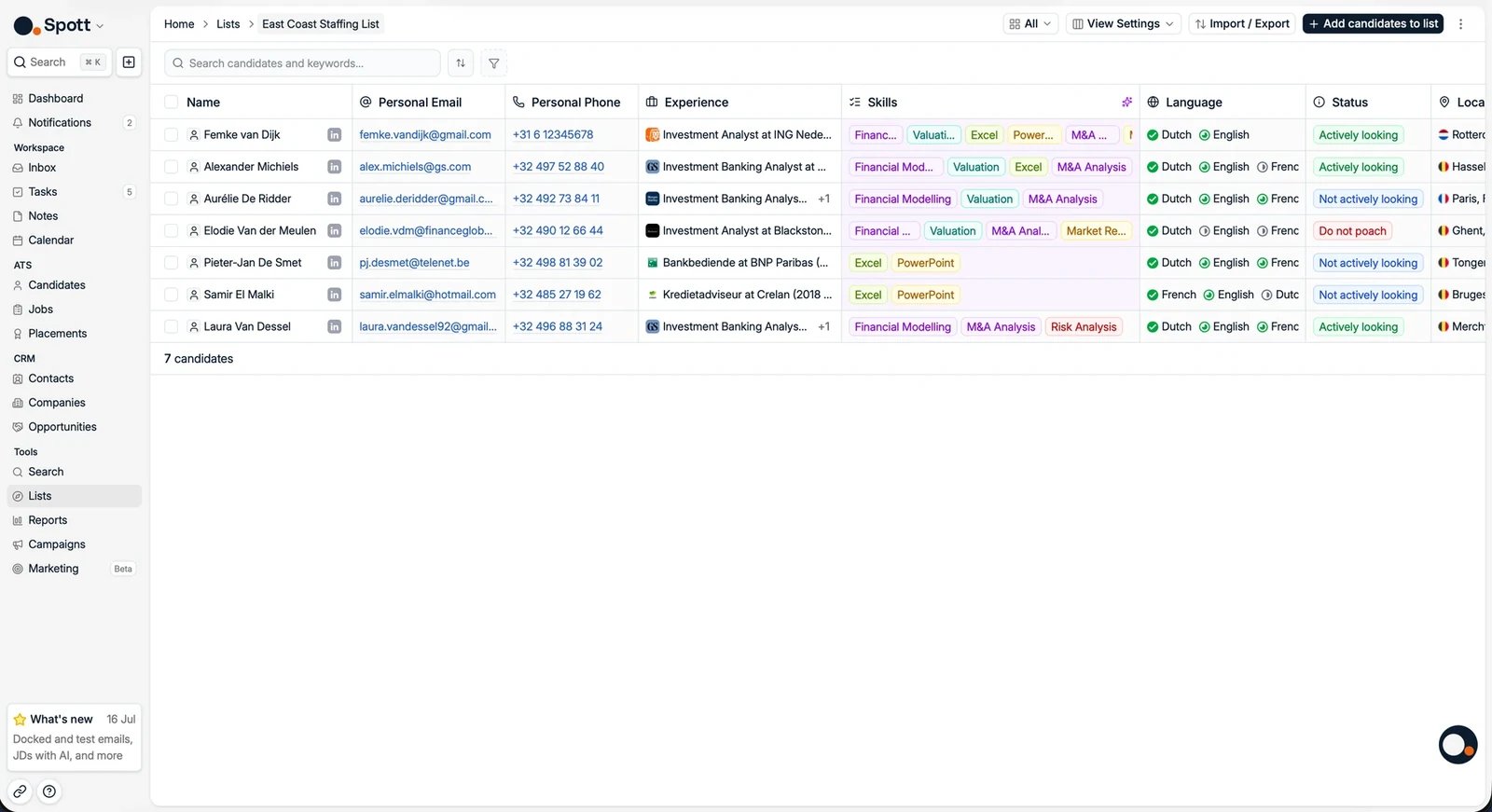
Once inside a List, you can manage its contents and configuration in several ways.
### Add items to a List
You can add records to a List in multiple ways:
* **Manually**, by clicking **Add items** in the top right and selecting records directly in Spott
* **By [importing a CSV or Excel file](/docs/get-started/import-csv)**, to bulk add
candidates, contacts, or companies
### Step 2. Choose an entity type
When creating a new List, select one of the following types:
* Candidates
* Companies
* Contacts
## Work with a List
Once inside a List, you can manage its contents and configuration in several ways.
### Add items to a List
You can add records to a List in multiple ways:
* **Manually**, by clicking **Add items** in the top right and selecting records directly in Spott
* **By [importing a CSV or Excel file](/docs/get-started/import-csv)**, to bulk add
candidates, contacts, or companies
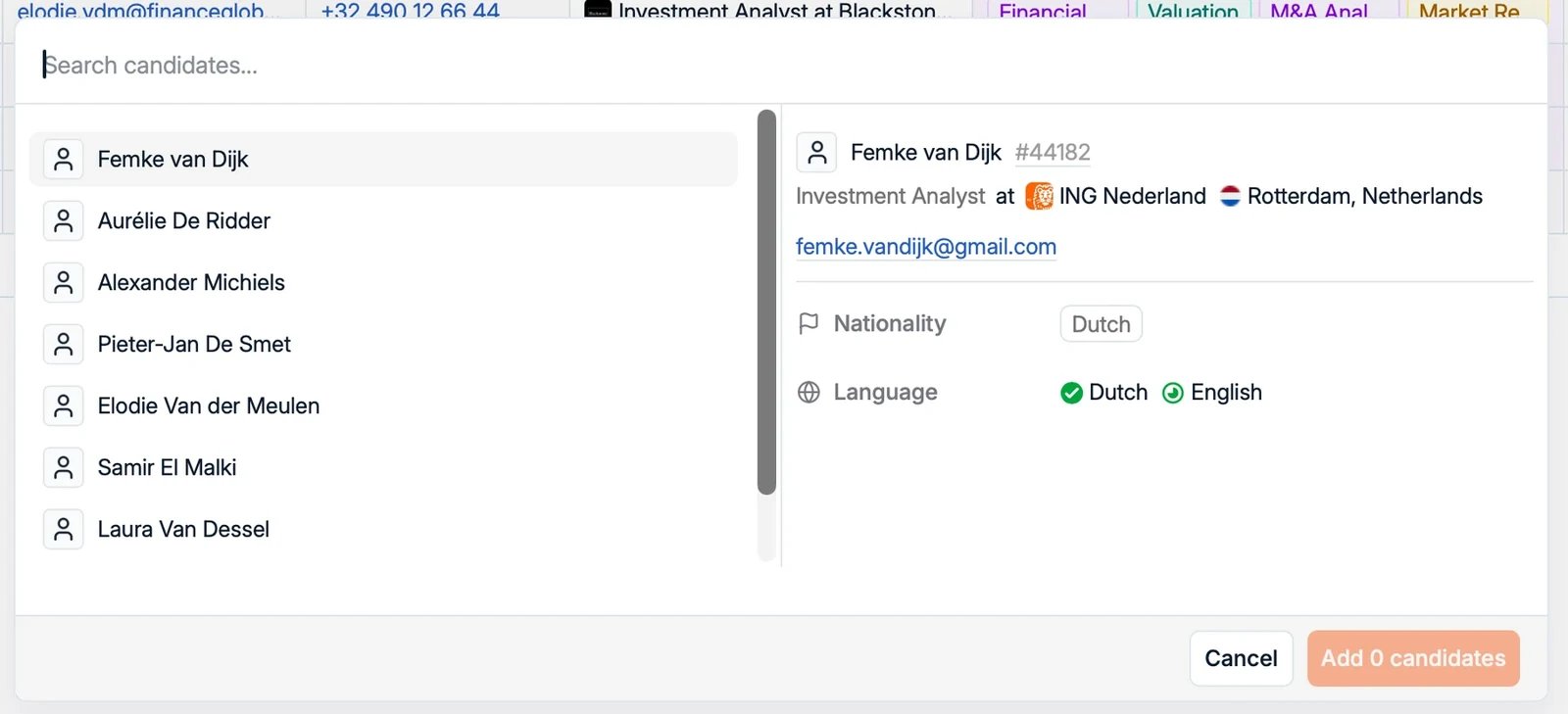 You can also add Candidates, Companies or Contacts by selecting the one or multiple checkboxes next to their name.
A list holds up to **10,000 records**, added in batches of 1,000.
You can also add Candidates, Companies or Contacts by selecting the one or multiple checkboxes next to their name.
A list holds up to **10,000 records**, added in batches of 1,000.
 ### Take action on a List
A list is a working set, not just a folder. Select records inside it and act on them
in bulk:
* **Send an email** to the people on the list
* **Present candidates** to a client, straight from the list. See
[presenting candidates](/docs/candidates/presenting-candidates)
* **Enroll them in a campaign**, so a whole shortlist enters a sequence at once. See
[campaigns](/docs/outreach/campaigns)
### Export a List
Lists can be exported to **Excel** with **Export as Excel**, making it easy to share data or work with it outside of Spott.
### See which lists a record is on
**List membership** is available as a column on the Candidate, Contact, and Company
tables, so you can see at a glance which lists a record belongs to. You can also
**filter on it**, which is how you answer questions like "who on this shortlist has not
been contacted yet". On a candidate or contact, the lists they are on also show in the
**side panel** of their record.
### Filter, Sort and save views
Lists support the same filtering and usability features you are used to on record pages. You can apply filters and save views for quick access. See
[using views](/docs/settings/using-views).
Filtering on a user offers **deactivated users** as well as active ones, so a list built
by someone who has since left is still findable by their name.
## Manage List settings
You can update List settings at any time:
* Change the **name** of a List
* **Duplicate** a List to create a new one based on an existing setup
* Control **visibility** via the three-dot menu with **Change visibility**: a List is either **only visible to you** or **visible to everyone**
### Take action on a List
A list is a working set, not just a folder. Select records inside it and act on them
in bulk:
* **Send an email** to the people on the list
* **Present candidates** to a client, straight from the list. See
[presenting candidates](/docs/candidates/presenting-candidates)
* **Enroll them in a campaign**, so a whole shortlist enters a sequence at once. See
[campaigns](/docs/outreach/campaigns)
### Export a List
Lists can be exported to **Excel** with **Export as Excel**, making it easy to share data or work with it outside of Spott.
### See which lists a record is on
**List membership** is available as a column on the Candidate, Contact, and Company
tables, so you can see at a glance which lists a record belongs to. You can also
**filter on it**, which is how you answer questions like "who on this shortlist has not
been contacted yet". On a candidate or contact, the lists they are on also show in the
**side panel** of their record.
### Filter, Sort and save views
Lists support the same filtering and usability features you are used to on record pages. You can apply filters and save views for quick access. See
[using views](/docs/settings/using-views).
Filtering on a user offers **deactivated users** as well as active ones, so a list built
by someone who has since left is still findable by their name.
## Manage List settings
You can update List settings at any time:
* Change the **name** of a List
* **Duplicate** a List to create a new one based on an existing setup
* Control **visibility** via the three-dot menu with **Change visibility**: a List is either **only visible to you** or **visible to everyone**