> ## Documentation Index
> Fetch the complete documentation index at: https://docs.spott.io/llms.txt
> Use this file to discover all available pages before exploring further.
# Searching and Sorting Jobs in the Database
> Find and organize jobs in Spott using search, filters, and sorting options.
You can quickly navigate to the Jobs page with `G` then `J`. See all
[keyboard shortcuts](/docs/settings/keyboard-shortcuts).
## 1. Open the Jobs view
From the left-hand navigation bar, select **Jobs** to open your full job list.
 ## 2. Search with keywords
Use the search bar at the top of the Jobs view to find jobs by text in their fields.
The search bar supports full **Boolean queries** (AND, OR, NOT). Spott switches to
Boolean mode automatically when your query contains double quotes.
## 3. Filter your jobs
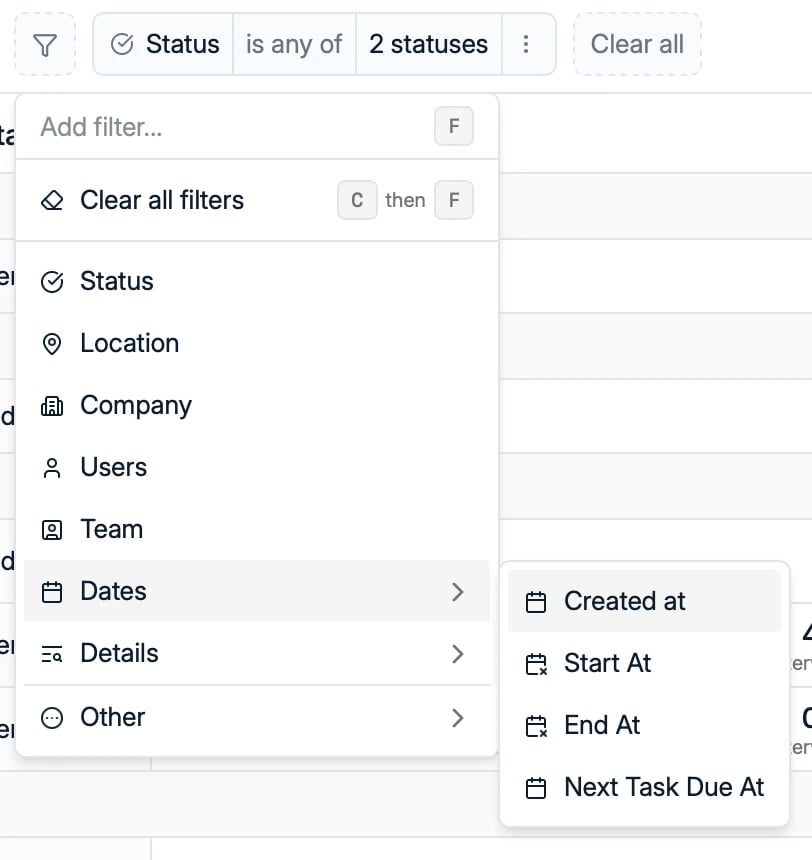
Open the **Filters** menu. Filters include:
* **Status**: the job's stage
* **Location** and **Company**
* **Users** and **Team**: who works on the job
* **Dates**: created at, start at, end at, and next task due
* **Details**: location type and employment type
* More fields under **Other**, such as the job name and target company
* Any **custom fields** your workspace has configured
You can combine multiple filters to narrow your results.
## 4. Sort your results
Arrange your job list by the field of your choice. Sorting options include:
* Name and Company Name
* Status
* Created at and Modified at
* Start At and End At
* Employment Type and Location Type
* Next Task Due At
Sorting can be applied together with filters to quickly focus on the most relevant
jobs.
Each filter you add appears as a chip at the top of the list. Remove any chip to
broaden your results again.
## 2. Search with keywords
Use the search bar at the top of the Jobs view to find jobs by text in their fields.
The search bar supports full **Boolean queries** (AND, OR, NOT). Spott switches to
Boolean mode automatically when your query contains double quotes.
## 3. Filter your jobs
Open the **Filters** menu. Filters include:
* **Status**: the job's stage
* **Location** and **Company**
* **Users** and **Team**: who works on the job
* **Dates**: created at, start at, end at, and next task due
* **Details**: location type and employment type
* More fields under **Other**, such as the job name and target company
* Any **custom fields** your workspace has configured
You can combine multiple filters to narrow your results.
## 4. Sort your results
Arrange your job list by the field of your choice. Sorting options include:
* Name and Company Name
* Status
* Created at and Modified at
* Start At and End At
* Employment Type and Location Type
* Next Task Due At
Sorting can be applied together with filters to quickly focus on the most relevant
jobs.
Each filter you add appears as a chip at the top of the list. Remove any chip to
broaden your results again.