> ## Documentation Index
> Fetch the complete documentation index at: https://docs.spott.io/llms.txt
> Use this file to discover all available pages before exploring further.
# How to Connect a LinkedIn Job Board post
> Link a LinkedIn job board post to Spott and receive inbound applications from LinkedIn for review.
You can quickly navigate to the Jobs page with `G` then `J`. See all
[keyboard shortcuts](/docs/settings/keyboard-shortcuts).
## 1. Make sure you have a connected email account on Spott where you can receive LinkedIn applications
Before creating a job board posting, make sure you have a connected email account that is synced with Spott:
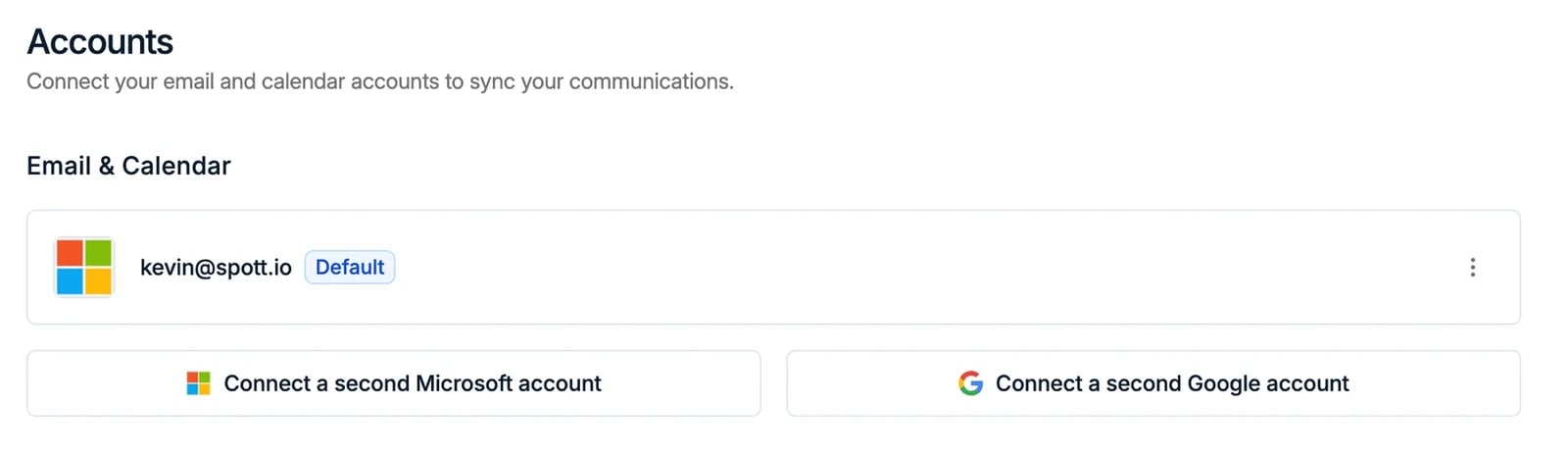 In Spott, go to **Settings → Accounts**.
* Find the **Outlook** or **Google** integration
* Make sure it is connected
* If it is not connected, click **Connect** and follow the login prompts
## 2. Create a Job Board post on LinkedIn
* When choosing the email on which you will receive applications, make sure to enter the email account that you connected to Spott in step 1.
## 3. Link your Job Board post to Spott
To link your job board advert to a Spott job:
1. Go to the **Jobs** tab
2. Open the relevant job
3. Navigate to the **Advertising** tab
4. Click **+ Connect to LinkedIn Job**
In Spott, go to **Settings → Accounts**.
* Find the **Outlook** or **Google** integration
* Make sure it is connected
* If it is not connected, click **Connect** and follow the login prompts
## 2. Create a Job Board post on LinkedIn
* When choosing the email on which you will receive applications, make sure to enter the email account that you connected to Spott in step 1.
## 3. Link your Job Board post to Spott
To link your job board advert to a Spott job:
1. Go to the **Jobs** tab
2. Open the relevant job
3. Navigate to the **Advertising** tab
4. Click **+ Connect to LinkedIn Job**
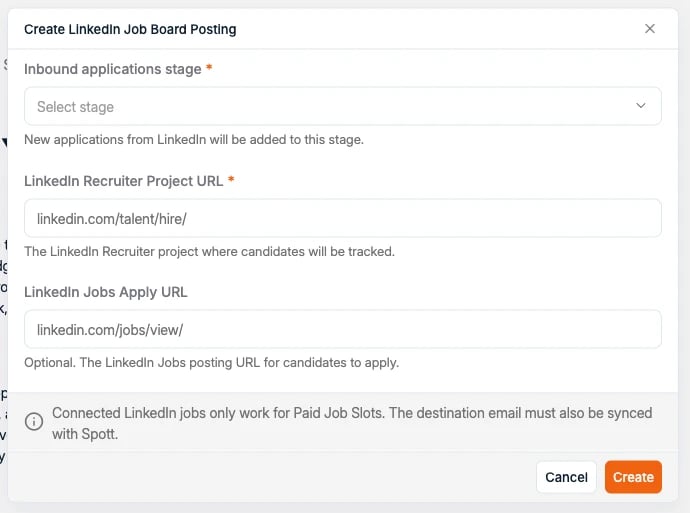 Before publishing, you must have created a **LinkedIn Recruiter Project** within LinkedIn Recruiter.
Once you start creating the posting in Spott, the LinkedIn job board settings will open.
Here you can configure:
* **Application stage**, the stage where inbound applications should be added
* **LinkedIn Project URL**, paste the URL of your LinkedIn Recruiter project
* **LinkedIn Application URL** (optional). If the job was already public, fill in the LinkedIn application URL
Once the job board posting is published, any inbound application from the LinkedIn job posting will be automatically added to your Spott candidate database. These details are parsed from the email sent by LinkedIn. This is why we need the email you receive applications on to be synced with Spott.
***
Before publishing, you must have created a **LinkedIn Recruiter Project** within LinkedIn Recruiter.
Once you start creating the posting in Spott, the LinkedIn job board settings will open.
Here you can configure:
* **Application stage**, the stage where inbound applications should be added
* **LinkedIn Project URL**, paste the URL of your LinkedIn Recruiter project
* **LinkedIn Application URL** (optional). If the job was already public, fill in the LinkedIn application URL
Once the job board posting is published, any inbound application from the LinkedIn job posting will be automatically added to your Spott candidate database. These details are parsed from the email sent by LinkedIn. This is why we need the email you receive applications on to be synced with Spott.
***