> ## Documentation Index
> Fetch the complete documentation index at: https://docs.spott.io/llms.txt
> Use this file to discover all available pages before exploring further.
# Job Visibility
> Restrict a confidential job to its owners or their teams, and know exactly what other users can and cannot see.
Some roles cannot be visible to the whole workspace: a confidential search for a key
client, or an internal hire on your own team. **Job visibility** limits a job to the
people working on it. Everyone else cannot open the job or see its pipeline.
Job visibility is a premium feature, only available through the **Enterprise** plan.
It works in two parts: a workspace-wide policy that decides who may see a restricted job,
and a box on each job that restricts it.
## Set the visibility policy
1. In Spott, go to **Settings**.
2. Open **Security** and go to the **Visibility policy** section.
3. Under **Job visibility**, choose who can see jobs with restricted visibility:
| Visibility | Who can see the job |
| - | - |
| No workspace policy | All users in the workspace (the default) |
| Restrict to job owners | Only the users listed as the job's owners |
| Restrict to job owners and their teams | The job's owners, plus every member of the [teams](/docs/settings/managing-teams) those owners belong to |
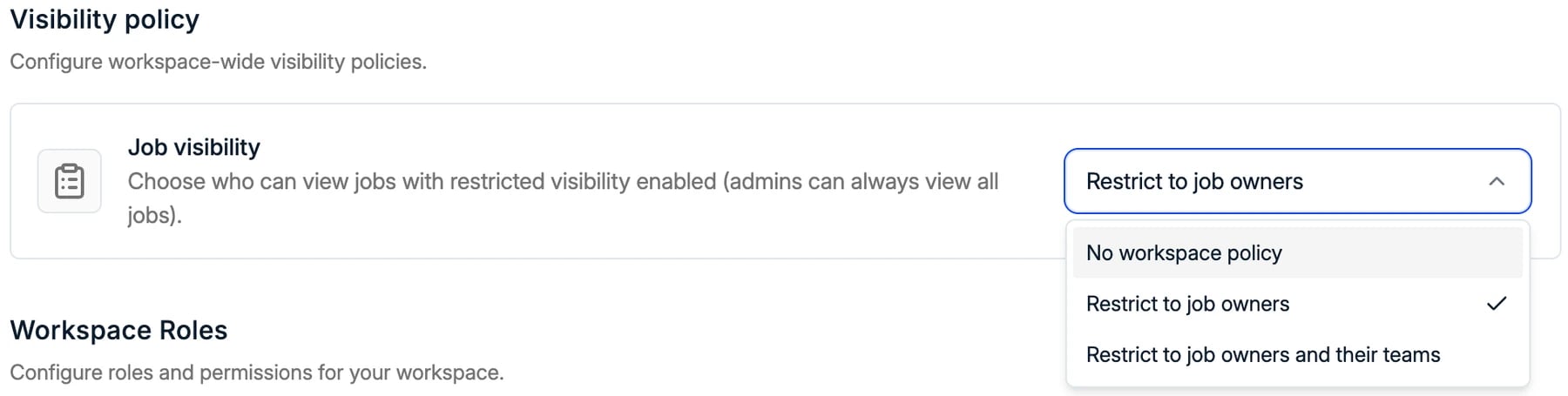 Admins can always see every job, whatever the policy says.
## Restrict a job
When you [create a job](/docs/jobs/adding-a-job), tick **Restrict visibility**. Only the
users the visibility policy allows can then see it.
Admins can always see every job, whatever the policy says.
## Restrict a job
When you [create a job](/docs/jobs/adding-a-job), tick **Restrict visibility**. Only the
users the visibility policy allows can then see it.
 Who can see the job follows the **Job owners** column, so adding or removing an owner
changes access straight away.
Restricting a job is its own permission, **Restrict job access**, switched on per role
in **Settings → Security**. Users without it can work on jobs but cannot change their
visibility. See [managing access](/docs/settings/managing-access).
## What other users see
A restricted job is hidden along with everything that belongs to it. For a user outside
the job:
* **The job** does not appear in the jobs list, search or views. Opening it from a shared
link shows an error page.
* **Its applications and pipeline** are hidden, because an application belongs to its
job.
* **Candidates stay visible.** A candidate is a record in their own right, so the profile
is still there. Only the application on the restricted job is hidden.
* **Applications on other jobs stay visible.** If the same candidate is also on a job the
user can see, that application shows as normal.
* **The Active applications column** on candidates counts only applications on jobs the
user can see.
* **[Placements](/docs/placements/placements)** on a restricted job are hidden. The user
sees only placements on jobs they can access.
Visibility controls jobs and what hangs off them. It does not restrict **companies or
contacts**: the client and its contacts stay visible to everyone, as do notes and
records linked mainly to a candidate. If the client relationship itself is
confidential, a restricted job is not enough on its own.
## When to use it
* **Confidential searches**, where a client has asked that the role is not widely known.
* **Internal recruitment**, when you hire for your own team and the rest of the workspace
should not see the applicants.
Keep restrictions to the jobs that need them. Every restricted job is one your colleagues
cannot help with, and reporting by other users will not include it.
## Related
Roles, permissions, and who can restrict a job.
The teams a job owner belongs to.
Create a job and restrict it from the start.
What happens to placements on a restricted job.
This documentation is built and hosted on [Mintlify](https://mintlify.com), a developer documentation platform.
Who can see the job follows the **Job owners** column, so adding or removing an owner
changes access straight away.
Restricting a job is its own permission, **Restrict job access**, switched on per role
in **Settings → Security**. Users without it can work on jobs but cannot change their
visibility. See [managing access](/docs/settings/managing-access).
## What other users see
A restricted job is hidden along with everything that belongs to it. For a user outside
the job:
* **The job** does not appear in the jobs list, search or views. Opening it from a shared
link shows an error page.
* **Its applications and pipeline** are hidden, because an application belongs to its
job.
* **Candidates stay visible.** A candidate is a record in their own right, so the profile
is still there. Only the application on the restricted job is hidden.
* **Applications on other jobs stay visible.** If the same candidate is also on a job the
user can see, that application shows as normal.
* **The Active applications column** on candidates counts only applications on jobs the
user can see.
* **[Placements](/docs/placements/placements)** on a restricted job are hidden. The user
sees only placements on jobs they can access.
Visibility controls jobs and what hangs off them. It does not restrict **companies or
contacts**: the client and its contacts stay visible to everyone, as do notes and
records linked mainly to a candidate. If the client relationship itself is
confidential, a restricted job is not enough on its own.
## When to use it
* **Confidential searches**, where a client has asked that the role is not widely known.
* **Internal recruitment**, when you hire for your own team and the rest of the workspace
should not see the applicants.
Keep restrictions to the jobs that need them. Every restricted job is one your colleagues
cannot help with, and reporting by other users will not include it.
## Related
Roles, permissions, and who can restrict a job.
The teams a job owner belongs to.
Create a job and restrict it from the start.
What happens to placements on a restricted job.
This documentation is built and hosted on [Mintlify](https://mintlify.com), a developer documentation platform.