> ## Documentation Index
> Fetch the complete documentation index at: https://docs.spott.io/llms.txt
> Use this file to discover all available pages before exploring further.
# Understanding Spott's Company Portal
> Give clients direct, secure access to the candidates you present for their roles.
The Company Portal is a secure space where your clients can view their open roles,
track candidate submissions, and collaborate with your team. It reduces back-and-forth
communication and gives clients real-time visibility into the hiring process.
## Access a job's Company Portal tab
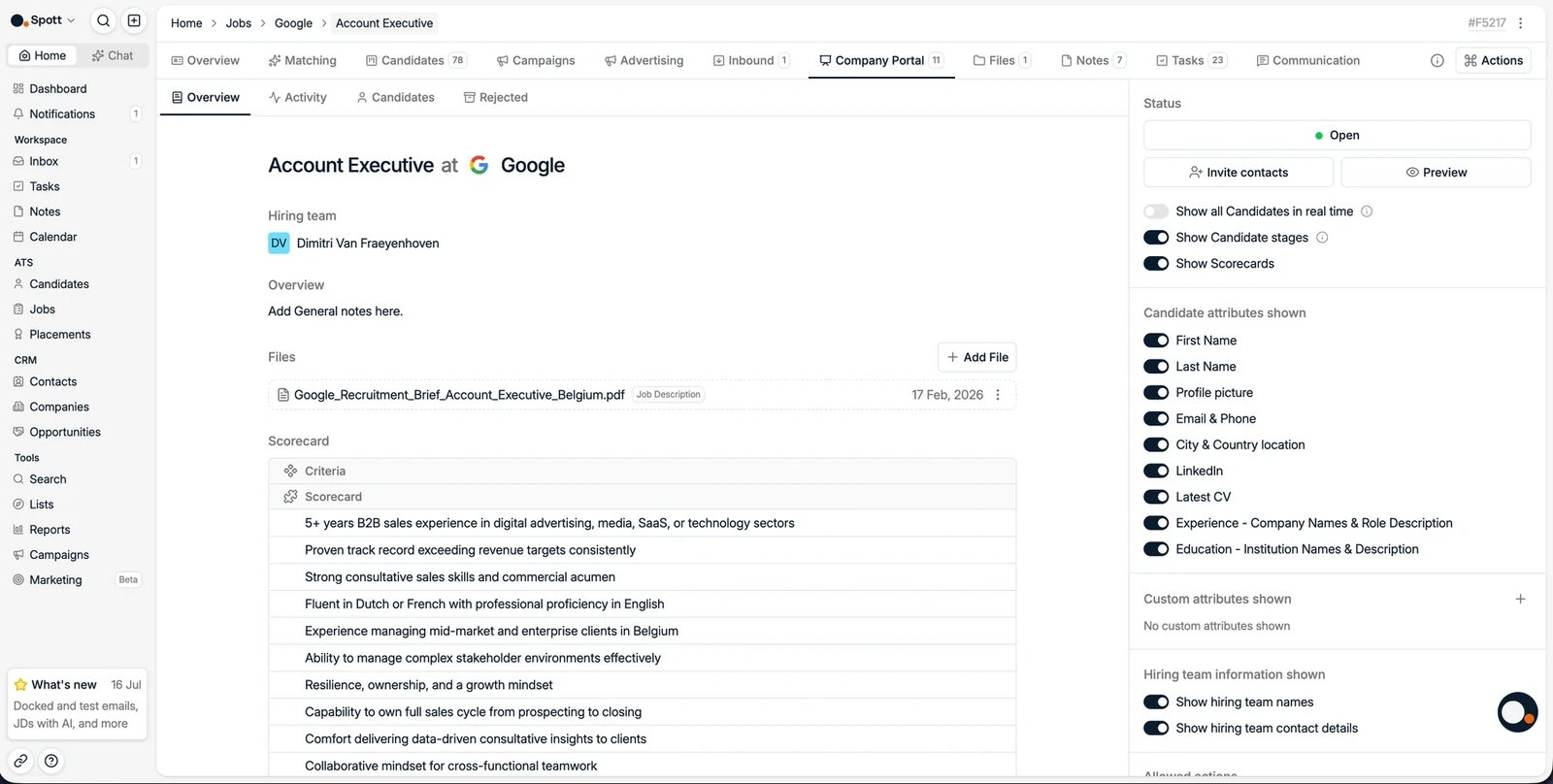 In Spott, go to **Jobs**, open the job, and click the **Company Portal** tab. Inside,
the subtabs show the portal **Overview**, client **Activity**, published
**Candidates**, and **Rejected** candidates.
## Publishing candidates
In Spott, go to **Jobs**, open the job, and click the **Company Portal** tab. Inside,
the subtabs show the portal **Overview**, client **Activity**, published
**Candidates**, and **Rejected** candidates.
## Publishing candidates
 You control exactly who is visible to the client:
* Publish a single candidate with **Publish on portal**.
* Publish in bulk from the job's pipeline: select candidates with the checkboxes and
choose **Add to company portal**.
* Publish **automatically by stage**: with **Show all candidates in real time**
enabled, configure which pipeline stages trigger publication. Candidates are then
shared with the client as soon as they reach the right stage, with no manual
publishing one by one.
## Portal controls
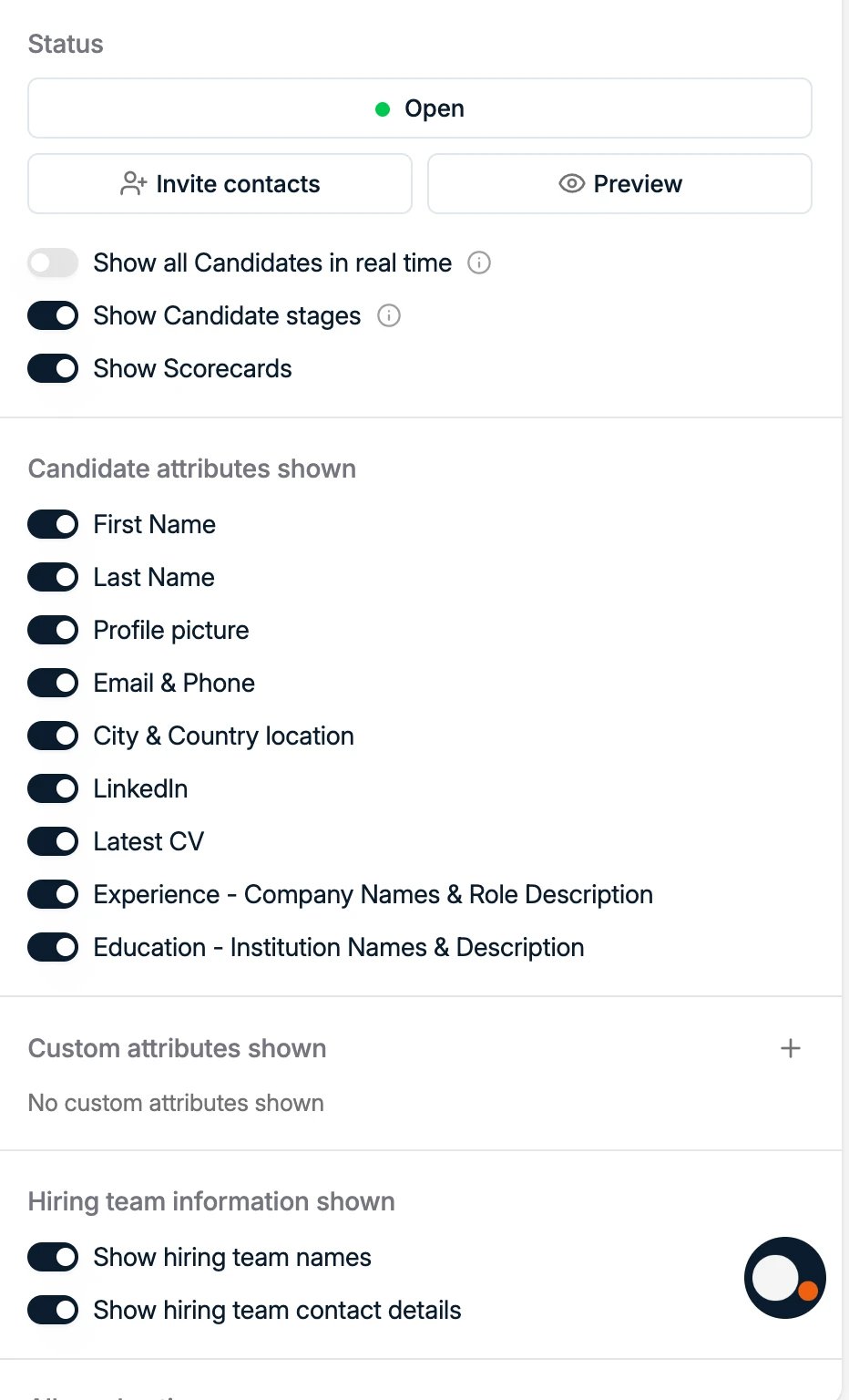
On the right panel you can:
* **Open or close the portal** with the status toggle.
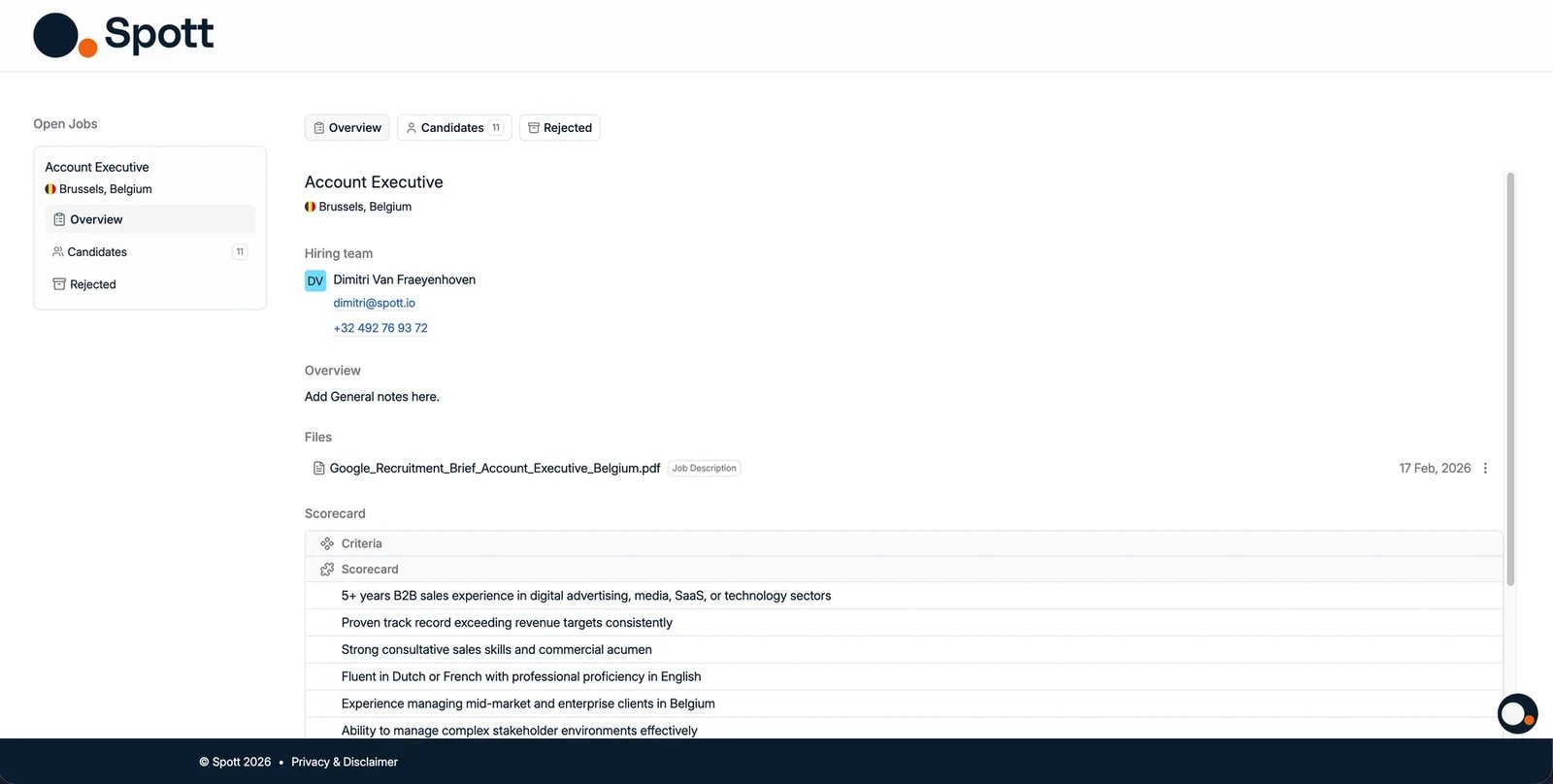
* **Preview** the portal to see exactly what your client will see.
* Choose the **visible candidate fields**: first and last name, profile picture, email
and phone, city and country, LinkedIn, latest CV, work experience, and education. Any
**custom attributes** on the record can be shown too.
* Toggle **Show all candidates in real time** so newly added or updated candidates appear
for the client automatically, rather than a fixed snapshot. Each pipeline stage has its
own toggle, so you decide which stages publish to the portal; early stages such as a
long list can stay internal while later stages share automatically. You can also choose
whether to show candidate **stages** and **scorecards**.
* Show or hide the **hiring team** names and their contact details.
* **Invite contacts**: send client contacts an email with their personal access link
to the portal.
Only contacts registered under the company associated with the job can be invited to
the portal.
You control exactly who is visible to the client:
* Publish a single candidate with **Publish on portal**.
* Publish in bulk from the job's pipeline: select candidates with the checkboxes and
choose **Add to company portal**.
* Publish **automatically by stage**: with **Show all candidates in real time**
enabled, configure which pipeline stages trigger publication. Candidates are then
shared with the client as soon as they reach the right stage, with no manual
publishing one by one.
## Portal controls
On the right panel you can:
* **Open or close the portal** with the status toggle.
* **Preview** the portal to see exactly what your client will see.
* Choose the **visible candidate fields**: first and last name, profile picture, email
and phone, city and country, LinkedIn, latest CV, work experience, and education. Any
**custom attributes** on the record can be shown too.
* Toggle **Show all candidates in real time** so newly added or updated candidates appear
for the client automatically, rather than a fixed snapshot. Each pipeline stage has its
own toggle, so you decide which stages publish to the portal; early stages such as a
long list can stay internal while later stages share automatically. You can also choose
whether to show candidate **stages** and **scorecards**.
* Show or hide the **hiring team** names and their contact details.
* **Invite contacts**: send client contacts an email with their personal access link
to the portal.
Only contacts registered under the company associated with the job can be invited to
the portal.
 ## Workflow
* Select which candidates to publish.
* Configure the visible fields to show or hide details.
* Invite the client contacts who should have access.
* Track their feedback and activity from the Activity subtab.
Clients can **view candidates, leave comments, and request an interview**. They cannot
move candidates between stages, reject candidates, or bulk-export files. Those stay
with your team.
## Workflow
* Select which candidates to publish.
* Configure the visible fields to show or hide details.
* Invite the client contacts who should have access.
* Track their feedback and activity from the Activity subtab.
Clients can **view candidates, leave comments, and request an interview**. They cannot
move candidates between stages, reject candidates, or bulk-export files. Those stay
with your team.