> ## Documentation Index
> Fetch the complete documentation index at: https://docs.spott.io/llms.txt
> Use this file to discover all available pages before exploring further.
# Understanding Applications
> The application record ties one candidate to one job and carries the stage, scorecards, interviews, comments, and activity.
An **application** is the link between one candidate and one job. It carries
everything about that specific process: the stage, scorecards, interviews, comments,
and the full activity history.
## Open an application
Click an application anywhere it appears:
* A card in the [job pipeline](/docs/jobs/job-pipeline)
* The **Candidate** tab on a [candidate profile](/docs/candidates/candidate-applications)
* The applications view on the Jobs page
 ## What you see
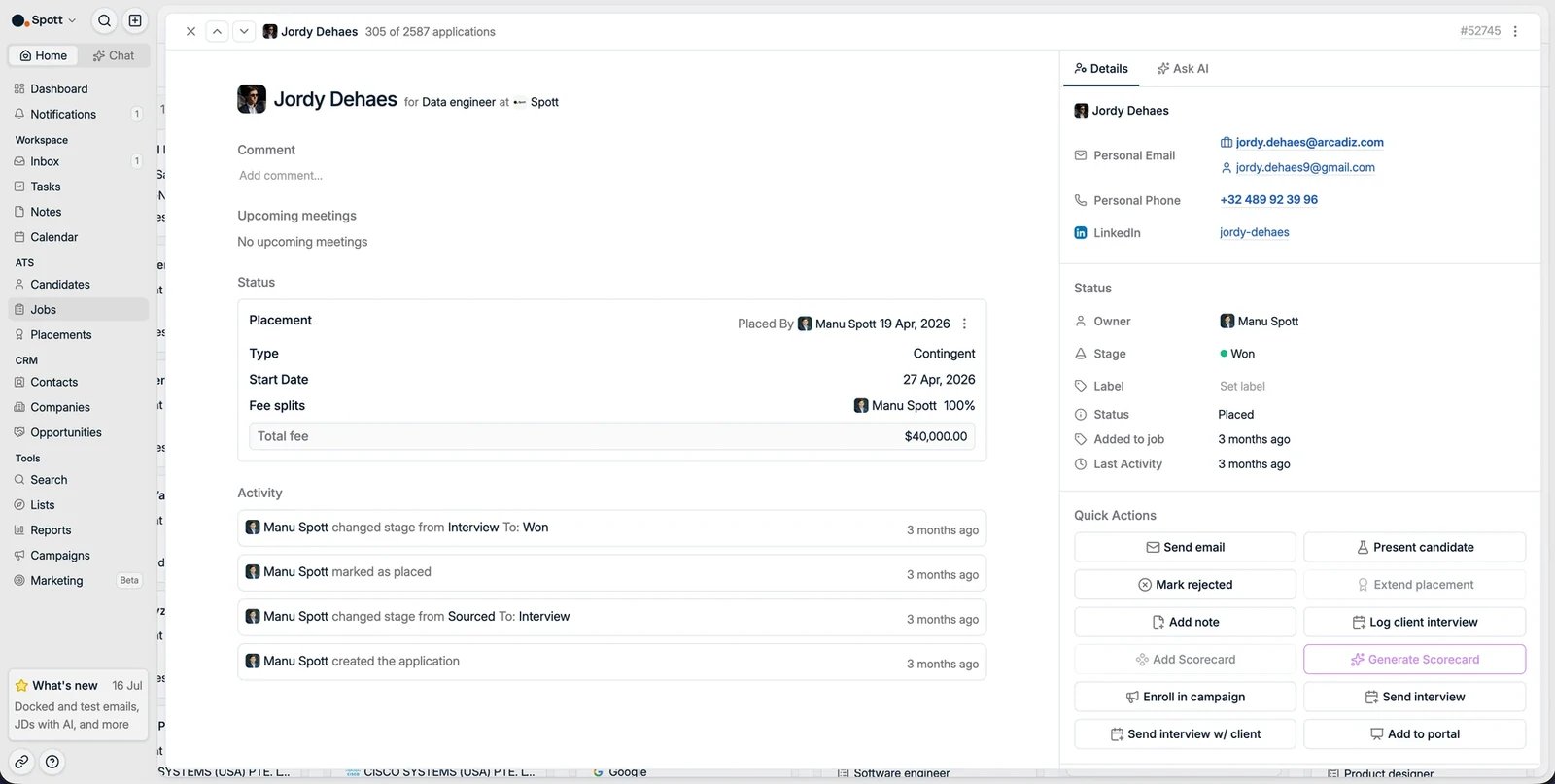
* **Comment**: a free-text summary of where this application stands.
* **Scorecard**: structured evaluation of the candidate for this role. Add one
manually or let AI generate it from your workspace's scorecard template.
* **Interviews**: the interviews held for this application.
* **Active campaigns** the candidate is enrolled in.
* **Activity feed**: everything that happened, filterable by type.
The side panel shows the application's **Details**:
* **Owner**: the teammate responsible
* **Stage** and **Label**: where the candidate is in the pipeline, plus a sub-status
* **Status**: in process, rejected, or placed
* **Added to job** date and **Last Activity**
* Any custom fields your workspace uses
There is also an **Ask AI** tab that knows the whole application.
## Quick actions
## What you see
* **Comment**: a free-text summary of where this application stands.
* **Scorecard**: structured evaluation of the candidate for this role. Add one
manually or let AI generate it from your workspace's scorecard template.
* **Interviews**: the interviews held for this application.
* **Active campaigns** the candidate is enrolled in.
* **Activity feed**: everything that happened, filterable by type.
The side panel shows the application's **Details**:
* **Owner**: the teammate responsible
* **Stage** and **Label**: where the candidate is in the pipeline, plus a sub-status
* **Status**: in process, rejected, or placed
* **Added to job** date and **Last Activity**
* Any custom fields your workspace uses
There is also an **Ask AI** tab that knows the whole application.
## Quick actions
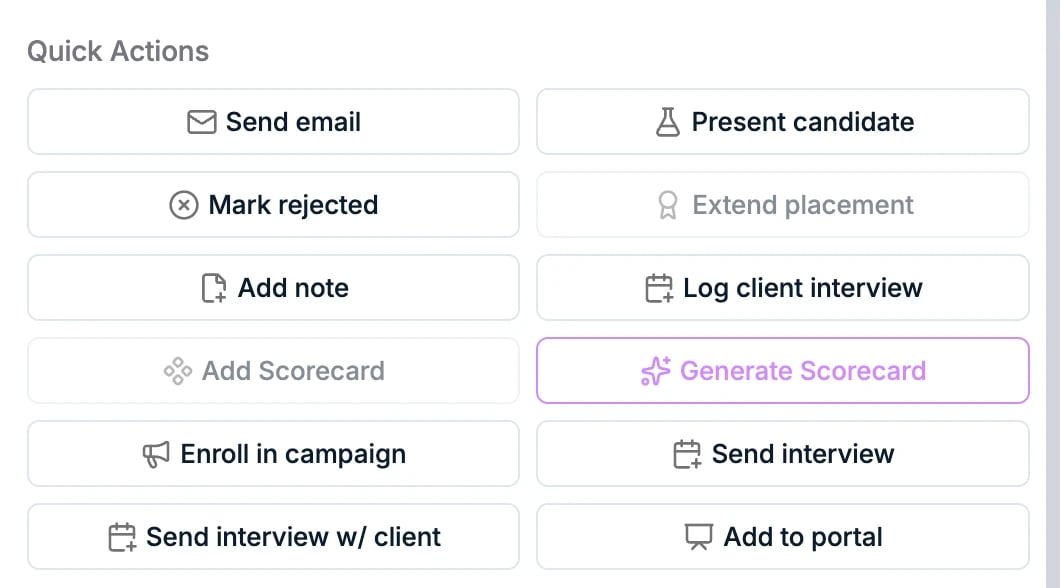 From the application you can act directly:
* **Send email** or **enroll in a sequence**
* **Present candidate** to the client, or **add to portal** to publish them on the
[Company Portal](/docs/jobs/company-portal)
* **Log client interview** or **send interview** invitations
* **New note** and scorecard actions
* **Mark placed**, creating a [placement](/docs/placements/placements)
* **Mark rejected**
## Rejection
Rejecting asks who rejected (for example, the candidate or the client) and one or
more **rejection reasons**, configurable as labels in Settings. Rejected
applications stay on the record with their reasons, and you can always **add the
candidate back to the pipeline** later.
From the application you can act directly:
* **Send email** or **enroll in a sequence**
* **Present candidate** to the client, or **add to portal** to publish them on the
[Company Portal](/docs/jobs/company-portal)
* **Log client interview** or **send interview** invitations
* **New note** and scorecard actions
* **Mark placed**, creating a [placement](/docs/placements/placements)
* **Mark rejected**
## Rejection
Rejecting asks who rejected (for example, the candidate or the client) and one or
more **rejection reasons**, configurable as labels in Settings. Rejected
applications stay on the record with their reasons, and you can always **add the
candidate back to the pipeline** later.